Password for Xfinity Modem: Find, View & Change Safely
Learn how to locate, view, and securely change the password for your Xfinity modem. Step-by-step guidance, security best practices, and troubleshooting tips from Modem Answers.


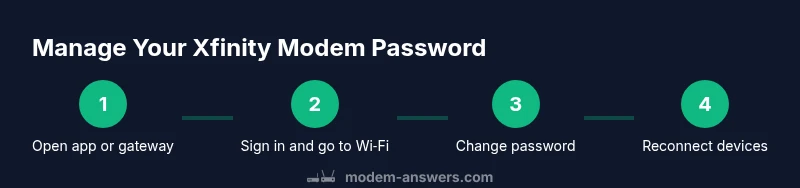
You can manage the password for your Xfinity modem by accessing the device’s admin panel or the Xfinity app. Sign in, then navigate to Wi‑Fi or security settings to view or update the password. If you’ve forgotten it, a reset will restore factory credentials after reboot. Keep your admin login separate from your Wi‑Fi password, and avoid sharing credentials.
What you’ll accomplish with password management on your Xfinity modem
Managing your modem password is a foundational step in securing your home network. Whether you’re changing the Wi‑Fi password to stop a neighbor’s access or updating the gateway admin password to prevent outsiders from modifying settings, the goal is to protect devices and data. This section outlines the outcomes you can expect after following the guidance in this article, including improved privacy, easier device management, and a clear path to diagnose access issues. By the end, you’ll be able to locate, view, and securely update both your Wi‑Fi and admin credentials, while keeping best practices in mind. This content reflects insights from Modem Answers analysis and aligns with common home-network scenarios.
Understanding admin password vs Wi‑Fi password
Two passwords control different parts of your network: the gateway admin password, which unlocks the modem’s settings, and the Wi‑Fi password, which protects the wireless network that devices connect to. The admin password should be strong and unique, since it governs all configuration changes. The Wi‑Fi password is used by everyday devices and should also be robust, ideally a long passphrase. It’s common to keep them separate to minimize risk: if one is compromised, the other remains secured. This distinction is a key concept across modem‑management best practices and is reinforced by industry guidance, including Modem Answers’ recommendations for layered security.
Where to find the password: device label, app, or account portal
There are typically three sources you can check to find or reset passwords. First, inspect the device label on the Xfinity modem; many times it lists the default Wi‑Fi network name and password printed there. Second, use the Xfinity app or web portal to view or change Wi‑Fi settings; apps often provide a quick “show password” option. Third, sign in to your account portal provided by your service provider to manage network credentials. If you have previously changed credentials, you’ll need to use the updated values or go through recovery options. These steps help you locate passwords without guessing and reduce disruptions for connected devices.
Viewing or resetting the Wi‑Fi password in the Xfinity app
Open the Xfinity app and sign in with your account. Navigate to the Wi‑Fi or Network section, then select the current network. Choose the option to view or reveal the password, or to generate a new one. If you choose a new password, save the change and ensure you update any devices that were connected. Apps often guide you through a secure reversal if you forget the Wi‑Fi password, but you’ll still need access to the account to confirm changes. This path is especially useful for renters who don’t have direct access to the modem’s physical interface.
Changing the Wi‑Fi password on the gateway admin page
If you prefer the browser interface or the app doesn’t reveal the password, log into the gateway’s admin page. Use the device’s local IP address or a known portal URL provided by Xfinity. Enter admin credentials, then go to the Wireless or Wi‑Fi settings. Change the password to a strong passphrase (long, with a mix of letters, numbers, and symbols), then save and apply changes. Rebooting the gateway may be required for changes to take effect on all devices. Consider enabling a guest network for visitors to keep your main password secure.
Changing the gateway admin password for stronger security
Beyond the Wi‑Fi password, update the gateway admin password to protect the control plane of your network. In the admin/account settings, look for the Security or System section and choose the option to change the admin password. Use a unique, long password that you don’t reuse elsewhere. After saving, log out and log back in with the new credentials to confirm the change. This step is crucial to prevent unauthorized users from reconfiguring your modem.
Security best practices for Xfinity modem passwords
Adopt a layered approach to password security. Use distinct passwords for admin access and Wi‑Fi, create long passphrases, and avoid common phrases or reused strings. Enable two‑factor authentication if available for your Xfinity account. Store passwords in a reputable password manager rather than writing them down in insecure places. Regularly review connected devices and remove any that you don’t recognize. Modem Answers emphasizes periodic password reviews as part of a proactive home‑network security routine.
Troubleshooting common issues when accessing password settings
If you can’t access the admin page or App to view or change passwords, try these steps: verify you’re on the correct network and device, ensure you have local network access (Wi‑Fi or Ethernet), and check for service outages that block portal access. If you’ve forgotten the admin password, use the account recovery options or perform a factory reset only as a last resort. After any reset, you’ll need to reconfigure the modem and set new credentials. If problems persist, contact your provider’s support line for guided recovery.
After updating passwords: reconnect tips and maintenance plan
Once passwords are updated, you’ll need to reconnect each device with the new credentials. Consider using a password manager to store both Wi‑Fi and admin passwords securely. It’s also a good habit to document when you last changed passwords and set reminders for annual reviews. Regular checks help prevent stale credentials and reduce the likelihood of security incidents. Keeping your firmware up to date is another important maintenance practice suggested by Modem Answers.
Tools & Materials
- Web browser or Xfinity app(Use up-to-date software; try both app and browser if one fails)
- Xfinity account credentials(Needed to sign into the app or account portal)
- Modem or gateway within reach(Local network access required; wired Ethernet can help reliability)
- Password manager(Optional for storing and organizing passwords securely)
Steps
Estimated time: 20-30 minutes
- 1
Open the Xfinity app or gateway login page
Launch the app on your phone or open a browser to the gateway login URL. This first step establishes a secure connection to your modem’s settings. If you’re using a shared device, sign out after finishing.
Tip: If you’re unsure of the login URL, check the device label or your service confirmation email for the correct link. - 2
Sign in with admin credentials
Enter the admin username and password. If you don’t know the admin password, use account recovery options or contact support. Successful sign‑in grants access to sensitive settings.
Tip: If you can’t sign in, avoid guessing repeatedly; use the recovery flow to prevent account lockouts. - 3
Navigate to Wireless or Wi‑Fi settings
Locate the section labeled Wireless, Wi‑Fi, or Network in the admin panel. This is where the current Wi‑Fi password is managed. Some interfaces place it under “Security” or “Advanced Settings.”
Tip: Use the on‑screen search to jump directly to Wi‑Fi settings if your interface supports it. - 4
View or reveal the current Wi‑Fi password
If the password is masked, select the option to reveal it. Make a note of it or have the password manager ready to save the new value.
Tip: Do not leave the password visible on screen longer than necessary to reduce shoulder surfing risk. - 5
Change the Wi‑Fi password
Enter a new, strong passphrase. Aim for at least 12 characters with a mix of uppercase, lowercase, numbers, and symbols. Confirm the new password and save changes.
Tip: Use a memorable but unique passphrase; avoid common patterns or reused strings across sites. - 6
Save changes and apply/reboot if prompted
Click Save or Apply to commit changes. If prompted, reboot the gateway to ensure the new settings take effect across all devices.
Tip: If the reboot is optional, performing a manual reboot can help ensure devices reconnect cleanly. - 7
Reconnect devices using the new password
Update the Wi‑Fi password on each device (phones, laptops, smart speakers, etc.).
Tip: Consider using a password manager to store the new credentials securely for future use. - 8
Optional: Change the gateway admin password
Within Admin or Security settings, update the admin login with a strong, unique password to prevent unauthorized access to the modem settings.
Tip: Choose a password you don’t reuse elsewhere; enable two‑factor authentication if available.
FAQ
What is the default password for Xfinity modems?
There isn’t a single universal default. Check the device label or user guide for the initial credentials, and use recovery options if you’ve forgotten them.
There isn’t one universal default—check the device label or the user guide, and use the account recovery options if you forget.
How do I access the Xfinity modem admin page?
Sign in to the gateway admin page via the device’s local URL or portal provided by Xfinity, then navigate to Wi‑Fi or Security settings to view or change passwords.
Sign in to the gateway admin page from the local URL or portal, then go to Wi‑Fi or Security settings.
Can I reset the modem to factory settings to recover password?
Yes, but a factory reset wipes custom settings. You’ll need to reconfigure the network and set new credentials afterward.
A factory reset works, but it erases custom settings, so you’ll need to set up again from scratch.
Will changing the password disconnect my devices?
Most devices will disconnect and will reconnect automatically once you enter the new Wi‑Fi password.
Yes, devices may disconnect and will reconnect once you enter the new password.
Is it safe to manage passwords from the mobile app?
Yes, the official app uses secure channels. Ensure your device is locked and the app itself is updated.
Yes—use the official app, and keep your device and app updated with a lock on your screen.
What if I can’t sign in after changing the admin password?
Try the account recovery flow or contact support. If needed, a reset may be required, followed by reconfiguration.
If you can’t sign in, use the recovery options or contact support, possibly followed by reconfiguration.
Watch Video
Key Takeaways
- Secure both admin and Wi‑Fi passwords separately
- Use long, unique passphrases for each credential
- Utilize the Xfinity app for quick changes when possible
- Update and test connections after changes
- Document changes and maintain regular password reviews