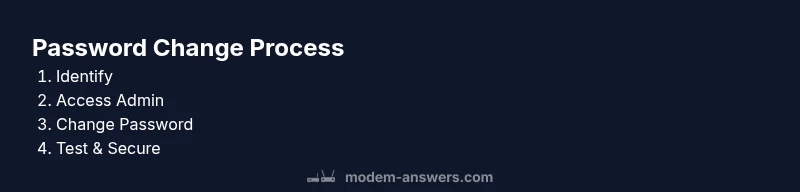
How to Find or Reset Your Comcast Default Modem Password
A practical, step-by-step guide to locating, resetting, and securing your Comcast default modem password, with best practices to protect your home network. Learn from Modem Answers how to safely manage gateway credentials.


To locate or reset your Comcast default modem password, you’ll need a connected computer or phone and access to the modem’s admin interface. Start by checking the device label or user guide for the default credentials, or visit the gateway login page to view or change them. Modem Answers recommends changing it to a strong, unique password immediately.
Understanding Comcast Default Modem Password
For most home networks, the password you use to login to the gateway interface is either the factory credential or a placeholder that the provider sets. The Comcast default modem password is part of this credential set. According to Modem Answers, the default password is typically printed on the device label or included in the setup documentation. Because it is intended to be temporary, you should treat it as potentially vulnerable and change it as soon as you can. When you receive a new Comcast modem or gateway, take a moment to locate every credential: the admin username, the admin password, and the Wi‑Fi network password. Keeping this information in a safe place is essential, since anyone who gains access to the gateway can monitor or modify your network settings. In short, the default password is a starting point, not a secure long-term credential; upgrading to a strong, unique password is a basic step toward protecting your home network.
Where to Find the Default Password
On most Comcast devices, the default modem password and login username are printed on a label affixed to the bottom or back of the unit. If the label is missing or damaged, refer to the manual that came with the device or visit Comcast support for the exact credentials provided with your model. In some cases, the gateway login uses a temporary credential that you are prompted to change on first login. If you still can’t locate a credential, rely on the idea that the default credentials are only used to access the admin interface, not your Wi‑Fi password. For privacy and security, avoid sharing these credentials with others and be mindful when you store them. If your device was provided by Comcast, the company sometimes enforces a one-time login during activation; after you log in, you should be prompted to create a new password. Having a record of your device's model and serial number can help when you contact support.
Why Change the Default Password
Leaving the default password in place creates a window of opportunity for unauthorized access. A strong, unique admin password reduces the risk of someone hijacking settings, changing DNS, or accessing connected devices. Modem Answers emphasizes that security hygiene starts with credentials. In addition to changing the password, consider updating the Wi‑Fi password and enabling WPA3 if your hardware supports it. This combo helps prevent attackers from mapping your network and gaining persistent access. When you adopt a new password, avoid predictable patterns or reused words. Pair the password with good practices, such as keeping firmware up to date and turning off remote management if not needed. Educating all household members about basic security habits also strengthens protection. The more layers you add, the less attractive your network becomes to opportunistic attackers. In many homes, the gateway is the single point of failure; a strong password is a simple, effective defense.
How to Reset or Retrieve the Password
To retrieve or reset the Comcast default modem password, begin by connecting to the gateway using a wired or wireless connection. Open a web browser and enter the gateway IP address shown on the device label or in the manual. If you cannot recall the IP, look for it on the label, or consult Comcast’s official support page for your model. When the login screen appears, use the username and password indicated on your device. If you’ve forgotten the credentials, look for a “Forgot password” option or a reset route. If you require a full reset, locate the small reset button on the back of the device; press and hold it for 10-15 seconds with a paper clip to restore factory defaults. After a reset, re-login with the default credentials, then immediately set a new strong password. Finally, reconfigure your Wi-Fi settings to ensure the network is protected. If you cannot access the admin page after reset, contact Comcast for guidance.
Security Best Practices After Changing Password
After changing the password, store it securely. Use a password manager, enable multi-factor authentication on the admin portal if available, and disable remote management unless you need it. Consider disabling WPS to reduce risk, and ensure your firmware is up to date. Regularly review the devices connected to your network and revoke access for unknown clients. Educate family members about phishing attempts aimed at stealing credentials. Keep separate, strong passwords for the gateway and the Wi‑Fi network; do not reuse passwords across services. For ongoing security, set a reminder to rotate passwords every 6-12 months, and track changes in a safe place.
Troubleshooting Common Issues
Common issues include being unable to access the admin page after a password change, or the gateway labeling not matching current credentials. If login fails, double-check the IP address and the exact username used on your device. If you recently changed the password and still cannot log in, try clearing the browser cache or using a different browser. If you suspect you changed the wrong password or the device is not responding to login attempts, perform a soft reboot by unplugging the modem for 30 seconds and plugging it back in. For stubborn issues, a factory reset may be required; remember that this erases all settings and customizations, so you’ll need to reconfigure your network from scratch. If you are unable to regain access after multiple attempts, contact Comcast support for remote assistance. In any case, document the steps you take and the outcomes so you can re-create a successful login path.
Tools & Materials
- Computer, smartphone, or tablet with web browser(Must be connected to the modem's network (Wi-Fi or Ethernet))
- Comcast modem/gateway(The device you will login to)
- Paper and pen or password manager(For noting the new password and login details)
- A strong password(Minimum 12 characters; include upper/lowercase letters, numbers, and symbols)
- Backup access method(Have ISP support contact handy as a fallback)
Steps
Estimated time: 40-60 minutes
- 1
Prepare to access the gateway
Gather the device, locate the modem, and verify you have the latest account information. Confirm you’re connected to the correct device’s network to avoid altering the wrong settings.
Tip: Have the device’s label handy to confirm model and gateway IP. - 2
Connect to the admin interface
Open a web browser and enter the gateway IP address shown on the device label or manual. If prompted, enter the default username and password or the credentials you previously stored.
Tip: If you don’t know the IP, check the device label or your provider’s support page. - 3
Find the password settings
Navigate to the Security or Password section where the gateway password or admin credentials are listed. Some devices separate Wi‑Fi password from the admin password.
Tip: Take a screen capture or note the exact field name for future reference. - 4
Change the password
Enter a new, strong password and confirm it. Use a mix of upper/lowercase letters, numbers, and symbols, and avoid common words.
Tip: Use a password manager to generate and store the password securely. - 5
Save and verify
Save the changes, log out, and log back in to verify the new password works. If login fails, double-check the password and username.
Tip: If login still fails, reboot the modem after saving changes. - 6
Secure your network after update
Update Wi‑Fi security settings and note the new password in a safe place. Consider enabling additional protections if available.
Tip: Disable WPS if your device supports it for better security.
FAQ
What is the Comcast default modem password?
The default password, if any, is typically provided by the device label or carrier support. Always check the label on the modem first.
The default password is usually on the device label; check there first before trying anything else.
How do I find the gateway IP address?
Look on the modem label or in the manual. If needed, contact your provider’s support page for the exact address to access the admin interface.
Check the device label for the gateway IP or contact support if needed.
Can I reset the modem to factory settings to retrieve the password?
A factory reset restores default credentials but erases custom configurations. Use as a last resort and reconfigure your network afterward.
Factory reset wipes settings; use only when you can reconfigure.
Is changing the password enough to secure my network?
Changing the admin password improves security, but also consider updating Wi‑Fi password and enabling WPA3 if available.
Changing the password helps security; also update Wi‑Fi settings.
What if I forgot the new password?
Use the 'forgot password' option in the gateway login if available or repeat the reset process to set a new one.
Forgot password? Try the reset flow to set a new one.
Watch Video
Key Takeaways
- Identify where to locate the default password on the device label.
- Follow secure password best practices when changing credentials.
- Verify access by re-login after saving changes.
- If login fails, use a factory reset as a last resort.