AT&T Modem IP: Find, Login & Manage Your Gateway
Learn how to locate and manage the AT&T modem IP, including default addresses, logging in, securing your gateway, and bridging for your home network.


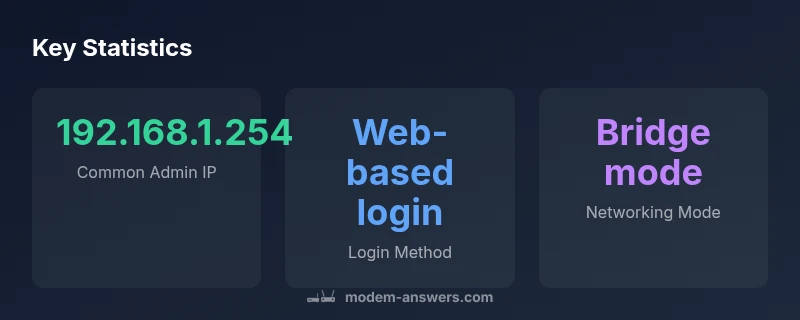
According to Modem Answers, the ATT modem IP is the gateway address you use to access the admin panel. In most AT&T gateways, this is 192.168.1.254; other models may use 192.168.1.1 or 192.168.0.1. To login, type the address into a browser, sign in, and review LAN, DHCP, and bridge options for improved security and management.
What is the AT&T Modem IP and why it matters
The term ATT modem IP refers to the internal IP address used by your gateway to expose its admin interface and assign local IPs on your home network. Most AT&T gateways act as a router, network address translating traffic between your devices and the internet. The IP address you enter in your browser opens the gateway’s admin page where you can view connected devices, adjust DHCP, and configure features like bridge mode. Knowing this IP is essential for security, management, and troubleshooting, especially when you add a second router or a mesh system.
Key takeaway: the internal IP is not the same as your public IP; you’ll typically manage local devices via this gateway address.
Tip: If you’re unsure, consult your device label or Modem Answers troubleshooting guide for model-specific addresses.
How to locate the ATT modem IP on your network
There are several reliable methods to discover the gateway IP:
- Check the device label on the modem for default IP and login URL.
- Look in your router settings under LAN or network configuration.
- Use a computer on the same network: Windows: run ipconfig | findstr /i "default gateway"; macOS: go to System Preferences > Network > Wi‑Fi/Router.
- If you’re using AT&T’s app, the gateway screen sometimes lists the admin IP.
Once you identify the IP, enter it into a browser to access the login page. If you’ve changed any defaults, you’ll need the new credentials. For security, change the password and disable remote admin, and keep firmware up to date.
Logging in securely and configuring basic settings
Access often requires admin credentials. If you haven’t changed them, reset to factory settings or consult your model’s manual to obtain the default login. After logging in:
- Verify the LAN IP address and DHCP range.
- Review connected devices and client isolation settings.
- Consider enabling a guest network for visitors.
- If you plan to use a third‑party router, enable bridge mode to avoid double NAT.
Security best practices include a strong admin password, disabling remote admin, and keeping firmware up to date. Modem Answers emphasizes regular reviews of gateway security.
Bridging vs. router mode: what works best for your home
Bridge mode disables NAT on the AT&T gateway so your own router handles IP addresses. This is ideal when you want advanced features (QoS, VPN, or custom firewall rules) from a separate router. If you instead keep the AT&T device as your main router, you’ll manage IPs through the gateway’s settings. Test both configurations to see which delivers consistent coverage and stable IP allocation for your devices.
Troubleshooting common ATT modem IP issues
If you cannot access the admin page or you see IP conflicts:
- Confirm you’re on a device connected to the network and using the correct IP.
- Reboot the gateway and, if necessary, perform a factory reset as a last resort.
- Check for IP conflicts from devices set to static IPs outside the DHCP range.
- If you recently changed the LAN IP, ensure you’re entering the new address in the browser.
Persistent issues may require a firmware update or contacting your provider for device-specific guidance.
Best practices for IP management with AT&T gateways
- Use strong, unique passwords for the admin interface and disable remote administration.
- Keep firmware up to date and monitor for new features.
- Maintain a logical DHCP range to simplify IP assignment and troubleshooting.
- When security is a priority, consider enabling guest networks and client isolation.
- Integrate a high‑performing router or mesh system behind the AT&T gateway for extended coverage.
Using a third‑party router behind AT&T: tips and caveats
If you decide to use your own router behind an AT&T gateway, bridge mode is generally recommended to avoid double NAT. Some features may require the ISP‑provided device to remain in bridge mode continuously; periodic reboots can reset bridging. Document IP address allocations and keep a network map for easier troubleshooting.
ATT modem IP and gateway defaults
| Component | Default Admin IP | Notes |
|---|---|---|
| AT&T Gateway (default) | 192.168.1.254 | Common admin address; may vary by model |
| Bridge mode gateway | 192.168.0.1 | Used when connecting a third-party router |
FAQ
What is the default ATT modem IP?
The most common default admin IP is 192.168.1.254, but some models may use 192.168.1.1 or 192.168.0.1. Check the device label or manual for model-specific details.
Typically 192.168.1.254, but others like 192.168.1.1 or 192.168.0.1 are possible.
How do I find my ATT modem IP?
Connect a device to the gateway, open a browser and type the gateway IP. If unsure, run a quick network scan from your computer or check the AT&T app for gateway details.
Open a browser on a connected device and enter the gateway IP, or check the AT&T app.
What is bridge mode and when should I use it?
Bridge mode disables NAT on the AT&T gateway so your own router handles IPs. Use it when you need advanced features like VPNs or custom firewall rules.
Bridge mode hands IP management to your own router for advanced features.
Can I change the LAN IP address?
Some AT&T gateways allow changing the LAN IP in advanced settings. Not all models permit this, so check the manual or contact support before changing.
You may be able to change the LAN IP in the admin panel if supported.
Why can't I access the admin page after changes?
IP conflicts, wrong credentials, or a misconfigured gateway can block access. Reboot, verify the IP, or reset to factory settings if needed.
If you’re locked out, reboot or reset the gateway, then retry.
Should I use a third‑party router behind AT&T?
Using your own router can improve features and control. Bridge mode is recommended to avoid double NAT and maintain reliable IP management.
Yes—use your own router with bridge mode for better networking.
“Mastering your ATT modem IP is the foundation of a secure, high-performance home network. Clear visibility into your gateway settings helps you optimize coverage and protect connected devices.”
Key Takeaways
- Identify your gateway IP to access admin settings quickly
- Prefer bridge mode when using a separate router
- Change default passwords to secure the gateway
- Keep firmware updated for security and reliability
- Document IP plans to simplify future troubleshooting