What is wifi modem vs router? A Practical Guide
Analytical, in-depth guide clarifying the difference between wifi modems and routers, with practical upgrade paths, setup steps, and decision criteria for separate devices vs all-in-one gateways.


Understanding what is wifi modem vs router is essential for building a reliable home network. The Modem Answers team breaks down each device’s role, how they connect, and where Wi‑Fi fits into the equation. This comparison helps homeowners decide between separate devices or an all‑in‑one gateway, based on space, budget, and future upgrade plans.
What wifi modem vs router means for your home network
In everyday speech, people often lump the terms together, but a clear distinction matters for performance and reliability. A wifi modem is the device that communicates with your Internet Service Provider (ISP) to bring the internet into your home. A router then takes that internet connection and distributes it to multiple devices, either through Ethernet cables or wirelessly via Wi‑Fi. Wi‑Fi is the wireless layer that your devices connect to in order to access the internet and local network resources. In some setups, a single device combines both functions into a gateway; in others, you’ll use separate devices. Understanding this distinction helps you optimize coverage, latency, and security in real-world spaces, from small apartments to multi‑story homes.
How a modem works (and what it does not)
A modem’s primary job is to establish and maintain a stable link with your ISP’s network. It handles the modulation and demodulation of signals, error correction, and translating between the physical service (coax, fiber, or DSL) and Ethernet. The modem itself does not actively manage traffic between devices or provide local network features like firewall protection or Wi‑Fi. That’s where a router or gateway comes in. The speed rating on a modem indicates the maximum downstream/upstream channel capacity, but actual performance depends on the router, the home layout, and the plan from your ISP. If you rent a modem from your provider, you may receive firmware updates from the MSP, which can influence compatibility with future devices.
How a router works (and why it matters for Wi‑Fi coverage)
A router creates a local network by assigning IP addresses, routing traffic between devices, and enforcing security rules like NAT and a firewall. It also broadcasts the wireless signal that devices use to connect. The router’s performance depends on CPU power, memory, and the wireless standard it supports (for example, Wi‑Fi 5, 6, or 7). A capable router with strong antennas and good placement can dramatically improve coverage, reduce dead zones, and handle multiple devices for streaming, gaming, and smart home gadgets. In essence, the router translates the public internet connection into a fast, reliable home network.
The role of Wi‑Fi in modem-router setups
Wi‑Fi is not the internet itself; it is the wireless medium that lets devices join your home network. In a separate-modem setup, you rely on the router’s wireless capabilities to provide coverage throughout the home. In an all-in-one gateway, the same box handles the broadband connection and Wi‑Fi. Design decisions—antenna placement, band steering, channel selection, and mesh integration—determine how evenly your home is covered. Poor placement or channel congestion can degrade performance, even with modern standards. A well-planned layout, possibly including mesh nodes for large or multi‑story homes, yields far more consistent speeds.
Core differences at a glance: function, ports, and data flow
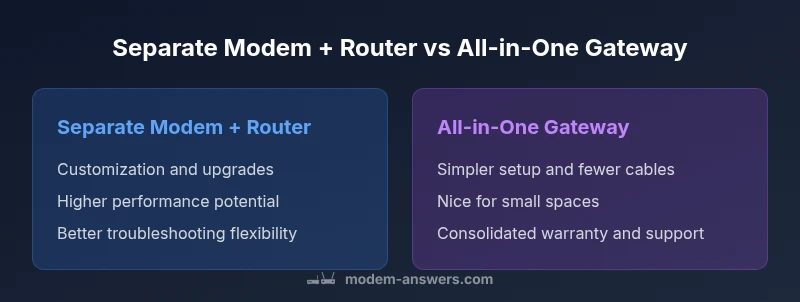
Two devices versus one change how data travels through your network. With separate devices, the modem links to the internet input, and the router builds the local network by assigning IPs, routing packets, and applying security rules. The gateway (all-in-one) merges these roles, reducing cable clutter but limiting upgrade flexibility for either component. Features like multiple Ethernet ports, USB connectivity, and advanced QoS controls are typically richer on dedicated routers than on entry-level gateways. When planning your setup, consider home size, device count, streaming quality, gaming needs, and whether you anticipate future upgrades.
All-in-one gateways vs separate devices: when to choose
For compact living spaces with modest internet use, an all-in-one gateway can simplify setup and minimize clutter. In larger homes or environments with many devices, a separate high-quality modem and router (often paired with a mesh system) typically yields better coverage, reliability, and customization. If you anticipate growth—more streaming devices, smart home hubs, or work-from-home needs—investing in separate components offers far greater upgrade flexibility. Your budget, provider compatibility, and desire for granular control over features like firewall settings and VPNs should influence the decision.
Impact on speed, latency, and reliability
Speed is the result of two factors: your ISP service and the quality of your home network hardware. A modern router with adequate CPU resources and adequate Wi‑Fi bands can maximize throughput and minimize latency for gaming or video conferencing. Conversely, even a fast internet plan won’t shine if the network is poorly designed or hardware is outdated. Owning your modem and router lets you upgrade components as needed, while rental gateways may lock you into a single device lifecycle. Balancing cost with performance potential is key.
Setup steps for a typical home network
Start by confirming your service type (cable, fiber, or DSL) and whether you will use separate devices or a gateway. If you choose separate devices, connect the modem to the service input, power it, then connect the router to the modem with an Ethernet cable. Place the router centrally, run a speed test, and adjust placement as needed. If you choose a gateway, connect it to the service line, power it, and follow the on-screen setup prompts. Create a strong admin password, enable WPA3 if available, and configure a guest network for visitors. Regular firmware updates should be turned on to maintain security.
Security, firmware, and maintenance considerations
Firmware updates are a critical defense against vulnerabilities. For separate devices, update each device on its own schedule; for gateways, updates come from the single vendor. Use strong, unique passwords, enable network segmentation where possible, and disable universal plug-and-play unless you truly need it. Consider enabling a firewall, enabling VPN access for remote work, and auditing connected devices periodically. Routine maintenance—checking for outdated firmware and testing network speed—helps sustain performance and security.
Common misconfigurations and how to avoid them
A few frequent mistakes undermine performance: leaving default admin passwords, failing to change SSIDs and passwords, enabling bridge mode without understanding its implications, and placing the router at the edge of the home. Avoid channel overlap by using both 2.4 GHz and 5 GHz bands efficiently, and consider enabling QoS for latency-sensitive tasks like gaming and video calls. Maintaining a simple network map of devices and their IP assignments makes troubleshooting easier when problems arise.
Real-world upgrade paths by home size and internet plan
Studio or one-bedroom units often manage with a single gateway, delivering acceptable coverage. For multi‑story homes with lots of devices, a dedicated modem and a robust router—often with a mesh system—deliver the most reliable coverage and performance. If you subscribe to very high-speed plans or require low latency for work or gaming, investing in a high-end router with features like advanced QoS, link aggregation, and robust processing power pays off. Tailor your upgrade path to your layout, usage, and budget.
Quick-start checklist to implement today
- Identify your current equipment and ISP compatibility
- Decide between separate devices or a gateway based on space and upgrade plans
- Place the router centrally and test speeds in multiple rooms
- Enable WPA3, change the admin password, and set up a guest network
- Enable automatic firmware updates and backup configuration where available
- Consider a mesh system if coverage is inconsistent across floors
- Run a speed test after setup to verify performance and adjust as needed
Comparison
| Feature | Separate Modem + Router | All-in-One Modem-Router Gateway |
|---|---|---|
| Setup complexity | Moderate to high (two devices, more cables and placements) | Low (one box, fewer steps) |
| Upgrade flexibility | High – upgrade modem or router independently | Low – gateway upgrades involve the entire unit |
| Performance potential | High – customizable hardware, advanced features, mesh support | Moderate – sufficient for many households, limited expandability |
| Security & firmware updates | Independent updates; can patch router or modem separately | Single-source updates; simpler but potentially slower to adapt |
| Space, power, and cable clutter | Two devices, more cables; more planning | One device, minimal clutter |
| Cost trajectory | Possibly higher upfront (two devices; rental optional) | Often lower upfront, but feature limits may require later upgrades |
Positives
- Greater performance potential with dedicated devices
- Easy upgrades by swapping individual components
- Better coverage with high-quality routers or mesh systems
- More advanced security configurations and customization
What's Bad
- Higher initial cost and more setup complexity
- Two devices require more space and cables
- More devices to troubleshoot if issues arise
Separate modem + router generally delivers the best long-term performance and upgradeability.
Choose separate devices if you expect to grow your network or need advanced controls. An all-in-one gateway is best for small spaces and simple setups, but may limit future flexibility.
FAQ
What is the main difference between a modem and a router?
A modem connects your home to the internet service, translating the ISP signal into a usable form. A router creates and manages your local network, distributing the connection to devices via Ethernet or Wi‑Fi. Together, they form the core of most home networks, unless you have a gateway that combines both functions.
A modem brings the internet in; a router shares it with your devices.
Can I use my own modem and router instead of renting from my ISP?
Yes. In many areas you can purchase your own modem and router. Check compatibility with your ISP and ensure you can bridge the modem if required. Owning your gear can reduce rental fees and give you more control over features.
Usually yes, but verify compatibility with your provider.
Do I need a separate modem if I have fiber?
Fiber access often uses an Optical Network Terminal (ONT) rather than a traditional modem. You can still use a separate router to handle Wi‑Fi and local networking, or a gateway that includes the router. The terminology varies, but the principle remains: you need a device to distribute the signal and enable Wi‑Fi.
Fiber generally uses an ONT; you can pair it with a router.
Is Wi‑Fi 6 worth upgrading to for most homes?
Wi‑Fi 6 improves efficiency and performance in crowded environments and with many devices. If you have multiple smart devices, a large household, or heavy streaming/gaming, upgrading to a Wi‑Fi 6 router can be beneficial. For smaller setups, today’s mid-range routers may suffice.
If you have many devices, Wi‑Fi 6 helps with efficiency.
How often should I update firmware on my modem and router?
Check for updates regularly and enable automatic updates if available. Firmware updates patch security vulnerabilities and improve performance. For critical devices, quarterly checks are a sensible routine.
Update when available, and consider automatic updates.
What is a gateway device, and how is it different from separate devices?
A gateway combines the modem and router in a single unit. Separate devices keep those functions separate, which can improve flexibility and troubleshooting. For some homes, a gateway’s simplicity is ideal; for others, separate devices offer better long‑term upgrades.
Gateway = one box; separate devices = more control.
Key Takeaways
- Define your space and performance needs before buying.
- Separate devices offer upgradeability and customization.
- All-in-one gateways simplify setup but limit future upgrades.
- Prioritize security updates and regular firmware checks.