What a Modem Looks Like vs a Router: A Visual Guide
Explore the visual differences between a modem and a router, how to identify them, and what they do in a home network. Learn practical visual cues, configurations, and buying/renting tips from Modem Answers for reliable home networking guidance.


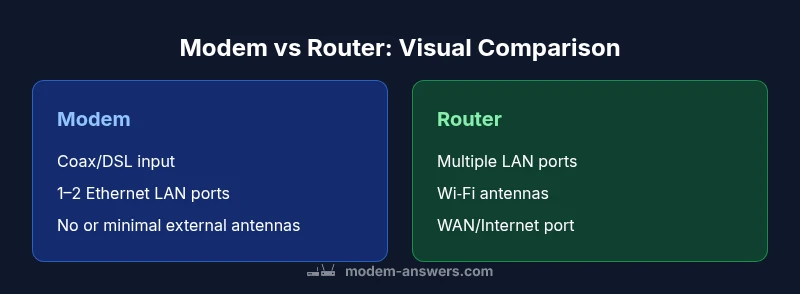
Modems are typically boxy devices with a coax or DSL input from the wall and one to two Ethernet ports; routers distribute network access and usually feature multiple Ethernet ports and Wi‑Fi antennas. Many homes use a separate modem and router, or a provider gateway that combines both. Visual cues and model numbers help confirm which device you’re looking at.
Visual identifiers: what a modem looks like
Modems are the gateway to your internet service and have distinct visual cues you can rely on for identification. In most homes, a modem is a box-like device with a coaxial input coming from the wall, a power adapter, and a small cluster of indicator LEDs. On the back or bottom, you’ll usually find 1-2 Ethernet ports labeled LAN. Some models include USB ports, but those are less common for residential broadband. The key differentiator is the dedicated coax or DSL input—without it, you’re more likely looking at a router or a gateway that integrates functions. According to Modem Answers, awareness of the coax input is a quick-screen test: if there’s a thick coax cable entering the device, it’s typically a modem (or a gateway masquerading as one). Exterior dimensions vary, but the emphasis remains on functional ports rather than wireless coverage. When you inspect your device, check the model number sticker for the exact make and compatibility with your provider.
Visual identifiers: router features you can spot
Routers are designed to broadcast and manage your home network, so their outward appearance often emphasizes wireless capability and connectivity. Look for visible antennas (fixed or detachable), a higher number of LAN ports on the back (typically 4, but some models offer more), and a dedicated WAN/Internet port. Many consumer routers have a more angular or sleek aesthetic with vents to dissipate heat and a Wi‑Fi logo on the top. The Modem Answers team notes that aesthetics tend to reflect function: antennas and airflow usually indicate a device built for broad wireless coverage. If you see multiple external antennas and a glossy finish, you’re likely looking at a router rather than a plain modem.
How to verify device identities when labels are missing
When a label is missing or the model number is unreadable, use a few practical checks. Inspect port configurations: a modem will generally have a coax/DSL input and only 1–2 Ethernet ports, whereas a router will emphasize several LAN ports and a port for the Internet/WAN. Check the power brick and cable arrangement—coax cables coming into a single box usually signal a modem. If you can access the device’s admin interface, the status page often lists the device type and firmware that clearly indicate modem, router, or gateway status. As a fallback, consult your service agreement or account portal to confirm whether the device is a standalone modem, a router, or a gateway.
Common home configurations: separate modem + router vs gateway
In many homes, the recommended configuration is a separate modem and router to optimize performance and flexibility. The modem connects to the ISP line (coax or DSL) and provides an internet feed to the router via an Ethernet cable. The router then creates your home network and distributes Wi‑Fi coverage to devices. Some providers offer gateways that combine both functions into a single enclosure, which can save space but may limit upgrade options. The key visual cue is whether there are two discrete devices (modem and router) or one box labeled as a gateway. Modem Answers recommends assessing your space, coverage needs, and upgrade plans when deciding between a split setup and a gateway.
Placement and cables: how appearance matters in a space
Appearance isn’t just about aesthetics—it influences performance. Place modems and routers in open, elevated locations away from obstructions to maximize signal. A modem’s single-wall coax entry means you’ll likely see a coax cable running to the device, whereas a router will typically be connected to the modem via an Ethernet cable and to power. The visual layout should minimize cable clutter: use short Ethernet runs, route power cords neatly, and avoid stacking devices in enclosed cabinets where heat can build up. If you’re placing a separate router, ensure antennas have space to project signal and consider a central position for even coverage. Modem Answers emphasizes practical placement as a primary factor in achieving reliable speeds, not just what the device looks like.
Visual cues when shopping or renting: reading the box and logos
When shopping or renting, the packaging and labeling tell you a lot. Look for explicit mentions of “modem,” “router,” or “gateway” on the box, plus specifications like DOCSIS version (for cable modems) or Wi‑Fi standard (e.g., Wi‑Fi 5/6/6E). A quick visual check is to count ports and antennas shown in product images, though real devices may vary. Reading customer reviews can reveal whether the device tends to be a modem, router, or gateway in practice. The Modem Answers team recommends confirming compatibility with your ISP and noting whether the device is rented or owned before making a visual judgment. Visuals should align with the stated function to avoid confusion at setup.
Quick-start visual checklist you can use today
- Look for a coax/phone input to identify a modem; routers lack this input.
- Check the back panel for Ethernet ports and a WAN/Internet port on routers.
- Count antennas or look for a Wi‑Fi symbol to identify wireless devices.
- Read the device label or model number to confirm function.
- If two boxes are present (modem + router), you have a split setup; a single gateway box means integrated functionality.
- Verify with your ISP account whether you rent or own the device.
- Consider placement for best signal—avoid crowded power strips and enclosures.
The role of branding and models in aesthetics and function
Branding often influences aesthetics as much as performance. Different manufacturers use distinct finishes, LED schemes, and vent patterns, but the core differences remain: coax vs WAN inputs, the number of ports, and the presence of Wi‑Fi antennas. In some cases, a single brand may offer both a modem and a router, while others market gateway devices for simplicity. Regardless of appearance, ensure the model supports your expected speeds and ISP requirements. Modem Answers highlights that appearance should not be the sole basis for choice; compatibility and performance are equally important.
Common misconceptions about the appearance
A frequent misconception is that a single shiny box is always a gateway; in reality, appearances can be deceptive. Some ISPs provide a modem-only device with an optional router, while others bundle a router module separately. Another myth is that more antennas automatically mean better range; placement, interference, and firmware also play critical roles. Finally, one should not assume that every device with multiple LAN ports is a router—some gateways present several ports for services like VOIP and management. By focusing on the actual inputs, ports, and labels, you’ll accurately determine device roles without guessing from looks alone.
Authority sources
For further reading and official guidance on home networking and device identification, consult these sources:
- https://www.fcc.gov
- https://www.ntia.doc.gov
- https://www.ftc.gov
- https://www.stanford.edu
Comparison
| Feature | Modem | Router |
|---|---|---|
| Primary input port | Coax/DSL input from wall (modem) | Usually none; WAN/Internet port present for network connection (router) |
| Number of Ethernet ports | Typically 1-2 LAN ports (modem) | Multiple LAN ports (often 4+) on routers |
| Antennae | Typically none or internal antennas (modem) | External/internal antennas for Wi‑Fi (router) |
| Built-in Wi‑Fi | Often no built-in Wi‑Fi or limited wireless function | Yes, usually includes Wi‑Fi and more advanced options |
| Size and shape | Boxy, compact with focus on ports | Often slightly larger or more rounded for cooling and airflow |
| Indicative labeling | Coax/DSL label, model number, and provider markings | Wi‑Fi standard, LAN/WAN labels, and model details |
Positives
- Clear separation of roles allows upgrading one device at a time
- Easier troubleshooting with dedicated devices
- Potentially better wireless performance with a purpose-built router
- Flexibility to choose ISP-compatible modems separately
What's Bad
- Requires more space and cable clutter in the setup
- Two devices may add slightly higher initial cost
- Compatibility issues if using an older modem with new services
- More cables to manage compared to a gateway device
Modem vs router: separate devices often yield better performance and upgrade paths
Choose a split setup when you want flexibility and optimal wireless performance. A gateway is convenient for small spaces and simplicity, but may limit future upgrades. The Modem Answers team recommends starting with a split configuration for most homes and evaluating gateway options only if space or simplicity becomes a priority.
FAQ
What is the main visual difference between a modem and a router?
A modem usually has a coax or DSL input and one or two Ethernet ports; a router emphasizes wireless distribution and often has multiple LAN ports and antennas. Visual cues are helpful, but confirm with the model label or your ISP account to be certain.
A modem shows a coax or phone input on the back and just a couple of ports, while a router has many LAN ports and Wi‑Fi antennas. Check the label to confirm.
Can a single device be both a modem and a router?
Yes. Many ISPs provide gateways that combine modem and router functions in one enclosure. Some homes use a separate modem and router for best performance. Verify with your provider what device you actually own or rent.
Yes. Providers often give you a gateway that does both. If you want more control, you can use separate devices.
How can I identify my device if there is no label or it’s worn off?
Check the power and port layout: coax input with 1–2 Ethernet ports typically signals a modem, while multiple LAN ports and a WAN port indicate a router. If possible, access the device’s admin page for device type and firmware details. You can also consult your ISP account for device type.
Look at the ports and try the admin page if you can. Your ISP account often lists the device type.
Do all homes need a separate router if they already have a modem?
Not always. If you want consistent wireless coverage and easier upgrades, a router is useful. Some solutions use a gateway that includes both functions for simplicity, especially in smaller spaces or for basic needs.
Not necessarily. A gateway can work, but separate devices give more flexibility.
What should I look for when buying or renting a modem or router?
Look for compatibility with your ISP, supported DOCSIS (for cable) or fiber standards, Wi‑Fi speed and stability, the number of Ethernet ports, and whether a device is rented or owned. Visual cues like labels and model numbers help, but confirm technical specs before purchase.
Make sure the device matches your ISP and supports your internet plan. Check ports and Wi‑Fi specs.
Do provider-provided gateways look the same across brands?
Gateways vary by provider and region, but they typically present as a single box with both modem and router capabilities. Differences in size, LEDs, and vent design are common, but the core functions remain similar. Always confirm device type with your provider.
Gateways differ by brand and region, but you’ll usually see one box with both modem and router features.
Key Takeaways
- Identify each device by its input and port layout
- Prefer separate modem and router for flexibility and upgrades
- Use a gateway only if space or setup simplicity is paramount
- Verify with ISP before purchasing or renting
- Keep a visual log of devices for future troubleshooting
- Check labels and model numbers to avoid misidentifying devices