How to Tell Modem from Router: A Practical Guide
Learn to tell modem from router with clear, step-by-step checks. Identify labels, ports, indicators, and how each device connects to your network for smoother setup and troubleshooting.


You can tell a modem from a router by checking labels, port layout, and how they connect to your internet service. A modem usually has a single Ethernet output and a coax or fiber input, while a router provides multiple LAN ports and Wi‑Fi. This quick guide will help you identify each device confidently.
What is a modem vs router?
In most homes, two devices manage internet access: a modem and a router. Understanding how to tell them apart can save time during setup and troubleshooting. If you ever wonder how to tell modem from router, the answer comes down to function, labeling, and how each device connects to your network. A modem provides the bridge to your internet service, converting the external signal into an internet connection for your home. A router then creates the local network, distributing that connection to devices via Ethernet and Wi‑Fi. This guide, according to Modem Answers, offers practical checks homeowners and renters can perform without specialized tools. By the end, you’ll confidently identify which box is which and what role each plays in your home network.
Labels and model numbers: quick visual checks
Most devices announce their purpose on the chassis. Look for words like Modem, Router, Gateway, or Internet on the label. If the device is a gateway, it may include both functions in a single box. Note the model number and manufacturer as a reference when you search for manuals or firmware updates. If you don’t see a clear label, the shape and port layout often tell you which device you’re looking at: modems tend to have a single or few ports, whereas routers typically provide more LAN ports and can broadcast Wi‑Fi.
The role in your network matters more than the name
A modem communicates with your ISP and converts the service signal into a usable internet connection. A router creates your home network and assigns IP addresses to devices, handling traffic between wired and wireless clients. If a device is providing Wi‑Fi and multiple Ethernet ports to devices on your network, it is almost certainly acting as a router (or a gateway if combined). Understanding this helps you plan upgrades, troubleshoot connectivity, and explain issues to service providers.
Indicators you’re dealing with a gateway vs separate devices
If you only see one device connected to your wall jack and it provides both internet access and Wi‑Fi, you’re likely looking at a gateway (modem + router in one). If you notice two distinct devices—one near the wall outlet and another distributing Wi‑Fi—you have separate modem and router units. Gateways often include a single admin address and simplified management pages, while separate devices provide more granular controls and features like guest networks, QoS, and advanced firewall rules. The distinction matters for firmware updates and service compatibility.
Tools & Materials
- Coaxial/fiber input cable(Needed to identify a typical modem input (coax) or fiber feed)
- Ethernet cable (Cat5e/Cat6)(Used to test connections and access admin pages)
- Smartphone or computer(For accessing admin interfaces and confirming network behavior)
- Device labels/manuals(Helpful for confirming function and model)
- Notepad or photo app(Record findings and label devices for future reference)
Steps
Estimated time: 15-25 minutes
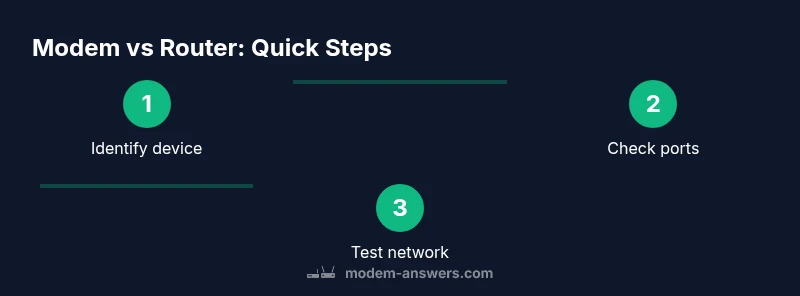
- 1
Gather and identify
Collect all devices connected to your internet service and locate any labels or model numbers. This helps you avoid guessing and sets a baseline for testing. If you have a single box, note whether it acts as both a modem and a router.
Tip: Take a quick photo of each device’s label and ports for later reference. - 2
Look for clear labels
Check for words like Modem, Router, Gateway, or Internet. Clear labels usually indicate the device’s role. If you only see a single device, confirm whether it’s marketed as a gateway or a modem-router combo.
Tip: If the label is worn, rely on port layout and network behavior to infer the role. - 3
Inspect ports and interfaces
Modems typically have one main Ethernet output. Routers provide multiple LAN ports and often a WAN/Internet port. A gateway may combine both into a single chassis. This helps you map the devices to their functions.
Tip: Count ports: 1–2 on modems vs 4–8 on many routers. - 4
Test connectivity and Wi‑Fi
Connect a device to the network and observe whether Wi‑Fi is provided by one device (gateway/router) or by a separate router. If the same device handles Wi‑Fi and assigns local IPs, you’re likely looking at a gateway.
Tip: Pause or pause testing if you notice service interruptions; avoid making changes during peak usage. - 5
Access the admin page
Use a browser to visit the device’s admin address (typical IPs include 192.168.0.1 or 192.168.1.1). See which device has the admin interface and what it controls. The presence of two admin interfaces usually means separate modem and router.
Tip: If you can’t reach the page, ensure your device is powered on and connected to your computer via Ethernet or Wi‑Fi. - 6
Document findings
Create a quick diagram or list that labels each device, its role, and any known constraints (e.g., bridge mode or ISP-provided firmware). This makes future maintenance easier and helps when coordinating with support.
Tip: Keep this documentation in a central place, like a home network notebook or a digital note.
FAQ
Can a single device act as both modem and router?
Yes. Some devices are gateway devices that combine modem and router functions in one box. Others are separate units. Understanding which type you have helps with setup and troubleshooting.
Yes. Some devices combine both roles in one box, called gateways. Others are separate. Knowing which type you have helps with setup and troubleshooting.
What is the easiest sign that I’m looking at a gateway?
If the device provides Wi‑Fi and also acts as the main hub for IP management, it’s likely a gateway. Look for a single admin page covering both modem and router settings.
If one device provides Wi‑Fi and handles IP management, it's probably a gateway.
What should I do if I can’t determine the device type?
Consult your ISP’s support resources or your device’s manual. When in doubt, contact the service provider to confirm which box is used for your internet connection.
If you can't tell, check the manual or contact your provider to confirm.
How do I access the device’s admin page safely?
Connect to the device via Ethernet or Wi‑Fi and navigate to the default gateway address (e.g., 192.168.0.1 or 192.168.1.1). Log in with the credentials found on the device label or manual.
Connect to the device and open its admin page using its default address.
Why are there two LED indicators blinking?
Blinking lights typically indicate activity or boot status. If you’re unsure what a blink pattern means, check the manual or manufacturer support site for the specific device.
Blinking lights show activity or status; consult the manual for specifics.
Watch Video
Key Takeaways
- Identify by function, not just name.
- Labels, port layouts, and admin pages reveal roles.
- ISP gateways combine modem and router in one box.
- Document findings for easy future reference.