How to Tell Modem from Router Spectrum: A Practical Guide
Learn how to distinguish Spectrum modem and router devices with practical steps, visual cues, and admin checks. This guide helps homeowners identify gear accurately and optimize their home network.


To tell a modem from a router, check each device’s role: the modem interfaces with Spectrum’s line and provides a single public IP, while the router creates your home network and assigns multiple private IPs to devices. Look for clear labels, port layout, and indicator lights. Keep Spectrum account details handy and note where each device is placed.
Understanding the roles: modem vs router in Spectrum setups
In most home networks, two distinct devices handle internet access and local network management: the modem and the router. Spectrum's service design often uses a gateway device that combines both functions, or it may provide a standalone modem paired with a separate router. The key difference is the role each device plays in your network. The modem is the bridge to Spectrum’s network, translating the coax or fiber signal into a digital stream your devices can use. The router takes that stream and creates your home network, assigning local IPs, managing traffic, and delivering Wi‑Fi to phones, laptops, and smart devices.
If you’re paying for Spectrum internet, you may encounter either a dedicated modem, a standalone router, or a gateway that performs both roles. Understanding which device you own helps with troubleshooting, firmware updates, and ensuring you’re using the correct bridge mode when needed. According to Modem Answers, many households struggle to distinguish the devices when Spectrum provides a combined gateway, so starting with a clear role is essential.
This quick distinction sets the foundation for the deeper checks below and helps prevent misconfigurations that can slow your network or cause connection drops. By knowing which device is acting as the bridge (modem) and which one is managing the network (router), you simplify future upgrades, diagnostics, and service calls. CDATA
Tools & Materials
- Smartphone or computer with a web browser(For admin-page access and account checks.)
- Ethernet cable(Use a wired connection when testing router features.)
- Power supplies for both devices(Have replacement adapters handy in case of power issues.)
- Notepad and pen(Document labels, IPs, and steps taken.)
- Spectrum account information(Username/password or app access to verify service type.)
- Paper labels or sticky notes(Mark devices after tests to avoid confusion.)
Steps
Estimated time: 15-25 minutes
- 1
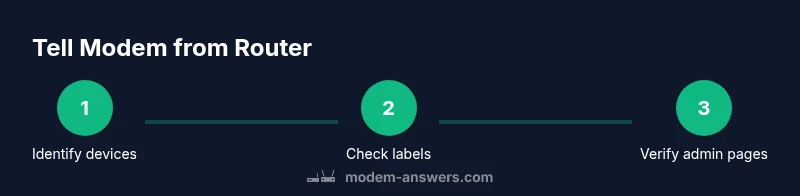
Identify devices physically
Locate both devices in your space and note which is connected to the incoming Spectrum line. Photograph cable connections before unplugging anything to keep a visual record. This helps ensure you don’t misidentify a gateway for a modem or vice versa.
Tip: Take a quick photo of the rear ports to reference later. - 2
Check device labels and packaging
Look for explicit labels such as “Modem,” “Router,” or “Gateway” on the front, back, or bottom of each unit. If Spectrum provided a box or flyer, compare model numbers to the device body to confirm roles.
Tip: If you can’t find a label, rely on port layout and admin access as a secondary check. - 3
Inspect ports and WAN labeling
A router typically features a dedicated WAN/Internet port and several LAN ports; a modem usually has only a few LAN ports and no WAN port. The presence of a WAN port is a strong clue that the device is functioning as a router (or gateway).
Tip: Some gateways merge both functions; don’t assume based solely on port count. - 4
Access admin interfaces to confirm roles
Connect a computer to each device and open the device’s admin page (e.g., via a browser with 192.168.x.1 or 192.168.0.1 as the gateway). Look for DHCP, NAT, and Wi‑Fi settings to determine if the device is routing traffic or simply passing through to another router.
Tip: Use wired connections for reliability when testing admin interfaces. - 5
Decide on a setup path
If you have two separate devices, you’re likely in a traditional modem+router setup. If Spectrum provided a single device with both functions, you may be dealing with a gateway and could consider bridge mode if you plan to use your own router for advanced features.
Tip: Bridge mode can simplify troubleshooting and give you full control of your own router. - 6
Document findings and label devices
Create a simple diagram or note that labels each device’s role and connection to the network. Keep original packaging or order details for future reference and support calls.
Tip: Keep the documentation accessible for future changes or service visits.
FAQ
How can I tell which device is the modem vs the router in a Spectrum setup?
Start by locating both devices and checking labels. Then verify each device’s role in the admin interface and observe how the network is managed (DHCP, NAT, Wi‑Fi). If one device handles the ISP line and another provides local networking, you’ve got a modem and a router. Spectrum gear can be a gateway that combines both.
Find the labeled devices, check their admin pages, and see which one handles your local network.
Does Spectrum always provide a gateway that combines modem and router functions?
Spectrum sometimes supplies a gateway that acts as both modem and router. When in doubt, check your account or the device’s labeling to determine if you have separate devices or a single gateway.
Spectrum often uses a gateway, but you can confirm by checking labels and admin pages.
Can I use separate modem and router if Spectrum gives me a gateway?
Yes, you can use a separate modem and router. In that case, you may need to enable bridge mode on the gateway or disable its router functions to avoid double NAT. Check Spectrum’s guidance for compatibility and activation.
Yes, you can use separate devices, but you might need to set bridge mode.
How should I reset a modem or router if things aren’t working?
Power cycle first by unplugging and replugging power. If issues persist, back up configurations before a factory reset and reconfigure from scratch.
Restart first, then reset only if needed and with backups ready.
Do I need Spectrum to activate a new modem or router?
If you’re adding a new device, Spectrum may require activation. Follow their activation steps or contact support to ensure service continuity and proper provisioning.
Spectrum may need to activate new hardware; follow their steps or ask support.
Watch Video
Key Takeaways
- Identify each device by role before making changes
- Spectrum gear may be a gateway that combines modem and router
- Use admin pages to confirm device functions
- Document findings for easy future reference