Do You Need to Update Modem Firmware? A Practical Guide
Learn when to update your modem firmware, how updates work, potential risks, and best practices for a secure, stable home network. A Modem Answers step-by-step guide.


Yes, you usually should check for firmware updates when you notice performance issues or security alerts. In many cases, updates improve reliability and protect against vulnerabilities. If your modem supports automatic updates, enable them; otherwise, schedule a monthly check and apply updates during a low-traffic window. Keep an eye on release notes and any provider advisories before applying the update.
Understanding firmware updates and why they matter
Firmware is the low-level software that runs inside your modem. It controls how the device boots, handles network traffic, and applies security checks. When vendors publish a firmware update, it’s usually to fix bugs, patch security vulnerabilities, improve compatibility with new devices, or optimize power usage. For homeowners and renters, staying current on firmware can lead to more stable connections, fewer drops, and better Wi‑Fi performance in multi‑device homes. However, updates can also cause brief downtime or require a reboot, so it’s wise to plan accordingly. The question do you need to update modem firmware doesn't have a one-size-fits-all answer; it depends on your equipment, your internet service provider, and your tolerance for occasional interruptions. In many cases, a timely update brings net benefits that outweigh the small trade-offs, especially if you rely on smart devices or telework. This guide explains how to evaluate your situation and execute updates safely, with minimal risk. Modem Answers’ perspective is grounded in practical, step‑by‑step guidance for real homes.
Do you need to update modem firmware
This section addresses the core question with a practical mindset. In most homes, a firmware update is not something to fear, but a proactive maintenance task. If your modem is performing normally, you may opt to delay updates briefly; however, ignoring critical security advisories or bug fixes can expose your network to risks. Providers occasionally push updates to address vulnerabilities, compatibility issues with new devices, or outages caused by older firmware. The right choice depends on your risk tolerance, the age of your device, and how critical your connectivity is for work or schooling. The bottom line: staying informed and maintaining a regular update habit reduces long‑term risk and helps you avoid repeat problems.
How firmware updates improve security and reliability
Firmware updates often patch security flaws that could expose your home network to threats. They also introduce compatibility fixes with new Wi‑Fi standards, better crash recovery, and improved device monitoring features. For households with many smart devices, even small improvements in the modem's management of traffic can reduce latency and jitter. In terms of reliability, updates can fix firmware bugs that cause router slowdowns, leak memory, or generate heat that affects performance. Regular updates are a cornerstone of long‑term network health, especially when you have work‑from‑home setups or streaming in high definition. The practice of updating is not merely about new features; it’s about reducing risk and ensuring that your home network continues to function when you need it most. Modem Answers analysis shows that timely updates provide meaningful benefits over typical 6‑ to 12‑month cycles.
How to check your current version and update channel
Your first step is to identify the firmware version and the update channel your device uses. Many modern modems expose this information in their admin interface or companion mobile app. Look for sections labeled “Firmware,” “Software Version,” or “About.” Some providers offer automatic updates by default; others require manual checks. Note the published version number, release date, and any notes from the manufacturer about what’s fixed. If your device is older or has known vulnerabilities, a newer version may be especially important. After you confirm the current version, compare it against the latest release notes to decide if an update is warranted. If you’re unsure, consult the provider’s support resources before proceeding.
Manual vs automatic updates: pros and cons
Automatic updates are the easiest path for most households. They ensure you benefit from security patches without remembering to check for new versions. The downside is less control over scheduling and sometimes brief reboots during peak hours. Manual updates give you control over when and how updates happen; you can pause, review release notes, and back up settings beforehand. The trade‑off is a higher risk of downtime or update failures if something goes wrong. If you value stability and are comfortable following steps, manual updates can work well; otherwise, enable automatic updates and set maintenance windows to minimize disruption.
Step-by-step: preparing for an update
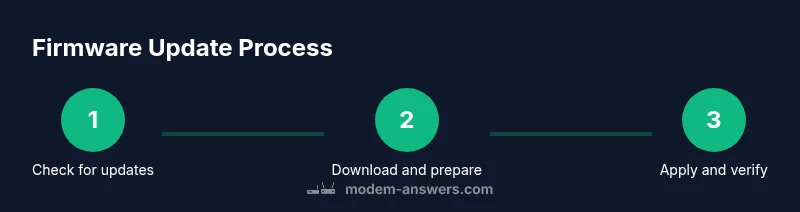
Preparation minimizes risk and helps ensure a smooth update. Start by choosing a stable power source and a reliable internet connection. If you have multiple critical devices, consider performing updates during a low‑traffic period. Back up essential settings and note down your current network configuration (SSID names, passwords, port forwards, and any custom DNS). Confirm you have admin access to the modem or gateway interface, as you’ll need to log in to initiate the update. If your equipment supports a hardware watchdog or a recovery option, familiarize yourself with those features. Finally, review release notes for the update to understand what will change and whether any steps differ for your specific model.
Step-by-step: performing the update
Log in to the modem’s admin interface or the provider app and navigate to the firmware or software update section. If automatic updates are enabled, monitor the process but avoid manual changes during the update. Initiate the update and wait for the device to reboot if required. Do not unplug the modem during the update, even if progress stalls briefly. After the update finishes, verify the new version number and confirm that the device reconnects to the internet. If you encounter a stall, reboot the modem gracefully and retry. For most users, the update should complete within 5–15 minutes, with a brief additional reboot depending on the model.
Step-by-step: verifying the update and testing performance
Once the update completes, re‑log in to confirm the firmware version reflects the new release. Run a quick network check: perform a speed test, ping a reliable server, and confirm the Wi‑Fi network is functioning across essential devices. Confirm that connected devices still have access to the internet and that port forwards or guest networks (if any) remain intact. If you rely on voice assistants or smart home hubs, test a few routines to ensure there are no regressions. Document the update date, the new version, and any observed differences in performance. Ongoing monitoring for 24–72 hours post‑update can catch subtle issues early.
Troubleshooting common update issues
If the update fails, first power cycle the modem and retry. Check for indicators such as red lights or error codes in the admin interface. If you still cannot complete the update, consult the provider’s support resources or contact customer service. In some cases, a factory reset or recovery mode may be required, but that should be a last resort after backing up settings. Device compatibility and outages can also cause update failures; check service status pages for your provider. If you continue to experience problems, report the issue with model details, firmware version, and error messages to get targeted guidance. Proactive reporting helps avoid repeated downtime for your home network.
Best practices for ongoing firmware health and future updates
Create a simple routine for firmware health: check for updates monthly or quarterly, enable automatic updates if you trust the vendor’s scheduling, and maintain a log of changes. Always back up your configuration before any update, and plan updates during low‑traffic windows. Consider having a small, dedicated UPS or stable power source if you experience frequent outages. Review release notes or advisories from the manufacturer or provider to stay ahead of security concerns. Finally, test after each update and adjust your home network settings as needed to preserve performance and reliability.
Tools & Materials
- Modem or gateway device(The device you will update; ensure it has a stable power source.)
- Smartphone, tablet, or computer(Used to access the admin page or provider app.)
- Stable internet connection(Prefer wired when possible; avoid updates on flaky connections.)
- Uninterruptible power supply (UPS) or reliable power source(Prevents bricking during update due to power loss.)
- Ethernet cable (optional but recommended)(Wired connection reduces risk of dropouts during large updates.)
- Admin credentials for the modem/provider app(Needed to log in and start the update.)
Steps
Estimated time: 45-60 minutes
- 1
Prepare your equipment
Collect the modem, power source, and a connected device to access the admin page. Confirm power stability and a clean network environment to avoid interruptions during the update.
Tip: Have a backup plan if more than one device needs updates in a single home. - 2
Back up current configuration
Document current SSIDs, passwords, port forwards, and any custom DNS settings. Export or copy important settings if the interface allows.
Tip: Take screenshots of settings you don’t want to reconfigure manually. - 3
Check for available updates
Log in to the admin panel or provider app and navigate to the firmware section. Note the current version and the latest release notes.
Tip: Read release notes to understand fixes and potential changes. - 4
Choose update method
Decide between automatic updates and manual updates based on your tolerance for downtime and desire for control.
Tip: Automatic updates are easiest; manual updates give you more oversight. - 5
Apply the update
Initiate the update and avoid unplugging the device. Let the modem reboot if required.
Tip: If the update stalls, wait for a reasonable time, then retry before interrupting. - 6
Verify the update
Confirm the new firmware version in the admin page and ensure the internet connection is restored.
Tip: Test a quick speed check to verify performance improvements. - 7
Document and monitor
Record the update date and version, and monitor network stability for the next 24–72 hours.
Tip: Keep a simple log for future reference and troubleshooting.
FAQ
Should I always update firmware as soon as it's released?
Not always. Read release notes and weigh downtime against security and performance gains. For critical fixes, prioritize timely updates.
Not always. Check the release notes and plan downtime; prioritize security patches when possible.
How can I tell if an update is required for my modem?
Look for an 'update available' indicator in the admin interface or provider app and review the vendor's advisories for your model.
Look for update notices in the admin page and read the vendor advisories.
What should I do if the update fails?
Retry after a clean power cycle. If failures persist, consult provider support or use recovery options outlined by the manufacturer.
Retry with a power cycle; if it keeps failing, contact support.
Will updates change my network settings?
Some updates may reset to defaults; back up your configuration before updating to minimize reconfiguration needs.
Settings can reset; back up configs before updating.
Can I enable automatic updates?
If supported, enabling automatic updates is convenient and ensures timely patches without manual checks.
Yes, turn on automatic updates when your device supports it.
What are the risks of interrupting an update?
Power loss or unplugging during an update can corrupt firmware. Always ensure a stable power source before updating.
Don’t unplug during update; power loss can brick the modem.
Watch Video
Key Takeaways
- Check for updates regularly and enable auto‑updates when available.
- Back up configuration before applying updates.
- Update during low-traffic windows to minimize disruption.
- Verify the firmware version and test connectivity after updating.
- If updates fail, consult support and avoid repeated downgrades.