Which Modem Router Should I Buy? A Practical Guide for Home Networks
A thorough, analyst-driven buying guide to help homeowners choose between modem-router combos and separate devices, with a clear decision framework, practical scenarios, and sources for further reading.


Which modem router should i buy? For most homes, the best starting point is a reliable modem-router combo that matches your ISP plan and home size. If you have gigabit speeds or fiber, choose hardware that supports DOCSIS 3.1 (for cable) or a compatible fiber gateway, but many households benefit from a separate modem and router for future upgrades and greater control over features. This guide lays out the decision factors to help you pick the right approach.
Why this decision matters for your home network
Your home network quality hinges on choosing the right modem and router for your plan, home size, and device load. For many households, the best starting point is a reliable modem-router combo that matches your ISP tier and coverage needs. According to Modem Answers, the right device can simplify setup, reduce points of failure, and improve your daily Wi‑Fi experience. If you pay for gigabit speeds or rely on fiber, you should evaluate options that support DOCSIS 3.1 (for cable) or a compatible fiber gateway, but many homes also benefit from a separate modem and router when future upgrades or advanced controls are important. Modem Answers analysis shows that users who balance reliability with upgrade paths often spend a little more upfront but save time on outages and firmware hassles. In this guide we’ll outline the factors that influence the decision so you can answer which modem router should i buy based on your plan, home layout, and technical comfort level.
Core criteria to consider when choosing a modem router
Start with your service plan and how many devices compete for bandwidth. Check the maximum download/upload speeds offered by your ISP and compare them with the modem's DOCSIS or fiber capabilities and the router's wireless throughput. Compatibility matters: confirm your chosen device is listed or approved by your ISP and supports bridging if you plan to place a separate router behind a modem. Beyond specs, think about coverage: larger homes benefit from more antennas, higher-end processors, and the option to add a mesh system later. Ethernet ports count, WAN/LAN configurations, USB connections for storage or printers, and the ability to configure a guest network all influence long-term satisfaction. Security features matter too: automatic firmware updates, robust parental controls, and support for newer standards (WPA3, VPN support). Finally, weigh price against future-proofing: a device that supports Wi‑Fi 6/6E and 2.5Gbe ports may cost more upfront but reduce upgrade cycles. The Modem Answers team suggests building a shortlist around these criteria to narrow your choices effectively.
Understanding modem vs gateway vs combo
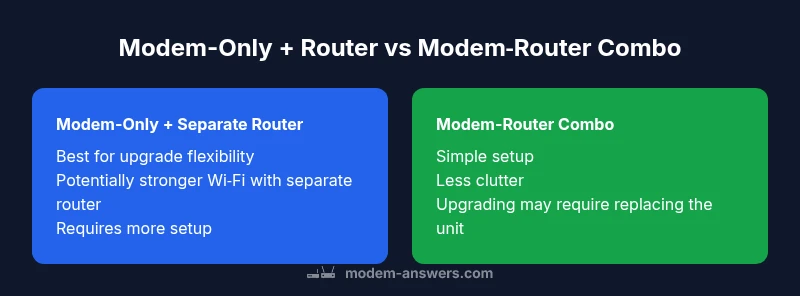
A modem is the device that translates your internet signal from the provider into a usable connection inside your home. A gateway (modem-router combo) combines both communication and wireless distribution in a single chassis. Separating the two gives you flexibility to upgrade the router as Wi‑Fi standards evolve without replacing the modem. For smaller spaces or simpler setups, a gateway reduces clutter and simplifies support. In larger homes or when future upgrades are likely, a separate modem paired with a capable router often delivers stronger Wi‑Fi and easier troubleshooting. The decision hinges on how you value convenience versus upgrade flexibility and how much you’re willing to invest in a long-term solution.
Technical standards to watch (DOCSIS, Wi‑Fi generations)
If you’re in a cable area, DOCSIS 3.1 is the current standard for gigabit plans and beyond; DOCSIS 3.0 is still common in some markets but won’t deliver the same peak performance. For fiber, your gateway must be compatible with the ONT (optical network terminal) and provide an effective router behind it. On the wireless side, Wi‑Fi 6 (802.11ax) and Wi‑Fi 6E offer higher real-world speeds and better handling of many devices. Look for tri-band or at least dual-band support, MU-MIMO, OFDMA, and high channel widths (like 160 MHz where available). For security and lifespan, choose devices with ongoing firmware updates and support for WPA3. These standards influence both performance and reliability in day-to-day streaming, gaming, and video conferencing. The right combination of hardware will be marked by your usage profile and obstacle layout (walls, floors, and interference).
Checking ISP compatibility and bridging mode
ISPs often maintain a list of approved modems or gateways; using an unlisted device can lead to reduced speeds or loss of features. If you plan to use a separate router, bridging mode on the modem is essential to avoid double NAT and to allow the router to manage DHCP, NAT, and firewall. Verify whether the model supports bridging or pass-through and whether your ISP requires you to use only their device for local management. Confirm firmware update practices, warranty terms, and whether the device is supported in your area. Modem Answers guidance emphasizes confirming your plan’s speed caps and ensuring that a third-party modem will still be recognized by the ISP’s activation system. If bridging isn’t stable, you may need to revert to a gateway or adjust settings to ensure reliable guest networks and QoS rules across devices.
Practical scenarios: small apartment, large home, fiber, budget
In a small apartment, prioritize compact hardware with strong 2.4 GHz performance and solid 5 GHz coverage; a modern dual-band gateway may be ideal. For larger homes, look for devices with multiple antennas, robust CPU, and the option to deploy a mesh system or a high-end router with strong beamforming. If you’re on fiber, ensure your gateway or ONT-compatible device provides reliable routing and supports the necessary VLAN or PPPoE settings. Budget-conscious buyers should compare total cost of ownership, including future upgrades and warranty length, rather than only the upfront price. Consider whether you want a neat, all-in-one solution or a modular setup that you can upgrade piecemeal over several years. Your choice will affect gaming latency, streaming stability, and the ease with which you can update firmware to protect against vulnerabilities. The key is to map your space and usage to the hardware’s capabilities before buying.
Setup, security, and ongoing maintenance
A smooth setup reduces user frustration. Start by updating firmware immediately, changing the default admin password, and enabling a strong WPA3 security mode. Configure a separate guest network for visitors, disable WPS, and use a secure DNS if available. Regularly check for firmware updates and monitor connected devices to spot rogue devices quickly. If you’re using a separate router behind a modem, bridging mode is essential and you should assign a fixed IP range to avoid conflicts. Schedule periodic reboots to keep devices performing well, especially in homes with many smart devices. Finally, document your network configuration so that future swaps or ISP changes don’t create a headache. Modem Answers notes that security hygiene is as important as raw speed for home networks.
How to compare brands, warranties, and support
Brand reliability matters because firmware updates and long-term support protect your investment. Compare the cadence of updates, the availability of customer support channels, and the length and terms of warranties. Read reviews focusing on real-world reliability and post-purchase service. Pay attention to compatibility guarantees with your ISP and the ability to sustain high throughput under typical household loads. A pro-active vendor with clear return policies and user-friendly admin interfaces generally delivers a smoother experience. For users who value minimal setup effort, a reputable all-in-one gateway might be preferable; for power users, a modular approach with a separate router can yield better performance and longer device life.
The decision framework: step-by-step
- Confirm your internet plan and speed tier with your ISP. 2) Decide between a modem-router combo or a separate modem and router based on upgrade plans and technical comfort. 3) Check compatibility lists and bridging options. 4) Evaluate Wi‑Fi coverage needs and future-proofing features like Wi‑Fi 6/6E and multi-gig Ethernet ports. 5) Compare total cost of ownership, including warranties and ongoing maintenance. 6) Choose a model with strong security features and reliable firmware updates. 7) Plan the installation and network segmentation (guest networks, IoT isolation). 8) Monitor performance after setup and adjust QoS as needed. The framework offers a practical path to selecting a device that matches your home network goals.
Common mistakes and how to avoid them
- Believing the cheapest option is always best; cheap devices often lag on reliability and security. - Overlooking bridging mode and ending up with double NAT. - Ignoring the physical layout of the home; thin walls and doors create dead spots. - Choosing a device based solely on the fastest advertised wireless standard rather than real-world performance. - Neglecting firmware updates and security settings; old firmware invites vulnerabilities.
Authority and further reading
For authoritative guidance, consult these sources:
- https://www.fcc.gov
- https://www.cnet.com
- https://www.pcmag.com
Quick-start evaluation checklist
- Confirm your internet plan and speed tier. - List must-have features: Wi‑Fi standard, multi-gig ports, and mesh readiness. - Decide gateway vs. separate devices based on upgrade plans. - Check bridging options and ISP compatibility. - Compare warranties and support options. - Plan for security: WPA3, guest networks, and automatic updates. - Assess your home layout to map coverage needs. - Schedule a test deployment window to verify performance and adjust settings.
Comparison
| Feature | Modem-only + separate router | Modem-router combo |
|---|---|---|
| Best for | Flexibility and upgrade path | Simplicity and compact setup |
| Upgrade path | Separate devices allow independent upgrades | Integrated device upgrades require replacement |
| Wi-Fi performance | Router handles AP with higher customization | Built-in Wi-Fi optimized for the unit |
| ISP compatibility | Often better with separate devices; bridging supported widely | Bridging supported on many models but not universal |
| Cost range | Moderate upfront with separate devices | Potentially lower upfront with one device but long-term upgrade limits |
| Future-proofing | Easier to upgrade router independently | Depends on combined device specifications |
| Setup complexity | More cables and steps | One-unit setup is simpler |
Positives
- Simple, all-in-one setup with fewer cables
- Quicker installation for non-technical users
- Integrated features like parental controls and security on one device
- Potentially lower upfront cost for entry-level gateways
What's Bad
- Limited upgrade flexibility; you must replace the whole unit to upgrade
- Possibly weaker Wi‑Fi performance than a high-end router
- Bridging mode support can be flaky on some models
- Latency and throughput can bottleneck in larger homes
Balanced choice depends on your needs; for most homes, a high-quality modem-router combo hits the sweet spot.
If you want simple setup and reliable performance, start with a capable gateway. If you need maximum control and plan to upgrade over time, separate modem and router provide longer-term flexibility while demanding more setup and potential extra cables.
FAQ
What is the difference between a modem and a router?
A modem connects your home to your internet service provider; a router distributes that connection to devices in your home, often wirelessly. A modem-router combo combines both functions in one device. If you anticipate upgrading the router separately for newer Wi‑Fi standards, consider a separate router behind a modem.
A modem is the bridge to the internet, and a router spreads that connection to devices. A combo does both in one box, but you can upgrade each part separately if you want more flexibility.
Do I really need Wi‑Fi 6 or 6E for a typical home?
Wi‑Fi 6/6E provides better performance in busy homes with many devices and better efficiency in crowded environments. If your devices support it and your budget allows, it’s worth prioritizing for future-proofing, but many households will still be well-served by Wi‑Fi 5 if the price is right and coverage is solid.
If you have lots of devices or want smoother performance in a crowded home, Wi‑Fi 6/6E is a smart upgrade; otherwise Wi‑Fi 5 can be adequate for smaller spaces.
Is bridging mode necessary when using separate devices?
Bridging mode is often recommended to avoid double NAT when using a separate router. It lets the modem pass the public IP to the router so that the router handles firewall, NAT, and DHCP. Some ISPs require it for certain plans, so verify compatibility for your equipment.
Bridging mode helps your router manage the network, which is usually a good idea if you’re using separate devices.
How do I know if my ISP supports third-party modems?
ISPs typically publish compatibility lists; checking those before purchase helps ensure activation works smoothly. If your plan relies on specific features (like VLAN tagging or PPPoE), confirm the third-party modem supports them.
Check your ISP’s approved modem list and notes on features before buying to avoid activation issues.
What’s a good budget range for a modem router in 2026?
Budget guidance varies by your needs; focus on features, not only price. Look for a device that supports the latest Wi‑Fi standard you need, has adequate Ethernet ports, and a reasonable firmware update history rather than chasing the lowest price.
There isn’t one price that's best for everyone; aim for solid features and support within your budget.
Can I use my own router with my ISP’s equipment?
Yes, many ISPs support using your own router behind their modem or gateway. You may need to enable bridging mode or set the gateway to pass-through mode. Check your ISP’s documentation or call support to confirm steps.
Absolutely—just check bridging options and keep your firmware updated.
Key Takeaways
- Define your internet plan and coverage needs before shopping
- Choose gateway vs. separate devices based on upgrade plans and technical comfort
- Prioritize Wi-Fi 6/6E and multi-gig ports for future-proofing
- Check ISP compatibility and bridging options to avoid double NAT
- Budget for long-term value: firmware, warranty, and support