What Modem to Use: A Practical Buying Guide
Discover how to choose the right modem for your home Internet. This comprehensive buying guide covers ISP compatibility, DOCSIS standards, speed needs, and whether to buy a standalone modem or a gateway.


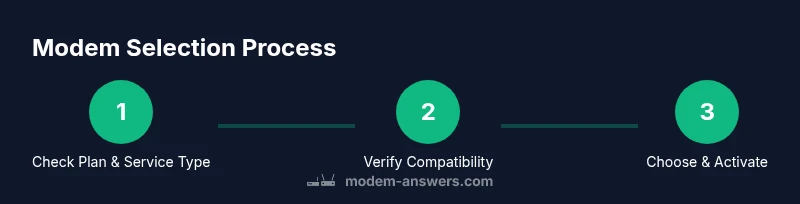
The definition of the right modem comes down to your ISP, plan speeds, and whether you want a standalone device or a modem-router gateway. Start by confirming ISP compatibility, then verify the DOCSIS standard (3.0 vs 3.1) and supported features. Choose a model that matches your plan and future-proofing needs.
Understanding Your Internet Service and Plan
Most home Internet in 2026 runs over coaxial cable (cable) or fiber. If you have fiber, you typically won’t use a traditional cable modem and may receive a gateway from your provider. For coax services, your modem must be DOCSIS-compliant. Start by identifying your plan’s speed tier and whether upload performance matters for your devices or video calls. The Modem Answers team notes that DOCSIS 3.1 is common in newer installations and tends to future-proof a lot of homes. Always check your provider’s compatibility lists before buying to avoid a model that will be rejected during activation.
Standalone Modem vs. Modem-Router Combo
A standalone modem connects directly to your Internet service and requires a separate router if you want Wi‑Fi. A modem-router combo combines both functions in one device, simplifying setup but limiting upgrade paths if you later want better Wi‑Fi performance. Consider a standalone modem if you already own a high‑quality router or want more control over network features. If you prefer fewer devices and a simpler warranty path, a gateway can be a practical all‑in‑one solution. In 2026, many households benefit from a gateway when Wi‑Fi coverage is a priority in larger homes.
Key Specifications to Check
When comparing models, focus on: DOCSIS version (3.0 vs 3.1), downstream/upstream speeds, and number of channels supported. A DOCSIS 3.1 modem handles higher throughput and is more future-proof for gigabit plans. Look for at least one Ethernet port (RJ-45) for a wired connection, and if you want Wi‑Fi, ensure the gateway includes reliable Wi‑Fi 5/6 radios. Portability, energy efficiency, and a straightforward admin interface also matter. Don’t forget to verify IPv6 support and security features like built-in firewall rules. If you’re shopping for a gateway, ensure the Wi‑Fi standard (802.11ac/ax) meets your home usage patterns.
How to Check Compatibility with Your ISP
Start by visiting your ISP’s official modem compatibility page and filtering for your plan. If your plan is fiber, call customer support to confirm whether a gateway or ONT is required. Verify the maximum advertised speeds of the modem and ensure they exceed your plan’s download speed by a comfortable margin (to account for overhead and real-world performance). After selecting a candidate, confirm it’s on the provider’s approved list and that it will be activated without extra fees. Keep your account details handy for activation steps.
How to Choose Based on Speed Needs
Match the modem’s maximum downstream speed with your plan, then add a safety margin for fluctuations and future growth. If you subscribe to a gigabit service, prioritize DOCSIS 3.1 devices with multiple gigabit Ethernet ports or support for bridge mode if you plan to use your own router. For households with modest speeds (below 200 Mbps), a DOCSIS 3.0 modem can be a cost-effective choice. Remember that average user experience depends on network congestion, Wi‑Fi coverage, and device performance, not just the modem’s label. A fast modem will help when multiple devices stream 4K content or participate in video conferences.
Budget Considerations and Value Picks
Budget ranges for modems/bundles typically fall into three tiers. Entry-level devices cover basic needs and usually support DOCSIS 3.0 with modest speeds. Mid-range models commonly support DOCSIS 3.1 and offer better performance, more ports, and easier management. High-end gateways build in advanced Wi‑Fi and security features for large homes or heavy workloads. Do not buy based on price alone—confirm compatibility with your ISP’s network and read user reviews for reliability and firmware updates. If you want a future-proof setup, investing in a DOCSIS 3.1 gateway that includes a robust Wi‑Fi system can be a smart long-term choice.
Setup and Activation Tips
Unbox your modem and attach the coaxial cable securely. Plug in the power and connect an Ethernet cable from the modem to a computer to access the admin page. Follow the ISP activation prompts or call customer support to complete activation. Write down the device’s MAC address and model number for quick reference in case you need to re-provision. After activation, run a speed test and verify that you’re getting the advertised speeds. If you deployed a gateway, place it centrally in your home to optimize Wi‑Fi coverage.
Common Mistakes to Avoid
- Skipping compatibility checks and buying a device the ISP won’t activate. - Assuming faster is always better without confirming plan limits. - Overlooking the need for a separate router in a gateway setup when you already own one. - Choosing a device with too few Ethernet ports for future devices or a gigabit internet plan. - Neglecting firmware updates that add performance and security improvements.
Future-Proofing and Maintenance
Choose a modem that can adapt to evolving standards and higher speeds. Keep firmware up to date by enabling automatic updates, and periodically review your network layout to ensure coverage remains strong in all living spaces. If you move or upgrade service, re-check compatibility with the new plan and, if needed, swap to a newer DOCSIS 3.1 model. A well-chosen modem becomes a long-term investment in network reliability for your home.
Tools & Materials
- ISP account information(Needed to verify service eligibility and activation)
- Modem model datasheet (spec sheet)(Check DOCSIS version and channel bonding support)
- Ethernet cable (Cat5e/Cat6, length recommended)(For testing speeds or connecting to a router)
- Laptop or smartphone with browser(Access admin pages and activate service)
Steps
Estimated time: 30-75 minutes
- 1
Gather plan details
Collect your current plan name, speed tier, and whether you have fiber or coax service. This helps you narrow modem options before browsing models.
Tip: Check your latest bill or account portal for exact plan speed. - 2
Check ISP compatibility
Visit your ISP’s official compatibility page or contact support to confirm which modems are approved for your plan.
Tip: Always choose models listed as compatible with your service. - 3
Decide on standalone vs gateway
If you need strong Wi‑Fi coverage across a large home, a gateway might be worth it; otherwise, a standalone modem with your own router can offer more control.
Tip: Think about existing Wi‑Fi needs before buying. - 4
Evaluate specs
Ensure the modem supports at least DOCSIS 3.1 for future-proofing and has enough Ethernet ports if you connect multiple wired devices.
Tip: Prioritize downstream speed over fancy features if you don’t need them. - 5
Confirm activation readiness
Make sure you have any required accounts or activation codes from your provider ready for activation steps.
Tip: Prepare your login credentials and account details. - 6
Set up and test
Connect coax, power, and an Ethernet cable to a computer to access the admin page, activate, and run a speed test.
Tip: Test at different times of day to assess consistency. - 7
Secure your network
Update default passwords, enable WPA3 or WPA2, and review firewall settings on your gateway or router.
Tip: Disable WPS if your device supports it for better security. - 8
Document and monitor
Keep model and firmware information handy and schedule periodic checks for firmware updates and performance.
Tip: Note the device’s MAC address and model number for future support.
FAQ
Do I need to rent a modem from my ISP?
Many ISPs offer modem rental as an option, but you can often buy a compatible modem to save ongoing costs. Check your plan terms to see if rental is required.
Some providers require renting; others allow you to buy a compatible modem. Check your account terms to know your options.
What is DOCSIS, and which version should I look for?
DOCSIS is the data-transport standard for cable Internet. For new plans, look for a DOCSIS 3.1 device to support higher speeds and better efficiency, while DOCSIS 3.0 can be sufficient for slower plans.
DOCSIS is the cable standard. If you have gigabit service, choose DOCSIS 3.1 to be safe; DOCSIS 3.0 works for slower plans.
Can I use a modem-router combo with my ISP?
Yes, many ISPs support modems with built‑in routers. Ensure the device is on your provider’s compatibility list and that it meets your Wi‑Fi needs.
Yes, a gateway can work, just verify compatibility and coverage for your home.
How do I know a modem is compatible before buying?
Check your ISP’s official compatibility list for approved models and ensure the device supports your plan’s speeds and DOCSIS version.
Look up the approved modem list from your ISP and confirm the speeds and DOCSIS version.
Should I buy a modem if I have a slow plan?
Even with slower plans, buying a modem that’s future-proof can save money over time, but ensure it matches the plan and isn’t overkill.
If you have a slower plan, you still might want a modem that can handle a future upgrade.
Is it safe to use a third‑party modem?
Yes, as long as the device is compatible with your ISP and you’re comfortable with the activation process. Avoid devices from unknown sellers.
Third‑party modems are fine if compatible and from reputable sources; just verify activation steps.
Watch Video
Key Takeaways
- Verify ISP compatibility before buying
- Prefer DOCSIS 3.1 for future-proofing
- Choose standalone modem or gateway based on Wi‑Fi needs
- Test speeds after activation and adjust placement for coverage