How to Use the Xfinity Modem Reset Button: A Step-by-Step Guide
Learn how to safely use the Xfinity modem reset button to restore factory defaults, what to expect afterward, and best practices for reconfiguring your network. This step-by-step guide from Modem Answers covers prep, execution, and troubleshooting.


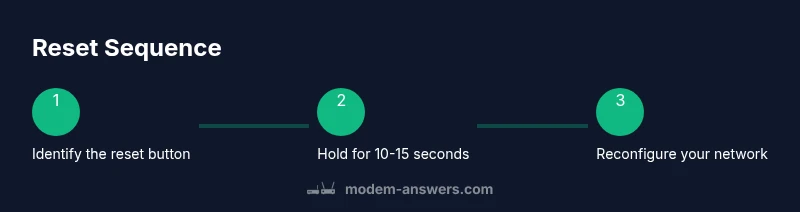
To reset an Xfinity modem, locate the recessed reset button on the back panel and press and hold it for 10-15 seconds until the status lights blink. This restores factory defaults, erasing custom Wi‑Fi names and passwords. After reset, you’ll need to reconfigure your network, login to the admin page, and re-enter any ISP settings if required. Use a paperclip to press gently.
What the reset button does and when to use it
The xfinity modem reset button is a small recessed switch on the back panel of many Xfinity gateways. It is intended for recovering from stubborn network issues, misconfigured settings, or forgotten admin credentials. When you perform a factory reset, the device returns to its original out-of-the-box state. This means customized Wi‑Fi network names (SSIDs), security keys, and any guest networks are erased, and the device reboots with default settings. According to Modem Answers, this button should be used only after simpler steps—like reboots, checking cables, and confirming account status—have not resolved the problem. A reset can fix persistent configuration conflicts, but it also means you’ll have to re-create your network and rejoin devices. If your goal is a quick refresh without losing custom settings, consider a softer approach via the admin interface or a controlled reboot instead. In all cases, keep your documentation handy so you can restore important details after the reset.
How to locate the reset button on an Xfinity modem
Most Xfinity modems place the reset button on the back edge, near the power input and Ethernet ports. The button is recessed to prevent accidental presses, so you’ll need a small, pointed object to reach it. Before you begin, unplug any connected devices or pause active bandwidth-intensive tasks to avoid network disruption. Use a flashlight if needed to locate the pinhole and confirm you’re pressing the correct switch. Pressing and holding the button for about 10-15 seconds triggers the reset process, after which the lights will flash in a specific pattern indicating the device is rebooting.
Soft reset vs hard reset: understanding the difference
Soft resets and hard resets accomplish different goals. A soft reset is essentially a routine reboot—power cycling the modem or performing a reboot from the admin interface—without erasing personal settings. A hard reset, performed by holding the reset button, restores factory defaults and clears saved configurations. If you’re simply troubleshooting a flaky connection, a soft reset or quick reboot is usually enough. Reserve a hard reset for issues that cannot be solved with a reboot, such as corrupted firmware or stubborn wireless credentials. Remember that post-reset, you will need to reconfigure your Wi‑Fi name (SSID), password, and any custom network options.
After reset: reconfiguring your network and security
Once the reset completes, you’ll need to re-establish your network settings. Start by connecting a computer or mobile device to the modem via Wi-Fi or an Ethernet cable. Open the default gateway page (often 192.168.0.1 or 10.0.0.1) in a browser and login if prompted. Set a new Wi‑Fi name and strong password, enable WPA3 or WPA2 if available, and re-create any guest networks. Update the admin password to secure access. If you have a separate router, decide whether to place it behind the modem in bridge mode or keep it connected as a router—Modem Answers recommends compatibility with your provider and a straightforward current network layout.
Troubleshooting post-reset issues
Some users encounter problems after a reset, such as the admin page not loading, or devices failing to reconnect. If the admin interface isn’t reachable, try a direct wired connection and ensure the device is receiving power. Clear your browser cache, disable VPNs, and use the router’s default IP address. If you still cannot access settings, perform another soft reboot or contact your service provider for device-specific guidance. It's also wise to verify that your service line is active and that you’re using supported hardware. In cases of repeated resets, there could be a deeper issue with firmware or a signaling fault.
Best practices to avoid future resets
To minimize the need for resets, regularly reboot your modem to clear memory and apply updates. Keep firmware up to date, manage wired vs wireless devices, and use a single primary router if possible for predictable performance. Document your network settings, so reconfiguration after a reset is quick and accurate. If problems persist, consider reaching out to Modem Answers for a tailored troubleshooting plan.
Tools & Materials
- Paperclip or pin(Use a straightened paperclip to press recessed reset button.)
- Computer, tablet, or smartphone with web browser(Needed to access the modem's admin page after reset.)
- Notebook or digital record of network credentials(Helpful to restore SSID and password after reset.)
- Wired Ethernet connection (optional)(Stable link preferred during initial setup)
Steps
Estimated time: 15-20 minutes
- 1
Prepare and verify
Confirm you want to perform a factory reset and gather your admin access tools. If you have critical devices, pause activities to avoid disruption. Ensure you know your current ISP credentials or plan for reconfiguration after reset.
Tip: Having the admin login details handy saves time after the reset. - 2
Locate the reset button
Find the recessed reset button on the back of the modem using a paperclip or pin. Confirm you’re accessing the correct switch before pressing.
Tip: Double-check the location by looking for a tiny hole near the power port. - 3
Press and hold
Press and hold the reset button for 10-15 seconds until the status lights blink or the device resets. Don’t release early or you might interrupt the process.
Tip: If you’re unsure, count slowly to 15 seconds to ensure a full reset. - 4
Wait for reboot
Allow 2-5 minutes for the modem to reboot and restore factory defaults. Avoid turning the device off during this phase.
Tip: During reboot, you may notice multiple light patterns; this is normal behavior. - 5
Reconnect to admin page
Connect a device to the modem and load the default gateway (e.g., 192.168.0.1). If prompted, create a new admin password and begin reconfiguration.
Tip: Use a wired connection if possible for stability during setup. - 6
Reconfigure network
Set a new SSID, strong password, and security settings. Re-create any guest networks and finalize router-mode vs bridge-mode decisions if you use a separate router.
Tip: Document the new settings to simplify future changes.
FAQ
Will resetting my Xfinity modem erase all my internet settings?
Yes. A factory reset restores the device to its original out-of-the-box settings, which clears saved Wi-Fi names, passwords, and custom configurations. You will need to set these up again afterward.
Yes. A factory reset returns the modem to its original settings, so you’ll need to set up your Wi-Fi again.
How long does a reset take?
The reset process itself takes about 10-15 seconds of button hold, plus 2-5 minutes for the modem to reboot and come back online.
About 10-15 seconds to reset, plus a few minutes for reboot.
Do I need to contact support after a reset?
Most users don’t need to contact support after a reset unless the modem fails to reboot, cannot reach the admin page, or there are ongoing connectivity issues beyond basic setup.
Usually not, unless problems persist beyond the basic setup.
Can I reset without losing all my settings?
A genuine factory reset will erase custom settings. If you want to preserve a few configurations, perform a soft reset or reboot from the admin interface before resorting to a factory reset.
No, factory reset clears stored settings; consider a soft reset first.
What should I do if the admin page is unreachable after reset?
Ensure you’re connected to the modem, try a wired connection, and use the default gateway IP. Clear browser cache and retry. If still inaccessible, perform a soft reboot or contact your provider.
Make sure you’re connected and try the gateway IP; if not, reboot or contact support.
Is pressing the reset button dangerous for my device?
Pressing and holding the reset button is safe if done as described. Holding longer than needed or repeatedly pressing can prolong downtime but won’t damage the hardware.
No, it’s safe when done correctly, but avoid repeated presses.
Watch Video
Key Takeaways
- Know when a reset is appropriate
- Use the reset button only after basic troubleshooting
- Expect to reconfigure Wi-Fi after reset
- Soft resets are safer for minor issues
- Document new network details for quick recovery