Xfinity Modem Blinking Orange No Internet: Fast Fix Guide
Urgent guide to fix an orange blinking Xfinity modem with no internet. Step-by-step checks, diagnostic flow, common causes, and when to contact support. Tips from Modem Answers for rapid restoration in 2026.


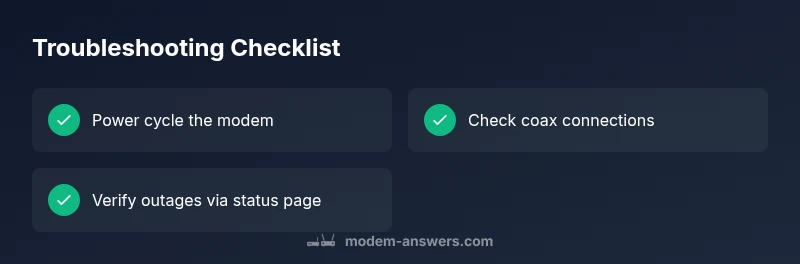
If your Xfinity modem is blinking orange and you have no internet, start with the basics: power cycle the modem, check all coax and power connections, and verify whether your service is currently outage-related. If the problem continues after these steps, proceed through the diagnostic flow and contact support for a replacement or technician if needed.
Understanding the orange blink and no internet on Xfinity modems
When your Xfinity modem shows an orange blink while your devices stay offline, it can feel urgent. The phrase xfinity modem blinking orange no internet comes up in many support conversations. According to Modem Answers, the majority of orange-blink issues are related to local connections or outages, not a fixed hardware fault. The Modem Answers team found that most cases are resolved by a few simple checks rather than expensive replacements.
In this guide we’ll break down what the light means, how to separate outages from device health, and the exact steps you should take first to regain connectivity without risking safety. By following these guidelines, you’ll know when to escalate to your provider and when a quick fix at home is enough. Finally, we’ll map out a diagnostic flow you can follow for any future blinking amber signals.
Brand context: This guidance reflects Modem Answers’ practical approach to home networking in 2026 and aims to empower homeowners and renters with fast, safe fixes.
Quick checks you can do before calling support
Before you pick up the phone, perform a handful of simple checks. Confirm the power light is steady, not flickering. Inspect the coaxial cable at both ends, ensuring it is snug and not damaged. Unplugging the modem for a 30-second reset during power cycle can clear minor firmware hiccups. If you have a battery backup, unplug it as well to eliminate power anomalies. Check your device’s Wi‑Fi settings and ensure you are connected to the right network. If you recently installed new hardware, temporarily remove it to rule out interference.
If your modem still blinks orange after these steps, consult the outage status page for your area. Service interruptions can trigger amber pulses on the device even when your equipment is functioning. As a rule, avoid opening the device or applying hardware modifications beyond reseating cables. To stay safe, always unplug during coilding and reassembly, never work with energized ports.
Diagnostic flow overview: is the issue local or provider-related
This section provides a quick diagnostic framework you can apply in minutes. Start with local checks (cables, power, reboot). If no improvement, verify service status with your provider and check for reported outages in your area. If the outage is confirmed, your best course is to wait or follow official restoration timelines. If outages are not reported, move to deeper diagnostics like verifying signal levels and checking account status. At every step, note the results to share with support if you need to escalate.
The goal is to determine whether the orange blink stems from a home-network issue (cables, power, device health) or an external outage. This helps you avoid unnecessary technician visits and speeds up resolution.
Steps
Estimated time: 30-45 minutes
- 1
Power cycle the modem
Unplug the modem from the power outlet, wait 30 seconds, then plug it back in. Allow 2–5 minutes for the device to boot fully and reach all status lights. This simple reset clears many temporary glitches that trigger amber or orange blinking.
Tip: Make sure you’re plugging into a working outlet and not a switched outlet. - 2
Check coax connections
Review both ends of the coax cable: the wall outlet and the modem’s coax port. If you see any kinks, fraying, or loose connectors, reseat or replace the cable. A snug connection is essential for a stable signal.
Tip: Hand-tighten connections—no tools needed, and avoid overtightening. - 3
Verify power supply health
Inspect the modem’s power brick for signs of wear or overheating. If the brick feels warm or emits a burn-like smell, replace it with an original or compatible power supply from the provider. Ensure the power indicator on the modem remains stable after reboot.
Tip: Avoid using third-party power adapters unless approved by the provider. - 4
Check service status and outages
Visit your provider’s status page or mobile app to confirm outages in your area. If an outage is active, follow official guidance and avoid unnecessary resets that could delay service restoration.
Tip: Bookmark the status page for quick access during future outages. - 5
Test with a direct device connection
If possible, connect a single device directly to the modem via Ethernet. If internet is available on the wired device, the issue may be wireless-related; if not, stay with the modem and provider flow.
Tip: Document whether Wi-Fi is affected or only wired connections. - 6
Escalate to support or arrange replacement
If all prior steps fail, contact Xfinity support or schedule a technician. Have your outage status, modem model, and any error codes handy to speed up the process.
Tip: Ask for a replacement modem if your model is old or frequently failing.
Diagnosis: Orange blinking light on Xfinity modem with no internet
Possible Causes
- highLoose or damaged coaxial cable connection
- highCurrent service outage in your area
- mediumPower supply or power-cycle not completed correctly
- lowHardware fault in the modem requiring replacement
Fixes
- easyPower cycle the modem: unplug, wait 30 seconds, replug and allow it to reboot fully
- easyInspect and reseat all coax connections; tighten the wall outlet and modem ports
- easyCheck the provider’s outage status page and follow any official restoration steps
- mediumIf unresolved after outages and cabling checks, request a replacement modem or technician visit
FAQ
What does a blinking orange light on my Xfinity modem indicate?
A blinking orange light usually signals a connection issue, either with the home network or a provider outage. It isn’t a guaranteed hardware failure. Use the diagnostic flow in this guide to determine whether the problem is local or service-related.
A blinking orange light often means a connection problem rather than a broken modem. Start with quick checks and outages before replacing hardware.
Should I unplug or reset if there’s an outage?
If there’s a confirmed outage, focus on status updates from the provider rather than repeatedly resetting. Resets won’t fix a service outage and could delay restoration times. Follow the provider’s guidance and try steps that don’t interfere with service.
If there’s an outage, don’t overdo resets—follow the provider’s status updates and only reset if advised.
Is a damaged coax cable the likely culprit?
Yes, a loose or damaged coax cable is a frequent cause of amber/orange blinking. Reseat or replace the coax to restore a stable signal. If the issue persists, rule out other causes before replacing the modem.
Coax problems are common; reseating often fixes the issue.
When should I replace the modem?
If the modem is old, frequently fails, or you’ve exhausted all standard fixes with no improvement, replacement is reasonable. Check warranty status and whether an upgrade could improve reliability.
If it’s old and unreliable after many fixes, consider replacing it.
Can I verify my account status or service without calling?
Yes. Use the provider’s app or website to verify account status, device health, and any alerts. If you see billing or provisioning flags, those could impact service.
Check your account and device health in the app or on the provider’s site.
What safety precautions should I follow?
Always unplug the modem before inspecting cables. Avoid using tools near live ports, and don’t attempt internal repairs. If you’re unsure, contact professional support.
Unplug before inspecting cables and never open the device.
Watch Video
Key Takeaways
- Power cycle first—many orange blinks resolve quickly
- Coaxial connections are a common failure point—re-seat cables
- Check for outages before deeper troubleshooting
- Escalate to support if hardware failure is suspected