Orange Light on Xfinity Modem: Troubleshooting Guide
Struggling with an orange LED on your Xfinity modem? This urgent, step-by-step guide from Modem Answers walks you through safe checks, diagnostics, and when to call for help to restore your home network.


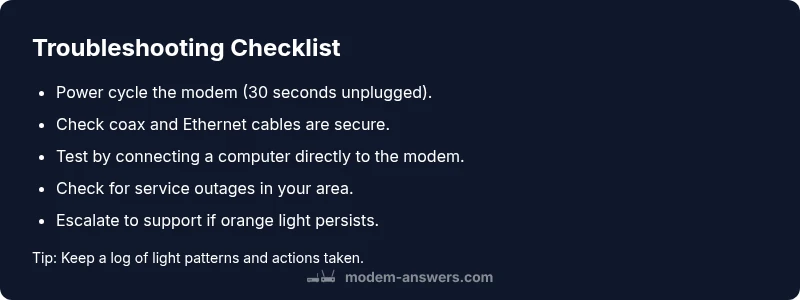
Step 1: Power cycle the modem by unplugging it, waiting 30 seconds, then plugging back in. Step 2: Inspect coax and Ethernet cables for tight connections or damage. Step 3: If the orange light persists, check for a local outage and contact Xfinity support. According to Modem Answers Team, a persistent orange light often signals a line or hardware fault.
What the orange light means on the Xfinity modem
An orange, amber, or amber-ish LED on an Xfinity modem signals that the device is having trouble communicating with the network or completing its activation. The exact meaning can vary by model and firmware, so consult your modem’s manual for model-specific LED color codes. For many homeowners, an orange light indicates the modem is not fully registered or is experiencing a signal issue that prevents stable connectivity. In practice, you’ll often see orange during boot sequences, when there’s a line fault, or after a reset when the device is trying to re-establish service. The Modem Answers team emphasizes that while orange can feel urgent, most issues are solvable with a methodical approach and safe, at-home diagnostics.
Quick checks you can perform today
Starting with simple, safe steps helps you confirm whether the problem is temporary or persistent. Begin with a complete power cycle: unplug the modem, wait 30 seconds, then plug back in and give it a few minutes to re-sync. Inspect all cables—coax and Ethernet—for any signs of wear, looseness, or damage; tighten or replace as needed. If you have a separate router, bypass it by connecting a computer directly to the modem to determine if the issue lies with the modem itself or the home network. Verify service status via your Xfinity account or the provider’s outage checker. If you observe error codes or recurring blinking patterns, note them so you can share them with support to speed up diagnostics.
Common causes of an orange LED and how to distinguish them
A loose or damaged coax is a frequent culprit; it can prevent the modem from locking onto the signal. A local outage will affect all devices, causing the modem to stay in a non-registered state and display orange until service is restored. Hardware faults or overheating can also trigger amber status, especially after long uptime or in drafty, warm environments. Rarely, misconfigured or outdated firmware on the modem can generate an orange light. Use a process of elimination: physical connections first, then outages, then device health tests. The Modem Answers team notes that most residential orange LED issues are resolved by straightforward steps rather than a professional visit.
Reading the LED sequence: what steady, blinking, or pulsing signals mean
LED behavior matters for triage. A steady orange light often indicates the device is waiting to activate or in a non-standard state; a blinking orange can signal a line issue during activation or a firmware update; a pulsing pattern might reflect the modem attempting to boot or re-register. Since LED meanings vary by model, check the user guide for precise patterns. If patterns persist after basic resets, escalation may be required.
Step-by-step fix for the most common cause: loose coax connection
The simplest and most common fix for an orange LED is securing the coax connection. 1) Power down the modem and unplug the coax. 2) Inspect the coax connector for any visible damage and check the entire length for wear. 3) Re-seat the coax firmly into the modem and the wall outlet, ensuring a snug fit with no cross-threading. 4) Reconnect the power and wait for the modem to re-sync. 5) If the light remains orange after a full boot, proceed to test with direct modem-to-computer connection and check for outages. The Modem Answers team highlights that most in-home orange-light issues resolve after reseating the coax and rebooting.
Safety, warnings, and when to escalate
Never attempt internal repairs or open the modem’s housing. Do not force connectors or cables that resist connection, and avoid using damaged cables. If the orange light persists after all basic steps, it may indicate a service outage or a hardware fault that requires professional assessment from your provider or a certified technician. Document the time of occurrence, any patterns, and steps already taken to aid escalation.
Prevention, maintenance, and best practices
To reduce future orange-light occurrences, keep cables tidy and labeled, replace frayed or aged cables promptly, and ensure the modem sits in a cool, well-ventilated area away from heat sources. Regularly check for firmware updates through the Xfinity app and schedule periodic reboots to maintain healthy synchronization. Maintain a simple home-network map so you can distinguish between modem and router issues quickly.
Steps
Estimated time: 20-60 minutes
- 1
Power cycle the modem
Unplug the modem, wait 30 seconds, plug back in, and allow up to 5 minutes for re-sync. This resets many transient faults that trigger amber LEDs.
Tip: Give the device a full boot cycle before testing again. - 2
Check all physical connections
Ensure the coax from the wall outlet to the modem is snug and undamaged. Verify Ethernet cables to any connected devices are secure or replaced if frayed.
Tip: Replace any worn cables to prevent intermittent faults. - 3
Test with a direct modem connection
Skip the router and connect a single computer directly to the modem to see if the issue persists. If the PC connects, the problem may be with the router or home network.
Tip: Record MAC/IP details if needed for support. - 4
Check outage status and firmware
Log into your provider account or use the outage checker to confirm service in your area. If firmware updates are pending, allow them to complete, but do not interrupt during updates.
Tip: Avoid forcing updates; let the device finish any active process. - 5
Escalate if unresolved
If the orange light remains after all steps, contact Xfinity support with details of what you’ve tried. A technician may be required for line or hardware inspection.
Tip: Have your account number and device model ready.
Diagnosis: Orange LED on Xfinity modem after power-up
Possible Causes
- highLoose or damaged coax/ethernet cables
- mediumLocal service outage
- mediumModem hardware fault or overheating
Fixes
- easyTighten/reseat coax and Ethernet connections; replace damaged cables
- easyPower cycle and allow the modem to re-sync
- easyCheck for outages in your area and contact provider if outage is reported
- mediumConnect a direct computer to the modem to isolate the issue; factory reset only if advised by support
FAQ
What does an orange light on an Xfinity modem mean?
An orange LED typically indicates a problem with registration or signal integrity. Meanings vary by model, so check your manual and consider steps like power cycling and checking cables.
An orange LED usually means the modem isn’t registering properly or has a signal issue. Check the cables and reboot, then verify service status.
Why is my orange light blinking on the modem?
Blinking orange often signals the device updating firmware or attempting to activate. If it continues blinking after a reboot, there may be a line issue or outage.
A blinking orange usually means updating or activation. If it lasts, check for outages or contact support.
Can an outage cause the orange LED to show?
Yes. A local service outage can prevent the modem from communicating, resulting in an orange indicator until the service is restored.
Service outages can cause the orange light until the network comes back.
Should I reset my modem when orange appears?
Resetting can help if the issue is a temporary glitch. Do a safe power cycle first; avoid factory resets unless advised by support.
Try a power cycle first; a factory reset should be a last resort advised by support.
When is it time to call a technician?
If multiple basic steps fail, or you notice hardware damage, a technician may be needed to inspect the line and equipment.
If basic fixes fail or you see damage, call for a technician.
How long should I wait after reboot to check the light?
Give the modem up to 10 minutes to re-sync after a reboot. If the orange light persists, proceed with further checks or support.
Give it about 10 minutes to re-sync after reboot, then assess.
Watch Video
Key Takeaways
- Identify orange LED meaning varies by model; consult manual.
- Start with power cycle and cable checks before escalation.
- Test with direct modem connection to isolate router issues.
- If unresolved, contact provider with documented steps.