What to Do If Your Modem Shows a Red Light
A red modem light signals power or connection faults. This urgent, step-by-step guide helps homeowners diagnose quickly, perform safe fixes, and prevent future outages.


A red modem light usually signals a power or connection fault. Start with safe basics: power cycle the device, check all cables, and verify service status. If the red light persists, record blinking patterns and contact your ISP with details.
What the red light means
The red light on a modem is a clear signal that something isn’t functioning as expected, but it’s not a diagnosis in itself. According to Modem Answers, most red-light situations in homes stem from simple power or cabling issues rather than a defective device. In this block, we’ll translate that signal into practical steps you can take right now. Start with the least invasive checks and move toward more involved fixes only if the issue remains after each step. Having a calm, methodical approach reduces downtime and prevents frustration as you work toward restoring service.
Quick checks you can safely perform
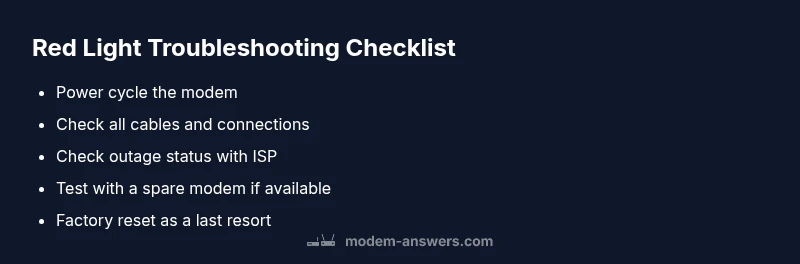
Before you panic, run through a few safe, quick checks. These steps require no specialized tools and can resolve many red-light cases. First, unplug the modem from the power source, wait 60 seconds, then plug it back in to force a fresh boot. While it restarts, inspect the coaxial/ethernet/phone cables for any visible damage or loose connections and reseat them firmly. If you have a separate router, ensure it’s powered and connected properly. Finally, check with your internet provider’s outage page or app to see if a known service disruption could be responsible for the red light.
Pro tip: keep a simple note of the light’s pattern (steady, blinking, or pulsing) as this can help a support agent diagnose the issue faster.
Common red-light scenarios and what they indicate
Red lights are not all the same. A solid red light often points to a hardware or power fault, while a blinking red light frequently indicates a connectivity problem just below the surface. Some modems use a blinking pattern to signal a firmware hiccup, or that a critical component is in a restricted mode. Understanding these patterns helps you tailor your next steps. If you notice a mix of patterns or the light changes color intermittently, capture the sequence with timestamps to share with your provider for precise guidance.
The role of power, cables, and firmware in red-light issues
Power reliability is the backbone of stable modems. A fluctuating outlet or a weak power adapter can trigger a red light or cause the device to reset unexpectedly. In addition, the integrity of coaxial or Ethernet cables matters: frayed conductors or loose connectors produce signal loss that manifests as a red indicator. Firmware glitches can also masquerade as hardware faults. If your device is running on outdated firmware, updating to the latest version often resolves the issue without hardware replacement.
When a simple reboot isn’t enough: next steps
If a power cycle and cable reseating don’t fix the problem, proceed to more decisive steps. As a next move, verify whether you’re on bridge mode or behind a separate router, which can complicate diagnostics. Try a factory reset as a last resort after backing up any customized settings like Wi‑Fi names and passwords. If the red light persists after a reset, the fault is likely deeper than consumer-grade fixes and may require professional attention from your ISP or a technician to diagnose a hardware fault, line issue, or service outage.
When to involve your provider and what to tell them
If the red light endures after following the basic steps, contact your internet service provider. Be ready to share the light pattern, the steps you’ve already taken, and the approximate time the issue began. During the call, confirm whether there’s a known outage in your area and whether your modem shows a persistent red light or a transitional pattern. A technician visit may be necessary to inspect signal levels, line integrity, or device health on your end. Document the case for faster resolution.
Prevention tips to avoid future red-light issues
Prevention starts with a stable environment and proactive maintenance. Place the modem in a well-ventilated area away from heat sources and moisture, and use a surge protector to guard against power spikes. Periodically inspect cables for wear and replace damaged ones promptly. Schedule a monthly quick check to verify status lights and internet speed. Keeping firmware updated, resetting only when needed, and recording the light patterns will help you spot issues earlier and reduce downtime.
Steps
Estimated time: 20-45 minutes
- 1
Power cycle the modem
Unplug the modem from power, wait at least 60 seconds, then plug it back in. Give the device 2–5 minutes to complete the boot process and stabilize the indicators.
Tip: Use the original power adapter and keep it plugged directly into a wall outlet, not a power strip. - 2
Inspect and reseat cables
Check all connections (Coax, Ethernet, and phone lines). Disconnect, inspect for wear, and reconnect firmly to ensure a solid signal path.
Tip: Look for kinks or crushed sections in the coax and avoid tight bends on Ethernet cables. - 3
Check for outages and device health
Visit your ISP’s outage page or app and confirm there’s no area-wide problem. If you have a spare modem, test it to rule out a faulty device.
Tip: Document the outage reference and any timestamps to share with support. - 4
Isolate the router from the equation
If you use a separate router, power cycle it and verify the modem’s light behavior without the router connected. Consider bridging or disabling router features temporarily to test.
Tip: If bridging is on, ensure the modem is in bridge mode if necessary for your setup. - 5
Factory reset as a last resort
If the light remains red after the above steps, perform a factory reset on the modem. Note that this will erase custom settings like Wi‑Fi name and password.
Tip: Back up configuration details and be prepared to reconfigure Wi‑Fi and port forwarding. - 6
Escalate when needed
If all fixes fail, contact your ISP for remote diagnostics or schedule a technician visit to test signal levels and line integrity.
Tip: Have your light pattern, time of occurrence, and troubleshooting steps ready for the agent.
Diagnosis: Modem shows a red light
Possible Causes
- highPower supply issue or outage
- highLoose or damaged cables (Coax/Ethernet/Phone)
- mediumISP service outage
- lowFirmware glitch or outdated software
Fixes
- easyPower cycle the modem (unplug, wait 60 seconds, plug back in)
- easyCheck and reseat all cables; replace damaged cables if visible wear is present
- easyCheck the ISP outage status page and try a known-good alternate device to test service
- mediumIf needed, perform a factory reset after backing up settings
- mediumIf the light remains red, contact the ISP for remote diagnostics or schedule a technician visit
FAQ
What should I do first when I see a red light on my modem?
Begin with a safe power cycle and cable checks. If the red light continues, note the pattern and check outage status before contacting support.
Start with a power cycle and couple of quick cable checks. If it stays red, note the pattern and check for outages before calling support.
Can a red light indicate a service outage?
Yes. A red light can reflect a provider outage. Always verify status on your ISP’s page and with your neighbors if possible.
Yes. A red light can mean a service outage. Check your provider’s status page and ask neighbors to confirm.
Is it safe to unplug and re-plug the modem?
Yes. It’s a common, safe troubleshooting step. Ensure you unplug from the wall outlet and avoid power strips to get a clean reset.
Yes, it’s safe. Unplug from the wall, wait, and plug back in for a clean restart.
How long should I wait after a reboot?
Give the modem 2–5 minutes to boot and stabilize after a reboot. If it remains red, proceed with further checks or contact support.
Give it a couple of minutes to boot. If it stays red, move to more steps or contact support.
When should I call my ISP?
Call if the red light persists after all basic steps, or if the outage page shows issues. Have light patterns and times ready.
Call if it stays red after troubleshooting. Share the light pattern and timestamps with support.
Does every red light require a replacement modem?
Not necessarily. Many issues are resolved with resets or cables. A replacement is only likely after advanced tests show hardware failure.
Not always. Many issues fix with resets or cables. Replacement only if tests show hardware failure.
Watch Video
Key Takeaways
- Start with power and cable checks first
- Record light patterns for better remote support
- Firmware glitches can mimic hardware faults
- Factory reset as a last resort
- Call your ISP if issues persist