Modem Flashing Red: Urgent Troubleshooting Guide
A practical, step-by-step guide to diagnose and fix a modem flashing red light. Learn quick checks, a diagnostic flow, and when to contact your provider for swift resolution.


A red flashing modem light usually signals a connectivity issue or hardware fault. Start by power-cycling the modem, checking cables, and confirming service outages with your provider. If the light persists, proceed through the diagnostic flow and avoid risky DIY fixes that could void warranties. This light is usually solvable with common checks, but never ignore it. Quick actions buy you time while you verify whether a service outage or hardware fault is at fault.
What a red flashing modem light means
A red flashing light is a warning from your modem that something isn’t functioning correctly — often related to power, signal, or internal hardware. While green or blue lights typically indicate normal operation, red indicates a fault that can block internet access. The exact meaning varies by model, so start with general checks, then consult your device manual for color codes.
Key takeaway: don’t ignore a red light; it’s your modem telling you something needs attention.
Common causes behind modem flashing red lights
Red light behavior can indicate multiple issues: power supply faults, loose or damaged cables, service outages from the provider, or failed firmware. Some modems flash red during startup or after a failed reboot. While some models flash rapidly, others blink in a pattern that maps to a specific fault. A precise diagnosis often requires ruling out simpler causes first.
Hard reset or factory reset should be a last resort if you’re unsure of the impact on settings.
Safe, quick checks you can do right now
- Inspect power cable and adapter for wear; try a known-good outlet. - Check all ethernet and coax cables are snug, not loose or damaged. - Verify the modem is in a proper location with adequate airflow and no overheating. - If your service provider offers a status page, check for outages in your area. - Reboot the modem by unplugging for 30 seconds and plugging back in. - If you have a separate router, restart it too.
If any light changes, note the new pattern and adjust your troubleshooting steps.
Diagnostic flow: symptom to solution
This flow helps you identify the root cause without guessing: observe the exact light pattern, check power and cables, test with a different outlet or device, and verify service status. If the issue persists after basic checks, attempt a firmware update or contact your provider. Always avoid opening the device unless you are trained.
Record each step and outcome to prevent repeating the same checks.
Step-by-step: fixing the most common cause safely
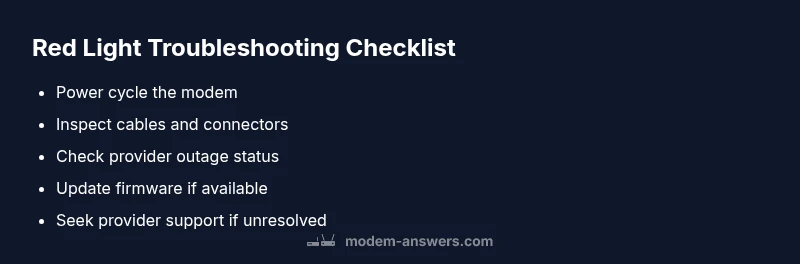
- Power cycle the modem: unplug, wait 60 seconds, plug back in. 2) Confirm all cables are firmly seated. 3) Try a different power outlet or power strip. 4) If the red light remains, perform a factory reset only if you have backed up settings. 5) Reboot the modem and monitor light behavior for 5–10 minutes. 6) If applicable, run a firmware update via the admin page. 7) If the red light persists, contact your ISP for diagnostics.
Tip: keep a log of light patterns and timestamps to share with support.
Preventive tips and safety notes
- Avoid closing the wrong cables; damaged coax or ethernet can mimic power issues. - Use surge protection to shield equipment; avoid high-load outlets. - Keep firmware up to date to prevent incompatibilities. - Schedule regular reboots (monthly) to prevent stale connections. - If you’re unsure about opening the device, seek professional help to avoid voiding warranties.
Key takeaways and quick prevention
- Red flashing lights indicate a fault; don’t ignore it. - Start with power and cable checks before delving into settings. - If basic fixes fail, escalate to your provider or an authorized technician. - Document patterns, outages, and steps taken for faster support.
Steps
Estimated time: 45-60 minutes
- 1
Power cycle the modem
Unplug the modem from power, wait 60 seconds, then plug it back in. Allow 2–3 minutes for the device to reboot and reconnect. If the light remains red, move to the next step.
Tip: A full 60-second wait ensures capacitors discharge completely. - 2
Check all cables are seated
Verify that the coax and Ethernet cables are securely connected at both ends. Loose connections can cause intermittent faults that manifest as a flashing red light.
Tip: Replace any visibly worn cables to rule out physical damage. - 3
Try a different outlet or power source
Plug the modem into a different, known-good outlet, preferably directly on a wall socket. Avoid power strips that can reflect instability.
Tip: High-power devices on the same circuit can cause voltage fluctuations. - 4
Check for outages and status pages
Visit your ISP’s status page or contact support to see if there’s a known outage in your area affecting service, which would explain the red light.
Tip: Document the outage confirmation timestamp for support later. - 5
Update firmware or perform a safe reset
If a firmware update is available, install it via the admin interface. If unresolved, perform a factory reset only after backing up important settings.
Tip: Back up router and modem settings before reset. - 6
Test with a different device and restart network
Disconnect your router (if present) and test with a direct modem connection or a different router to isolate whether the issue lies with the router.
Tip: This helps determine if the issue is device-specific. - 7
Contact the provider for diagnostics
If the red light persists after all basic steps, contact your ISP for line tests, potential technician visit, or equipment replacement.
Tip: Have your outage log and light pattern history ready. - 8
Document results and next steps
Keep a log of steps taken, light patterns, and outcomes so future support calls are faster and more accurate.
Tip: A concise report speeds up resolution.
Diagnosis: Modem flashing red light with no internet access
Possible Causes
- highPower supply fault
- highLoose or damaged cables or connectors
- highProvider service outage or line issue
- mediumFirmware glitch or failed update
- lowOverheating or ventilation obstruction
Fixes
- easyInspect and reseat power cable; try a different outlet
- easyInspect and reseat coax/ethernet cables; replace damaged cables
- easyPower cycle the modem for 60 seconds
- easyCheck the provider outage page and your service status
- mediumUpdate firmware via the admin interface or perform a factory reset (after backing up settings)
- mediumIf issues persist, contact your ISP for line tests and possible technician visit
FAQ
What does a red flashing light on my modem mean?
A red flashing light usually signals a fault in power, signal, or firmware. Start with simple checks like power cycling and cable reseating, then verify service status. If the light persists, follow the diagnostic flow before escalating to your provider.
A red flashing light usually means a fault in power, signal, or firmware. Start with power cycling and reseating cables, then check for outages; if it doesn’t resolve, follow the diagnostic steps or contact your provider.
Is there a difference between blinking red and solid red lights on a modem?
Yes. A blinking red light often indicates a process or intermittent fault, while a solid red light usually points to a persistent hardware or service issue. Different models use different patterns, so consult the manual for exact codes.
Blinking red usually means a process or intermittent fault, while a solid red points to a more persistent issue. Check your model’s manual for exact codes.
Should I reset my modem when it flashes red?
Reset can help but should be done after ruling out basic issues like cables and outages. Avoid frequent resets, since repeated resets can complicate troubleshooting or affect settings.
Resetting can help, but only after you’ve checked cables and outages. Don’t reset too often, as it can complicate troubleshooting.
Can firmware updates cause a red light on a modem?
Yes, a failed or interrupted firmware update can cause red lights. Check for the latest firmware and follow the correct update procedure in the admin interface.
Firmware issues can cause red lights; check for updates and follow the proper update steps in the admin interface.
When should I call my provider if the red light persists?
If basic checks (power, cables, outages) don’t resolve the issue within 30–60 minutes, contact your provider for line tests or a technician visit.
If it doesn’t clear after basic checks within 30 to 60 minutes, call your provider for line tests or a technician visit.
Watch Video
Key Takeaways
- Start with power and cable checks; many red lights are simple faults.
- Check for outages before diving into settings.
- Document patterns for faster support.
- Back up settings before resets.
- Escalate to provider or technician if unresolved.