Solid Orange Light Xfinity Modem: Troubleshooting Guide
Get a clear, practical guide for diagnosing and fixing a solid orange light on your Xfinity modem. Quick checks, safe steps, and guidance on when to contact support.


A solid orange light usually signals a device problem with the modem, not a service outage. Start with a quick power cycle, check all cables, and verify the line is locked to your account. If the light stays orange, continue with the diagnostic flow below.
Why the solid orange light matters on your Xfinity modem
A solid orange light on your Xfinity modem isn't a sign of a total service outage, but it does indicate a problem that blocks internet access. The Modem Answers team has found that this status most often points to a hardware or connection issue, rather than a service-wide disruption. When you see a steady orange light, start with the simplest, safest checks to avoid unnecessary service calls. It’s important to act quickly because a prolonged orange light often means the device cannot authenticate or maintain a stable link to the network. According to Modem Answers Analysis, 2026, fast, methodical checks offer the most reliable path back to reliable service. This article is written for homeowners and renters who want clear, actionable steps without jargon, with the goal of restoring connectivity as soon as possible.
By treating the orange light as a signal rather than a failure, you can rule out common culprits in minutes and avoid costly technician visits when a simple fix suffices.
Common meanings of the orange light and quick checks
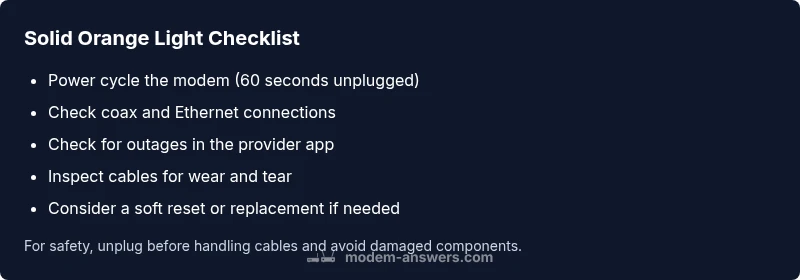
A solid orange light on a modem can indicate several issues. The most common are a power issue, a loose or damaged coaxial or ethernet connection, or a problem with the service authentication on your account. Before diving into complex diagnostics, perform these quick checks:
- Confirm the modem is plugged into a stable power source. Avoid power strips that may fail during surges.
- Inspect coax and ethernet cables at both ends for tight connections and visible wear.
- Reboot the router by power cycling for 60 seconds, then powering back on to let the device reauthenticate with the network.
- Check the provider app or status page for any outages in your area or maintenance events that could affect your service.
Note that an orange light can also appear if the modem is communicating with your provider but has not completed the initial setup. The aim is to establish a clean, stable startup sequence before evaluating more advanced causes.
Basic steps to reset and reinitialize
If the orange light persists, follow these basic steps in order. Each step takes only a few minutes and often resolves the issue without external help.
- Power cycle: Unplug the modem from power, wait 60 seconds, then plug it back in and allow 5–10 minutes for full boot.
- Reseat cables: Remove and firmly reseat the coaxial cable and the Ethernet cable (if connected) at both ends. Look for any frayed conductors or damaged connectors.
- Check for firmware prompts: When the modem restarts, watch for any prompts to install firmware updates and authorize them if prompted.
- Confirm account status: Ensure your Xfinity account is active and the modem is listed as the gateway for your service.
Power, cables, and placement considerations
Placement and cabling can influence how reliably a modem boots and stays online. Consider these best practices:
- Place the modem in a central, ventilated location away from heat and moisture. Avoid stuffed cabinets or enclosed spaces that trap heat.
- Keep coax cables tight but not overly strained; use a cable clip or velcro to reduce movement near the device.
- Use a high-quality power supply and avoid cheap adapters that can fail under load.
- If you use a surge protector, ensure it has no audible fault and isn’t limiting startup surges. Directly plugging into a wall outlet can help determine if the protector is at fault.
If the orange light persists after these checks, the issue may be more systemic and require provider input or hardware replacement, as discussed later in the guide. The Modem Answers team emphasizes keeping a tidy setup to reduce contact failures and misreads on status lights.
Network service and account issues that trigger orange light
Sometimes the orange light reflects service issues rather than hardware faults. This can happen if the modem is not properly authenticated to your account, or if your service is undergoing maintenance. Check these areas:
- Service outages: View the provider app or outage map for your area. Even brief outages can cause a modem to show orange while waiting for stabilization.
- Account activation: If you recently moved or changed service plans, ensure the modem is assigned to the correct account and activated in your provider portal.
- MAC filtering or device limits: Some accounts restrict new devices; confirm there are no recent changes that could block the modem from registering.
If an outage or account change is involved, you may see the orange light until the service is restored or the device is reauthenticated. In many cases, a simple reactivation from the provider’s portal resolves the issue.
Advanced troubleshooting: factory reset vs replacement
If basic resets fail, you might consider more advanced steps. A factory reset can restore factory settings but will erase custom configurations (like port forwards or wifi names). Only perform a reset after saving current configurations or if the modem repeatedly fails to boot. If the device is aging or has had repeated failures, a replacement modem often resolves the problem.
- Soft reset: Reboot and reauthenticate as many times as needed to observe if the orange light clears.
- Factory reset: Use the reset button or menu option to restore defaults, then reconfigure your network setup from scratch.
- Replacement: If the problem persists for several days despite resets, request a replacement from your provider or purchase a compatible model and pair it with your service.
When to call your provider and what information to have ready
If the orange light remains after all standard steps, contact your provider. Have the following ready to speed resolution:
- Your account number and the modem’s serial number (usually on the label on the bottom).
- The exact light pattern (solid orange, steady or pulsing) and any other LEDs that are on or blinking.
- Recent changes to service, new equipment, or outages in your area.
- Confirmation that you’ve performed power cycles and cable reseats.
Explain that you followed the troubleshooting flow in a Modem Answers guide and ask whether there is a known outage or a hardware fault requiring a replacement.
Preventive care to avoid future orange lights
Prevention is better than emergency fixes. Adopt simple habits:
- Schedule regular restarts of the modem at off-peak times to keep firmware up to date and prevent cache buildup.
- Inspect and replace aging coaxial or Ethernet cables every 1–2 years or if you notice wear.
- Use a dedicated, clean power outlet and avoid daisy-chaining through multiple devices.
- Keep your device firmware up to date via provider updates and avoid third-party firmware unless authorized.
A proactive approach minimizes downtime and helps keep your solid orange light from returning.
Quick wrap-up: what to do next
A solid orange light is a signal worth taking seriously, but it is usually resolvable with a methodical approach. Start with power, cables, and placement, move to account/service checks, and only escalate to factory resets or replacements if needed. If the problem persists after following these steps, contact your provider with your notes from this guide to expedite service restoration.
Steps
Estimated time: 45-90 minutes
- 1
Power cycle the modem
Unplug the modem, wait 60 seconds, then plug it back in. Allow 5–10 minutes for the device to boot and re-establish a connection.
Tip: Label your power cable to avoid confusion in future resets. - 2
Inspect cables and connections
Check the coax and Ethernet connections for snug fit and no signs of wear. Replace damaged cables.
Tip: Power off before touching cables to avoid shock. - 3
Check for outages or account issues
Open the provider app or status page to verify no outages and confirm your modem is linked to the correct account.
Tip: Take a screenshot of the outage/activation status for reference. - 4
Test alternate path and reauthenticate
If available, connect a device directly via Ethernet to test the path; ensure the modem registers with your account again.
Tip: Avoid changing multiple settings at once to isolate the cause. - 5
Consider a soft reset, then factory reset if needed
Perform a soft reset if issues persist. If repeated failures occur, back up settings and perform a factory reset.
Tip: Back up WiFi names and passwords before reset. - 6
Request replacement if problems persist
If the orange light remains after all steps, contact support for a replacement or upgrade plan.
Tip: Document all steps you’ve taken to speed up service.
Diagnosis: Solid orange light on Xfinity modem and no internet
Possible Causes
- highPower issue or inadequate power cycle
- highLoose, damaged, or dirty coaxial/ethernet connections
- mediumService outage or account authentication problem
- lowHardware failure or degraded modem
Fixes
- easyPerform a full power cycle: unplug for 60 seconds, then plug back in and allow full boot
- easyReseat coaxial and Ethernet cables firmly; replace any damaged cables
- easyCheck service outage status and reauthenticate the modem in your provider app or portal
- mediumIf issues persist, perform a factory reset or request a replacement modem from your provider
FAQ
What does a solid orange light mean on a Xfinity modem?
A solid orange light typically indicates a hardware or connection issue rather than a total outage. It usually signals that the modem can't fully initialize or authenticate with the network. Follow a structured troubleshooting flow to isolate the cause.
A solid orange light means there’s a hardware or connection issue and not necessarily an outage. Start with power and cable checks, then reauthenticate the modem.
Is a blinking orange light different from a solid orange light?
Yes. A blinking orange light often points to a transitional state or a retry during startup, while a solid orange usually signals a persistent problem that requires attention. Use the same troubleshooting steps, and escalate if it remains after resets.
Blinking usually means retrying, while solid means a persistent fault. Try the standard resets and reauthentication.
Should I call customer support right away when I see orange?
If basic steps don’t resolve the issue within an hour or two, contact support. Have your account number, modem serial, and observed light pattern ready to speed up service restoration.
If it doesn’t clear after trying the fixes, contact support with your details handy.
Can I replace my Xfinity modem myself?
You can replace the modem with a compatible model, but ensure it is approved by your provider. After replacement, activate the new device in your account and verify the status light behavior.
Yes, but make sure the replacement is compatible and activated properly.
How long should a reboot take to fix the orange light?
A standard reboot should complete within 5–10 minutes. If the light remains orange beyond that window, proceed with the other steps in the guide or contact support.
Usually 5 to 10 minutes; if it stays orange after that, keep following the guide.
What preparation helps speed up service restoration?
Have your account number, modem serial, and a note of the light behavior ready. Document any steps you’ve attempted, and ask for outage status or device replacement if needed.
Keep your account and device details handy and tell the agent exactly what you tried.
Watch Video
Key Takeaways
- Understand that a solid orange light signals device or connection issues, not necessarily outages
- Start with power, cables, and placement before advanced steps
- Use a structured diagnostic path and document results for support
- Escalate to factory reset or replacement only after basic fixes fail