When the Modem Light is Red: Urgent Troubleshooting Guide
Urgent, step-by-step troubleshooting for a red modem light. Learn safe checks, a diagnostic flow, and a clear path to restore internet quickly with Modem Answers.


A red modem light usually signals a fault or service outage. Start with the simplest checks: confirm power is plugged in, ensure all cables are snug, and reboot the modem. If the light remains red, power cycle the device again and try a soft reset from your settings. If unresolved, contact your ISP for status and line tests.
Why the Modem Light is Red
When the indicator light on your modem turns red, it’s a clear signal that something in your home network chain has failed or is being blocked at the service edge. According to Modem Answers, red lights are most often tied to power or signal issues that prevent the device from establishing a stable connection. The central idea is not to panic, but to move methodically through checks that separate environmental faults from provider-side problems. In this guide, we’ll explain the common red-light scenarios you’ll encounter, how they manifest across different brands, and the exact sequence of tests you should run to diagnose the root cause quickly. Understanding what the red light means in your specific setup helps you choose the correct fix without unnecessary tinkering. Moderated troubleshooting, especially for renters and homeowners, keeps costs down and reduces downtime. Modem Answers analysis shows that most red-light outages are resolved with one or two safe, simple steps rather than expensive replacements.
Common Red Light Patterns and Their Meanings
Not all red lights are created equal. Some modems flash red for a moment during boot, which is normal, while a solid red light often signals a fault that requires attention. Look for patterns like a red power light with no data light, a red data light while the power is solid, or a rapidly flashing red light. Each pattern maps to a probable cause: power instability, cable/signal loss, or a software/firmware issue. By recognizing these patterns, you can triage more efficiently and avoid unnecessary service calls. While this guide focuses on typical consumer modems, your exact LED behavior can vary by model, so refer to your device’s manual for specific color codes. The important point is to establish a workflow: confirm basics, identify the sub-system at fault (power, signal, or software), then apply the appropriate fix.
Quick Safety and Initial Checks You Can Do
Safety first: never tamper with high-voltage components or exposed line connections. Start with the least invasive checks. Verify the power adapter is securely plugged into a working outlet. Inspect all coax or ethernet cables for snug connections and visible damage. If you use a surge protector, try plugging the modem directly into a wall outlet to rule out protector-related drops. Perform a soft reset through the modem’s control panel if accessible, or power cycle by unplugging for 60 seconds before plugging back in. If the red light persists after these basics, move to the diagnostic flow. Modem Answers recommends keeping a log of the steps you take and any error messages that appear, which helps when you call your provider.
Diagnostic Flow Overview
This section outlines a practical flow you can follow when the red light won’t go away. Start at the top with simple checks and progress toward the more involved steps only as needed. Symptom-driven diagnosis helps reduce downtime and prevents unnecessary hardware swaps.
- Symptom: Red light persists after basic checks.
- Diagnosis path: power issue → signal loss → device fault → provider outage.
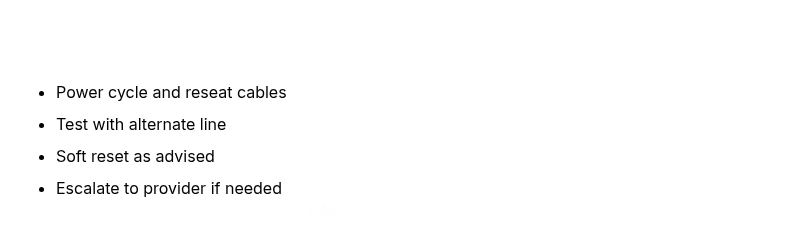
- Actions: reseat cables, test outlet, reboot, test with alternate power supply, perform a factory reset only if advised by your provider. If you still see red after completing these steps, you should contact your ISP for a line test or replacement options.
Step-by-Step Fix: Most Common Cause (Power & Coax)
- Power cycle the modem: Unplug from the outlet, wait 60 seconds, plug back in. This clears minor firmware hiccups and refreshes the device’s connection to the network. Tip: do not use surge protectors during the test, as they can introduce delays.
- Check power and coax connections: Ensure the power brick is firmly connected and the coax cable is tight at both ends. Look for any visible damage or kinks in the cable. Tip: try a different outlet on a different circuit if the first outlet still shows a red light.
- Try a known-good coax/line: If available, swap in a spare coax cable to rule out a damaged line from the provider.
- Soft reset via settings: If the device offers a reset option in its admin page, perform a soft reset as advised by your provider. Tip: screenshot the current configuration before any reset so you can reapply settings easily.
- If you have a separate modem and router, connect directly to the modem to test basic connectivity: this isolates router issues from modem health. Tip: document LED status during each step. Estimated time: 25–45 minutes depending on cable availability and outlet access.
When to Call Your ISP and What to Expect
If the red light remains after you’ve exhausted the basic steps and the diagnostic flow, it’s time to contact your internet provider. Have your account number, device model, firmware version (if available), and the exact LED behavior ready. Providers may run line tests, inspect signal levels, or dispatch a technician to check the external line diagnostics and port status. In many cases, an outage is reported on the carrier’s status page and can be resolved within a few hours. If your service area has an outage, your device might show a persistent red light until the issue is resolved. Continuous red lights after a provider-confirmed restoration may indicate a hardware fault that requires a replacement or a technician visit.
Prevention: How to Avoid Red Lights in the Future
Preventive steps keep red lights from returning. Regularly inspect cables for wear and replace damaged lines promptly. Keep your firmware up-to-date by enabling automatic updates. Place the modem in a cool, ventilated area away from heat sources and away from walls that can trap heat. Avoid stacking a router directly on top of the modem, which can cause overheating and signal interference. Finally, maintain a simple, documented restart routine so you can quickly resolve known issues without guesswork. Modem Answers recommends recording your setup changes and keeping spare cables handy.
Steps
Estimated time: 25–45 minutes
- 1
Power cycle and reseat
Unplug the modem, wait 60 seconds, plug back in. Re-seat both power and coax cables firmly, ensuring there are no loose connections. Observe LED behavior during startup.
Tip: A clean power cycle clears minor firmware glitches that often cause red lights. - 2
Check cables and outlets
Inspect every connected cable for damage; try a different outlet to rule out a local power issue. With coax, ensure the connector is tight and the center conductor is intact.
Tip: Avoid power strips or surge protectors during diagnostic tests. - 3
Test with alternate line
If you have a spare coax cable, swap it in to eliminate a faulty line as the cause. If possible, test with a different modem to isolate device health.
Tip: If the alternate line works, you know the original cable or port is faulty. - 4
Soft reset per provider guidance
Access the modem’s admin page and perform a soft reset or reboot as instructed by your ISP. Do not perform a factory reset unless the provider confirms it’s necessary.
Tip: Back up configuration if your modem/router stores custom settings. - 5
Isolate the router
If you’re using a separate router, connect your device directly to the modem to determine whether the issue lies with the router or the modem.
Tip: This helps quickly identify where the fault lies.
Diagnosis: Red light persists after basic checks
Possible Causes
- highPower issue
- highSignal loss or degraded line
- mediumFirmware or configuration fault
- lowProvider outage
Fixes
- easyPower cycle the modem and reseat power/signal cables
- easyTest with alternate coax and outlet on a different circuit
- mediumPerform a soft reset or restore to factory settings per provider guidance
- hardEscalate to ISP for line tests or technician visit
FAQ
What does a solid red modem light mean, and should I panic?
A solid red light usually indicates a fault that blocks basic connectivity. It’s not dangerous, but it requires immediate checks and likely a fix. Start with power, cabling, and a reboot before contacting your provider.
A solid red light means a fault is preventing your modem from connecting. Start with power and cable checks, then reboot. If it stays red, contact your provider for a line test.
Is a blinking red light different from a solid red light?
Yes. A blinking red light often points to a boot issue or a temporary fault, while a solid red light usually indicates a persistent problem requiring action. Check power, cables, and firmware first.
Blinking usually means a boot issue; solid red means a real fault. Start with power and cables, then reboot.
Should I unplug everything during a red light?
Only unplug components one at a time to test power and cable resets. Do not unplug the provider’s external line. After re-plugging, give the system a full minute to restart.
Unplug things one by one, starting with the modem power. Don’t unplug the external line, and give it a minute to reboot.
When should I contact the provider?
If basic troubleshooting fails after a full diagnostic flow, contact your ISP for line tests and potential outages. Have your account details, modem model, and LED behavior ready.
If you’ve tried the steps and it’s still red, call your provider for line tests or outage info.
Can a red light be caused by a firmware issue?
Yes, a firmware or configuration fault can cause a persistent red light. Follow the provider’s guidance for firmware updates or resets, and consider a factory reset only if advised.
Firmware problems can cause red lights; follow provider steps for updates or resets.
Watch Video
Key Takeaways
- Follow a safe, methodical flow to diagnose red lights
- Power and signal faults are the most common culprits
- Isolate modem from router to identify the faulty component
- Call your ISP for line tests if issues persist