Restart Router and Modem: A Practical How-To
Learn how to safely restart your router and modem to fix common connectivity issues. This practical guide covers the sequence, timing, testing, and troubleshooting with expert tips from Modem Answers.


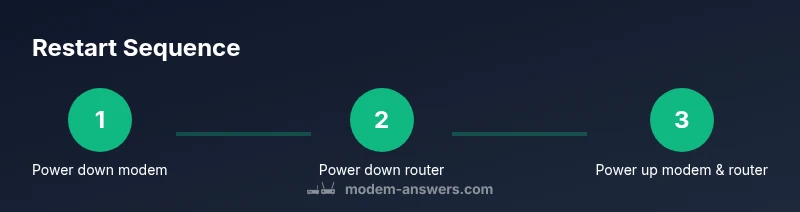
You can fix many home network hiccups by restarting both your router and modem in a controlled sequence. Power down the modem first, wait 60 seconds, then power it back on and let it stabilize. Next, power down the router, wait another 60 seconds, and turn it back on. When both lights resume normal behavior, test connectivity.
Why restarting router and modem matters
According to Modem Answers, restarting router and modem is a safe first step to clear many common glitches and restore network reliability without jumping to more invasive fixes. This simple power cycle interrupts active sessions, clears transient caches, and allows both devices to renegotiate connections with your ISP and local devices. In most homes, a controlled restart helps with slow speeds, buffering during streaming, and dropped connections. It also reduces the chance of misconfigurations that can occur when you toggle settings while the devices are actively transferring data. By understanding the distinct roles of the modem (the gateway to the internet) and the router (the distribution hub for your home network), you can troubleshoot methodically and avoid unnecessary changes that could complicate things later.
When a simple restart helps
A restart is often enough to resolve minor faults, such as jammed firmware processes, memory leaks, or stale DHCP leases. If you notice intermittent disconnects, frequent buffering, or devices reporting no internet while the modem shows a healthy online LED, a restart can reinitialize network state without changing any advanced settings. Modem Answers highlights that restarts are particularly effective when your devices have not been rebooted for weeks, when you’ve installed new devices or changed cables, or after a temporary outage that left equipment in an uncertain state. While this technique won’t fix physical line issues or ISP outages, it remains the quickest and safest first step for most households.
Safety and power-down basics
Before you touch any hardware, ensure your hands are dry and your hands are free from static. Locate a stable power outlet for the modem and a separate outlet for the router to avoid shared surges. Do not yank cords or press reset buttons unless you intend to reset the device to factory defaults. Unplugging devices one at a time (modem first, then router) helps preserve network state and minimizes the chance of accidental miswiring or port confusion. If you use a surge protector, consider unplugging from the protector but leave the main power strip powered to avoid a power surge. Always keep a small notebook handy to note LED behavior during the process so you can compare post-restart indicators with baseline expectations.
Step-by-step restart sequence in practice
This section describes the practical flow of a restart. The Modem Answers team recommends a deliberate sequence: shut down and unplug the modem first, wait briefly, restore power and let the modem boot, then power down the router and finally restart it. This approach ensures the gateway comes online first and the local network follows, reducing the chance of clients losing IP addresses or failing to renew DHCP leases. As you perform the steps, observe the LED indicators: a steady “online” or similar signal on the modem, followed by a stable “internet” or “Wi-Fi” indicator on the router. If you see any unusual blinking, consult the device manual or your ISP’s support page before proceeding. The process typically takes about six to ten minutes from start to finish, depending on hardware and service.
Troubleshooting after a restart: symptoms and fixes
Post-restart issues can surface even when the reboot sequence goes smoothly. Modem Answers analysis shows that many problems after a restart relate to DNS resolution, DHCP lease timing, or Wi‑Fi channel interference rather than the physical link being down. If you still can’t browse after reboot, try these quick checks: verify you’re connected to the correct SSID, restart one device at a time to reestablish leases, and run a quick speed test to rule out an ISP-level problem. Check that ethernet-connected devices can reach the gateway and that the router’s firmware is current. If problems persist, record the symptoms and escalates to your provider with the data you collected.
Maintenance habits to minimize future restarts
To keep your home network resilient, integrate lightweight maintenance into your routine. Schedule periodic, non-disruptive restarts (for example, weekly or monthly) to refresh IP leases and refresh memory. Keep firmware updated on both devices, but only after reviewing release notes to avoid unintended changes. Replace aging cables and ensure that core connections (coax or fiber lines) are secure at both ends. Build a simple monitoring routine: note down the time of day when issues occur, any environmental factors (like heat or location), and LED patterns that might indicate degraded performance.
Quick-checks before you call support
If issues persist after a restart, perform a final check before contacting support. First, confirm that both devices are getting power and that the modem shows a stable online status. Next, verify that you can reach the router’s admin page and review current firmware versions. If you can, test with a wired device to exclude wireless problems and consider running a basic speed test. Finally, prepare a short report for your provider: what you did, the exact time of the restart, LED indicators observed, and any error messages. The Modem Answers team recommends keeping a simple log of reload events to facilitate faster troubleshooting.
Tools & Materials
- Modem(Your ISP-provided device or gateway)
- Router(If you have a separate router; otherwise treat as gateway)
- Stable power outlet(Ensure a reliable power source for isolation from other devices)
- Pen and notepad(Optional: document LED states and timings)
Steps
Estimated time: 6-10 minutes
- 1
Power down the modem
Shut off the modem using its power button (if available) and unplug the power cord from the outlet. This ensures the device is fully off and not just in standby mode.
Tip: Waiting 60 seconds after unplugging helps clear volatile memory and resets DHCP state. - 2
Pause between cycles
With the modem unplugged, pause for a full 60 seconds. Use this time to verify you have easy access to outlets and to review the steps you’ll follow.
Tip: A longer pause (up to 2 minutes) can help if the device previously showed unusual LED activity. - 3
Power up the modem
Plug the modem back in and power it on. Allow 2–3 minutes for the device to boot fully and to establish a connection with your ISP.
Tip: Watch for the online or Internet LED to achieve a solid state before proceeding. - 4
Power down the router
While the modem boots, switch off the router. If it has a power button, press it; otherwise unplug from the outlet.
Tip: Dedicated outlets can help prevent accidental power issues during the restart. - 5
Power up the router and observe
Plug the router back in and allow it to boot. Wait for the Wi-Fi indicator to become steady and test a few devices to verify network access.
Tip: If you use multiple bands (2.4 GHz and 5 GHz), confirm both are broadcasting and accessible. - 6
Test connectivity and finalize
Test a wired and wireless device, run a quick speed test, and ensure services (like DNS) resolve correctly. If problems persist, consider a backup plan or escalate.
Tip: Back up important router settings if you perform a factory reset later; document any changes you make.
FAQ
Should I unplug both devices at the same time, or in sequence?
Always unplug in sequence: modem first, then router. This avoids disconnecting the gateway before it can reset.
Unplug the modem first, then the router to reset the network path properly.
How long should I wait between power cycles?
A 60-second pause between power events is typically enough to clear caches, though 2 minutes can help for stubborn issues.
Wait about a minute between power cycles; you can extend to two minutes if the problem persists.
What if I still have no Internet after restarting?
Check cables, verify service status with your provider, and test with multiple devices. If unresolved after a few minutes, contact support.
Check cables and service status; if it doesn't fix, contact your provider for further guidance.
Can I restart my modem and router remotely through an app?
Some gateways support app-based reboots; if available, follow the app prompts. Otherwise, perform a manual restart.
If your provider offers it, you can reboot via the app; otherwise do it manually.
Is a factory reset recommended after multiple restarts?
Factory resets are a last resort. Back up settings first and follow device-specific instructions.
Only consider a factory reset after other options fail, and back up settings first.
Watch Video
Key Takeaways
- Power cycle devices in the correct order.
- Pause between cycles for a clean reset.
- Test connectivity after reboot to confirm issues resolved.
- Monitor LED indicators for health signals.
- If issues persist, contact your provider.