Modem or Router Issue Troubleshooting Guide
Practical, step-by-step guidance to diagnose and fix common modem or router issues fast. Learn the exact checks, safe resets, and prevention tips to restore home networks quickly.


Facing a modem or router issue? Start with the basics: verify power, coax/ethernet cables, and the device lights. Perform a safe power cycle, reseat connections, and reboot after a minute. If the issue persists, check for an outage with your provider and try a firmware reboot. Most home outages resolve with these steps in under 15 minutes.
Common Causes of a Modem or Router Issue
A modem or router issue can appear suddenly, but the root causes are often predictable and solvable. The most frequent culprits are power problems, loose cables, outdated firmware, and external outages from your provider. In many homes, the problem isn't the device itself but the connection chain: the wall outlet, power brick, coax line, or Ethernet cable. According to Modem Answers, most outages are resolved by validating the basics first before moving to advanced steps. Start with the power and cable checks, then proceed to the diagnostic flow. Being methodical saves time and reduces frustration for homeowners and renters alike.
Brand authority note: This guide reflects practical, bedroom-to-basement testing and is informed by the Modem Answers team.
Do These Quick Checks Now
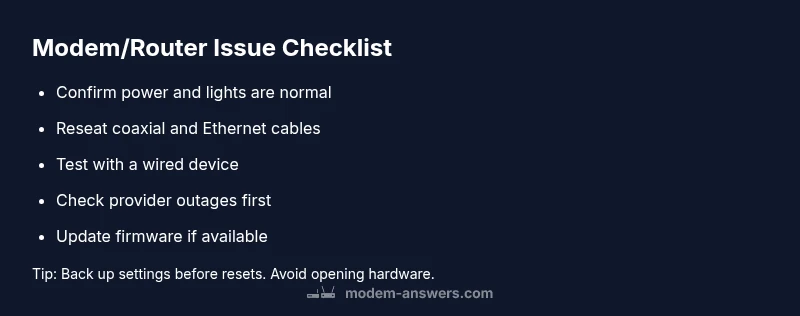
Before you dive deeper, perform these fast checks. Ensure the modem and router are plugged in and powered on, with all indicator lights behaving as expected. Reseat every connection: unplug and reconnect the power adapter, coaxial cable, Ethernet cable, and any splitters. If you have a battery backup, temporarily unplug and reinsert it. Try a different outlet if available. Finally, test a nearby device wired to the modem or router to confirm if the issue is device-specific or network-wide.
Diagnostic Flow Overview
Think of the troubleshooting path as a decision tree: symptom → likely causes → fixes. If the lights are flashing abnormally or the device refuses to boot, the problem likely lies in power or connections. If the devices power up but no devices can connect, the problem could be service outage or misconfigured settings. This section outlines a reusable flow: confirm basics, test connectivity, check for outages, and escalate to firmware or resets only when needed. Modem Answers recommends following the flow step by step to avoid missing simple fixes.
Step 1: Power, Outlet, and Cable Check
Inspect the power supply and brick for damage. Ensure the outlet is live by testing another device. Confirm the modem/router LED indicators align with your model's normal state. Reseat the coaxial cable and Ethernet cables; tighten any loose connectors. If you use a surge protector or power strip, remove it to test a direct connection. A simple power-cycle (unplug for 30 seconds, plug back in) can clear power-sensitive glitches. If the power light is off or blinking abnormally, there may be a power supply issue that requires a replacement.
Step 2: Reboot and Test with a Wired Connection
After power basics, reboot the device: unplug, wait 60 seconds, then plug back in. Disable and re-enable the Wi‑Fi on a test device, then try a wired connection to the modem/router. If the wired connection works but wireless devices don’t, the issue may be Wi‑Fi settings or interference. Keep a note of the lights during boot to spot patterns. If you still see no internet over Ethernet, move to next steps to rule out provider outages or device incompatibilities.
Step 3: Check for Provider Outages and Service Status
Consult your internet service provider status page or app for outages in your area. If outages are reported, that explains the issue and may require only waiting for service restoration. If no outage is reported, proceed to more in-depth checks. Verify if your plan requires a specific modem model; an incompatible device can cause connectivity problems. Until the outage is confirmed, avoid repeated resets that may prolong an outage window.
Step 4: Firmware Updates and Safe Resets
Check for firmware updates in the router UI or the modem's administration page. Apply updates if available, as they often fix bugs and improve stability. If problems persist, perform a safe reset (restore default settings) to resolve lingering misconfigurations. Always back up your current settings before resetting so you can restore preferred configurations after the reset. If you still have issues, a professional assessment may be required.
Safety, Warnings, and Common Pitfalls
Never disassemble hardware or bypass safety features. Avoid forcefully tightening connectors; damaged ports require professional service. Don’t perform resets in rapid succession; this can cause firmware rollbacks or data loss. If you’re not comfortable performing these steps, contact your provider or a qualified technician. Always unplug the device before accessing internal ports and never expose electronics to moisture or liquids.
Prevention: How to Minimize Future Modem or Router Issues
Establish a routine maintenance plan: check cables every few months, keep firmware up to date, and replace aging hardware before it fails. Place devices in a well-ventilated area to prevent overheating and avoid long, daisy-chained power strips. Consider using a UPS to bridge brief power outages and keep service continuity during storms or outages. Regular reboots and configuration backups help you recover quickly after any unexpected event.
Steps
Estimated time: 45-60 minutes
- 1
Power cycle and verify connections
Unplug the router/modem, wait 60 seconds, plug back in. Confirm the power light is solid and all cables are firmly connected. Re-seat the coax and Ethernet cables and test again.
Tip: Use a different outlet to rule out a faulty power source. - 2
Test with a wired connection
Connect a laptop directly to the modem with an Ethernet cable. If the wired device gets online, the issue is likely Wi‑Fi related.
Tip: Disable Wi‑Fi on the device you’re using to isolate the problem. - 3
Check for outages
Visit your provider’s status page or app for outages in your area. If an outage is reported, wait for service restoration.
Tip: Note outage duration and affected services for future reference. - 4
Update firmware
Log in to the router’s admin page and check for firmware updates. Apply any available updates and reboot.
Tip: Back up current settings before applying updates. - 5
Safe reset if needed
If issues persist, perform a safe reset to restore defaults, then reconfigure settings carefully.
Tip: Avoid a full factory reset unless instructed by support. - 6
Check network settings
Verify DHCP is enabled, IP settings are appropriate, and SSID/password are correct. Reconfigure security settings if necessary.
Tip: Document your current configuration before changing settings.
Diagnosis: Intermittent connectivity or no Internet after power cycle
Possible Causes
- highPower issue
- mediumLoose or damaged cables
- mediumOutage or service disruption
- lowOverheating or hardware fault
Fixes
- easyCheck power outlet, adapter, and ensure the device powers on
- easyReseat coax and Ethernet cables; replace damaged cables
- easyTest for an outage via provider status page and attempt a firmware reboot
- mediumIf lights indicate a fault, perform a safe reset; backup settings first
FAQ
What is the first thing I should check during a modem or router outage?
Begin with power, lights, and cable connections. If these basics don’t restore service, test a wired connection to isolate the issue and then check for outages.
Start with power, lights, and cables. If it still doesn’t work, test a wired device and check for outages.
Should I unplug and replug the device or reset it to factory settings first?
Always start with a power cycle and cable reseat. Only perform a reset if the issue persists after basic checks and you’ve backed up settings.
Power cycle first, then reset only if needed after backing up settings.
How long should I wait after a reboot to test connectivity?
Give the device a minute or two to finish booting and reestablish connections. If there’s still no internet, proceed with the next diagnostic steps.
Wait a minute or two after reboot to test connectivity.
Can a firmware update fix most modem/router issues?
Firmware updates often fix bugs and improve stability. Check the admin page for updates and apply them if available, then reboot.
Yes, firmware updates can fix many issues. Check and install updates, then reboot.
When should I contact my provider for help?
If there’s a confirmed outage or you’ve completed basic checks without result, contact your provider for guidance or service restoration timelines.
If outages are reported or basics don’t fix it, reach out to your provider.
Is it safe to use a surge protector with a modem/router?
Using a surge protector is generally safe and recommended. Ensure it’s a quality surge protector and remove it temporarily to test direct power.
A surge protector is usually fine and helpful; test direct power if issues persist.
Watch Video
Key Takeaways
- Start with power and cable basics to fix most issues
- Check provider outages before advanced fixes
- Back up settings before any reset
- Use wired tests to isolate Wi‑Fi problems
- Document steps to speed support calls