When Modem Is Not Working: Quick Troubleshooting Guide
Step-by-step guide to diagnose and fix common issues when your modem is not working. Includes quick fixes, diagnostic flow, safety tips, and when to call a pro.


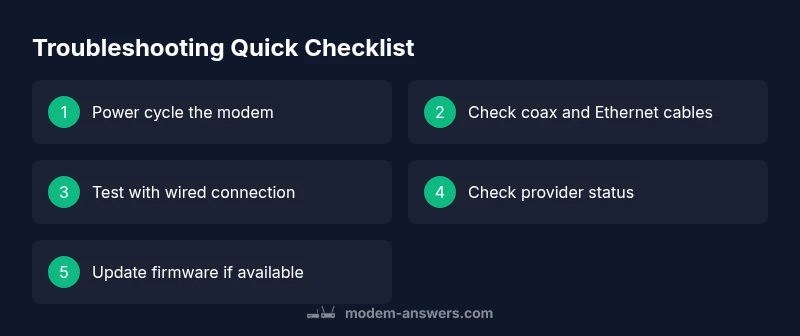
According to Modem Answers, most modem issues stem from power or cable problems. A quick fix is to power cycle the modem, inspect coax and Ethernet cables, and verify the status lights. If the lights indicate an error, follow the diagnostic flow below to identify the cause and apply the right fix.
Why Modem Problems Happen
According to Modem Answers, most modem problems stem from simple, solvable causes rather than hardware failures. In many homes, the issue isn’t a broken device but power issues, loose connections, or outdated firmware. When you search for "when modem is not working", you want a plan you can follow step by step. This section explains the most common culprits and how to approach them with urgency and clarity, so you can regain service quickly and with confidence.
Common Symptoms You Might See
Symptoms vary, but you can quickly triage by noting what you observe: no internet access, blinking lights, slow speeds, intermittent drops, or devices failing to connect. Document the pattern (sudden outage vs gradual slowdown) because that helps you distinguish between a simple restart issue and a WAN outage at your provider. The Modem Answers team notes that many users misinterpret a blinking power light as normal; in reality, it often signals a fault. Recognizing the sign early helps you act faster and prevents needless waiting.
Quick Checks You Can Do Right Now
- Verify the power source: ensure the adapter is firmly plugged into a working outlet; test with another device if unsure.
- Inspect cables: coaxial cable snug on both ends; Ethernet cable seated properly.
- Reboot in a two-step: power off, wait 30 seconds, power on again.
- Check for service outages: visit your provider’s status page or call support for real-time updates.
- If you rent a modem, confirm you are using the provider-approved model and firmware version.
How Your Modem Lights Tell the Story
LED indicators are more than pretty lights. A solid Power light usually means the unit is powered; a solid Online/Online-DHCP light means the device is connected to the internet; a blinking or absent Power or Link light often signals issues in power, line, or data path. Use the light patterns described in your modem’s manual or the provider’s website to infer where the fault lies. Quick interpretation: no lights or all lights off points to power or supply issues; intermittent lights suggest connection problems; a steady Off state often means no service or a failed device.
Diagnostic Flow Overview
This section introduces a high-level, homeowner-friendly diagnostic path. Start with simple checks, rule out household causes, then move toward provider-related issues. Keep a log of each step you take; this helps if you need to escalate to a technician.
Step-by-Step Fix for the Most Common Cause
In most homes, the top culprit is a power or cable issue. The following will walk you through a repeatable, safe process to restore service. If any step feels unsafe, skip it and contact a professional.
Safety, Warnings, and When to Call a Pro
Always unplug the modem before inspecting power cables or opening cases. Do not force connectors; damaged ports can cause further harm. If you continue to experience outages after completing the diagnostic flow and step-by-step fixes, contact your internet provider or a qualified technician for a deeper assessment. Regular maintenance, including firmware updates, can prevent many common faults.
Steps
Estimated time: 30-45 minutes
- 1
Power cycle the modem
Unplug the modem from power, wait 30 seconds, then plug it back in. Give the device 2–3 minutes to fully reboot and re-establish the connection. This simple step clears many temporary faults.
Tip: If you have a power strip, switch the strip off and then back on rather than unplugging individually. - 2
Check all cables and connections
Inspect the coaxial/phone line and Ethernet cable. Ensure each connection is snug and not loose, and that there are no visible signs of wear.
Tip: Replace frayed cables immediately to avoid intermittent faults. - 3
Verify service status and outages
Visit your provider’s status page or call support to confirm there isn’t a regional outage affecting your area. If outage is confirmed, you’ll need to wait for restoration.
Tip: Sign up for outage alerts if your provider offers them. - 4
Test with a wired connection
Connect a device directly to the modem via Ethernet to determine if the issue is Wi‑Fi related or a broader connectivity problem.
Tip: If wired works but Wi‑Fi is failing, focus on router placement or wireless settings. - 5
Run built-in diagnostics (if available)
Many modems/routers include a diagnostics tool. Run it to identify potential fault codes or error messages.
Tip: Document any error codes to share with support if needed. - 6
Escalate if the issue remains
If you still have no service after these steps, contact your provider or consider hardware replacement. Provide your diagnostic notes to speed up the process.
Tip: Ask about warranty options or potential device swap programs.
Diagnosis: No internet connection or no lights on the modem
Possible Causes
- highPower issue
- highLoose or damaged cables
- mediumISP outage or service interruption
- lowFirmware glitch or outdated software
Fixes
- easyCheck power outlet and power adapter for secure connection
- easyRe-seat all cables (coax and Ethernet) at both ends
- easyPower cycle the modem: unplug, wait 30 seconds, plug back in
- mediumIf the problem persists, perform a factory reset following manufacturer steps (with caution)
FAQ
Why is my modem not connecting to Wi-Fi?
Wi‑Fi issues can stem from router settings, interference, or distance. Start with a reboot, ensure the router is broadcasting the correct SSID, and check that devices are configured to the right network. If problems persist, update firmware and consider changing channel or placing the router higher and away from obstructions.
Wi‑Fi trouble usually comes from settings or interference. Start by rebooting and checking the SSID, then update firmware if needed.
Should I reset my modem often?
Frequent resets aren’t usually necessary. Use resets as a last resort after basic checks, and avoid factory resets unless advised by support. If resets are needed regularly, there may be a deeper hardware or service issue.
Resets aren’t usually needed often; use them only after basic checks fail.
Can I fix a dead modem myself?
Basic fixes like power cycling and cable reseating are safe. If the device is completely unresponsive after these steps, it’s best to contact your provider or a technician, as a hardware failure may require replacement.
Simple fixes first, but if the modem stays dead, call your provider.
How long does a modem reboot take?
A typical reboot takes 2–5 minutes. If you don’t see progress in 10 minutes, there may be a larger issue requiring further steps or provider support.
Reboots usually finish in a few minutes; if it drags on, something’s wrong.
What should I do if the outage persists after troubleshooting?
If outages continue after the troubleshooting steps, contact your internet provider for a service restore ETA and ask about a possible hardware swap or technician visit. Keep your diagnostic notes handy.
If it keeps happening, call your provider and share what you’ve tried.
Watch Video
Key Takeaways
- Start with power/cable checks to fix most issues
- Follow the diagnostic flow for accurate diagnosis
- Escalate to provider or replace hardware if issues persist
- Regular firmware updates prevent common faults