Problem with modem or router? A step-by-step troubleshooting guide
Facing a problem with modem or router? This urgent, step-by-step guide from Modem Answers helps homeowners diagnose outages, fix common issues, and prevent future disruptions.


Start with the simplest fixes: power-cycle both devices, verify cables and indicator lights, and check for outages with your provider. If the issue persists, run through the diagnostic flow to map symptoms to likely causes and apply the guided step-by-step fixes. This approach solves the majority of 'problem with modem or router' cases quickly and safely.
Understanding the scope of the problem with modem or router
A true problem with modem or router shows up in more than one symptom: devices connect occasionally, Wi-Fi drops out, pages load slowly, or there is a total loss of connectivity. The keyword here is correlation—look for patterns that link power, cabling, and timing (like after a reboot or following a thunderstorm). Even if one device seems fine, a shared issue in the network path can affect every connected device. For homeowners, distinguishing between a local equipment fault and a provider-side issue is critical. Remember, solving these issues quickly protects your home network and keeps streaming, gaming, and work running smoothly. Modem Answers emphasizes a systematic approach to save you time and stress.
Quick checks you can perform before deep diving
- Confirm there is no widespread outage in your area by checking your provider’s status page or calling support.
- Inspect all power connections and ensure both devices are firmly plugged in (and not on a surge protector that could fail).
- Look at the LED lights on your modem and router: if lights are off or red, there’s a hardware or power issue that needs attention.
- Reboot: power-cycle the modem first, then the router after 30 seconds. Test with a wired device and then with Wi-Fi to isolate the issue.
- If you have a guest network, try disabling it to see if it affects performance.
Common causes of modem/router problems
The most frequent culprits are power issues, loose cables, and outdated firmware. A failing coaxial or Ethernet cable can intermittently disrupt data, while a router pushed to its limit by many devices may overheat or throttle speeds. Wireless interference from nearby networks or other electronics (microwave ovens, baby monitors) can degrade performance. Also consider a misconfigured setting after a recent update. By recognizing these patterns, you can address the root cause rather than chasing symptoms. Modem Answers notes that most home-network faults fall into a handful of repeatable categories.
Diagnostic thinking: mapping symptoms to causes
Start from the symptom and work backward: Is the problem only on Wi-Fi, or does it affect wired devices too? If wired devices work but Wi-Fi doesn’t, the issue is likely wireless configuration or interference. If both fail, focus on the hardware, service outage, or provider-side problems. Keep a short log: date/time, devices affected, and any changes you made. This log helps you observe whether a fix had an impact and makes user-to-support conversations more efficient. A disciplined diagnostic mindset reduces wasted time and leads to faster restoration of service.
Step-by-step path to fixes (overview)
A solid resolution path starts with quick wins and advances to targeted interventions. Begin with power, cabling, and resets, then confirm with wired/ wireless testing. If needed, update firmware or perform a factory reset—after backing up settings. Always test after each step to confirm progress. If issues persist beyond basic troubleshooting, there’s a higher probability of a hardware fault or provider outage requiring professional help.
Safety and when to call a pro
Never force unplugging devices with wet hands or attempt repairs beyond your comfort level. Use proper power outlets, avoid daisy-chaining equipment, and never open the device enclosures. If you suspect a faulty power supply, damaged coax, or persistent modem/router failure after a factory reset, contact your ISP or a qualified technician. Pro advice: document steps taken and results to speed up service calls.
Prevention tips to avoid future problems
Regularly update firmware, keep equipment in a well-ventilated area, and replace worn cables. Place your router out in the open away from walls or metal objects that can block signals. Schedule periodic reboots and run speed tests to catch performance dips early. Consider a device health check every 6–12 months to extend the life of your home network.
When to replace gear
If your modem or router is several years old, or you’ve tried updates and resets without improvement, replacement may be the best option. Look for devices that support your internet tier and future-proof features (e.g., Wi-Fi 6/6E, USB-C, QoS). Replacing gear can dramatically improve reliability and performance, reducing the time spent on troubleshooting.
Quick troubleshooting cheat sheet
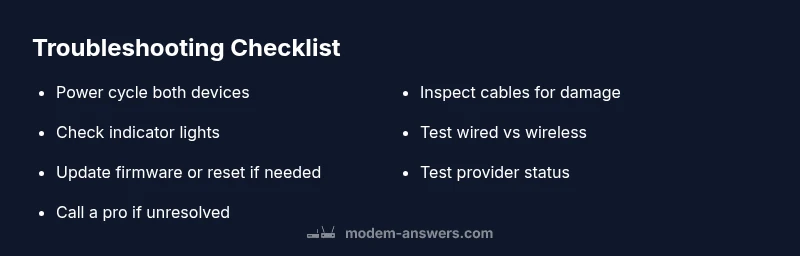
Keep this as a quick reference: check outages, inspect cables, power-cycle, test wired vs wireless, update firmware, and consider a reset if needed. When in doubt, contact your provider to confirm service health and seek professional help if issues persist.
Steps
Estimated time: 25-60 minutes
- 1
Power cycle both devices
Unplug the modem and router. Wait 60 seconds. Plug the modem back in first, wait for full resync, then plug in the router.
Tip: Label which device is which to avoid confusion during reboots. - 2
Check cables and connections
Inspect coaxial and Ethernet cables for damage or loose connections. Reseat connectors firmly.
Tip: Avoid using damaged cables; replace as needed. - 3
Inspect indicator lights
Note color and blink patterns. Refer to the manual for what normal versus fault indicators look like.
Tip: If lights are red or off, continue to next steps. - 4
Test wired vs wireless
Connect a device directly via Ethernet. If wired works but Wi‑Fi doesn’t, focus on wireless settings or interference.
Tip: Try changing Wi‑Fi channel on the router. - 5
Update firmware
Access the router/modem admin interface and check for firmware updates or a firmware pull. Apply updates if available.
Tip: Back up current settings before updating. - 6
Factory reset if needed
If issues persist, perform a factory reset. Reconfigure basics afterward.
Tip: Only reset after saving important settings. - 7
Reconfigure network settings
Restore essential settings (SSID, password, security mode) and ensure devices reconnect properly.
Tip: Use a strong WPA3 or WPA2 password. - 8
Seek professional help
If problems persist beyond these steps, contact your provider or a technician.
Tip: Have spare time and a network log ready when you call.
Diagnosis: Intermittent connectivity or no internet from either wired or Wi‑Fi
Possible Causes
- highPower issue (outlet, surge protector, power brick)
- highLoose, damaged, or aged cables (coaxial, Ethernet)
- mediumOverheating or hardware fault in modem/router
- lowService outage or provider-side problem
- mediumOutdated firmware or misconfigured settings
Fixes
- easyInspect and reseat all power and data cables; replace visibly damaged cables
- easyPower-cycle both devices for 60 seconds, then allow full re-sync
- mediumUpdate firmware from the admin interface or perform a factory reset if necessary
- easyTest with a wired connection to confirm whether the issue is wireless-specific
- easyCheck for provider outages via status page or by calling support
- mediumIf issues persist, arrange professional assessment or replacement
FAQ
What is the most common cause of a problem with modem or router?
Power issues and loose cables are by far the most frequent culprits. A quick reboot and cable check often restore service. If not, move to more advanced steps.
The most common cause is power and cables; a quick reboot often fixes it.
Why does my internet drop randomly even though lights are on?
Interference, weak Wi‑Fi signal, or outdated firmware can cause intermittent drops even when lights look normal. Check for channel interference and apply firmware updates if needed.
Interference or firmware can cause drops even with proper lights.
Is it safe to reset my modem/router to factory settings?
Factory resets are safe but erase custom settings. Back up important configurations before resetting and reconfigure basics afterward.
Only reset if other fixes fail, and back up settings first.
What should I do if a service outage is confirmed?
Document the outage and follow your provider’s guidance. If the outage is widespread, fixes on your end won’t restore service until maintenance is complete.
If an outage is confirmed, follow provider guidance and wait for service restoration.
How can I tell if the problem is provider or equipment related?
Test a wired device to rule out wireless issues, check outage pages, and contact support with your test results. Provider faults often require patience and a ticket.
Test wired, check outages, and contact support with your results.
When should I replace my modem or router?
If devices are old, frequently failing, or after thorough troubleshooting nothing helps, replacement is reasonable. Choose devices compatible with your service and future-proof features.
Consider replacement if faults persist after fixes or devices are aging.
Watch Video
Key Takeaways
- Start with power, cables, and a reboot.
- Use a symptom-to-cause approach to speed fixes.
- Keep firmware up to date for stability.
- Call your provider if outages are suspected.