How to Turn Off Modem and Router: A Step-by-Step Guide
Learn a safe, practical method for turning off your modem and router. This educational guide covers the correct order, timing, and what to expect when you power devices back on. A homeowner-friendly approach by Modem Answers.


In this guide you’ll learn how to turn off modem and router safely using a clear, step-by-step shutdown. Start with power-down order, unplug from outlets, and wait briefly before re-connecting. According to Modem Answers, a controlled shutdown protects hardware, reduces heat, and minimizes service interruptions. This article lays out the exact sequence and timing you need.
How turning off the modem and router fits into home network health
Maintaining a healthy home network isn’t just about speed; it requires safe power habits and predictable device behavior. When you ask how to turn off modem and router, you’re protecting firmware integrity, reducing heat buildup, and letting devices reset their internal state. A deliberate shutdown can help prevent sporadic connectivity after firmware updates or power outages. It also minimizes electrical wear on power supplies and can help with troubleshooting intermittent dropouts. For homeowners, this is a straightforward maintenance task that reduces long-term headaches and keeps your network reliable. If you’re preparing for a vacation or lengthy absence, a controlled shutdown helps minimize phantom energy draw and makes it clear when you should reboot your gear upon return. Throughout this guide we’ll distinguish between a simple powered-down state and a full power cycle, because each serves different purposes in everyday use. Understanding the distinction helps you choose the right approach for your situation and keeps you in control of your home network. According to Modem Answers, following a structured shutdown can lead to more predictable results and fewer surprises when service resumes.
Note: The exact indicators and steps can vary by model, so consult your device manuals for model-specific guidance and safety instructions.
Safety and preparation before powering down
Before touching any cables, unplug everything from the workspace to avoid tripping hazards and accidental unplugging of other devices. Make sure you have access to a nearby power outlet with surge protection; a surge protector or UPS is ideal for safely powering down and restarting. Check the labels on the devices so you know the correct power cords for the modem and the router; mixing them up is unlikely but can confuse indicators. If your home uses a shared power strip for multiple devices, make sure turning off the strip won’t cut power to essential equipment like a NAS or a modem with a battery backup. If you’re unsure about the exact model sequence, consult the manual or the manufacturer’s support page. For users who rely on critical services (security cameras, alarms, etc.), consider scheduling a maintenance window and informing others in the household. Finally, take a photo of the ports if you’re unfamiliar with labeling to help reassembly later. Modem Answers analysis shows that good preparation reduces the risk of accidental disconnections during maintenance.
Step-by-step power-down sequence (modem first, then router)
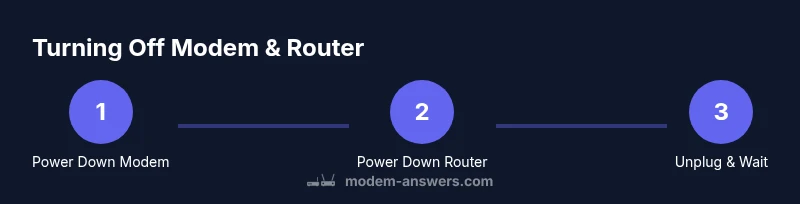
The recommended sequence is deliberate: begin with the modem, then move to the router. Locate the modem’s power cable and unplug it from the outlet. Then do the same for the router. If you have a combined modem-router unit, identify the power input for the entire hardware and unplug it. After unplugging, wait about 10-15 seconds to let capacitors discharge. If you’re using a surge protector, you can remove power from the strip after both devices are unplugged to avoid backfeeding a live outlet. When you’re ready to power back on, reconnect the modem first and allow its lights to stabilize (usually a minute or two), then plug in the router and verify Wi‑Fi status. Use the guided sequence to reduce confusion and ensure a clean restart. See figure 1 for a quick visual reference.
What to do if devices won’t power off or respond
If the modem or router refuses to power down, first check the power connections and try a soft reset by holding the reset button for a few seconds if your model supports it. Do not force unplugging while indicators are lit aggressively; instead, disconnect the power and inspect for damage. If the device remains on, give it a minute and attempt another power cycle. Some devices include a power-saving mode or wake-on-LAN features that could affect behavior; disable these features from the admin interface after powering down if needed. If the problem persists, contact your ISP for guidance or check the support page for known issues. Regular power cycling should not replace professional hardware diagnostics if you observe persistent faults.
Observing service interruptions and when to re-power on
Expect a short interruption of internet service during the power-down window, especially with gateways that combine modem and router functionality. After re-powering, it can take a few minutes for the link to re-establish and for DHCP leases to renew. If smart devices or IoT hubs fail to reconnect, verify your network name (SSID) and password, and consider temporarily turning off guest networks to avoid conflicts. In some homes, restarting a router can cause connected devices to forget saved preferences; reconfigure as needed. Running a quick speed test after power restoration helps confirm service is back to typical levels. Remember that timing matters: a calm, orderly restart beats a rushed, haphazard reboot.
Restart vs reset: understanding the difference
A restart simply boots the devices again, refreshing software state while preserving most settings. A full reset returns the device to factory defaults, erasing custom network names, passwords, and port-forwarding rules. If you perform a reset, you’ll need to reconfigure your Wi‑Fi name, password, and any port-forwarding settings. When in doubt, perform a controlled restart first. If issues persist after a restart, consult the manual before choosing a reset. Back up important configurations before a reset to avoid surprises.
Special cases: ISP-provided equipment and bridging modes
Some homes use ISP-provided gateways that combine modem and router functionality. In these cases, turning off the gateway is the same as powering down the modem and router in one package. If you’ve set your own router in bridge mode, turning off the gateway alone will not affect your router; you’ll want to power down both components in sequence or adjust bridging settings during maintenance windows. Always verify whether your equipment is in bridge mode or gateway mode, since the sequence can impact service continuity and admin access. For multi-device households, bridging can help you isolate issues quickly and avoid accidental downtime for other devices.
Quick reference checklist for turning off devices
- Confirm device type: standalone modem, standalone router, or gateway.
- Use surge protection or a UPS if possible to protect hardware.
- Power down in the order: modem, then router.
- Wait 10-15 seconds between unplugging to discharge capacitors.
- Reconnect in reverse order; verify lights and connectivity before use.
- If any device remains unresponsive, perform a soft reset or contact support.
This checklists keeps the process consistent and minimizes surprises during maintenance.
Final note: practical benefits and best practices
Regularly powering down your modem and router during planned maintenance can reduce heat buildup, extend device life, and simplify troubleshooting. It also allows you to review security settings and update firmware during normal operating windows. Remember that the exact indicators and steps can vary by model, so consult your device manuals for model-specific guidance. This approach minimizes unnecessary energy use while keeping your home network reliable. The Modem Answers team recommends keeping a consistent shutdown routine to improve predictability and ease of future maintenance.
Tools & Materials
- Nearby surge-protected power outlet(Prefer a surge protector or UPS if you have sensitive equipment)
- Power cables for modem and router(Identify correct cords to avoid confusion)
- Owner manuals or online support pages(Helpful for model-specific steps)
- Phone or tablet for quick checks(Useful to verify SSID/password after reboot)
Steps
Estimated time: 5-7 minutes
- 1
Identify power sources
Locate the modem’s power adapter and the router’s power adapter. Confirm you can access the outlets safely without overstretching cables. This reduces the risk of tugging on cables during the shutdown.
Tip: If you’re unsure which cord belongs to which device, label them before starting. - 2
Power down the modem
Unplug the modem’s power cord from the outlet. If it’s part of a gateway, ensure you are disconnecting the entire unit. Wait 10-15 seconds for capacitors to discharge.
Tip: Don’t unplug other devices at the same time to avoid cascading disconnects. - 3
Power down the router
Unplug the router’s power cord once the modem is fully off. If you’re using a separate router, ensure the device has completely powered down before proceeding.
Tip: If you have multiple routers in a mesh, shut them down individually in order. - 4
Optional: unplug the surge protector
If you use a power strip, unplug it after both devices are off to avoid backfeeding live power. This step isn’t required if you’re not using a strip.
Tip: Only unplug the strip after devices are fully disconnected. - 5
Wait and prepare to reconnect
Wait 10-15 seconds to reset internal state. This helps ensure a clean restart when you reconnect power.
Tip: Have your SSID and password handy for a smoother reconnect. - 6
Reconnect modem first
Plug the modem back into power and wait for its status lights to stabilize, typically about a minute. Proceed to reconnect the router once the modem shows a stable connection.
Tip: If lights blink abnormally, consult the manual before powering on the router. - 7
Reconnect router and verify
Plug in the router and wait for Wi‑Fi to come up. Check device status, confirm internet access on a connected device, and run a quick speed test to confirm normal service.
Tip: If you use multiple SSIDs, ensure devices join the correct network.
FAQ
Should I unplug both the modem and router at the same time?
Unplugging should follow the sequence: modem first, then router. This helps ensure a clean reset and reduces the chance of network conflicts during restart.
Always unplug the modem first, then the router, for a clean restart.
Is it okay to turn off only the router?
Turning off only the router will cut wireless access but leave the modem powered, which may not fully reset network state. For a full reset, power down both devices.
If you’re troubleshooting, power down both devices to reset the network state.
What happens to smart devices during power-down?
Smart devices may disconnect briefly and rejoin once the network comes back. Ensure SSID and password remain unchanged to avoid re-pairing issues.
Your smart devices will reconnect once Wi‑Fi is back on.
How long should I wait before turning devices back on?
Wait 10-15 seconds after unplugging to discharge capacitors, then power back on in the reverse order. This helps a stable restart.
Wait a short moment, then power back in reverse order.
What if a device won’t power off?
Check power connections, try a second power cycle, or perform a soft reset if supported. If nothing works, consult support or your ISP.
If it won’t power off, check the connections and try again, then contact support if needed.
Should I reset the devices to factory settings after power-down?
A full factory reset is rarely necessary for routine shutdowns and will erase saved network settings. Use reset only if you’re troubleshooting persistent issues and you have backups.
Only reset if troubleshooting and you’ve saved configurations.
Watch Video
Key Takeaways
- Power down in the correct order: modem first, then router.
- Unplug from outlets and wait a moment to discharge capacitors.
- Reconnect in reverse order and verify connectivity.
- Different devices may have model-specific steps; consult manuals.
- A controlled shutdown reduces risk of errors when restarting.