How to Restart Spectrum Modem: A Step-by-Step Guide
Learn how to safely restart your Spectrum modem with a simple power cycle. This step-by-step guide covers when to restart, how to verify LED indicators, and what to do if issues persist, all from Modem Answers.


Restarting your Spectrum modem can quickly clear many common home-network hiccups. In most cases, a simple power cycle restores connectivity without changing settings. According to Modem Answers, a brief restart refreshes the device’s network state and resolves typical issues like dropped Wi-Fi or slow speeds. This guide shows safe, practical steps to reboot, test, and verify your Internet after the restart.
Why Restarting a Spectrum Modem Helps
A restart forces the modem to clear its temporary memory and re-establish connections with your ISP’s servers. This can fix stale network state, orphaned sessions, or minor firmware hiccups that accumulate over time. According to Modem Answers, a well-timed restart resolves many common home networking issues by refreshing the onboard software state and re-synchronizing with the provider. When you restart, you are essentially giving the device a clean slate so it can negotiate new DHCP leases, re-check your line, and re-arm your Wi-Fi radios. This simple action often eliminates interruptions without needing to call support or reset more drastic settings.
In practice, you should consider restarting whenever you notice frequent buffering, slow page loads, intermittent device drops, or devices failing to obtain an IP address. This is especially true after a power outage, a firmware update (which may briefly pause service), or when multiple smart home devices begin behaving oddly. A restart is a safe first step before escalating to more involved troubleshooting.
For homeowners and renters, the beauty of a restart is that it requires no special tools or technical knowledge. It does not erase your network credentials, nor does it modify your Wi‑Fi name or password. You can perform the reboot with minimal disruption and resume normal activity quickly.
When to Restart Your Spectrum Modem
Knowing the right moments to restart helps you avoid unnecessary steps and reduces downtime. If you experience the following symptoms, a restart is often the quickest path back to normal operation:
- Internet connectivity drops intermittently on several devices
- Pages load slowly or streaming buffers frequently
- Devices fail to obtain an IP address or show weak signal
- After a power outage, the modem and router may need to renegotiate connections
While outages can be broader than a single modem, a restart is still the fastest initial diagnostic and recovery step. If issues persist after rebooting, it’s time to move into more detailed troubleshooting or contact Spectrum support. Modem Answers’ analysis suggests that many households resolve repeated drops and slowdowns with a simple restart rather than more invasive changes.
Power Cycle vs Soft Reset: Which Should You Use?
There are multiple ways to refresh a Spectrum modem, and the safest first option is a power cycle (a full refresh of the hardware). A power cycle involves unplugging the modem’s power cable, waiting a short period, and plugging it back in. This clears temporary memory without affecting your configuration. A soft reset, performed via the modem’s reset button, can restore factory defaults if you have persistent issues or suspect misconfiguration. Be aware that a soft reset may erase saved Wi‑Fi credentials and custom settings, requiring you to re-enter them.
If you consistently need to reset settings, it may indicate a broader problem with your ISP service or a hardware fault. Start with the power cycle, then proceed to a soft reset only if necessary and you’re prepared to reconfigure the device. Modem Answers emphasizes using the soft reset sparingly and keeping a record of your settings for quick re-entry if you must use it.
What You Need Before You Start
Before you restart, gather a few basics to ensure a smooth process:
- A powered outlet available near the modem
- The modem’s power adapter and cord
- A smartphone, tablet, or computer to verify connectivity and log in if needed
- Optional: a wired Ethernet connection for stable testing during testing
Having these items on hand helps you perform the restart quickly and verify results without searching for cables mid-process. If you share a home with others, consider notifying household members that you’ll reboot the modem to minimize confusion.
Step-by-Step Overview (Overview of the Process)
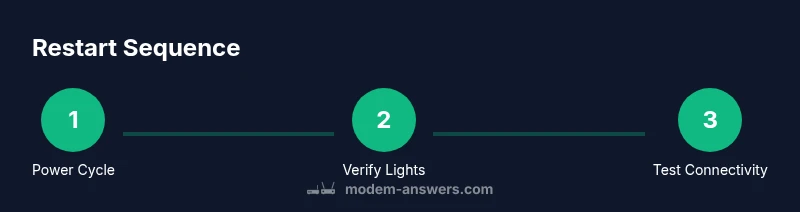
The restart process is straightforward and can be completed in under 15 minutes with a few simple actions. Begin by powering down the device, wait briefly, and restore power. Then verify the lights indicate normal operation and test a few devices to confirm Internet access. If you use a separate router, it may also benefit from a restart to ensure the entire network path is refreshed. The goal is a clean reestablishment of the data path from the modem to Spectrum’s network and back to your devices.
After the Restart: Verifying Your Connection
After you restore power, give the modem a minute to boot up fully and observe the LED indicators. Use a wired device if possible to verify a stable connection, then test multiple Wi‑Fi clients by loading web pages or streaming a short video. If you still encounter issues, run a speed test and compare results to your plan. A restart often resolves minor issues, but persistent problems may require further troubleshooting or a service check by Spectrum.
Authority Sources and Additional Tips
For readers who want to dig deeper, consult official guidance and reputable publications. Modem Answers references general best practices for home network troubleshooting. You can also review government and university resources about broadband equipment and safe reboot practices. Always ensure you are following the latest guidance from Spectrum and your device manufacturer for firmware updates and recommended reset procedures.
Tools & Materials
- Power outlet(Choose a nearby outlet to minimize cable clutter.)
- Modem power cable(The power supply that came with the Spectrum modem.)
- Router (optional)(Restart if you have a separate router to refresh the full path.)
- Ethernet cable (optional)(Useful for testing a wired connection during verification.)
- Pen and paper (optional)(Jot down LED patterns or error messages for support.)
Steps
Estimated time: 12-18 minutes
- 1
Unplug the modem power
Carefully unplug the modem's power cord from the wall outlet or power strip. This initiates a clean shutdown of all active processes. Allow any residual charge to dissipate for about 15-20 seconds to ensure a full power-down.
Tip: Waiting a short moment helps ensure the device fully powers down and avoids a boot-time glitch. - 2
Wait briefly
Hold the modem unplugged for 15-30 seconds. A short delay lets internal capacitors discharge and prevents immediate reboot issues.
Tip: Use the pause to check that the power outlet is still supplying power to avoid a false restart. - 3
Plug the modem back in
Reconnect the power cord firmly to the outlet and let the modem boot. This process reinitializes the device’s software and establishes fresh connections with Spectrum.
Tip: Avoid unplugging and re-plugging too quickly; give the device time to interface with the power source. - 4
Power cycle your router (if applicable)
If you use a separate router, repeat the same unplug-wait-plugcycle for the router to refresh the local network path. This helps ensure devices receive fresh DHCP leases.
Tip: After reboot, allow an extra minute for the router to re-establish its connection with the modem. - 5
Verify modem status lights
Observe the LED indicators on the modem. A steady solid light or pattern consistent with normal operation typically signals readiness. If lights indicate an error state, consult the user manual for specific LED codes.
Tip: If you’re unsure what the lights mean, consult the Spectrum support page for LED status definitions. - 6
Test Internet connectivity
On a wired device or a Wi‑Fi connected device, load a few websites or start streaming to confirm stable Internet. If pages load quickly and video streams without buffering, the restart succeeded.
Tip: Test on at least two devices to rule out device-specific issues. - 7
Optional soft reset if problems persist
If issues continue after a power cycle, consider a soft reset of the modem using the reset button. Note that this may revert some settings, so be prepared to reconfigure Wi‑Fi and other preferences.
Tip: Only perform a soft reset if you’re comfortable re-entering credentials and settings.
FAQ
How do I restart my Spectrum modem?
To restart, unplug the modem’s power cord, wait about 15-30 seconds, then plug it back in. Allow the device to boot and verify that you have Internet access on a connected device.
Unplug the Spectrum modem, wait a moment, then plug it back in and test your connection.
Do I need to restart my modem and router together?
If you have a separate router, you should restart both the modem and the router to refresh the entire network path. This helps ensure devices get new DHCP leases and stable routing.
Yes—restart both your modem and router for best results.
What should I do if restarting doesn't fix the issue?
If issues persist after a restart, run a quick speed test, check cables, verify service status with Spectrum, and consider a soft reset or contacting support for further diagnostics.
If it still doesn’t work after a restart, check cables, test speed, and contact Spectrum if needed.
Is it safe to press the reset button on the Spectrum modem?
A soft reset via the reset button can restore defaults but may erase network credentials. Use it only if you’re prepared to reconfigure Wi-Fi and other settings.
A soft reset can restore defaults, but you’ll need to reconfigure your settings.
How long does a Spectrum reboot take?
A typical reboot takes a few minutes. If it takes significantly longer, there may be a service issue or a hardware fault requiring support.
Normally a reboot finishes in a few minutes; if it takes longer, you may need help.
Watch Video
Key Takeaways
- Power cycle the modem to refresh network state.
- Check lights and verify a wired connection for accuracy.
- Test multiple devices to confirm connectivity.
- If problems persist, contact Spectrum support.