How to Clear Modem History: A Complete Step-by-Step Guide
Learn how to clear modem history including local logs and diagnostics. Our step-by-step guide covers accessing the admin panel, removing events, and when a factory reset is appropriate. Note that ISP logs may persist separately.


Goal: clear modem history by removing logs and event data from your gateway. You’ll log into the modem’s admin panel, locate logs and diagnostics, clear them, and, if necessary, perform a safe factory reset. Note that some ISP logs remain on the provider side and cannot be erased from the device. How to clear modem history is often a quick privacy task.
What is modem history and what it includes
When people talk about modem history, they mean the local records stored by your gateway that track events, status messages, and device activity on your home network. Typical items include reboot times, WAN status changes, diagnostic results, connected devices, and firewall or NAT events. Some devices also log DNS queries or DHCP lease activity. Understanding what’s stored helps you decide what to clear. If you’re searching for how to clear modem history, you’re taking a privacy-conscious step that’s usually straightforward. According to Modem Answers, most home users clear logs to reduce clutter and improve privacy, not to hide critical issues.
This article focuses on clearing locally stored history on consumer-grade modems and gateways. It does not guarantee access to provider-side data, which is controlled by your ISP. The process varies by model and firmware, but the core idea remains the same: locate the logs panel, choose what to erase, and confirm the action. After clearing, you’ll be able to monitor future events with a cleaner slate and improved privacy posture.
Why clearing history can be beneficial
Clearing modem history can simplify your admin interface, reduce potential exposure of sensitive data, and help you troubleshoot more efficiently. A lean log reduces cognitive load when you’re diagnosing connection issues or testing changes to security settings. For families with shared networks, clearing activity history can also minimize accidental sharing of sensitive browsing data from the last few days. Modem Answers emphasizes that regular, intentional log maintenance supports privacy without sacrificing essential diagnostics. The goal isn’t to hide problems but to manage what data remains locally, while keeping a separate, auditable record if needed.
However, there are trade-offs. Logs can help you identify repeated outages, misconfigurations, or unauthorized devices. If you clear everything too aggressively, you may lose a useful trail for troubleshooting. In practice, aim to clear only non-essential items and preserve critical logs for a defined lookback period (e.g., the last 30 days). Maintain a habit of exporting logs before major changes if you anticipate needing them later.
Privacy realities: ISP logs and local vs cloud logs
Even after you clear modem history, your Internet Service Provider (ISP) may retain logs on their servers. Local history is distinct from ISP logs, which can include connection timestamps, bandwidth usage, and device associations. The Modem Answers analysis cautions that clearing local logs does not erase provider-side data. If privacy is a primary concern, consider contacting your ISP for options to minimize data retention or to review privacy policies. Use end-to-end encryption for sensitive local traffic, and routinely update your router’s firmware to close security gaps that could expose activity indirectly.
In many homes, the most important privacy step is to secure admin access and avoid leaving default credentials in place. A strong password, two-factor authentication where available, and a separate network for guest devices reduce the risk of exposing activity data. Additionally, disabling unnecessary features like remote management can limit exposure of log data to outside parties. Remember, full privacy is a layered practice that combines local cleanup with sound network hygiene.
Safety and planning before you start
Before changing anything, plan a safe path forward. Document your current settings so you can restore them if needed, and back up your configuration if your modem supports export. Decide whether you will clear only specific logs (system events, diagnostics) or perform a factory reset to start fresh. If parental controls or custom firewall rules exist, note them for reapplication after resetting. Safety first also means using a secure device for changes—avoid public computers or shared networks that could capture your admin credentials.
As you prepare, set expectations: clearing history is usually quick, but some actions (like factory resets) will erase custom configurations and require re-setup. Having a pen-and-paper checklist or a password manager entry helps prevent missteps. If you encounter trouble, you can consult the device manual, manufacturer support pages, or Modem Answers’ troubleshooting guides for model-specific instructions.
Accessing the modem admin interface securely
Access is typically via a local IP address such as 192.168.0.1 or 192.168.1.1, entered into your browser. Use HTTPS when available and always enable two-factor authentication if your device supports it. Ensure you’re connected to your home network and not using a public Wi‑Fi hotspot. If you don’t know the login credentials, check the device label or the manual. If you’ve changed them in the past, use your saved credentials or a password manager.
For mobile devices, consider turning off remote management to reduce exposure. After logging in, verify you’re at the correct admin interface by checking the URL, certificate status, and panel branding. If you can’t access the panel, you may need to reboot the device, verify your network settings, or contact support. A secure login setup minimizes risk when you perform sensitive actions like clearing logs.
Clearing logs in the UI: step-by-step description
Navigate to the Logs, Diagnostics, or System section of the admin panel. Look for options labeled “Clear Log,” “Delete Logs,” or “Reset Events.” Some devices offer granular controls, allowing you to select the log type and date range. Choose the least disruptive option that achieves your privacy goal. Confirm the action and wait for the interface to refresh. If you see a confirmation banner, it indicates success. If the interface reports an error, try a page reload or a temporary reboot before retrying.
If your device provides an option to export logs before clearing, consider saving a copy for your records. This can be useful for troubleshooting or when you later need to illustrate activity patterns for a service call. After clearing, navigate to the status page to ensure connectivity remains stable and confirm there are no new errors appearing in real time.
When to perform a factory reset and how to do it safely
A factory reset should be considered when logs are inaccessible, settings are corrupted, or you want to re‑baseline security. Know that a reset restores the device to factory defaults, erasing custom Wi‑Fi names, passwords, and parental controls. Prepare by exporting current configurations if possible and documenting any non‑default settings you want to reapply.
To perform a reset, locate the reset button on the device or the software option in the admin panel. Use a paperclip to press the pinhole button for the required duration, typically 8–15 seconds, or follow the manufacturer’s steps. After the reset, you’ll need to reconfigure the basics, including your Wi‑Fi name and password, admin password, and any security features. Reenable remote management only if you need it, and then re‑test your internet connection.
After clearing: testing connectivity and securing settings
With logs cleared or after a reset, test that your internet connection is functioning properly. Reconnect devices and verify that you can access the admin panel again with new credentials if you changed them. Reconfigure essential privacy settings: update the admin password, enable HTTPS for the panel, and adjust remote management. Recreate user accounts and reapply parental controls if needed. For ongoing privacy, avoid storing sensitive data in the modem’s logs and consider periodic, planned cleanup instead of ad‑hoc resets.
Finally, document what you changed and when. If you use a device with a guest network, consider isolating guests from your main network to reduce exposure of sensitive activity data. A consistent maintenance routine makes it easier to preserve privacy without compromising network performance.
Common pitfalls and troubleshooting tips
Common mistakes include clearing the wrong log types, deleting logs you later need, or performing a factory reset without backing up essential configurations. If you can’t access the admin interface after changes, verify you’re on the correct LAN, and confirm you have the correct credentials. If a reset seems necessary but you can’t complete it from the button, consult the manual for alternative methods. If you notice degraded performance, recheck DNS, DHCP, and wireless settings after cleanup.
If your modem is part of a rental service, some settings might be managed by the provider. In such cases, you may not have full control over local logs or you may need to request changes through customer support. Always verify that the changes you make don’t conflict with service requirements or security policies.
Privacy best practices and ongoing maintenance
To maintain privacy without sacrificing functionality, combine selective log clearance with good password hygiene and firmware updates. Turn off unnecessary remote management features, enable automatic updates if available, and use a unique, strong password for the admin interface. Create a short routine to review logs briefly every few weeks and export relevant data before performing any cleanup. Regular maintenance reduces the chance of accumulating clutter while preserving essential diagnostics for troubleshooting. By staying proactive, you keep control of your home network’s privacy and performance.
Tools & Materials
- Computer or smartphone with a modern web browser(Needed to access the modem’s admin panel securely (HTTPS preferred))
- Valid login credentials for the modem admin panel(If you don’t know them, check the device label or manual)
- Active internet connection(Test connectivity after changes to verify success)
- Pen and paper or password manager(Document settings before changes for easy restoration)
- Optional: reset pin or small object to press reset button(Used only if factory reset is necessary)
Steps
Estimated time: 45-60 minutes
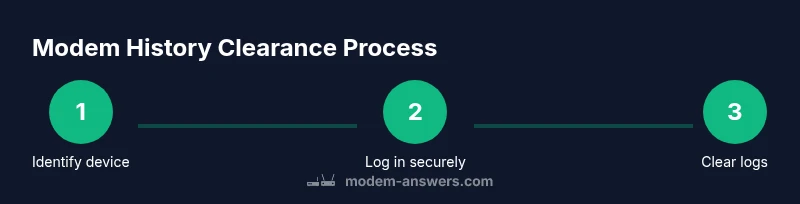
- 1
Identify your modem model and access method
Start by locating the exact model number on the device label or in the manual. Determine the correct local IP address for the admin panel (commonly 192.168.0.1 or 192.168.1.1) and whether HTTPS is available. Knowing the model guides you to model-specific instructions and reduces confusion during the process.
Tip: Take a photo of the label for quick reference later. - 2
Log in securely to the admin interface
Open a private/incognito window if you share devices, and enter the local IP address in the browser. Use HTTPS if the panel supports it and enable two‑factor authentication if available. Enter your admin username and password; if you forget the credentials, use the device’s reset procedure or the manual to recover access.
Tip: Do not use public computers or shared networks to enter credentials. - 3
Find the logs or diagnostics section
Navigate to a section labeled Logs, Diagnostics, System Log, or Event Log. Identify the data you want to clear—usually reboot logs, WAN logs, or system events—and review the date range. Some devices allow selective clearing; others require full log deletion.
Tip: If you’re unsure which entries to keep, export logs first. - 4
Clear logs or history in the UI
Select the appropriate log type and choose Clear, Delete, or Reset Events. Confirm the action. If possible, export logs before clearing to retain a record for future troubleshooting.
Tip: Only clear entries you’re certain you don’t need for troubleshooting. - 5
Optional: perform a factory reset if needed
If logs can’t be cleared or you want a clean reconfiguration, perform a factory reset. Remember this erases custom Wi‑Fi names/passwords and settings. Back up configurations if the option exists, then follow the device’s reset procedure.
Tip: Reserve factory reset for situations where a clean slate is truly needed. - 6
Test connectivity and reconfigure securely
After clearing or resetting, reconnect devices, test internet access, and reapply essential settings (Wi‑Fi name, password, admin password). Disable unnecessary remote management and ensure firmware is up to date.
Tip: Document new credentials and enable security features.
FAQ
What exactly counts as modem history?
Modem history typically includes system events, reboot records, WAN status changes, and diagnostic results stored by the gateway. It does not necessarily include websites visited. Local logs are device-based and separate from ISP records.
Modem history usually means the gateway’s own event logs and diagnostics, not your browser history.
Will clearing history affect my internet connection?
Clearing logs does not usually affect ongoing connections. However, a factory reset will revert settings and temporarily disrupt service until reconfiguration is complete.
Clearing logs generally won’t disconnect you, but a factory reset will require you to set up the network again.
Do ISPs see what I clear on my modem?
ISPs maintain their own logs, separate from your modem. Clearing local logs does not erase ISP records. If privacy is a concern, review your provider’s privacy options.
Your ISP keeps its own logs, which aren’t erased by clearing your modem’s history.
What should I back up before a reset?
Back up your Wi‑Fi names, passwords, and any custom firewall rules or port forwards you use. Exporting settings when possible saves time during reconfiguration.
Best to export your settings so you can quickly restore your network after a reset.
Is there any risk in clearing logs?
The main risk is losing helpful troubleshooting data. To minimize risk, clear only what’s unnecessary and export logs when possible.
You might lose troubleshooting clues if you clear too much; consider exporting logs first.
Watch Video
Key Takeaways
- Clear local logs to protect privacy and reduce UI clutter
- ISP logs may persist despite clearing device logs
- Back up settings before resets to avoid reconfiguration hassles
- Use strong authentication and secure connections for admin access
- Verify connectivity after changes and reapply essential security settings