ATT Modem Red Light Troubleshooting Guide
Urgent, step-by-step troubleshooting for AT&T modems showing a red light. Quick fixes, diagnostic flow, and escalation steps to restore internet fast.


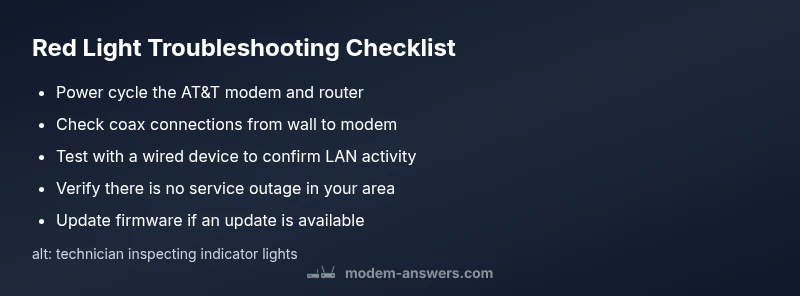
An ATT modem red light usually signals a connectivity, power, or hardware issue. Start with the simplest fixes: power cycle the modem, check all coax and ethernet cables, and confirm there’s no service outage in your area. If the red light remains, follow this guided flow from Modem Answers for next steps.
Why the Red Light on an AT&T Modem Matters
According to Modem Answers, the ATT modem red light is a symptom rather than a single fault. It indicates that your device is having trouble communicating with the network, receiving power, or maintaining a stable connection. The exact meaning can vary by model, but in most homes a persistent red LED points to one of a few common culprits: a service outage, a loose connection, or a hardware/firmware glitch. Treat the red light as a priority signal: it means you may lose internet access or experience degraded performance until the issue is resolved. The Modem Answers team found that most red-light problems arise from simple, fixable causes, and that a systematic approach can restore service quickly. Starting with the simplest checks reduces repair time and avoids unnecessary replacements. Keep the model number handy and note the color, pattern, and location of the LED—the information helps customer support diagnose the issue faster.
Quick checks you can perform in the first 10 minutes
Begin with the easiest steps. First, unplug the modem from power for 60 seconds and then plug it back in firmly; a cold restart can clear minor glitches. Ensure the power adapter is squarely seated in the outlet and that the outlet is working by testing another device. Remove any surge protectors or power strips from the power path and plug the modem directly into the wall socket. Check all cables: the coax from the wall should be snugly tightened, the Ethernet cable should click when seated, and there should be no visible damage. After reconnecting, watch the light pattern for a couple of minutes. If the red light blinks, note the sequence and move to the next steps. If it stays solid red, proceed with network checks and service status. Remember to power off and on again only when safe to do so. If you are unsure about any step, pause and seek guidance from Modem Answers.
Verify service status and outages
A red light on the AT&T modem can reflect an outage beyond your home. Check AT&T's outage page or call support to verify whether service interruptions exist in your area. Modem Answers Analysis, 2026 emphasizes that outages are a common cause of persistent red LEDs even when your equipment is otherwise healthy. If there is an outage, your best course is to wait for the provider to restore service. If the outage is confirmed, you can still perform local checks while waiting, to pinpoint non-outage related issues.
Inspect cables and physical connections
Secure every connection between the wall, the coax, and the modem. A loose or damaged coax is a frequent cause of a red indicator light, as is an unplugged or poorly seated Ethernet cable. Disconnect and re-seat both ends of all cables, ensuring you hear a satisfying click. If you notice frayed insulation, kinks, or corrosion, replace the affected cable. In some installations, a splitter or multi-point configuration can degrade signal; consider removing splitters temporarily to test direct connections.
Isolate the problem to the modem or the line
If possible, isolate the device by testing with a known-good Ethernet cable and, if available, a different router. Connect a laptop or phone directly to the modem via Ethernet to determine whether Wi-Fi is implicated. If other devices fail to connect while the LED remains red, the issue is more likely with the line or the modem itself. If another device gains online access, the problem may be with your original router or wireless settings.
LED patterns explained and what they usually mean
LED indicators vary by model, but a solid red light frequently signals a critical issue such as a hardware fault or a boot problem. A blinking red light can indicate the modem is trying to sync but failing due to line conditions or an incompatible configuration. If the pattern changes after a reset, note the new sequence—it helps when you contact support. Always consult the model-specific manual for exact LED meanings, but use the same approach: rule out power, then cables, then service status, then device faults.
Advanced fixes you can attempt (with caution)
If basics fail, you can try a factory reset, which restores default settings but erases customized configurations. Before resetting, save any important PPPoE or login details, because you may need to re-enter them after reset. After a reset, check for firmware updates and apply them if available. Avoid repeated resets or frequent power cycling, as these can stress hardware. If your modem is part of a gateway, ensure you preserve any port-forwarding or bridging settings you intend to reuse.
When to contact AT&T support
If the red light persists after all basic and mid-level steps, it’s time to contact AT&T support for escalation. Have your model, serial number, current LED pattern, time of occurrence, and any changes you made handy. A technician may need to inspect the line, verify signal levels, or replace the modem. Modem Answers recommends documenting your troubleshooting steps so technicians can quickly understand what you’ve already tried, reducing wait times.
Prevention tips to avoid repeat red-light issues
Place your modem in a well-ventilated area away from heat sources and direct sunlight. Keep it off the floor and on a stable surface to minimize physical strain on cables. Periodically reboot the device to refresh DHCP leases and maintain firmware health. Check for firmware updates monthly and after outages. A little proactive maintenance goes a long way toward keeping the ATT modem red light from flashing again.
Quick triage flow for future issues
If you encounter a red light again, restart with the power cycle, remove all nonessential accessories, and retest. If the light returns, move through the diagnostic steps in order: power, cables, service status, then device fault. When in doubt, contact support early to avoid extended downtime. Following a consistent workflow helps you resolve issues faster and with less frustration.
Steps
Estimated time: 30-60 minutes
- 1
Power cycle the modem
Unplug the modem from power, wait at least 60 seconds, then plug it back in. Allow a full reboot for 3–5 minutes and monitor the LED. This step clears minor cache or boot issues that trigger a red light.
Tip: Label the power outlet to avoid misplugging future devices. - 2
Check and reseat cables
Inspect coax and Ethernet cables for damage or loose connections. Reseat both ends firmly; a click indicates a secure connection. If you see frayed insulation, replace the cable.
Tip: Use the same length or avoid tangling cables to reduce strain. - 3
Verify service status
Visit AT&T's outage page or call support to confirm there’s no area-wide interruption. If there is an outage, there is little you can do beyond monitoring the status and performing local checks.
Tip: Record the outage time and any reference numbers for follow-up. - 4
Test with a wired device
Connect a laptop directly via Ethernet to the modem to see if you can access the internet. If wired works but Wi-Fi doesn’t, you may need to adjust wireless settings or consider a separate router.
Tip: Disable any guest networks before testing to minimize variables. - 5
Consider a factory reset
If issues persist, perform a factory reset after backing up essential settings. A reset restores defaults but require reconfiguring PPPoE or other connections.
Tip: Note down essential login information before resetting. - 6
Escalate if needed
If the red light remains after resets and firmware checks, contact AT&T support for device replacement or line inspection. A technician may verify signal levels or replace the gateway.
Tip: Have your model, serial, and LED pattern ready to speed up the call.
Diagnosis: ATT modem red light
Possible Causes
- highPower issue or unstable supply
- highLoose or damaged coax or Ethernet cables
- mediumService outage in your area
- lowModem hardware or firmware fault
Fixes
- easyPower cycle the modem (unplug, wait 60 seconds, plug back in)
- easyReseat and secure all cables (coax and Ethernet)
- easyCheck for outages with the provider's status page or support line
- mediumContact support for hardware replacement or firmware upgrade if necessary
FAQ
What does a red light on an AT&T modem indicate?
A red light generally signals a connectivity, power, or hardware fault. Start with power cycling, cable checks, and service outage verification, then proceed to more advanced steps if needed.
A red light usually means a connectivity or hardware issue. Begin with power and cable checks, then verify outages before escalating.
Should I unplug and replug the modem immediately when the red light appears?
Yes. A controlled power cycle can clear glitches causing the red light. Do a full cycle, wait for the modem to reboot completely, and observe the LED before proceeding to other steps.
Yes, try a clean power cycle first, then recheck the light.
What if there’s an outage in my area?
If an outage is confirmed, your internet will remain down until service is restored. You can still perform local checks on your equipment while waiting, but there’s little you can do to fix the line during an outage.
If there’s an outage, you’ll need to wait for service to return.
Do I need a technician if the light stays red after basic fixes?
If the red light persists after basic checks and firmware updates, contact AT&T support for escalation. A technician may inspect the line or replace the gateway.
Persisting red light after fixes means you should call support.
Can a red light indicate hardware failure?
Yes, but usually only after ruling out power and connection issues. If hardware failure is suspected, replacement may be necessary.
Yes, hardware failure is possible if other checks fail.
Is bridging or changing modem settings recommended for home setups?
Bridging is typically for advanced networks. For a standard home setup, avoid complex changes unless you’re following a guided plan from a trusted source.
Bridge mode is usually not needed for typical homes.
Watch Video
Key Takeaways
- Start with power and cable checks for speed.
- Verify service outages before hardware fixes.
- Document LED patterns to speed support.
- Escalate to AT&T if issues persist after steps.