Wireless Modem and Router for Comcast: A Practical Setup Guide
Learn how to pick and install a wireless modem and router for Comcast, with compatibility checks, bridge mode tips, and a clear setup path for reliable home Wi Fi. Modem Answers guidance for homeowners and renters.


By the end of this guide, you’ll have a working wireless modem and router configured for Comcast that meets your home needs. You’ll verify Comcast compatibility, select a DOCSIS modem with a separate router or a modem-router combo, and set up bridging or IP Passthrough for full control. Expect clear steps, practical tips, and reliable performance.
Why replace Comcast's rental gateway with a dedicated wireless modem and router for Comcast
Replacing Comcast's rental gateway with a dedicated wireless modem and router for Comcast is about control, performance, and long term cost. A standalone DOCSIS modem paired with a capable router often provides stronger Wi Fi coverage, easier firmware updates, and more flexible features than a single rental device. Think of it as separating the brains (modem) from the Wi Fi engine (router) to optimize home networks. According to Modem Answers, many households see noticeable improvements in coverage and reliability when they pair a modern dual band router with a compatible modem, avoiding the limitations of rented gateways. Your goal is consistent speeds across multiple devices, fewer dead zones, and better management tools for security and guest networks. Before you buy, confirm your current service tier and a supported DOCSIS standard; Comcast recognizes many third party options but may require you to configure bridge mode or IP passthrough so you have full control over your home network. While the rental gateway is convenient, many users discover that a separate setup makes it easier to troubleshoot and upgrade equipment over time. The Modem Answers team notes that a purpose built router typically supports newer Wi Fi standards, more robust parental controls, and stronger device prioritization for gaming or video work. This can help when you have smart devices, streaming gear, and work from home setups.
Compatibility and standards you should know
When selecting a wireless modem and router for Comcast, you should understand two things: the available DOCSIS standard and how the gateway handles IP addressing. Comcast largely supports DOCSIS 3 0 and 3 1 devices, with 3 1 offering greater throughput for modern speed tiers. If you plan to subscribe to higher speeds or more devices, opt for a DOCSIS 3 1 modem and a modern router that supports both 2 4 GHz and 5 GHz bands. This section also covers bridge mode and IP passthrough concepts, which determine how your third party gear coexists with Comcast service. Based on Modem Answers research, using equipment that is on Comcast approved lists usually reduces activation friction and ensures features like voice service stay reliable. Additionally, verify whether your router supports features you care about, such as guest networks, QoS, and parental controls, and ensure firmware updates are easy to apply. Always check for the latest compatibility notes before buying to avoid surprises at activation.
How to pick a modem and router that work with Comcast
Choosing the right gear starts with compatibility checks. Start by using Comcast's device lookup page to confirm that your modem is approved for your service tier. Look for a DOCSIS 3 1 modem if you want to future proof your setup, and pair it with a dual band router that offers strong coverage, stable beamforming, and a solid feature set like QoS and guest networks. When possible, select a router that supports mesh expansion so you can scale your network later. If you plan to run your router in bridge mode, ensure the modem you choose can operate without double NAT, which can cause connectivity problems for online games and video calls. Modem Answers analysis suggests focusing on model families with robust security updates and easy management, rather than chasing the latest flashy feature. Remember to consider the layout of your home, since placement affects speed and reliability as much as hardware quality.
Bridge mode vs IP Passthrough: what to choose
Bridge mode and IP passthrough both aim to hand over the internet connection to your own router, eliminating double NAT. Bridge mode disables NAT on the Comcast gateway and lets your third party router manage firewall and DHCP. IP passthrough passes a public IP to your device but may still retain some gateway features. For most home setups, bridge mode provides the cleanest control and predictable behavior for gaming and streaming. If you run multiple devices or want guest access managed by the main router, bridge mode is typically the best starting point. Always follow the manufacturer guidance and Comcast setup steps to avoid service interruptions.
Setup checklist and testing steps
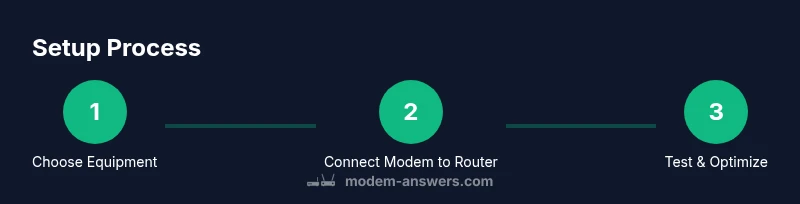
Before you begin, gather your equipment and confirm your service is active. Create a simple network map noting which devices connect to which node. After wiring the modem to coax and the router to the modem, boot both devices and verify the router receives an internet WAN address. Enable your preferred security settings and update firmware on both devices. Finally, run a speed test in multiple rooms to confirm coverage and adjust antenna orientation or add a mesh node if needed.
Tools & Materials
- Coaxial cable outlet(Ensure the outlet is clean and undamaged)
- DOCSIS modem (approved by Comcast)(Check model against Comcast approved list)
- Dual band router (Wi Fi 6 or later preferred)(Ensure 2.4 and 5 GHz bands are supported)
- Ethernet cable (Cat5e or better)(One cable between modem and router)
- Pen and paper or notes app(For login info and network mapping)
- Surge protector(Protects equipment from power surges)
Steps
Estimated time: 60-90 minutes
- 1
Verify compatibility and plan
Check your Comcast plan and confirm your chosen modem is approved. Decide whether to use a separate router or a modem-router combo and outline a bridge mode or IP passthrough approach.
Tip: Take a photo of any current gateway settings before changes. - 2
Power down and disconnect current gear
Unplug the gateway and any connected devices. Disconnect the coax and Ethernet cables to avoid shorting ports during setup.
Tip: Keep track of which devices were connected to which ports. - 3
Connect the new hardware
Connect the coax to the modem, then run an Ethernet cable from the modem to the router WAN port. Power on both devices and wait for boot.
Tip: Give each device 2–3 minutes to fully initialize. - 4
Configure bridge mode or IP passthrough
Access the gateway's admin page or use the router's setup wizard to enable bridge mode or IP passthrough. Follow the on screen prompts to hand off control to your router.
Tip: If you see a login screen, use the default credentials from the manual and change them afterward. - 5
Set up Wi Fi and security on the router
Create a strong SSID, enable WPA3 if available, and configure a guest network if you need one. Update firmware and enable automatic updates.
Tip: Use unique passwords and consider enabling firewall features. - 6
Test and optimize
Run speed tests in multiple rooms, adjust router placement, and add mesh nodes if needed. Verify devices connect reliably and the modem shows active status in the admin page.
Tip: Re-check channel usage and manually adjust channels if interference is high.
FAQ
Can I replace Comcast's rental gateway with my own equipment?
Yes, you can use your own modem and router if the equipment is approved for Comcast service. Activation and some features may require bridging the gateway to the new device. Always verify compatibility first.
Yes, you can use your own modem and router if they are approved for Comcast. You may need to bridge the gateway and follow activation steps.
What is the difference between bridge mode and IP passthrough?
Bridge mode disables NAT on the gateway so your router handles network address translation. IP passthrough passes the public IP to your router while the gateway still offers some functions. For most home networks, bridge mode offers simpler management.
Bridge mode disables the gateway's NAT, letting your router handle it. IP passthrough passes the public IP to your router with some gateway features still present.
How do I know if my modem is compatible with Comcast?
Check Comcast's approved device list for your model. Ensure it supports your speed tier and DOCSIS version. If unsure, contact support or refer to the model's listing on Comcast's site.
Look up your modem model on Comcast's approved list to confirm compatibility and speed support.
Will a separate router improve gaming latency?
A dedicated router with quality of service features can reduce congestion and improve latency for gaming when paired with a reliable modem. Results vary by home layout and device count.
A good router can help with gaming latency by prioritizing game traffic and reducing congestion.
Do I still need to rent equipment if I buy my own?
No, you can own the equipment, but check with Comcast about activation and any ongoing service features. Some plans may require a gateway for certain features.
You can own your gear, but confirm activation steps with Comcast for your plan.
What about VoIP or phone service with third party gear?
Some phone features may rely on the gateway. If VoIP is important, verify with Comcast which features remain available after switching to third party equipment.
VoIP features may be affected; check with Comcast which functions stay after using third party gear.
Watch Video
Key Takeaways
- Choose a DOCSIS 3 1 modem for future proofing
- Bridge mode provides clean control for Comcast setups
- Verify compatibility before buying to avoid activation delays
- A dedicated router often improves Wi Fi coverage and features
- The Modem Answers team recommends a modern, secure setup