Xfinity Compatible Routers: A Practical 2026 Guide
Learn which Xfinity compatible routers work with your service, how to set them up, and practical buying tips. Modem Answers covers compatibility, bridge mode, performance, and security.


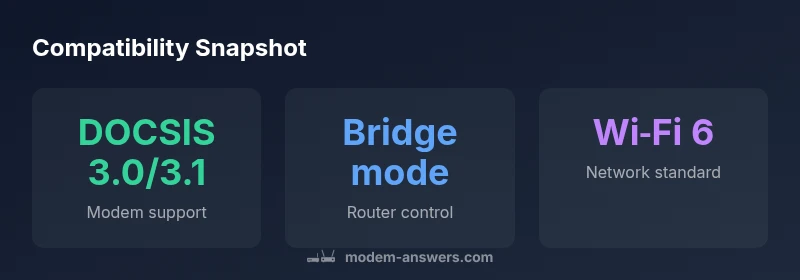
Many third-party routers work with Xfinity Internet, provided you have a compatible DOCSIS modem or use bridge mode on an Xfinity gateway. With a standalone modem and your own router, you control Wi‑Fi settings, guest networks, and security without renting the gateway. For best results, choose a modern Wi‑Fi 6 or Wi‑Fi 6E router and verify your plan supports the speeds you expect.
Understanding Xfinity Compatibility
Xfinity Internet can be delivered through an all-in-one gateway or via a separate cable modem paired with a router. Compatibility, in practice, means you can connect a supported cable modem to a router, or enable bridge mode on an Xfinity gateway and use your own router. Most modern routers support IPv4/IPv6 and common wifi standards (Wi-Fi 5/6/6E). If your plan includes higher speeds, ensure both your modem and router can handle the throughput and that you don’t hit a LAN bottleneck. When selecting a router, look for features like MU-MIMO, OFDMA, and WPA3 security to ensure strong performance and security.
How to verify compatibility with your Xfinity plan
Start by confirming whether you will rent an Xfinity gateway or use your own modem. If you own a modem, check its DOCSIS version and compatibility on Comcast's official list (or ask support). For third-party routing, make sure the modem provides a stable connection to your router. Then verify the speed tier you subscribe to and ensure the router’s wireless standard and NICs can sustain similar performance. Finally, decide between bridge mode and a traditional setup, and be prepared to adjust IP addressing and DNS on the new router.
Choosing a router that meets your needs
For most homes, a Wi‑Fi 6 or Wi‑Fi 6E router with strong coverage is a good baseline. Prioritize devices with robust multi‑user performance, enough Ethernet ports, and strong security features. Consider features like guest networks, parental controls, QoS, and easy app-based management. If you have many devices or a busy smart home, tri‑band support or mesh networking can help. Remember the router alone won’t fix a slow plan; ensure your modem and plan deliver the speeds you expect, and scale with access points if needed.
Setup scenarios: step-by-step
Scenario A — Modem + Router (standalone): 1) Connect the cable modem to the coax line and confirm it’s syncing. 2) Connect the router’s WAN port to the modem. 3) Power cycle both devices. 4) Access the router admin page and configure your Wi‑Fi name and password. 5) Enable security features (WPA3, automatic firmware updates). 6) Test speeds and adjust settings. 7) If you see double NAT, place the router behind bridge mode or enable DMZ on the modem.
Scenario B — Bridge mode with Xfinity Gateway: 1) Log in to the Xfinity portal and enable bridge mode. 2) Connect your own router’s WAN port to the gateway’s LAN. 3) Disable Wi‑Fi on the gateway to avoid interference. 4) Configure your router’s settings for optimal coverage and security. 5) Monitor for stability and throughput.
Security and privacy best practices
Security should be a primary concern when you add a new router. Change default admin credentials, enable WPA3, and use a strong, unique SSID. Keep firmware up to date, disable WPS, and enable automatic updates where possible. Create a separate guest network for visitors and consider a VPN for sensitive devices. Regularly review connected devices and revoke access for any unknown clients. These steps help protect your home network while taking advantage of your own router’s features.
Buying and budget considerations
Budgeting for a new router involves weighing performance against ongoing needs. If you have a small apartment or a single-story home, a solid Wi‑Fi 6 router with good antenna design can cover the space without extra hardware. For larger homes, consider a mesh system or additional access points to avoid dead zones. Focus on features that add real value for you, such as parental controls, advanced QoS for gaming or video calls, and security features like automatic firmware updates and VPN support. Keep an eye on firmware release notes and vendor support timelines to ensure long-term reliability.
Router setup options for Xfinity users
| Setup Scenario | What it Means | Pros | Cons |
|---|---|---|---|
| Modem + Router (standalone) | Use a compatible cable modem with a separate router | Clear network control; easier troubleshooting | More devices; extra setup steps |
| Bridge Mode with Xfinity Gateway | Disable gateway routing; use your own router | Single WAN, fewer NAT layers; advanced features | Some Xfinity features may be unavailable |
| All-in-One Gateway (Xfinity approved) | Use Comcast-provided or approved gateway | Plug-and-play; provider-managed | Less customization; potential rental costs |
FAQ
Can I use any router with Xfinity Internet?
Not every router is compatible. You typically need a DOCSIS modem to connect to Xfinity, and some features require the gateway in bridge mode or a dedicated router behind a modem. Check compatibility lists and support guidance for your plan.
Most routers work behind a compatible modem, or when the gateway is in bridge mode.
Do I need a modem if I use a third-party router?
Yes. You still need a cable modem to access Xfinity Internet unless you’re using the gateway in bridge mode. Some bundles include an all-in-one gateway, but a separate modem gives you greater flexibility.
Yes, a modem is still required unless you bridge the gateway.
What speed should I look for in a router for Xfinity?
Choose a router that matches your plan’s potential speeds and device load. Look for Wi‑Fi 6 or 6E with strong MU‑MIMO and robust security features to maximize throughput and coverage.
Pick a Wi‑Fi 6/6E router that fits your plan and devices.
Is bridge mode safe for my network?
Yes, when configured correctly. Bridge mode disables the gateway’s routing features and passes the connection to your own router. Ensure your router has secure settings and firmware up to date.
Bridge mode is safe if you configure security on your router.
Will Xfinity Voice work with third-party routers?
Xfinity Voice relies on the gateway’s functionality. Third-party routers can handle data traffic, but voice service may require the gateway or a separate arrangement.
Voice services usually need the gateway; third-party routers affect data only.
How do I avoid double NAT when using my own router?
Double NAT occurs when both the gateway and your router perform NAT. Use bridge mode on the gateway or set the second device to AP mode to ensure clean routing.
Bridge mode or AP mode helps prevent double NAT.
“A high-quality router, paired with a modern modem or used in bridge mode, can dramatically improve coverage and control on Xfinity.”
Key Takeaways
- Choose a separate modem and router for maximum control
- Bridge mode can simplify network topology, with caveats
- Match router speeds to your plan and device count
- Secure networks with WPA3 and regular firmware updates