What modem for NBN FTTP: A practical guide
A practical guide to choosing the right modem or router for NBN FTTP, with setup steps, compatibility tips, and security considerations from Modem Answers.


For NBN FTTP, you typically use a router or gateway with an Ethernet WAN port connected to the ONT. You don’t need a dedicated DSL/VDSL modem. Choose a device that supports your ISP’s authentication (PPPoE or DHCP), current Wi‑Fi standards, good security, and easy updates. In short: a modern router with a WAN port is the right modem for NBN FTTP.
How NBN FTTP architecture affects modem choice
In an FTTP (fiber to the premises) setup, the fiber network terminates at an ONT (optical network terminal) inside your home. The ONT provides a standard Ethernet WAN port that you connect to a router or gateway. Because of this architecture, you generally do not install a traditional DSL/VDSL modem. The key decision becomes selecting a router with a reliable WAN port, solid Wi‑Fi, and a straightforward setup path. According to Modem Answers, the best approach is to treat the ONT as the internet source and use a modern router to distribute network services inside your home.
What features matter most in a FTTP modem/router
Choosing the right device hinges on several practical features:
- WAN port: At least Gigabit Ethernet for a stable internet connection
- Wi‑Fi: Support for Wi‑Fi 6 or better; dual band
- Security: Frequent firmware updates, strong default password protection, WPA3 if available
- Compatibility: PPPoE/DHCP support; IPv6; VLAN tagging if your ISP requires
- Management: Easy-to-use admin interface and remote updates
From Modem Answers testing, VLAN tagging and PPPoE passthrough are important for some providers.
Compatibility and ISP considerations
Before buying, confirm with your ISP whether you need a device that can bridge the ONT or operate in NAT mode. Most FTTP providers expect a straightforward WAN connection, but some require PPPoE authentication or VLAN tagging. In practice, you want a router that can be configured in either NAT or bridge mode and supports the specific VLAN ID if your service uses it. Modem Answers analysis shows that devices with an intuitive setup wizard reduce calls to support lines and speed up initial configuration.
Setup overview: getting online quickly
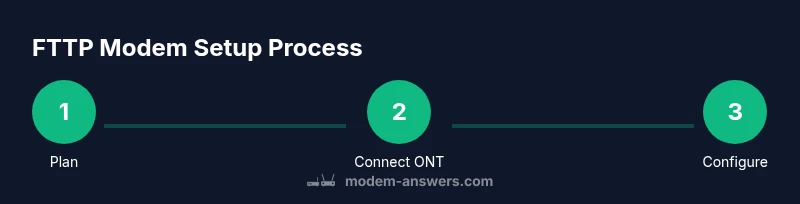
- Plan your network layout and decide where the router will sit for best coverage. Keep it away from metal objects and ensure ventilation. 2) Connect the ONT’s Ethernet port to the router’s WAN/Internet port using a good quality Ethernet cable (Cat6 preferred). 3) Power everything on and access the router admin panel from a connected device using the IP address provided by the manufacturer. 4) Configure the internet connection (PPPoE if required by your ISP, otherwise DHCP). 5) Set up Wi‑Fi (SSID and strong password) and enable security features (WPA3 if available). 6) Run a quick speed test and adjust placement if needed.
Common mistakes to avoid
Avoid using a router that lacks a dedicated WAN port or fails to support IPv6. Don’t place the router inside a closed cabinet or behind thick walls, which can cripple signal. Avoid using old firmware; always update to the latest version before configuring networks. If you’re unsure about PPPoE settings, verify with your ISP before beginning setup.
Brand guidance from Modem Answers
Modem Answers emphasizes choosing a router that offers a clear setup flow, solid security defaults, and a long support window. Look for devices with easy firmware updates, a responsive admin interface, and documented guidance on bridging vs NAT. Our approach is to simplify the decision so homeowners can keep their home networks secure and reliable.
Real-world scenarios: apartment vs house
In small apartments, priority should be strong Wi‑Fi coverage across one to two rooms, so position your router centrally and consider a mesh extender if needed. In larger homes, a high‑performance router with a robust antenna array and possibly a mesh system will help maintain consistent speeds on multiple devices. Always test network coverage after moving the unit and adjust placement accordingly.
Tools & Materials
- Router/gateway with Ethernet WAN port(Look for at least a gigabit WAN port; consider Wi‑Fi 6/6E for future-proofing)
- Ethernet cable (Cat6 or better)(1–2 meters is usually enough; longer if your ONT and router are far apart)
- Power outlet or surge-protected strip(Ensure stable power; surge protection helps longevity)
- Computer, tablet, or smartphone for setup(Have a device handy to access the router admin page)
- ISP login details (PPPoE username/password)(Required only if your ISP uses PPPoE; otherwise DHCP is used)
Steps
Estimated time: 15-30 minutes
- 1
Plan your network layout
Decide where the router will sit for best coverage, ideally central and elevated. Ensure there’s a clear line of sight to most devices and avoid placing it behind metal objects or inside cabinets.
Tip: A central open shelf near the ONT improves both wired and wireless performance. - 2
Connect the ONT to the router
Use a high-quality Ethernet cable to connect the ONT’s ethernet port to the router’s WAN/Internet port. Confirm the cable is firmly seated on both ends.
Tip: If your ONT has multiple ports, use the designated WAN port, not a LAN port. - 3
Power up and access the router admin page
Plug in the router and open a browser to the router’s default IP address. Create a strong admin password and follow the on-screen wizard if available.
Tip: Change the default admin username and enable two-factor authentication if offered. - 4
Configure internet connection
Choose DHCP if your ISP uses dynamic addressing, or PPPoE if required by your provider. Enter your PPPoE credentials exactly as provided by your ISP when necessary.
Tip: Save credentials securely and avoid sharing them with others. - 5
Set up Wi‑Fi and security
Create a unique SSID, set a strong password, and enable WPA3 (or WPA2 if WPA3 isn’t available). Disable WPS for stronger security.
Tip: Use a different SSID for 2.4 GHz and 5 GHz bands to optimize performance. - 6
Test and optimize
Run speed tests at multiple locations and adjust antenna orientation or add extenders/mesh nodes if coverage is insufficient.
Tip: Update firmware after initial setup to ensure the latest security fixes.
FAQ
Do I need a modem for NBN FTTP?
No, with FTTP you normally use a router with an Ethernet WAN port connected to the ONT. A separate DSL/VDSL modem is not required, and your ISP credentials determine if PPPoE or DHCP is used.
No, FTTP uses a router with a WAN port to connect to the ONT.
Can I reuse an old router with NBN FTTP?
Yes, if the router has a WAN port and supports current Wi‑Fi standards. Check firmware support and ensure it can handle PPPoE or DHCP as required by your ISP.
Yes, you can reuse an old router if it supports WAN and current standards.
What features matter most for FTTP routers?
Look for a gigabit WAN port, Wi‑Fi 6 or better, IPv6, firmware updates, and easy configuration. If your ISP uses VLAN tagging, ensure the device supports it.
Gigabit WAN, modern Wi‑Fi, IPv6, and good security are essential.
Do I need bridging mode for FTTP?
Bridge mode is only necessary if your ISP requires direct ONT passthrough or specific network setups. Most users can run NAT without issue, but bridging is useful in certain configurations.
Bridge mode is only needed if your ISP specifies it.
Will Wi‑Fi performance improve with newer hardware?
Upgrading to a router with Wi‑Fi 6/6E can significantly improve throughput and device handling in busy households, especially with many smart devices.
Yes—newer Wi‑Fi standards can boost performance.
How important is IPv6 support for NBN FTTP?
IPv6 is increasingly supported by ISPs; ensure your router can use IPv6 for future compatibility and easier device addressing.
IPv6 support helps future-proof your network.
What if my provider requires a VLAN ID?
If your ISP requires a VLAN ID, make sure the router supports VLAN tagging and enter the exact ID in the WAN settings.
Enter the VLAN ID in WAN settings if required.
Should I use a modem-router combo or separate devices?
A modem-router combo is convenient but may limit advanced features. Separate devices give you more configuration control and flexibility for large homes.
A combo is convenient; separate devices offer more control.
Watch Video
Key Takeaways
- Choose a WAN-port router for FTTP connections
- Confirm PPPoE/DHCP and VLAN needs with your ISP
- Position the router for optimal coverage and airflow
- Keep firmware updated for security and reliability
- Test, adjust, and expand with mesh if needed