What Modem for FTTN: A Practical Step-by-Step Guide
Discover how to choose the right VDSL2 modem for FTTN networks. This guide covers compatibility, router options, and a clear setup process to keep your home network fast and stable.


To get online on an FTTN connection, you need a VDSL2-compatible modem (often a modem/router combo) that your ISP supports. Check your plan’s maximum speed, confirm bridge mode compatibility if needed, and decide whether you want built‑in Wi‑Fi or a separate router. This defines your setup path and long-term network flexibility.
What FTTN Means for Modems
FTTN, or fiber to the node, delivers fiber to a local cabinet and uses copper for the final leg to your home. Because the final link is copper, your equipment must speak the DSL language your provider uses, typically VDSL2. In practical terms, this means you’ll need a VDSL2-capable modem (or a modem/router combo) that the ISP authorizes for your plan. The right modem must handle the profile your provider assigns and be compatible with any bridge-mode requirements if you plan to run your own router. Understanding this helps prevent surprises during activation and reduces connection drops. According to Modem Answers, choosing a device that matches your ISP’s approved list is the single most important first step for stable service.
- Ensure the device supports VDSL2 and your plan’s speed tier.
- Verify that the modem is on your provider’s compatibility list.
- Decide whether you want Wi‑Fi built into the modem or a separate router for more control.
Core Features to Look For in a VDSL2 Modem
When evaluating modems for FTTN, prioritize compatibility with VDSL2 profiles and the ability to operate in bridge mode if you plan to use your own router. Look for reliable WAN/LAN ports (at least one Gigabit Ethernet port), a modern Wi‑Fi radio (Wi‑Fi 5 or Wi‑Fi 6 is ideal for new homes), and robust firmware that receives regular updates. A compact, well-ventilated design helps maintain performance during long uptime periods. Modem Answers analysis shows that households with a strong, dual‑band router experience fewer dead zones in typical home layouts. Features such as Quality of Service (QoS) and guest networks can add value, especially in busy households with multiple devices.
- Gigabit Ethernet ports improve wired performance.
- Wi‑Fi 6 (or at least Wi‑Fi 5 with good support) improves coverage and stability.
- Regular firmware updates reduce vulnerability and disconnects.
- QoS helps prioritize latency-sensitive activities like video calls.
Compatibility: ISP Profiles and DSL Standards
Compatibility is the linchpin of a smooth FTTN experience. Before purchasing, confirm the modem supports VDSL2 and complies with your provider’s DSL profile. Some ISPs require specific firmware or provisioning steps, which means you may need to use firmware from the approved list or get activation through customer support. If you’re unsure, contact your provider’s technical support to verify that the device will be provisioned correctly. The goal is to avoid an in‑limit activation where your modem won’t sync at all or only achieves subpar speeds. In many cases, sticking to an approved device minimizes the back‑and‑forth.
- Check the official compatibility list from your ISP.
- Confirm required firmware or provisioning steps.
- Ask about any regional variations in DSL profiles.
Bridge vs Router: How to Structure Your Home Network
There are two common paths for a modern home network on FTTN: use a modem/router combo, or use a separate modem with your own router. If your goal is simplicity and you’re happy with standard Wi‑Fi coverage, a single device is convenient. If you want advanced features like better mesh coverage, advanced QoS, or more granular control, using a separate router (and enabling bridge mode on the modem) gives you full control. Bridge mode disables the modem’s routing function, letting your chosen router handle all network tasks. The decision often hinges on your home size, the number of devices, and your comfort with network configuration.
- Built‑in router: simpler, fewer devices, adequate for many homes.
- Separate router with bridge mode: more control and potentially better Wi‑Fi performance in larger homes.
Speed, Connectivity, and Future-Proofing
Aim for a modem that supports your current speed tier and leaves headroom for growth. If you routinely push close to your plan’s limits or have multiple devices streaming at once, prioritize a device with fast ethernet/WAN ports and a capable Wi‑Fi subsystem. Wi‑Fi 6 or higher is increasingly valuable as more devices support newer standards. Firmware stability and security updates should be a normal cadence, not an afterthought. Budget for future needs by selecting a modem with upgrade‑friendly features and solid manufacturer support. Modem Answers analysis shows that devices with strong Wi‑Fi and reliable wired performance deliver a noticeably better overall experience in typical homes.
- Choose at least one Gigabit Ethernet port; more is better for future expansion.
- Prefer newer Wi‑Fi standards with robust security features.
- Ensure ongoing firmware support and security updates.
- Consider a mesh system if your home has coverage gaps.
How to Verify Your Equipment
Verification is the bridge between purchase and activation. Start by cross‑checking the device against your provider’s official modem list. If possible, request a test activation or a temporary SIM/line hold to test sync and speeds. Collect basic information before calling support: model number, firmware version, plan speed, and current line statistics from the modem's status page. If you encounter any issues, a quick reboot of the modem and router (if separate) can resolve many common problems. Document your results and share them with your support team to speed up the provisioning process.
- Review the ISP’s approved device list.
- Note the exact model and firmware version.
- Run a basic speed test after sync is established.
Setup Scenarios: Built-in Router vs Separate Router
In compact spaces or when you want a straightforward setup, a modem/router combo suffices. For larger homes or special use cases (gaming, working from home, smart home devices), a separate router connected via bridge mode on the modem often yields superior performance. Bridge mode ensures your own router handles DHCP, NAT, and firewall rules rather than competing with the modem’s routing functions. If you choose a separate router, position it centrally and test coverage with a Wi‑Fi heat map or simple roaming checks. Regularly update both firmware and security settings to maintain protection and performance.
Common Pitfalls and How to Avoid Them
Common mistakes include buying a modem that isn’t on your ISP’s approved list, ignoring bridge mode implications, and underestimating Wi‑Fi needs in multi‑story homes. Avoid overspending on features you won’t use by focusing on essential items: DSL compatibility, decent wired throughput, and reliable firmware. Always check for compatibility updates after major ISP changes or firmware releases, and avoid double NAT by using bridge mode when you want to deploy your own router. If you’re unsure, start with a proven, widely supported model on the provider’s list and test performance before investing in mesh extenders.
Planning Your Purchase: Budget and Warranties
Set a budget that considers not just the upfront cost but also long‑term value like firmware updates and warranty coverage. A solid modem should provide several years of service without becoming obsolete due to protocol changes. Look for a warranty that covers defects and a vendor with a reasonable policy for firmware updates and security patches. If you’re paying monthly for a rental modem, weigh the total cost of ownership over the device’s lifecycle against buying outright. A well‑chosen device reduces the need for frequent replacements and improves long‑term reliability.
Tools & Materials
- VDSL2-compatible modem(Essential for FTTN; verify ISP compatibility.)
- Modem/router combo (optional)(Use if you want built-in Wi-Fi without a separate router.)
- Ethernet cable (Cat 5e or better)(For reliable wired connections to a router or PC.)
- Phone line filter/splitter(Separates voice from data on some VDSL lines.)
- Power strip with surge protection(Safeguards equipment during surges.)
- ISP compatibility checklist(Print or save the provider’s approved device list.)
- Documentation from your ISP(Activation steps, account details, and provisioning info.)
Steps
Estimated time: 45-90 minutes
- 1
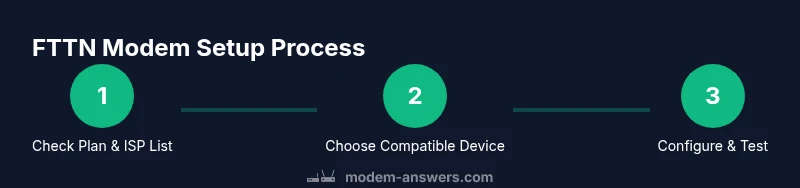
Check your plan and provider requirements
Review your FTTN plan details and confirm any specific modem requirements or approved lists. Have your account number and service name ready for quick reference when contacting support.
Tip: Having your plan speed and provider details handy speeds up validation. - 2
Find an approved VDSL2 modem
Browse your provider’s official list of compatible devices and compare model numbers. If in doubt, contact support to confirm activation availability before purchasing.
Tip: Avoid unlisted devices to prevent provisioning delays. - 3
Decide on router setup
Choose between a built-in router in the modem or a separate router with bridge mode enabled. Consider coverage needs, device count, and whether you want advanced features.
Tip: Bridge mode prevents double NAT and improves routing control. - 4
Physically connect the equipment
Connect the DSL/phone line through the filter to the modem, then connect the modem to power. If using a separate router, connect the router to the modem via Ethernet.
Tip: Power off devices before connecting; this helps avoid boot issues. - 5
Configure the modem/router
Access the device’s admin UI via a wired PC connection. Enter the ISP‑provided settings (PPPoE/DHCP) or follow the auto‑config steps. Update firmware if prompted.
Tip: Use a strong admin password and disable default credentials when possible. - 6
Test, optimize, and secure
Run speed tests, test Wi‑Fi coverage, and enable security features like WPA3. If using bridge mode, verify that your own router handles DHCP and NAT.
Tip: Reboot after changes and test again to confirm stability.
FAQ
What is FTTN and how does it affect modem choice?
FTTN uses fiber to a local cabinet and copper to the home. Your modem must support VDSL2 and align with your provider’s profile to sync correctly.
FTTN uses copper last‑mile connectivity; you need a VDSL2 modem that your provider supports.
Do I need a separate router for FTTN?
Not always. A modem/router combo works for simple setups, but a dedicated router with bridge mode can improve performance in larger homes or with many devices.
You can start with a combo, but a separate router gives more control and better coverage for bigger homes.
Can I use any DSL modem with FTTN?
No. Only modems that are VDSL2 compatible and on your ISP’s approved list will provision correctly.
Make sure the modem is VDSL2 capable and ISP-approved.
What is bridge mode and when should I use it?
Bridge mode disables the modem’s router features so your own router handles networking tasks, often resulting in better performance.
Bridge mode lets your own router run the network for more control.
How do I verify modem compatibility with my provider?
Check the provider’s official modem list and confirm any required firmware or provisioning steps with support.
Look up the approved device list and confirm firmware needs with support.
What if my speeds dip after setup?
Recheck line quality, ensure correct settings, reboot devices, and test again. If issues persist, contact your ISP.
Test, reboot, and verify settings; contact support if speeds stay low.
Is Wi‑Fi performance important for FTTN?
Yes. If coverage is poor, consider a high‑quality router or mesh system, especially for larger homes.
Strong Wi‑Fi coverage matters; consider a better router or mesh if needed.
Watch Video
Key Takeaways
- Choose a VDSL2 modem that matches your ISP.
- Verify compatibility before purchase.
- Decide on bridge mode or standalone router early.
- Test and optimize after setup.