What modem for FTTP: How to choose the right gateway for fiber internet
Learn how to pick a compatible modem or gateway for FTTP fiber internet. This educational guide covers provider requirements, ONT vs gateway, key features, setup steps, and common troubleshooting to ensure a secure, fast home network.


With FTTP, the first step is understanding that many providers supply a gateway or require a compatible ONT. In this guide, you’ll learn how to determine if you can use a third‑party modem, how to verify compatibility (PPPoE, VLAN, and speed support), and how to set up a secure home network using your chosen device.
FTTP Basics: What FTTP means and why you need a compatible modem
FTTP stands for fiber to the premises, delivering gigabit speeds by terminating fiber right at your home. In most homes, an Optical Network Terminal (ONT) converts the fiber signal into an Ethernet connection, which then feeds a gateway or router to distribute internet throughout the house. The Modem Answers team found that understanding the distinction between an ONT, a gateway, and a modem is essential before you buy. FTTP setups vary by provider: some supply a full gateway, others let you bring your own router or gateway and bridge the ONT to your device. The goal is to ensure your hardware supports the features your service requires and can handle the speeds you pay for. When in doubt, start by checking your provider’s official requirements and any published compatibility lists. This helps you avoid buying a device that won’t work on your specific network.
Key terms to know:
- ONT: The fiber optic terminator located at or near your home.
- Gateway: A device that combines a modem, router, and often Wi‑Fi into a single box.
- PPPoE: A common authentication method; many FTTP services use this protocol.
- VLAN: A networking feature that can affect how traffic is tagged and routed through your device.
If you’re deciding whether to use your own hardware or accept the provider’s gateway, this article will walk you through the factors to consider and help you plan a setup that remains secure and scalable.
note
Tools & Materials
- ISP account details (username and password)(Needed for PPPoE or provider portal access during setup)
- Compatible gateway or modem(Check provider compatibility lists and bridging requirements)
- Ethernet cable (Cat-6 or better)(For a stable wired connection between ONT and router)
- Power strip with surge protection(Optional, keeps equipment safe during power events)
- Documentation from provider (service order, ONT type)(May indicate bridging options or required firmware)
- Computer or phone for configuration(Use a wired connection when possible during setup)
Steps
Estimated time: Total time: 45-90 minutes
- 1
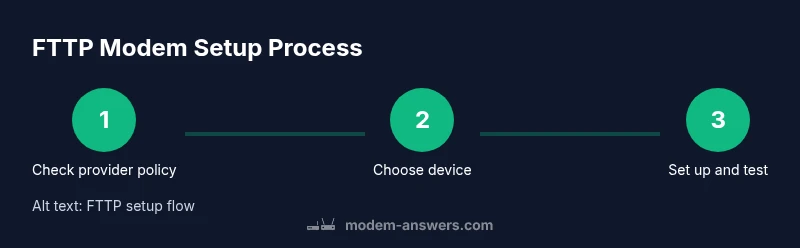
Confirm provider policy
Contact your FTTP provider to confirm whether you may use a third‑party modem/gateway or if you must use a gateway supplied by them. Clarify whether bridging ONT mode is allowed and whether you will need any specific firmware or configuration.
Tip: Ask for an official list of compatible devices to avoid incompatibility surprises later. - 2
Decide bridging vs. gateway mode
If your provider allows you to use your own router, you may opt to bridge the ONT and run your own router. If bridging isn’t allowed, you’ll need a gateway that’s compatible with the service. Document these decisions before purchasing a device.
Tip: Bridging can unlock more advanced router features, but may require extra configuration steps. - 3
Gather credentials and check specs
Collect PPPoE credentials if required, and review key specifications: WAN speed, Wi‑Fi standard (prefer Wi‑Fi 6/6E), number of Ethernet ports, VLAN support, and security features like WPA3. Ensure the device aligns with your plan’s speeds.
Tip: Prioritize devices with at least a 2.5 Gbps WAN port if you expect future speed upgrades. - 4
Physically connect hardware
Connect the ONT to the gateway or router using a durable Ethernet cable. Power up the gateway, and connect your computer to the router for initial setup. Use a wired connection during this step to minimize dropouts.
Tip: Place the gateway in a central location for best coverage and avoid obstructions that impede signal. - 5
Configure the device
Access the device’s web interface or mobile app. Enter PPPoE credentials if required, set up your Wi‑Fi network name and strong password, enable WPA3 if available, and update firmware to the latest version.
Tip: Disable remote management and default credentials to reduce exposure to threats. - 6
Test the connection and performance
Run a wired speed test to verify speeds align with your plan. Check latency, jitter, and packet loss. If results are below expectations, verify cable quality, firmware version, and MTU settings.
Tip: If you bridged ONT, ensure your main router is handling DHCP properly and that the gateway is not double‑NATed. - 7
Fine‑tune and secure
Set up guest networks, enable firewall features, and enable automatic firmware updates. Consider enabling DNS filtering or parental controls if needed. Keep a record of your configuration for future reference.
Tip: Create a backup of the configuration so you can recover quickly after a factory reset.
FAQ
Do FTTP connections require a modem?
FTTP uses an ONT provided by the ISP and often requires a router to create a home network. Some providers supply a gateway that combines modem and router functions. Check your provider’s requirements to confirm.
FTTP uses an ONT, and you usually need a router or gateway to share the connection in your home.
Can I use my own modem with FTTP?
Yes, in many cases you can use a third‑party gateway or router, but you must verify compatibility and whether bridging ONT is allowed by your provider.
You can often use your own device, but confirm with your provider and ensure it’s compatible.
What features matter most in FTTP hardware?
Look for a device with gigabit WAN, WPA3, VLAN support, PPPoE compatibility, and Wi‑Fi 6 or newer for future‑proof performance.
Prioritize gigabit WAN, VLAN, PPPoE support, and modern Wi‑Fi standards.
What is bridging mode and when should I use it?
Bridging turns the provider device into a pure modem, letting your own router handle routing. Use it only if your provider supports it and you want advanced features.
Bridging disables the provider router so your own router handles everything.
How long does setup typically take?
Most setups take 30–90 minutes depending on provider steps and how smoothly the configuration goes.
Expect about an hour, give or take, for most FTTP setups.
Are there security concerns with third‑party FTTP gateways?
To minimize risk, keep firmware updated, use strong passwords, enable WPA3, and disable remote management unless needed.
Keep firmware current and secure your network with strong credentials.
Watch Video
Key Takeaways
- Identify whether your FTTP setup requires a gateway or allows third‑party routers.
- Check PPPoE, VLAN, and speed support before buying hardware.
- Bridging ONT can maximize control, but may be restricted by your provider.
- Secure your network with updated firmware and strong credentials.
- Test performance post‑setup to confirm it meets your service levels.