Virgin Media Modem Mode: How to Bridge Your Hub and Use Your Own Router
Learn how to enable Virgin Media Modem Mode to bridge the hub and use your own router. A practical guide covering prerequisites, setup steps, tips, and potential phone service implications for home networks.


Virgin Media modem mode enables you to turn your Virgin hub into a pure modem, letting your own router manage the network. This bridge-style setup reduces double NAT, improves router features, and gives you full control over DHCP, DNS, and port forwarding. To enable it, log in to the Hub Manager, switch to Modem Mode (or Bridge), and then connect your own router to the hub.
What is Virgin Media Modem Mode and Why Use It
Virgin Media modem mode is a configuration option that turns the Virgin hub into a pure modem, leaving your own router to handle the local network. This arrangement is also called bridging, and it changes how IP addresses and firewall rules are managed in your home. For many households, modem mode reduces double NAT, which can interfere with gaming, video conferencing, and smart-home devices. When you switch to modem mode, the hub stops performing NAT and DHCP duties, so your router becomes the primary traffic controller. This approach is particularly valuable if you want advanced features such as custom firewall rules, advanced QoS, port forwarding, VPN support, or better Wi‑Fi management across multiple access points. In this article, we'll walk through prerequisites, steps, and best practices to implement Virgin Media modem mode safely and effectively. Note that not all hubs or plans support this option, so verify compatibility before you begin.
Prerequisites and Compatibility
Before attempting Virgin Media modem mode, gather a few essentials and confirm compatibility. You will typically need access to the Virgin hub’s admin interface (Hub Manager) with login credentials, a working own router with a WAN port, and a computer or mobile device to reach the hub settings. Check your specific hub model and service plan to ensure Modem Mode is supported; some hubs are locked to standard router operation or require a firmware update. It’s also wise to back up any existing router configurations and note down your current network settings in case you need to revert. If you rely on VOIP landlines or the Virgin Phone service, plan for how those services will be affected when NAT and routing duties move to your own device.
How Modem Mode Differs from a True Bridge and What It Means for Your Network
Modem mode in Virgin Media terminology functions similarly to a bridge, allowing a third-party router to manage IP addressing and routing. The key difference is that some hubs implement Modem Mode in a way that still resembles a gateway, which can cause residual NAT or limited bridge features. Understanding this nuance helps you set realistic expectations for performance and compatibility with VPNs, port-forwarding rules, and firewall settings. When you enable Modem Mode properly, your own router should receive the public IP path through the hub, enabling consistent WAN access and centralized control. This arrangement can improve gaming ping, stability for smart-home devices, and overall network customization, especially in homes with multiple access points or advanced QoS requirements.
Choosing the Right Hardware for a Modem Mode Setup
Selecting the right router is crucial when using Virgin Media modem mode. Look for a device with robust Wi-Fi coverage, strong parental controls, reliable QoS, and good VPN support if those features matter to you. A high-quality router can dramatically improve range and throughput compared to a stock hub. Ensure the router supports current security standards (WPA3 where possible), has an easily navigable admin interface, and receives regular firmware updates. If you have many devices or a large home, pair the router with access points or a mesh system to maintain seamless coverage. Keep your own router firmware up to date, and check that the router can operate in a DHCP-capable WAN mode to obtain IPs from the Virgin hub via Modem Mode.
Safety and Service Considerations When You Bridge
Bridging your network by enabling Virgin Media modem mode can have caveats. First, you may lose the Virgin hub's built-in phone service if it is VoIP-based, so consider an alternative for landline needs. Second, improper configuration can expose devices or disable essential protection if firewall settings aren't tuned. Always secure your router with a strong admin password and enable automatic firmware updates, ideally during a maintenance window. Finally, be mindful of DMZ settings and port forwarding rules; testing after changes helps ensure you don't leave devices unintentionally exposed. If you rely on a smart home hub, plan how devices reconnect during the transition to avoid misconfigurations.
Planning Your Network Topology: Where Your Router Fits
With Virgin Media modem mode, your network will typically have a single authoritative router at the edge, connected to the hub via an Ethernet cable. Your router then distributes IPs to devices on the LAN and often handles Wi‑Fi, guest networks, and firewall rules. If you use Ethernet backhaul, consider running wired connections to critical devices first (gaming consoles, NAS, work PCs). For Wi‑Fi extension, evaluate adding mesh nodes or additional access points to ensure uniform coverage across living areas. Document your topology so you can troubleshoot quickly if a device loses connectivity. A well-planned layout reduces the risk of IP conflicts and simplifies future changes.
Troubleshooting Common Setup Hurdles
Even with careful preparation, you may encounter issues when enabling Virgin Media modem mode. Common problems include the router failing to obtain a WAN IP, devices not receiving IPs, or an inability to access the hub interface after enabling Modem Mode. A systematic approach helps: verify Modem Mode is active, reboot both devices, check cables are firmly connected, confirm the router is set to obtain IPs automatically on the WAN side, and ensure DHCP is enabled on the router. If you still have no internet, temporarily disable firewall features or revert to standard hub mode, then reattempt bridging. Document error messages to search for targeted fixes.
Performance Factors and Best Practices
For best results, place your router in a central location away from obstructions and interference. Use a modern router with ample RAM for QoS and VPN performance, and enable dual-band or tri-band Wi‑Fi if supported. Regularly update firmware on both devices to stay protected against new threats and improve compatibility with connected devices. Consider enabling Quality of Service (QoS) rules to prioritize latency-sensitive traffic like online gaming or video calls. If you experience inconsistent speeds, test with a wired connection first to determine whether the issue stems from wireless coverage or the bridging configuration. Finally, monitor devices for IP conflicts and keep a log of changes to revert if needed.
Post-Setup Verification: Confirming Your Network is Healthy
After enabling Virgin Media modem mode, perform a thorough verification pass. Check that the router obtains a WAN IP, test multiple devices across both wired and wireless connections, and run a speed test to compare against your plan. Verify that DHCP works for new devices, DNS resolution is fast, and VPNs connect correctly if you use them. Take time to confirm that port forwarding rules behave as expected and that firewall protections are in place. If you detect issues, revisit the topology and settings, and consider a staged rollback to a known good configuration if problems persist.
Common Mistakes to Avoid When Enabling Modem Mode
Avoid common missteps that can derail a modem mode setup. Do not enable Modem Mode without a plan for VOIP or landline services if you rely on them. Do not forget to document current network settings so you can revert quickly. Avoid leaving the hub in an inconsistent state with NAT enabled on both devices — this creates double NAT. Always verify the WAN IP on your router, ensure DHCP is active, and be mindful of compatibility with any security appliances or IoT devices. Finally, avoid large, unplanned firmware updates during the transition; perform them during a maintenance window to minimize disruption.
Tools & Materials
- Virgin Media Hub (model supporting Modem Mode)(Log in to Hub Manager to enable Modem Mode)
- Your own router (with WAN port)(Supports DHCP WAN and current security features)
- Ethernet cable (Cat5e or better)(For reliable connection between hub and router)
- Computer or phone for Hub Manager access(Access 192.168.0.1 or your hub’s admin portal)
- Power supply / surge protector(Provide stable power during setup)
- Backup of current network settings(Revert if needed)
Steps
Estimated time: 45-75 minutes
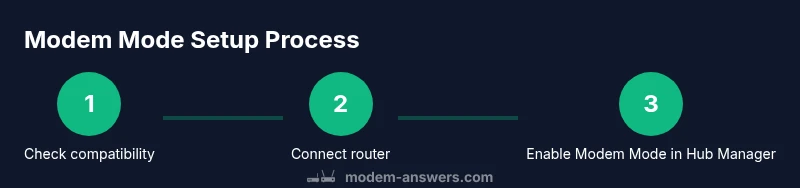
- 1
Verify Modem Mode availability
Check your Virgin Media hub model and service plan to confirm Modem Mode is supported. If unsure, visit the official Virgin support site or contact customer service before proceeding.
Tip: Not all hubs or plans support Modem Mode; confirmation saves time and avoids misconfiguration. - 2
Prepare your router
Power on your router, access its admin page, and ensure WAN is set to obtain an IP automatically (DHCP). Disable any extra NAT features that could conflict with the bridge.
Tip: Avoid using multiple routers in router mode on the same network during bridging. - 3
Back up current settings
Record existing hub and router configurations so you can revert quickly if needed. Save firewall rules, port forwards, and DNS settings.
Tip: A quick restore point saves headaches later. - 4
Connect the hardware
Connect the router’s WAN port to the Virgin hub’s LAN port using a working Ethernet cable. Ensure all devices are powered.
Tip: A stubborn connection is often a sign of a loose cable or incorrect port. - 5
Enable Modem Mode in Hub Manager
Log in to Hub Manager, navigate to Modem Mode or Bridge settings, and enable the feature. Reboot the hub and router after changing the mode.
Tip: Allow a full reboot to ensure the change propagates across devices. - 6
Verify WAN IP on the router
After reboot, check the router status page to confirm it has obtained a WAN IP from the hub. If not, recheck cables and mode status.
Tip: If there is no IP, consider re-enabling Modem Mode or checking for conflicting settings. - 7
Test internet access on multiple devices
Connect devices to the router (wired and wireless) and run speed tests. Verify DNS resolution and ability to access services.
Tip: Do not skip the test phase; issues here reveal bridging problems early. - 8
Configure security and services
Set up firewall, enable DNS filtering if available, and configure port forwarding or VPN as needed. Consider enabling guest networks for visitors.
Tip: Secure admin interfaces with strong passwords and regular updates.
FAQ
What is Virgin Media Modem Mode and when should I use it?
Virgin Media Modem Mode turns the hub into a bridge-like device so your own router controls the network. Use it to improve throughput, enable advanced features, and reduce NAT-related issues when you need precise configuration.
Virgin Media Modem Mode makes the hub act as a bridge, letting your own router handle the network for better control and performance.
Will enabling Modem Mode disable my Virgin Media phone service?
In many cases, enabling Modem Mode will disable the hub's built-in phone service. If you rely on the Virgin VOIP landline, plan an alternative solution before bridging.
Bridging often affects the Virgin phone service, so plan for alternatives before enabling Modem Mode.
Can I revert Modem Mode after enabling it?
Yes. Revert by disabling Modem Mode in Hub Manager and rebooting both devices. You may need to reconfigure NAT and DNS on your router afterward.
You can switch back to standard hub operation by turning Modem Mode off and rebooting.
Do I need a separate router to use Modem Mode?
Yes. Modem Mode delegates network management to your own router, with the Virgin hub acting as a bridge. This gives you full control over networking features.
A separate router is usually required for Modem Mode to manage the network.
What are common issues when bridging Virgin Hub and a personal router?
Common problems include no internet on the router, lingering NAT, or VoIP loss. Solving typically involves confirming Modem Mode, rebooting devices, and verifying DHCP on the router.
Look for no internet, NAT conflicts, or phone loss; fix by checking mode and DHCP.
My hub model doesn't show Modem Mode option—what should I do?
If Modem Mode isn’t visible, your hub or plan may not support it. Contact Virgin Media support or use a standard router setup with caution.
If you don\'t see the Modem Mode option, check compatibility with Virgin support.
Watch Video
Key Takeaways
- Plan ahead before enabling Modem Mode
- Use your own router for better control
- Verify phone service implications
- Test performance and router placement
- Know how to revert if needed