Bridge Mode Modem: A Step-by-Step Setup Guide
Step-by-step guide to enable bridge mode on your modem, connect a dedicated router, and optimize home networks for reliability and speed.


By using bridge mode on your modem, you offload routing duties to a dedicated router, which can improve performance and reduce double NAT. This guide will show you when to use it, how to enable it on common modems, and how to configure a reliable home network with a separate router.
What is bridge mode modem and when should you use it?
A bridge mode modem turns off the device's routing capabilities and passes all Internet traffic to a connected router. This approach is ideal when you want a single, feature-rich router to manage wireless coverage, advanced security, and guest networks, while avoiding double NAT issues common with ISP-provided gateways. According to Modem Answers, many homeowners see clearer port forwarding, more stable VPN connections, and fewer connectivity quirks after implementing bridge mode modem setups. This article explains the mechanics, scenarios, and a practical setup path to help homeowners and renters achieve a reliable home network with a separate router.
startLineNumber":1,"endLineNumber":2
Tools & Materials
- Modem with bridge mode capability(Confirm in the user manual or admin page that bridge mode is supported by your device.)
- Second router (preferably with updated firmware)(This will handle NAT, DHCP, and Wi‑Fi for your network.)
- Ethernet cable (Cat6 or better)(Used to connect the modem to the router’s WAN/Internet port.)
- Laptop or smartphone with admin access to the modem/router(Needed to log into device interfaces and apply changes.)
- Power outlets and surge protector(Stable power to both devices during setup.)
- ISP login credentials and service details(Only if required to reconfigure the modem or PPPoE settings.)
Steps
Estimated time: 60-90 minutes
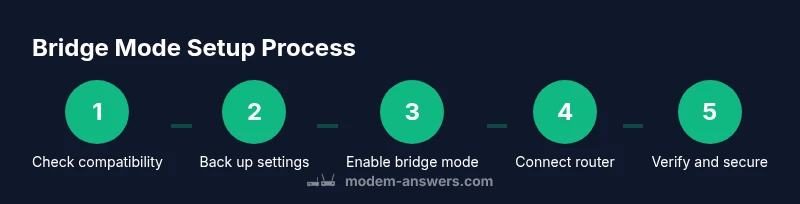
- 1
Verify compatibility and readiness
Check that your modem supports bridge mode and locate its admin URL or IP address. Gather the router, Ethernet cable, and a computer or mobile device to access the interfaces. This step prevents surprises during the bridge mode enablement and ensures you can revert if needed.
Tip: If you’re unsure, contact your ISP or consult the Modem Answers compatibility notes before proceeding. - 2
Back up current settings
Before changing networking modes, export or write down current WAN, LAN, and DNS settings. This provides a safe restore path if you need to revert and prevents loss of essential configurations like port forward rules.
Tip: Take screenshots of each screen you plan to modify for quick recreation. - 3
Disable Wi‑Fi on the modem (if possible)
Many ISP gateways are dual‑purpose devices. Disabling the modem’sWi‑Fi ensures your dedicated router handles wireless, avoiding interference and double networks.
Tip: If the option isn’t available, you can leave Wi‑Fi on the modem but set a strong, separate SSID with no broadcast on the same channel as your router. - 4
Enable bridge mode on the modem
Log into the modem’s admin interface and locate Bridge Mode or IP Passthrough. Enable the feature and apply changes; the modem may reboot. Do not unplug cables during reboot.
Tip: Save the configuration and confirm the modem is in bridge mode by checking the WAN status on the router. - 5
Connect the router to the bridge-enabled modem
Plug the router’s WAN/Internet port into the modem’s Ethernet port. Power on both devices and ensure the router obtains a WAN IP from the ISP. You may need to set the router’s WAN to DHCP or PPPoE depending on your service.
Tip: Avoid using a LAN‑to‑LAN link; always use the router’s WAN port for proper bridging. - 6
Configure router WAN and firewall
In the router’s admin interface, ensure DHCP is active for LAN, configure DNS as desired, and enable firewall features. Disable double NAT by keeping the router’s NAT enabled only on the router, not on the modem.
Tip: Test a device connected to the router to verify Internet access before moving forward. - 7
Test connectivity and performance
Run speed tests, ping tests, and a basic port check to verify functionality. Confirm that devices connected to the router can reach the Internet and services via VPN or remote access if used.
Tip: Record any anomalies and adjust MTU or DNS if required. - 8
Revisit Wi‑Fi configuration and security
Set up your router’s Wi‑Fi network, configure passwords, and enable WPA3 if available. Consider guest networks and separate IoT SSIDs for improved security.
Tip: Regularly update firmware to maintain security and feature stability.
FAQ
What is bridge mode modem and what does it do?
Bridge mode on a modem disables the device’s routing features and passes Internet traffic to a connected router. This reduces NAT-related issues and centralizes management on your dedicated router.
Bridge mode turns off routing on the modem and hands control to your router, which can improve stability and management.
Will enabling bridge mode disable the modem’s Wi‑Fi?
In most cases, bridge mode also disables the modem’s Wi‑Fi, forcing all wireless activity to the connected router. If Wi‑Fi remains active, you may have two separate wireless networks.
Yes, typically bridge mode disables the modem’s Wi‑Fi so the router handles wireless.
Do I need a separate router after enabling bridge mode?
Yes. Bridge mode is used when you want a dedicated router to manage your LAN, NAT, firewall, and wireless network for better performance and control.
Yes, you’ll usually want a separate router after bridging to get full features and performance.
How do I revert from bridge mode if something goes wrong?
To revert, re-enable routing on the modem or reset to factory defaults, then reapply your original settings. This often requires reconnecting to the modem’s interface and verifying WAN settings.
If things break, reset and toggle back to router mode on the modem, then reconfigure as needed.
Can bridge mode affect telephone or VoIP services?
Bridge mode can affect VoIP services if the modem was handling VoIP traffic. Check with your ISP and test VoIP after bridging to ensure uninterrupted service.
If your phone service uses the modem, verify service after bridging to avoid outages.
What changes should I make for security after bridging?
Update router firmware, enable strong WPA3 security with a unique password, and consider a guest network for visitors. Disable unused services on the router.
Keep the router updated and use strong security settings after bridging.
Watch Video
Key Takeaways
- Bridge mode offloads routing to a dedicated router.
- Disable or separate Wi‑Fi to avoid double NAT.
- Back up settings before changes.
- Test and document network changes for reliability.
- Keep firmware up to date on both devices.