Replacing CenturyLink Modem: A Step-by-Step Guide
Learn how to replace your CenturyLink modem with a compatible alternative, activate it with your provider, and optimize your home network for reliability and speed.


You can replace your CenturyLink modem by selecting a compatible substitute, installing and activating it with your ISP, and then configuring your Wi‑Fi for security and performance. This guide covers compatibility checks, setup steps, activation, and basic troubleshooting to ensure a smooth transition without service disruption.
Why replacing your CenturyLink modem might be necessary
Over time, the equipment provided by ISPs like CenturyLink can accumulate firmware updates, security patches, and features that improve performance and reliability. If your current modem is outdated, unstable, or doesn’t support modern Wi‑Fi standards, upgrading can lead to faster speeds and a more stable home network. Replacing a rental modem with your own compatible device can also reduce monthly rental fees and give you greater control over your network settings. According to Modem Answers, many homeowners see noticeable improvements in coverage and device compatibility after upgrading to a modern, compatible replacement. The Modem Answers team found that users who verify compatibility before buying report fewer activation delays and smoother setups, especially when bridging to a separate router for enhanced performance.
Understanding provider compatibility and requirements
CenturyLink uses different access technologies depending on your area, such as DSL/fiber or coaxial networks. A replacement modem must be compatible with your specific service type and support any required features (for example, VoIP, bridging mode, or specific authentication methods). Before purchasing, check with CenturyLink or your account portal for a list of approved devices and documented activation steps. You should also confirm whether you’ll need a separate router or if a gateway device with built‑in Wi‑Fi is acceptable. By knowing your service type and plan, you can avoid buying the wrong kind of device and reduce installation friction.
Choosing a replacement modem: features to prioritize
When selecting a replacement modem, prioritize compatibility with your service type (DSL, fiber, or cable) and support for your desired network setup. Look for a device with reliable security settings (WPA3 if available), sufficient Ethernet ports for wired devices, and the option to disable built‑in Wi‑Fi if you prefer a separate router. If you rely on VoIP phone services, ensure the modem supports voice service or that you can bridge it to a stand‑alone router. Consider futureproof features like support for newer wireless standards and energy‑efficient operation. A well‑chosen modem can deliver more stable connections and easier long‑term maintenance.
Modem vs gateway vs standalone: what's best for you
A modem alone paired with a separate router often delivers maximum control and performance, but a gateway device can simplify setup with a single unit. If you have a large or busy home, a separate high‑quality router connected to a compatible modem can provide better coverage and more features (guest networks, parental controls, QoS). If space or simplicity is the priority, a gateway may be sufficient. Evaluate your home size, the number of connected devices, and your willingness to manage two devices versus one. The goal is reliable coverage, not just raw speed.
How to physically install the new modem
Begin by powering down and unplugging the old modem from the power source and the network line. Disconnect any cables connected to the old device. Connect the new modem to the appropriate line (DSL, fiber ONT ethernet, or coax) according to its manual. Secure the device on a stable surface, plug it into power, and allow it to boot completely. After the LEDs stabilize, proceed to connect a computer with an Ethernet cable for initial configuration. Keep the modem away from heat sources and moisture, and avoid stacking it with other electronics that could cause interference.
Activating and provisioning with your ISP
Access the new modem’s admin page from a connected device (usually via a 192.168.x.1 address). If activation is automatic, you may see a prompt guiding you through the process; otherwise, you may need to call CenturyLink support or use the account portal to provision the device. Have your account details ready, including the service address and any activation PIN. Activation ensures the device is authorized on your network and can receive service settings from CenturyLink. If problems arise, recheck the cabling and power cycle the unit after activation attempts fail.
Configuring Wi‑Fi and client security
Once activation completes, log in to the modem’s admin interface to set up your Wi‑Fi network. Create a unique SSID, strong password, and select WPA3 (or at least WPA2) security. Disable remote management on the device and change the default admin password to a strong one. If you’re using a separate router, enable bridge mode on the modem or connect the router’s WAN/LAN ports as appropriate to avoid double NAT. Document your network name and password and store them securely for future reference.
Connecting devices and validating connectivity
Start by connecting a computer or phone via Ethernet to confirm a stable wired connection. Then connect Wi‑Fi devices and verify online access across multiple devices. Run a quick speed test to validate expected performance and check for packet loss or latency spikes. If devices fail to connect, double‑check the SSID/password, confirm firmware updates, and ensure the device is not blocked by parental controls or MAC filtering. A clean, correctly configured network should show stable speeds on multiple devices.
If you have a separate router: bridging and optimization
If you plan to keep a separate router, configure the modem to bridge mode if available or place the router behind the modem in a standard setup. Bridging allows your router to handle all DHCP and NAT functions, reducing potential conflicts. Update your router’s firmware, enable features like QoS for streaming or gaming, and consider enabling guest networks for visitors. Periodic reboots and firmware checks help maintain performance and security over time.
Security, firmware updates, and long‑term maintenance
After setup, enable automatic firmware updates on both the modem and router when possible. Regularly review connected devices, rotate Wi‑Fi passwords periodically, and monitor for unusual activity in the admin portal. If you notice degraded performance or suspicious traffic, test with a wired connection to determine whether the issue is network‑wide or device‑specific. Keeping devices updated and secured minimizes vulnerabilities and helps sustain reliable service.
Tools & Materials
- Replacement modem/router (approved for CenturyLink compatibility)(Ensure compatibility with your service type (DSL, fiber, or coax) and support for voice services if used.)
- Ethernet cable (Cat5e or better)(Used for initial configuration and wired testing.)
- Power outlet and surge protector(Protects equipment from power surges and allows safe shutdown.)
- Coaxial or phone line connector (as needed)(Only if your service type requires it for the line input.)
- ISP account credentials or activation PIN(Needed for activation/provisioning with CenturyLink.)
Steps
Estimated time: 45-75 minutes
- 1
Verify service compatibility
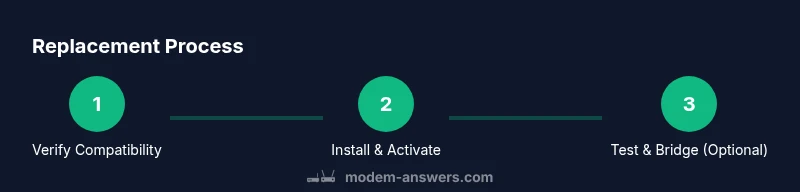
Identify your CenturyLink service type (DSL, fiber, or coax) and confirm compatibility of the replacement modem with the provider's supported devices. This prevents activation failures.
Tip: If unsure, contact your ISP before purchasing to confirm approved models. - 2
Power down and unplug the old modem
Disconnect power and all cables from the existing device to safely remove it from the network. Label connectors if you plan a side‑by‑side test.
Tip: Take a quick photo of current cabling for reference during re‑installation. - 3
Disconnect the service line
Carefully detach the coaxial or phone line from the current modem, ensuring no damage to the line connectors. This frees the line for the new device.
Tip: Inspect the line for wear; replace any damaged connectors if needed. - 4
Connect the new modem to the service line
Attach the appropriate input (coaxial, DSL, or fiber Ethernet to ONT) to the new modem according to its manual. Do not force connections.
Tip: Hand‑tighten connectors until snug; avoid overtightening which can damage ports. - 5
Power up and boot the modem
Plug the device in and let it boot completely, watching the status indicators. This can take a few minutes; wait for all lights to stabilize.
Tip: If the device doesn’t boot, perform a soft reset by unplugging and re‑inserting the power. - 6
Access the admin interface
From a connected computer, open the modem’s default gateway address (often 192.168.x.1) to reach the setup page. Use the provided credentials to log in.
Tip: Disable browser auto-fill on the login page to prevent credential leakage. - 7
Activate the modem with your ISP
Follow the on‑screen prompts or contact CenturyLink to provision the device. Activation confirms the device is recognized on your account.
Tip: Have your account details handy; activation may require your service address and an activation PIN. - 8
Configure Wi‑Fi and security
Set a unique SSID, strong password, and select WPA3 (or WPA2 if unavailable). Disable remote management and change the admin password.
Tip: Use a different admin password than your Wi‑Fi password to improve security. - 9
Test connectivity and device reach
Connect devices via Ethernet and Wi‑Fi, run speed tests, and verify reliable access across multiple devices. Address any dead zones.
Tip: Place the modem centrally and away from obstacles to improve signal distribution. - 10
Bridge to a separate router if desired
If you use a dedicated router, enable bridge mode on the modem or connect the router to the modem’s LAN port. This reduces double NAT and yields better control.
Tip: Update the router’s firmware after enabling bridge mode for optimal performance.
FAQ
Can I replace a CenturyLink modem myself, or do I need a technician?
You can replace it yourself if you choose a compatible device and follow activation steps. Some providers require activation via their portal or support line, but no technician is necessary for most standard setups.
You can do it yourself if you have a compatible modem and activation details from CenturyLink.
Will replacing the modem affect VoIP service?
VoIP service may require specific modem features or bridging. Check with CenturyLink whether your chosen device supports VoIP or if you need to bridge to a separate router for voice.
VoIP could be affected if the device doesn't support it; verify with your provider.
Do I need to pay extra for a replacement modem?
If you purchase your own modem, there is typically a one‑time cost. Renting a device from the ISP is often more expensive over time, so owning can reduce ongoing fees.
Buying your own modem usually costs less over time than renting from the provider.
What if activation fails after I replace the modem?
If activation fails, double‑check cabling and credentials, then retry activation via the ISP portal or call support for assistance. Some activations require a waiting period before the device is recognized.
If activation fails, recheck connections and credentials and contact support if needed.
Should I bridge my modem to a separate router?
Bridging lets your router handle DHCP and NAT, often improving performance in busy homes. If you don’t need advanced features, using a gateway with built‑in Wi‑Fi is simpler.
Bridge mode can improve performance if you use a separate router.
Is there any risk to my network security when replacing the modem?
Replace with a reputable device, disable default credentials, enable strong Wi‑Fi encryption, and keep firmware updated to minimize risk.
Security depends on choosing a good device and keeping it updated.
Watch Video
Key Takeaways
- Verify service compatibility before buying.
- Configure Wi‑Fi securely and disable default access.
- Test connectivity across wired and wireless devices.
- Consider a separate router for advanced features and coverage.