How to Use a USB Modem on Laptop: Step-by-Step Guide
Learn how to connect and use a USB modem on a laptop, including driver installation, setup steps, APN settings, and troubleshooting for reliable mobile broadband.


In this guide, you’ll learn how to use a USB modem on a laptop, from selecting a compatible dongle and activating a data plan to installing drivers, configuring network settings, and testing your connection. The process works across Windows and macOS, with OS-specific tips to avoid common pitfalls. By following these steps, you’ll gain reliable mobile broadband as a backup or travel-friendly internet solution.
What is a USB modem and when to use it
A USB modem, also known as a cellular dongle, provides portable internet access by connecting to a mobile data network. It plugs into your laptop’s USB port and uses a SIM card to access 4G/5G networks. If you travel frequently, work from locations with limited fixed broadband, or need a quick internet backup, a USB modem is a compact, inexpensive option. For the task of learning how to use usb modem on laptop, this guide walks you through setup, installation, and troubleshooting. According to Modem Answers, USB modems offer straightforward deployment and can be a reliable fallback when fixed connections fail. The goal is to help you maximize uptime while keeping security and privacy in mind. Throughout this article, you’ll see practical steps, OS-specific tips, and common gotchas so you can get online quickly and confidently.
USB modem compatibility and prerequisites
Before you connect anything, verify that your laptop and modem are compatible with your operating system and data plan. Most USB modems work with Windows, macOS, and Linux, but driver support can vary by device and version. Check the modem manufacturer’s site for a compatibility matrix, driver downloads, and any firmware updates. Some carriers also provide their own software to manage connections. If your SIM is locked or requires a PIN, have it ready; you may need APN settings for certain networks. Modem health and battery life are less critical here, but keep the modem away from heat and moisture. Ensuring compatibility and prerequisites up front saves time and avoids miscommunications about what you can reasonably expect from your setup.
Preparing your laptop and SIM data
Gather your hardware and plan to avoid surprise trips to the store. You’ll need a laptop with a free USB port and a USB modem that matches your OS. If your SIM card is not already active, contact your carrier to enable data service; some carriers require activation online or via app. Keep your SIM card clean and dry, and consider having a spare microSIM adaptor if needed. Make sure you have a data plan that covers your expected usage and coverage in your area. Following Modem Answers’ recommendations, test the SIM in a smartphone first to confirm data service and the correct plan before inserting it into the modem.
Inserting the SIM and plugging in the modem
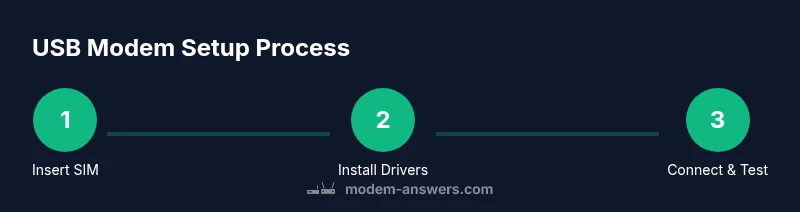
Power down the laptop or save work, then insert the SIM into the USB modem according to the device’s manual. Plug the modem into a USB port on the laptop; if your port is USB-C only and your modem is USB-A, use an adapter. If your device has multiple USB ports, start with a port that isn’t sharing a hub to minimize power draw issues. After you connect, the system should recognize the device; you may see a notification or a new network icon. If not, try another USB port and check that the dongle is firmly seated. It’s important to avoid jostling the device while the OS detects it.
Installing drivers and managing connections
Most USB modems today are plug-and-play on modern Windows and macOS, but some require driver installation. Open the device manager (Windows) or System Information (Mac) to confirm that the modem is listed as a network device. If drivers are required, download them from the manufacturer’s site and follow the on-screen prompts to install. After installation, restart the laptop if asked. When drivers are installed, try to connect using the network settings or the carrier’s software, if provided. If you encounter prompts to activate the SIM or set APN, follow the on-screen steps or consult your carrier’s support page.
Configuring network settings on Windows and macOS
On Windows, go to Settings > Network & Internet > Cellular (or Mobile) and select the USB modem as your active network. On macOS, open System Preferences > Network and choose the USB modem from the left pane, then apply. You may need to enter APN, username, or password for LTE networks; leave fields blank for automatic configuration if your carrier supports autoconfig. Save changes and test the connection by loading a webpage. If you use a separate carrier-provided app, it can manage the profile and show signal strength. For both systems, ensure that the device remains within coverage, has adequate signal, and avoid connecting to insecure public networks.
Testing your connection and optimizing speed
With the modem configured, run a quick speed test to set expectations: measure ping, download, and upload speeds at your location and times of day. You can use a reputable speed test site or app. Check signal strength by the icon or the OS indicator; if speeds are slow, try a different USB port or remove any other USB devices that could draw power. Update firmware if a newer version is available, as it can improve stability and performance. Use a data plan that matches your usage pattern; streaming video and large downloads will consume data quickly.
Troubleshooting common issues
Problems may include no connection, intermittent drops, or poor speeds. If there is no network, verify that the modem is visible in Device Manager and that the SIM is active with the correct APN. Reinstall drivers, reset network settings, or try a different USB port. If the connection drops, check for signal strength and interference, try a different location, and temporarily disable VPNs that might block traffic. On Windows, check the Network Troubleshooter; on macOS, run Wireless Diagnostics. If you still can’t connect, contact your carrier to confirm service availability.
Security, privacy, and best practices
Mobile broadband introduces unique privacy considerations. Disable auto-connect to untrusted networks, use a firewall, and keep your OS and drivers updated. Do not store sensitive credentials in plain text and avoid sharing SIM details in public. If you plan to travel with the modem, store it in a safe case to prevent physical tampering. For added security, consider turning off tethering options when not in use and regularly monitor data usage to prevent unexpected charges. The Modem Answers Team recommends keeping firmware up to date and testing the device periodically for leaks or misconfigurations.
AUTHORITY SOURCES
For further reference, see:
- https://www.fcc.gov/
- https://www.nist.gov/
- https://www.microsoft.com
Tools & Materials
- USB modem dongle (3G/4G/5G)(Plug-and-play model compatible with your laptop ports (USB-A or USB-C). Ensure SIM slot is accessible.)
- SIM card with active data plan(If using an eSIM, activate per carrier instructions and have APN details handy.)
- Laptop with available USB port(Any OS that you use (Windows/macOS/Linux). Ensure USB port is functioning.)
- USB-C to USB-A adapter (if needed)(Only necessary if your modem uses USB-A and your laptop has only USB-C ports.)
- Drivers/software (download from manufacturer)(Some modems are plug-and-play; others require drivers—download from official site.)
- PIN/PUK code (if required)(Have it ready if your SIM is locked.)
- User manual or quick-start guide(Helpful for model-specific steps.)
Steps
Estimated time: 25-45 minutes
- 1
Verify compatibility and prepare data
Check that your USB modem and OS are compatible and confirm that the SIM data plan is active. If needed, download any required drivers in advance. This pre-check prevents surprises during setup.
Tip: Review the manufacturer’s compatibility list and carrier APN requirements before plugging in the dongle. - 2
Insert SIM and connect the modem
Insert the SIM as instructed by the device manual and attach the modem to an available USB port. If the laptop only has USB-C ports, use an adapter. Ensure the device is firmly connected before proceeding.
Tip: Use a USB port directly on the laptop chassis, not through a hub, to avoid power issues. - 3
Install drivers (if prompted)
If Windows or macOS prompts for drivers, allow installation from trusted sources and follow on-screen steps. Restart if requested by the installer.
Tip: If you don’t see a prompt, check Device Manager (Windows) or System Information (Mac) to verify recognition. - 4
Launch the carrier software or network settings
Open the carrier-provided app or your OS network settings to bring up the USB modem as a network option. Follow prompts to enable the SIM profile and data connection.
Tip: Some carriers require you to activate the data profile within their app first. - 5
Configure APN if required
If your connection asks for APN, username, or password, enter the information exactly as your carrier provided. Leave fields blank if autoconfig is supported.
Tip: APN settings are network-specific; using the wrong APN can prevent a data connection. - 6
Test the connection
Open a browser and load a page or run a speed test to confirm connectivity and measure performance.
Tip: If pages don’t load, run the Windows Network Troubleshooter or macOS Wireless Diagnostics. - 7
Fine-tune and secure
Adjust settings for reliability and privacy (e.g., firewall, automatic connection behavior). Keep firmware and OS updated.
Tip: Regularly monitor data usage to avoid unexpected charges and ensure security patches installed.
FAQ
What is a USB modem and when should I use one?
A USB modem is a portable cellular dongle that provides internet access by connecting to a mobile data network. It’s ideal for travel, backups, and locations with limited fixed broadband. It requires a SIM card and compatible drivers to work with your laptop.
A USB modem is a small device that gives you internet via cellular data, great for travel or backups when fixed broadband isn’t available.
Do USB modems require drivers on Windows or macOS?
Many USB modems are plug-and-play on modern Windows and macOS, but some models need drivers from the manufacturer. Check compatibility before purchase and install any required software according to the provider’s instructions.
Most USB modems work automatically on Windows and Mac, but some need drivers from the maker.
Can I use a USB modem with Linux?
Some USB modems have Linux compatibility, but support varies by device and kernel version. Check the manufacturer and community forums for drivers or open-source options before buying.
Linux support depends on the modem; check compatibility before selecting a model.
What if the modem is not recognized by my laptop?
Try a different USB port, reboot the computer, and ensure the dongle is securely seated. Verify drivers are installed or use the manufacturer’s app to troubleshoot.
If it isn’t recognized, switch ports, reboot, and check drivers.
How do I know if my SIM plan is active?
Test the SIM in a smartphone first to confirm data service. If it works there but not on the laptop, recheck APN settings and driver status.
Test your SIM in a phone to confirm it’s active before using it on a laptop.
Is APN configuration always required?
APN configuration is only needed if automatic configuration doesn’t occur. Have your carrier’s APN details handy just in case.
APN might be needed if automatic setup doesn’t work.
Watch Video
Key Takeaways
- Prepare your data plan and hardware before starting
- Install drivers only from official sources
- Test connectivity with a speed test and adjust settings for speed
- Keep security and updates in focus for ongoing reliability