How to Use LTE 4G USB Modem: A Step-by-Step Guide for Home
Learn how to set up and optimize a LTE/4G USB modem at home with a clear, step-by-step guide, practical tips, and troubleshooting strategies from Modem Answers.


Using a LTE/4G USB modem lets you add mobile broadband to any computer or router. This guide covers how to choose a compatible device, insert a data SIM, connect to your PC or a router, configure APN if needed, and verify the connection. It also covers common troubleshooting and best-practice tips for reliable speed.
What is a LTE/4G USB Modem?
A LTE/4G USB modem is a compact device that plugs into a computer or router via USB and uses a cellular data plan to provide internet access. It is designed to be portable and easy to deploy, making it a practical option for temporary setups, outages, or locations without wired broadband. According to Modem Answers, these modems are typically plug-and-play, but performance depends on carrier coverage, the SIM plan, and the device's ability to negotiate with the network bands. When choosing a model, consider supported bands, power draw, size, and whether it can be tethered to a router to share the connection with multiple devices. With the right setup, a USB modem can serve as a reliable, flexible internet path for homes and small offices.
Why use a LTE/4G USB modem for home internet?
There are several scenarios where a USB modem shines: as a resilient backup when your fixed broadband goes down, as a portable internet solution during travel, or as a low-cost entry point for basic online tasks. Many households appreciate the ability to add a secondary internet path without reconfiguring an entire network. Performance depends on signal strength, data plan limits, and device efficiency. For homes in areas with patchy wired options, a USB modem can deliver usable speeds for email, web browsing, and video calls, especially when combined with a capable router.
What you need to get started
To begin, gather a LTE/4G USB modem, an active data SIM card, and a computer or router to connect to. A web browser is needed to access the modem's management page. If you plan to share the connection across multiple devices, ensure your router supports USB 4G dongles or has a tethering feature. Optional accessories like a USB extension cable or a SIM ejector can improve convenience, but are not strictly required. Finally, confirm you have coverage in your area by reviewing your carrier's map before committing to a plan.
Carrier compatibility and APN basics
Different carriers use different APN (Access Point Name) settings, so you may need to adjust these values in the modem's admin interface for data to flow. If the modem is locked to a specific carrier, you’ll either need to unlock it or use a SIM from that network. Check that the modem supports the carrier’s bands and that firmware is up to date. If you travel internationally, verify the modem’s band compatibility and roaming options on your plan.
The Setup Process at a glance
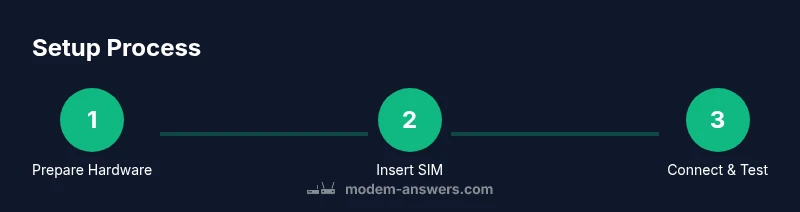
Here is a high-level overview: insert the SIM, power on the device, connect the modem to your computer or router via USB, install any required drivers if prompted, and then access the device's configuration page to finalize APN and sharing settings. This overview helps you map the full workflow before you dive into the detailed steps, ensuring a smoother setup.
Placement and signal considerations
Signal strength is a major determinant of achievable speeds. Place the modem near a window or higher up to improve reception, and avoid thick walls or metal barriers. If the modem has an external antenna port, connect a high-gain antenna for better uplink and downlink. Some USB modems perform better when plugged directly into a USB 3.0 port to reduce power draw and data bottlenecks.
Data usage, speeds, and performance tips
Be mindful of your data plan limits and the time of day you use the connection. Real-world speeds vary with network congestion and signal quality; do not expect advertised peak speeds on a cellular network. To maximize performance, keep firmware up to date, use a capable router for sharing, enable QoS for priority devices, and consider placing the modem in a location with the strongest signal. When testing speeds, repeat tests at different times to get a realistic profile.
Security, maintenance, and when to upgrade
Keep firmware current and disable unnecessary remote access. Use a strong admin password for the modem, and enable strong Wi‑Fi encryption if you’re sharing the connection over Wi‑Fi. Monitor data usage for anomalies and set up alerts if your plan supports them. If you consistently need higher speeds or more devices, evaluate a newer modem or a dedicated home gateway with better antenna options.
Tools & Materials
- LTE/4G USB modem(Ensure it supports the carrier bands you intend to use and is not permanently locked to another network.)
- Active data SIM card(A data-only plan works best for a modem; confirm roaming if you travel.)
- Computer or compatible router(For initial setup or to share the connection with multiple devices.)
- Web browser(Used to access the modem’s management interface.)
- USB extension cable (optional)(Helpful if the USB port is hard to reach or blocked by other hardware.)
- SIM ejector tool (optional)(Useful for easy SIM insertion/removal on some models.)
Steps
Estimated time: 30-60 minutes
- 1
Check compatibility and plan
Verify the modem supports your carrier’s bands and that you have an active data SIM. Review the provider’s coverage map and confirm the plan meets your usage needs before purchase.
Tip: If your modem is locked, consider unlocking or selecting a carrier with a compatible SIM. - 2
Insert SIM and power on
Power down the computer or router, insert the SIM into the modem according to the device's instructions, then connect the modem via USB and power it on.
Tip: Handle the SIM with clean hands and avoid flexing the card to prevent damage. - 3
Connect to a computer or router
Plug the modem into a USB port on your computer or router. If using a router, access its management page to confirm USB modem mode and shared network settings.
Tip: Prefer a USB 3.0 port when available to maximize power and data throughput. - 4
Install drivers or firmware
Let the operating system install drivers automatically or run the manufacturer’s firmware tool if prompted. Check for firmware updates to improve compatibility and stability.
Tip: If automatic installation fails, download the driver package from the vendor’s site and install manually. - 5
Configure APN and network settings
Access the modem’s admin page and input the APN provided by your carrier. Save settings and reboot if required.
Tip: If you don’t have APN details, contact customer support or use common defaults like 'internet' for many carriers. - 6
Test connectivity and optimize
Open a browser to verify basic connectivity, run a speed test, and adjust placement for stronger signal. Enable QoS or guest networks if sharing via Wi‑Fi.
Tip: Test from different rooms and near windows to identify the best location for performance.
FAQ
Do I need a special SIM for a LTE USB modem?
Yes. You need an active data SIM card with a plan suitable for your usage. Some modems may require unlocking to work with a different carrier.
Yes, you’ll need an active data SIM. Some devices may be carrier-locked, so check unlock options.
Can I use a USB modem with my router to create Wi-Fi?
Yes. Many routers support USB 4G dongles to share a cellular connection over Wi‑Fi. Check your router’s manual for dongle compatibility and configuration steps.
Yes, you can share the cellular connection over Wi‑Fi if your router supports it.
What APN settings are commonly used?
APN settings vary by carrier. If you don’t have them, start with the default internet APN or contact your provider for the exact values.
APN settings depend on your carrier; check with them if you’re unsure.
Why isn’t my modem detected by the computer?
Ensure USB drivers are installed, try a different port, and confirm the SIM is active. Reboot the device and check for firmware updates if the issue persists.
Try another USB port and check for drivers or firmware updates.
What speeds can I realistically expect?
Speeds depend on carrier network conditions, signal strength, and plan limits. Expect variability and avoid assuming peak speeds from fixed broadband.
Speeds vary with network conditions and your plan.
Is a LTE USB modem secure for home use?
Yes, if you keep firmware updated, use strong admin passwords, and enable encryption on the sharing router. Regularly monitor for unusual data activity.
Yes, with proper firmware updates and security settings.
Watch Video
Key Takeaways
- Choose a modem that supports your carrier bands.
- Place the modem for best signal and verify APN settings.
- Test speeds and monitor data usage regularly.
- Keep firmware up to date for security and performance.