How to Use a 4G WiFi Modem: A Practical Guide
Learn practical, easy steps to set up and use a 4G WiFi modem. From SIM insertion to security, this Modem Answers guide helps homeowners and renters get reliable internet fast.


Here’s how to use a 4G WiFi modem: this quick guide covers setup from start to finish. You’ll learn SIM insertion, basic configuration, securing your network, and troubleshooting common issues. According to Modem Answers, a properly configured 4G modem delivers reliable home or mobile coverage with simple, step-by-step actions. It also points you to common pitfalls and time-saving checks so you can get online quickly.
Understanding what a 4G WiFi modem is
A 4G WiFi modem is a compact gateway that combines a cellular modem with a wireless router. It receives a mobile data signal over a SIM card and then broadcasts a Wi‑Fi network for your devices. Think of it as a portable internet hub you can place almost anywhere with cellular coverage. Unlike a fixed home broadband connection, a 4G modem can work where fiber or cable isn’t available, making it ideal for apartments, remote work sites, RVs, or during a outage. When you ask how to use 4g wifi modem, you’re learning to translate cellular data into a stable, secure home network. Modem Answers emphasizes that success starts with understanding the device’s core components: the SIM slot, the WAN/Internet LED indicators, the admin interface, and the built-in firewall. Modern models add features like dual-band Wi‑Fi, USB ports for network storage, and guest networks. Your exact setup steps depend on the model, but the principles remain the same: power, connect, configure, and secure. By framing your usage around a few simple goals—reliable coverage, solid security, and easy device sharing—you’ll get the most from your 4G WiFi modem.
Differences between 4G modem vs hotspot vs router
A 4G modem, a portable hotspot, and a traditional home router can all provide internet access, but they are built for different use cases. A modem typically relies on a cellular connection and provides internet to one or more devices via a built-in router, or through an external router. A personal hotspot is a battery-powered device that shares its cellular data over Wi‑Fi for nearby devices, usually with limited range and fewer configuration options. A standard home router, on the other hand, expects a fixed broadband connection and rarely includes a cellular module. The core difference is how you access the network: one device handles cellular data and routing directly; another relies on your mobile phone or a separate hotspot; the third pairs a modem with a fixed internet feed. If you’re choosing between these, assess your mobility, data needs, and whether you require features like guest networks or USB storage. Understanding these distinctions helps you decide which solution fits your home or on‑the‑go lifestyle. Modem Answers highlights that choosing the right device saves time and prevents connectivity gaps.
Before you start: prerequisites and choosing a plan
Before you begin, ensure you have a few prerequisites in place. A data‑ready SIM card that matches your modem’s size and network bands is essential. Check that the SIM is active and not locked to another device. Determine your usage pattern: do you stream video, attend video calls, or simply browse occasionally? Your plan’s data cap, speed tier, and any throttling rules will shape your experience. Modem Answers recommends verifying cellular coverage in your area and, if possible, testing with a spare SIM. If your modem supports external antennas, consider upgrading to higher‑gain antennas for weak signal areas. Finally, pick a plan that aligns with your household needs and budget, and keep a backup plan in case you travel to places with limited 4G coverage. Carrying a small data plan alongside a travel router can save you from expensive roaming charges and provide consistent connectivity for guests.
Initial setup: inserting SIM, powering on, firmware update
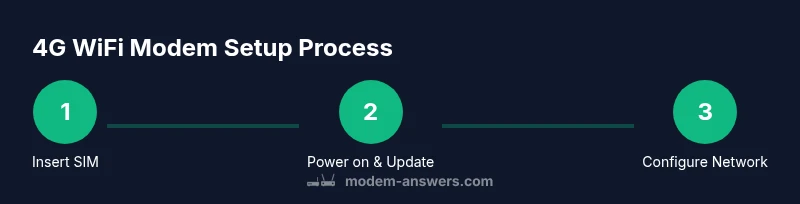
Powering up is the trigger that makes your modem come to life. Start by powering off, then inserting the SIM card with the chip facing the correct direction and the contacts clean. Re‑insert the tray and replace the cover. Connect the device to a power source and wait for the status lights to indicate connectivity. If the device has a firmware update available, apply it before proceeding; updates can improve security and performance. Access the admin interface from a computer or phone by connecting to the modem’s default Wi‑Fi network or using an Ethernet cable. Create a strong admin password and note it in a safe place. Keeping firmware current is a best practice for security and reliability, so check for updates periodically and enable automatic updates if available. After setup, confirm you can reach the internet and take a quick speed test to gauge baseline performance.
Configuring the network: SSID, password, security, and APN
Configuring the Wi‑Fi network is the primary step in making the modem useful. In the admin interface, set a unique SSID (the network name) and a strong password. Use WPA2‑AES or WPA3 if your device supports it, and disable WPS if possible to reduce risk from weak devices. Create a separate guest network if you share your internet with visitors; this limits access to your main devices and data. If your modem is tied to a carrier SIM that requires APN settings, enter the APN name, username, and password as instructed by the provider. In many cases, APN settings are optional for standard data plans, but some networks require them for full speed and stability. After saving changes, reconnect your devices to the new network and re‑test speeds. Modem Answers recommends documenting your SSID, password, and any APN details for future reference.
Optimal placement and antenna considerations
Placement matters for cellular signal quality. Position the modem near a window or an elevated shelf to improve line-of-sight to the cell towers. If the device has external antennas, experiment with orientation and height to maximize reception; even small adjustments can produce noticeable gains. Keep the modem away from thick walls, metal objects, microwaves, or other electronics that can introduce interference. If you live in a dense apartment building, using a signal booster or a higher‑gain antenna can help. In scorching heat or cold environments, ensure ventilation so the internal components don’t throttle performance. Modem Answers notes that a faster connection on the edge of coverage can outperform a weak, stable signal from several rooms away, so take a few placement tests during peak usage.
Connecting devices and optimizing performance
Once your network is configured, connect laptops, phones, and smart devices. For best results, place bandwidth‑heavy devices closer to the modem and use wired Ethernet for desktop PCs or gaming consoles when possible. Enable Quality of Service (QoS) rules if the admin interface supports them to prioritize video calls or gaming. Regularly review connected devices to remove idle clients and improve speed for active users. If you notice inconsistent speeds, try changing the Wi‑Fi channel to avoid interference from neighbors’ networks. For large homes, consider a mesh extender or a second access point to improve coverage. Modem Answers recommends testing speed in different rooms and times of day to understand the real performance you can expect.
Troubleshooting common issues
If you encounter problems, the first step is a simple power cycle: turn the device off for 30 seconds, then back on. If the device won’t acquire an IP address, reinsert the SIM and ensure it’s activated on the correct network. Check LED indicators and consult the admin UI logs for error messages. For slow speeds, verify APN settings, confirm the data plan isn’t throttled, and run a baseline speed test. If you see repeated disconnects, try a different SIM or reposition the device for better reception. When all else fails, consult the manufacturer’s knowledge base and carrier support. Regular hardware resets should be avoided unless a recommended procedure is provided, as they can erase custom settings. Modem Answers suggests keeping a backup of your configuration before performing advanced changes.
Security, maintenance, and best practices
Security should never be an afterthought. Change the default admin password immediately after setup and disable remote management unless you need it. Keep firmware up to date and review connected devices regularly. Use a strong, unique Wi‑Fi password and enable network encryption. Create a separate guest network for visitors and keep your main network private. Consider enabling a firewall within the modem and reviewing the logs for unusual activity. Schedule periodic reboots to refresh caches and apply updates. Finally, document your configuration details and any changes so you can restore settings if you ever reset the device. According to the Modem Answers Team, consistent security practices protect both your data and your home network from evolving threats.
Tools & Materials
- 4G WiFi modem or hotspot device(Choose a model with dual-band Wi‑Fi and at least one Ethernet port)
- Active SIM card with a data plan(Ensure the SIM is activated and unlocked for the device)
- Power adapter and cable(Use the supplied adapter or a compatible 12V supply)
- Smartphone or computer for setup(You’ll access the admin interface via a web browser)
- Documentation or manual (PDF)(Carrier APN details and admin login info)
Steps
Estimated time: 30-60 minutes
- 1
Power on and insert the SIM
Power off the device, insert the SIM with contacts aligned, and reseat the tray. Power the modem back on and verify the power indicators. This step ensures the device can read your SIM and establish a cellular link.
Tip: Double-check SIM orientation and slot cleanliness before inserting. - 2
Check for firmware updates
Access the admin interface and look for a firmware update prompt. If available, install it to improve security and performance. Firmware updates can fix bugs and add new features.
Tip: If the update takes longer than 10 minutes, avoid power cycling to prevent bricking. - 3
Connect to the admin panel
Connect your computer or phone to the modem’s default network or via Ethernet. Open a browser and enter the device’s local IP to reach the admin dashboard. Log in with the default credentials and set a new strong password.
Tip: Write down the new password in a secure place. - 4
Set up the Wi‑Fi network
Create a unique SSID and a strong password. Enable WPA3 if available, or WPA2‑AES as a minimum. Consider disabling WPS for security.
Tip: Use a password manager to store your Wi‑Fi credentials. - 5
Configure APN if required
If your SIM provider requires APN settings, enter the exact APN, username, and password shown by the provider. In many cases, standard data plans don’t need manual APN changes.
Tip: If you don’t know the APN, contact your carrier’s support page. - 6
Test internet access
Reconnect devices to the new network and run a quick speed test. Check latency, download, and upload speeds from different rooms to gauge coverage.
Tip: Document baseline speeds for future reference. - 7
Optimize placement and channel
Move the modem to a central location with good signal, adjust antennas if present, and consider a less congested Wi‑Fi channel.
Tip: Run a quick survey at different times of day to identify peak interference. - 8
Configure security and backups
Set up a guest network, disable remote management, enable firewall, and back up your configuration. Regularly update firmware.
Tip: Keep a copy of your configuration notes offline. - 9
Maintain network health
Periodically reboot the device, review connected clients, and recheck speed. Update security settings as needed.
Tip: Set a monthly reminder to review device firmware and network settings.
FAQ
What is a 4G WiFi modem and how does it work?
A 4G WiFi modem combines a cellular modem with a router to create a Wi‑Fi network from a mobile data signal. It serves as a gateway for multiple devices, suitable for areas without fixed broadband. It works best when you understand SIM, network settings, and basic security.
A 4G WiFi modem is a tiny gateway that turns cellular data into Wi‑Fi for your devices. It’s ideal where fixed internet isn’t available.
Do I need a SIM card to use it?
Yes. A data SIM is required unless the device supports an eSIM option. The SIM must be active and compatible with the network bands your modem uses.
Yes. You’ll need an active SIM with a data plan.
How do I access the modem admin interface?
Connect a device to the modem’s Wi‑Fi or via Ethernet, then open the unit’s local IP in a browser. Log in with the default credentials and change them for security.
Connect to the modem and log in to the admin panel to configure settings.
Why is my connection slow after setup?
Slow speeds can result from weak signal, congested networks, misconfigured APN, or throttling by the carrier. Test at different times and adjust placement or plan if needed.
Often caused by weak signal or carrier limits; try relocating the modem or checking APN settings.
Can I use my 4G modem with multiple devices?
Yes. A single modem can support many devices simultaneously, depending on the model and data plan. For heavy use, prioritize important devices with QoS or upgrade your plan.
Yes, it can serve many devices at once if your plan supports it.
What security settings should I enable?
Enable a strong admin password, use WPA3 if possible, disable remote management, enable a firewall, and create a guest network for visitors.
Strong password and privacy settings help keep your network safe.
How often should I update firmware?
Check for updates monthly or enable automatic updates if available. Updates fix bugs, patch security issues, and improve compatibility with devices.
Update firmware regularly to stay secure and compatible.
What should I do if data plans expire or change?
If the data plan changes or expires, review your usage, verify coverage, and adjust the APN or roaming settings as needed. Switch plans before renewal to avoid interruptions.
Reassess your plan before renewal to avoid outages.
Watch Video
Key Takeaways
- Insert SIM and power up the modem.
- Configure a secure, unique Wi‑Fi network.
- Test connectivity across the home and adjust placement.
- Maintain security with updates and backup configurations.