How to Make Modem Openline: Safe, Legal Options for 2026
Discover safe, legal ways to increase openness in your home network. Learn bridge mode, device compatibility, and provider-aligned options to legally configure your modem for a more flexible setup in 2026.


How to make modem openline safely starts with understanding legal options and your provider’s terms. This quick guide outlines legitimate routes, like using bridge mode with your own router and opting for official unlocks when offered. It emphasizes working within service agreements while boosting openness and control over your home network. According to Modem Answers, start by confirming device compatibility and policy before changing any settings.
What 'openline' means in 2026
In common parlance, a modem openline describes a network setup that gives you broad control over devices and traffic, without being locked to a single service or device. For many homeowners, this means using a router you prefer, bringing your own modem, and running features such as bridge mode or IP passthrough when allowed by the provider. The Modem Answers team emphasizes openness should be pursued within service terms and hardware warranties. When you search for how to make modem openline, understand the practical limits of your plan and equipment. Openness can improve performance, simplify troubleshooting, and future-proof your network as networks evolve to DOCSIS 3.1/4.0. It also helps if you want to run a separate, high-performance router, apply advanced QoS, or segment devices on a separate network for security.
This article frames the concept around responsible openness rather than bypassing protections. It also highlights that many tasks depend on provider policies and the hardware you own. By focusing on legal configurations, you can achieve greater control without compromising warranty or service terms. The Modem Answers team notes that an informed approach reduces risk for homeowners and renters alike.
Legal and provider considerations
A critical part of any attempt to make a modem openline is understanding the legal and contractual landscape. Most ISPs place limits on unlocking, disassembling, or repurposing rented equipment. Official unlocks may be available after account checks or device eligibility verification. The Modem Answers analysis shows that many providers offer sanctioned unlocks or approved bridging options, but these are not guaranteed. If you pursue openline goals, start with the provider’s support channels and document every step. Unauthorized changes can void warranties, violate terms of service, and disrupt your service. Always confirm what is allowed on your specific plan and hardware before proceeding. The aim is to improve openness through legitimate channels and documented permissions, not to evade protections. If an official unlock or bridge option is offered, follow the provider’s instructions precisely to avoid conflicts with service.
Safe ways to increase openness today
There are legitimate routes to reduce restrictions and gain more network control without breaking terms. A popular approach is to place your own router behind a modem and use bridge mode or IP Passthrough to hand off routing duties to the second device. This keeps the ISP’s modem in a passive role while your router handles Wi‑Fi, firewall, QoS, and advanced features. Another option is to choose a modem that is approved by your provider for use with third-party equipment, and then run your own router in a separate network segment. In many cases, you’ll still receive support for the ISP line while enjoying the flexibility of your preferred router. Remember that the aim is to maintain compatibility, stay within warranty terms, and choose configurations that enhance performance without violating contracts. Throughout, verify compatibility and keep records of any settings you change. The keyword here is openness, not circumvention. The Modem Answers guidance highlights the importance of working within policy while optimizing your home-network setup.
Finally, consider future-proofing by selecting devices that support current and upcoming standards (DOCSIS 3.1/4.0 for modems, Wi‑Fi 6/6E or newer for routers) to maintain performance as networks evolve.
Troubleshooting common obstacles
Even with a plan, you may encounter blockers. Some providers restrict the ability to place a modem in bridge mode or restrict the use of customer-owned equipment. If this happens, contact support for official options such as a sanctioned bridge mode, IP Passthrough, or a compatible, provider-approved third-party device. When you run into issues, document your configuration, revert changes if necessary, and test connectivity after each change. If service stability drops after a change, re-check modem logs and confirm DHCP settings, DNS configuration, and firewall rules on your router. The goal is a stable, open network that remains compliant with your service agreement. The Modem Answers team recommends prioritizing official pathways and ensuring that any changes you make are reversible and well-documented.
Tools & Materials
- Modem (provider-approved)(Must support bridge mode or IP passthrough, per provider policy)
- Own router (prefer dual-band)(Serves as main routing device once bridge mode is enabled)
- Ethernet cable (Cat5e or better)(Used to connect modem to router with reliable throughput)
- Documentation from provider (policy and login info)(Helpful for confirming eligibility and steps)
- Surge-protected power strip(Optional for equipment protection during changes)
Steps
Estimated time: 45-60 minutes
- 1
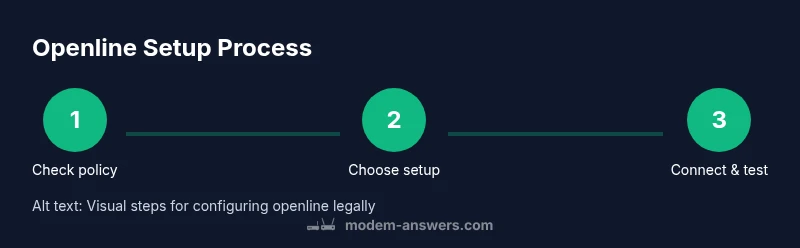
Verify provider policy
Review your service agreement or contact support to confirm whether your modem can be used with third-party equipment and whether bridge mode or IP Passthrough is supported. This protects you from violating terms and helps prevent service interruptions.
Tip: Ask for official documentation or written confirmation of supported configurations. - 2
Choose a legal, opener-friendly setup
Decide between using bridge mode with your own router or relying on a provider-approved open modem option. Document the chosen approach and ensure you have the necessary equipment ready before proceeding.
Tip: Bridge mode is typically safer for openness; keep a fallback plan in case the provider requires the original modem. - 3
Gather and prepare hardware
Assemble the modem, router, and Ethernet cable in a clean workspace. Power off all devices before connecting to avoid damage.
Tip: Keep firmware up to date on both devices for best compatibility. - 4
Connect and configure the devices
Connect the modem to the router with an Ethernet cable. Access the modem’s admin interface and enable Bridge/Pass-Through mode if available. Then configure the router with your preferred WAN settings and security features.
Tip: Document the original settings before you modify them so you can revert if needed. - 5
Test connectivity and performance
Power up all devices and run basic connectivity tests. Use speed tests and a few devices to ensure the network behaves as expected under your new configuration.
Tip: Check for DNS resolution issues and confirm local network access across devices. - 6
If problems arise, revert or consult support
If you encounter instability or terms-related concerns, revert changes and contact your provider for guidance or an approved alternative configuration.
Tip: Keep logs of changes and outcomes to aid support when seeking help.
FAQ
Is it legal to unlock or modify my modem to be openline?
Legality depends on your provider and local regulations. Always check your service terms and pursue official unlocking or sanctioned configurations when available.
Unlocking depends on your provider and local rules; use official options when available.
What is bridge mode and how does it help openness?
Bridge mode disables the modem’s routing functions and allows your own router to handle traffic. This is a common, legitimate way to regain control over your home network while staying compliant with service terms.
Bridge mode lets your router do the work, giving you more control safely.
Will using a third-party router void my warranty?
It can, depending on the provider and device policy. Always confirm with your ISP and keep notes of any changes you make.
Check with your ISP to avoid voiding warranties.
What if my provider does not support bridge mode?
Ask about IP Passthrough or an officially supported alternative. If nothing is offered, you may need to continue with the supplied equipment.
If bridge mode isn’t available, ask about other official options.
Can I still get technical help if I use my own equipment?
Many providers offer limited support for the connection when you use your own router. Document changes and be prepared to troubleshoot with both devices.
Support may be limited, so keep detailed notes and test thoroughly.
What should I do if I suspect a security risk after changes?
Immediately review firewall settings, update firmware, and run security scans on all connected devices.
Review security settings and scan devices if you notice issues.
Watch Video
Key Takeaways
- Start with official provider guidance to stay compliant.
- Bridge mode or IP Passthrough are common, legal ways to gain openness.
- Use a provider-approved device to minimize risk and maximize compatibility.
- Document changes and test network performance after setup.