How to Connect Your Router to Your Modem: A Complete Guide
Learn how to connect a router to your modem with clear, step-by-step instructions. This guide covers wiring, power cycles, and basic configuration for a reliable home network.


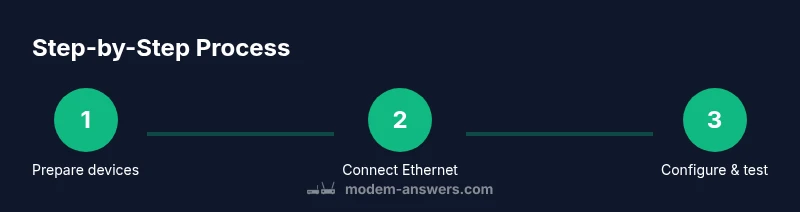
To connect your router to your modem, ensure the modem is powered and connected to the internet line. Then run an Ethernet cable from the modem’s Ethernet port to the router’s WAN/Internet port. Power cycle both devices, then verify the connection by joining Wi‑Fi or a wired device. This creates a local network with DHCP assigning addresses automatically.
Why connecting a router to a modem matters
According to Modem Answers, a properly configured router and modem combo forms the backbone of a stable home network. The Modem Answers Team has found that most connectivity issues arise from misconfigurations during setup rather than failing hardware. When you connect a dedicated router to your modem, the router creates a private local network (LAN) and handles traffic between devices in your home and the wider internet. The modem, typically provided by your internet service provider, brings the internet to your home and assigns a public IP address. The router then manages private IPs, NAT, firewall rules, and DHCP, keeping devices on the same network while protecting them from unsolicited external access. This separation also enables features like guest networks, parental controls, and quality-of-service prioritization for video calls or gaming.
In many setups, the modem can operate in bridge mode, turning off its routing functions so the router handles all network tasks. This arrangement is common if you want advanced features, custom firmware, or a multi-router layout across multiple floors. Bridging can, however, complicate support and may require adjustments to DNS settings or double NAT considerations. For most homes, a standard single-router configuration provides reliable Wi‑Fi coverage, predictable DHCP behavior, and easier management. Before you start, make sure you have the right cable, the right ports, and a plan for your Wi‑Fi name (SSID) and password. If you’re wondering how do i connect my router to my modem, this guide focuses on a straightforward setup that minimizes downtime while maximizing security.
Tools & Materials
- Modem(Powered, connected to ISP line (coax/DSL/fiber as appropriate))
- Router(With a clear WAN/Internet port and functional status LEDs)
- Ethernet cable (Cat5e or newer)(At least 1 meter; shielded recommended for longer runs)
- Power adapters for modem and router(Have them ready for quick power cycles)
- Computer or smartphone(To access the router's admin page)
- ISP credentials (if required)(PPPoE username/password or other login for DSL/fiber)
- Pen and paper or digital notes(Record the new network name and password)
Steps
Estimated time: 15-25 minutes
- 1
Power down and gather devices
Shut off and unplug the modem and router; wait 15 seconds to discharge capacitors. Gather the Ethernet cable and your admin device, plus any manuals you may need. This ensures a clean start and reduces the chance of miswiring or missed steps.
Tip: Having everything on hand reduces trips to the closet and speeds up the process. - 2
Connect the Ethernet cable
Insert one end of the Ethernet cable into the modem’s Ethernet port and the other end into the router’s WAN/Internet port. Ensure the cable is fully seated in both ports to avoid flaky connections.
Tip: Use a straight-through Ethernet cable (Cat5e or better) for the best reliability. - 3
Power the modem first
Plug the modem back in and wait for its online indicator to stabilize (usually 1–2 minutes). A solid online light indicates the ISP is provisioning the connection.
Tip: If you don’t see an online light after a few minutes, reseat the coax/DSL line and check for any service outages. - 4
Power the router
Plug in the router and wait for its WAN/Internet LED to indicate connectivity (about 1 minute). This confirms the router is receiving the signal from the modem.
Tip: Avoid turning devices on and off repeatedly during the same session to prevent prolonged reboot times. - 5
Test basic connectivity
On a laptop or phone, connect to the new network and load a simple webpage or perform a speed test to verify basic connectivity.
Tip: If pages don’t load, reboot both devices in the same order, starting with the modem. - 6
Configure router settings
Open the router's admin page (often 192.168.0.1 or 192.168.1.1) and set a unique SSID, strong password, and WPA3/WPA2 security. Consider separate 2.4 GHz and 5 GHz networks for range and speed.
Tip: Choose strong, unique passwords and enable automatic firmware updates if available. - 7
Optional bridge or advanced setup
If you’re using bridge mode or a second router, adjust NAT settings or enable bridge mode as needed. Document changes for future reference.
Tip: Bridge mode disables the modem’s routing features; use only if you know you need it.
FAQ
Do I need to bridge my modem to use my own router?
Not always. For most homes, connecting a router behind the modem is sufficient. Bridge mode disables the modem’s routing features and is only needed if you want to run your own router as the sole gateway or to avoid double NAT.
Bridge mode isn’t always necessary. In most setups, you can simply connect your router behind the modem.
Can a wireless gateway replace a separate router?
A wireless gateway combines modem and router functions in one device. It works, but you may have less control and fewer advanced features than a separate router. If you need robust customization, use a standalone router.
Yes, but a combined gateway can limit flexibility compared to a dedicated router.
What IP should I use to access the router admin page?
Common defaults are 192.168.0.1 or 192.168.1.1. If these don’t work, check the router’s manual or the device label for the correct address.
Try the common addresses on the device label, or check the manual.
Why is there no internet after setup?
Possible causes include the modem not provisioning, a double NAT situation, or incorrect WAN settings. Check the LED indicators, reboot devices in order, and contact your ISP if needed.
Most often provisioning or NAT issues; verify lights and try a reboot.
How can I improve Wi‑Fi coverage after setup?
Place the router centrally, away from walls and metal obstacles. Use a mesh system or extenders for larger homes, and separate 2.4 GHz and 5 GHz networks to optimize performance.
Move the router to a central spot and consider a mesh system for bigger homes.
Should I change DNS settings?
Optional. You can use DNS providers like 1.1.1.1 or 8.8.8.8 if you want better privacy or speed, but it’s not required for basic setup.
You can switch DNS if you want extra privacy or speed, but it’s optional.
Key Takeaways
- Plan network layout before wiring
- Use a wired Ethernet backhaul for reliability
- Secure Wi‑Fi with strong credentials
- Update firmware regularly
- Document network settings for future changes