Can You Switch Modems? A Step-by-Step Guide for Homeowners
Learn how to switch modems safely with a practical, step-by-step plan. Verify compatibility, minimize downtime, and follow provider activation steps. A comprehensive guide from Modem Answers.


Yes—most homeowners can switch modems, but you must confirm provider compatibility, obtain a supported device, and follow activation steps to avoid downtime. This quick answer outlines a safe, step-by-step process and highlights common mistakes to skip. Also ensure you can access your account online, note the model's firmware version, and prepare any required credentials.
can you switch modems: considerations and steps
Can you switch modems? Yes, you can, but you should do it with a plan. According to Modem Answers, many households switch modems to upgrade performance, support faster speeds, or align with a new internet plan. The most important factors are compatibility with your service type (cable, DSL, fiber), whether your provider requires activation of a specific model, and how you will handle downtime. Before you start, ask yourself: does my current plan require a rental device, or can I own an off-brand modem that’s approved on the provider’s list? What about the firmware version and security features? In practice, a thoughtful approach means checking the approved device list, confirming firmware requirements, and scheduling a window when you can monitor the switch. If you decide to switch, you’ll typically save on rental fees and gain access to newer hardware, but it’s essential to avoid skimping on compatibility checks or missing activation steps. The key is to minimize disruption while ensuring your home network remains secure and stable. The Modem Answers team emphasizes that preparation reduces post-switch surprises and keeps your home Wi-Fi running smoothly.
Compatibility and provider rules you must check
The first question in can you switch modems is compatibility. Providers maintain lists of approved modems and sometimes require activation on their network. Even if a modem is technically capable, it may not be provisioned for your service tier or it may have the wrong firmware version. Before buying or borrowing a new device, confirm that the model number is on your provider’s approved list and ask whether you need to register the MAC address or enter a service PIN during activation. If you rent from the ISP, you’ll typically just swap the device and let the provider push the settings; if you buy your own, you may need to call or use an online portal to activate it. Additionally, some services require specific features like IPv6 support, voice service, or multi-user MIMO, which could affect compatibility. Modem compatibility isn’t just about speed; it also affects reliability, security, and support. The takeaway: verify provider compatibility, check for necessary firmware versions, and understand the activation method before purchasing.
Assemble your pre-switch checklist
Preparation is the secret to a smooth switch. Start by locating your account information: login username, password, and any activation codes your ISP may require. Gather the essential gear: a supported modem, a spare Ethernet cable, a surge-protected power strip, and the coax or phone line cables your service uses. Write down your current network name (SSID) and password so you can reconnect devices easily after the switch. If you’re renting equipment, have your rental agreement handy in case you need to return the old device. Take a photo of the current setup before removing anything, so you can recreate a working layout if something doesn’t go as planned. Finally, schedule a window with your household to minimize disruption, and decide whether you’ll perform the switch during the day or in the evening when usage is lighter.
Step-by-step: execute the switch with confidence
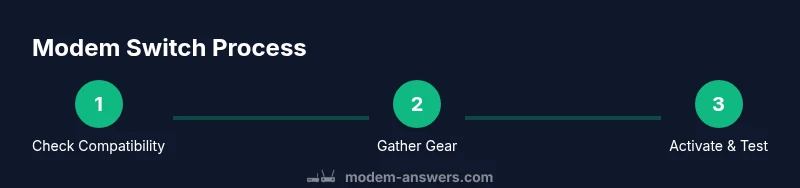
- Verify compatibility and plan. Double-check the model, firmware version, and activation method with your ISP. This is the critical anchor that prevents post-switch problems. Tip: keep the provider’s activation number written down. 2) Power down and disconnect the old modem. Unplug all power sources and gently detach the device from the coax/line. Tip: avoid yanking cables to prevent port damage. 3) Connect the new modem to the line and power. Attach the coax or fiber connection securely, then plug in the power and allow a minute for the device to boot. Tip: watch the LED indicators for steady lights. 4) Activate with your provider. Use the online portal or call the activation line and provide the MAC address and model number. If activation stalls, try rebooting the modem and reattempting activation after a short wait. Tip: have your account details handy. 5) Test the connection and secure your network. Connect a device to verify speed and reliability, then log in to the router settings (if you have a separate router) to update SSID, password, and security features. Tip: enable WPA3 if supported. 6) Document everything and keep records. Save the new device information and confirm the old device return terms if applicable. Time estimate: 45-60 minutes depending on activation speed.
After switching: testing, troubleshooting, and ongoing care
Once activation completes, run a quick speed test and perform a few real-life checks: streaming, video calls, and online gaming to confirm stability. If you notice intermittent drops, verify cables are seated firmly and reboot the modem and router. Consider temporarily turning off bridge mode if you previously relied on a separate router. If problems persist, contact your ISP with the MAC address and model details for a remote diagnostic. Regular firmware updates and reboot schedules can help keep performance steady, but never skip critical security updates.
Security, privacy, and longevity of your home network
Switching modems is also a chance to refresh security settings. Change default passwords, enable strong encryption, and review connected devices. Ensure you’re using a unique network name and consider guest networks for visitors. If you’re upgrading to new hardware, set up IPv6 where available and enable firewall protection. The can you switch modems decision should balance convenience with safeguards. The Modem Answers team recommends keeping your modem firmware up to date and documenting all activation steps for future reference.
Tools & Materials
- Supported modem (new or rental)(Confirm model is on provider's approved list before purchase or borrow)
- Account credentials (ISP username and password)(Needed for online activation and portal access)
- Coaxial/phone line cable(Matches your service type (coax, fiber, or DSL as applicable))
- Ethernet cable(Minimum 6 ft for convenient router placement)
- Surge protector/power strip(Protects devices during power surges and outages)
- Backup of current network settings(Note SSID, password, and any custom DNS or port forwards)
- Tools for cable management (labels, scissors)(Not essential but helpful for a clean install)
Steps
Estimated time: 45-60 minutes
- 1
Verify compatibility and plan
Double-check the modem model, firmware version, and activation method with your ISP. Ensure the device is on the approved list and that you have the necessary activation steps ready. This upfront check reduces the risk of post-switch failures.
Tip: Keep the activation number and your account details accessible during the process. - 2
Power down and disconnect the old modem
Power off the current modem and unplug all cables, including the coax/line and power. This minimizes the chance of electrical issues and protects equipment during removal.
Tip: Avoid pulling cables; gently detach connectors to prevent port damage. - 3
Connect the new modem to the line and power
Attach the service line securely to the new modem, then plug in power and allow the device to boot. Wait for the status LEDs to indicate a stable, ready state.
Tip: If you’re using a separate router, place it near the modem for easy configuration. - 4
Activate the modem with your provider
Use the provider’s online portal or activation line to register the MAC address and model. If activation fails, perform a power cycle and retry activation after a short delay.
Tip: Have your account details and device information handy during activation. - 5
Test connectivity and secure your network
Connect a device, run a speed test, and verify stability. If you have a separate router, log in to its admin page to update SSID/password and enable security features.
Tip: Enable WPA3 if supported and disable WPS for better security. - 6
Document switch and plan for return (if rented)
Save the new device details and confirm any rental return terms if applicable. Keep a log of the activation steps for future reference.
Tip: Store a copy of all activation confirmations and model numbers in a known location.
FAQ
What does switching modems entail and do I need to return my old device?
Switching modems involves exchanging your current device for a different model that your ISP supports. If you rent from your provider, you may need to return the old device after confirming activation on the new one. Check your rental terms for any return deadlines or fees.
If you rent, you might need to return the old modem after activation. Check your rental terms.
Can I use any modem with my service?
No. You must use a modem that is approved by your provider and compatible with your service tier. Even technically capable modems may lack activation support or required firmware.
You need a provider-approved modem.
Will switching modems affect my Wi-Fi network name or password?
Switching can reset your network settings. You may need to reconnect devices and re-enter your SSID and password, especially if you’re using a separate router or a new gateway.
You may need to reconnect devices after switching.
What if activation fails after switching?
If activation fails, verify the MAC address and model, reboot the modem, and retry activation. If problems persist, contact your ISP for remote diagnostics and potential firmware updates.
If activation fails, contact your provider.
How long does a modem switch typically take?
Most switches take about 30-60 minutes, depending on provider readiness and whether you are using a bridge setup with a separate router.
Most switches take about an hour.
Do I need a technician to switch modems?
Usually not for standard cable or DSL services. Fiber or complex installations may require a technician, especially if provisioning or line checks are needed.
Most people can switch without a technician.
Watch Video
Key Takeaways
- Verify ISP compatibility before buying a modem.
- Prepare credentials and all needed cables in advance.
- Activate through the provider and test quickly after switch.
- Update security settings and document the new setup.