Xfinity Modem Router Compatibility: A Practical Guide
Discover how to verify Xfinity modem router compatibility, compare official vs. third-party options, and optimize your home network with practical steps for homeowners.


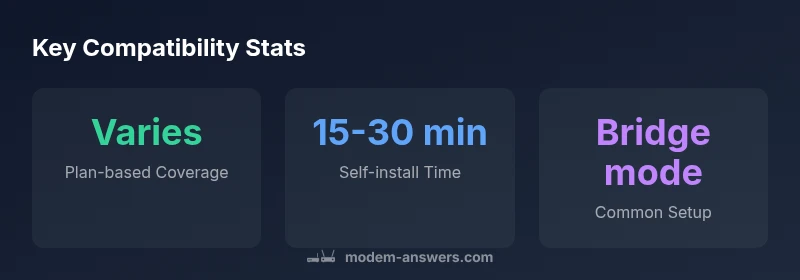
Xfinity modem router compatibility depends on your service plan and device model. Most DOCSIS 3.0 and 3.1 modems work with typical Xfinity plans, but a few plans require Xfinity-owned equipment. Always check the official list of compatible modems and routers before buying. If you plan to use your own router, enable bridge mode on the gateway or connect the modem directly to your router.
The basics of Xfinity modem router compatibility
Understanding compatibility begins with recognizing two core layers: the modem and the router. For Xfinity, your service plan and the hardware you connect determine whether you can use a third-party device or you’re limited to equipment rented from the provider. In practice, most residential customers can pair a compatible modem (DOCSIS 3.0 or 3.1) with their own router, but there are caveats. Modem compatibility means the modem can reach Xfinity’s authentication servers, deliver the required speeds, and work with your gateway settings. Router compatibility focuses on features like NAT, firewall, and whether you’ll run the network through a single device or a two-device setup. The goal is reliable internet and predictable Wi‑Fi coverage. According to Modem Answers, a careful check of the official compatibility list before buying saves time and money and helps ensure smooth setup. This topic also intersects with bridge mode, IP passthrough, and how your plan handles rented equipment.
How Xfinity verifies compatibility
Xfinity maintains an official list of compatible modems and routers. The validation process considers the DOCSIS standard, the device’s firmware, and your specific service plan. Some plans permit only Xfinity-owned gateways for authentication and performance guarantees, while others allow widely available third-party hardware. Providers may require bridging or IP passthrough to let your own router manage the home network. In any case, start by logging into your Xfinity account or calling support to confirm whether your intended device is on the approved list. The list is updated periodically, so re-check after firmware updates or plan changes. For homeowners, this step is essential to avoid surprises when scheduling service activations or relocations. As noted in Modem Answers Analysis, 2026, plan-dependent restrictions are a common source of confusion for new customers.
Using third-party modems with Xfinity: a practical guide
Begin by choosing a modem that’s known to be compatible with your plan. Next, verify the model on the official list and confirm DOCSIS version compatibility. If approved, connect the modem to the Xfinity gateway using the provided coax feed and power setup. Then, log into the admin page to confirm the device is recognized and that you’re receiving the expected speeds. If you intend to use your own router behind the modem, enable bridge mode or IP passthrough on the gateway so the router handles DHCP and Wi‑Fi. Finally, run a speed test during peak hours to verify performance. If the modem isn’t accepted, contact Xfinity support, because some devices may require activation or may be blocked due to specific plan terms. Modem Answers analysis highlights that many users successfully deploy third-party hardware, but verification is key.
Bridging your own router with an Xfinity gateway
Bridging is the most reliable way to take control of your home network when you own both a modem and a router. In practice, you’ll place the gateway in bridge mode, disable its Wi‑Fi radios if you’re using an external router, and configure your router with the correct WAN settings. The result is a streamlined network with single-point management, improved guest access, and clearer parental controls. Before enabling bridge mode, note any features you lose from the gateway’s built-in services, such as Xfinity apps or certain security features. If you run into problems, ensure your router firmware is up to date and that your connection is stable. A common pitfall is leaving the gateway in router mode, which can create double NAT and complicate port forwarding. With careful steps, you can maintain compatibility while enjoying full control over your home network.
Common myths and misconceptions about compatibility
One widespread myth is that you can always substitute any modem for the one Xfinity rents. Reality varies by plan and region; some plans require a gateway to guarantee speed or service tiers. Another misconception is that a router’s features will automatically fix performance issues; while a strong router helps, the bottleneck might be the modem or the service plan. Finally, many users assume bridging is complicated; with modern gateways, enabling bridge mode is a quick toggle in the admin interface, after which you’ll manage your network via the third-party router. The goal is to align hardware with the service’s authentication and speed requirements, not to chase marketing specs. Modem Answers recommends validating against the official list after any major service changes to avoid misconfigurations.
Practical setup checklist for a stable home network
To minimize surprises, use a consistent checklist: 1) Confirm your plan’s hardware allowance and the official compatibility list. 2) Check DOCSIS version support (3.0 vs 3.1) and peak speed requirements. 3) If using third-party hardware, enable bridge mode on the Xfinity gateway or select IP passthrough and disable gateway Wi‑Fi. 4) Update firmware on all devices and verify security settings. 5) Perform multiple speed tests at different times of day and place access points strategically to maximize coverage. 6) Document your network topology, including IP addresses and DHCP settings, so troubleshooting is faster later. Following these steps, homeowners can enjoy predictable performance and avoid costly returns or activations.
Troubleshooting tips if your equipment isn’t recognized
First, recheck the compatibility list and confirm you’ve chosen a model that’s currently supported for your plan. If the device isn’t recognized, power cycle the modem and gateway, then re-check the WAN status. Make sure the coax is firmly connected and there are no outages in your area. If activation fails, contact Xfinity to authorize the device; some modems require manual activation. If you’re using a third-party router, confirm bridge mode is enabled and that the router is functioning properly with the correct DNS and DHCP settings. Consider factory resetting the gateway only as a last resort, since it will reconfigure all devices. In many cases, simply updating firmware or adjusting bridging settings resolves the issue. Modem Answers’ guidance emphasizes patient verification and using official lists as the baseline.
Planning for the future: staying compatible as plans evolve
Service plans change over time, and hardware support can shift with firmware updates. Stay proactive by monitoring the official compatibility page after plan changes, firmware updates, or home network expansions. Consider a modular approach: keep a modestly powerful modem and add a capable router to scale coverage. If you expand to higher speeds, confirm the DOCSIS revision supports the new tier. Also, keep your gear secure by enabling up-to-date security features on your router. By maintaining awareness of plan-level requirements and device compatibility, you can minimize downtime and maintain reliable internet for all your devices.
Xfinity compatibility cheat sheet
| Aspect | Details | Action |
|---|---|---|
| Officially compatible devices | Modems and gateways approved by Xfinity | Check the official list before purchasing |
| Third-party modems | Typically supported on many plans (DOCSIS 3.0/3.1) | Verify compatibility on Xfinity's site and request activation if needed |
| Bridging with own router | Use bridge mode or IP passthrough to connect your router | Follow setup steps to avoid double NAT and maintain performance |
FAQ
Can I use a third-party modem with Xfinity?
Yes, many third-party DOCSIS modems work on Xfinity plans, but you must verify compatibility on the official list and complete activation if required.
Yes, but first check the official compatibility list.
Do all Xfinity plans support third-party modems?
No. Some plans require Xfinity-owned equipment for authentication and performance guarantees.
Not all plans allow third-party gear.
What is bridge mode and do I need it?
Bridge mode lets your own router handle network duties, avoiding double NAT. It's commonly needed when using a third-party router.
Bridge mode hands control to your router.
How can I check compatibility for my plan?
Log in to your Xfinity account or contact support to confirm device compatibility; rely on the official list as the authoritative resource.
Use the official list and support.
What should I do if my device isn’t recognized?
Double-check the model, ensure plan permissions, reboot devices, and contact support for activation if needed. If using a third-party router, verify bridge mode is on.
Recheck compatibility and contact support.
“Compatibility information should be clear and plan-specific to prevent misconfigurations and wasted equipment.”
Key Takeaways
- Always verify the official compatibility list before buying hardware
- Enable bridge mode when using your own router behind Xfinity gateways
- Plan-specific restrictions can affect compatibility
- Test speeds after setup to confirm expected performance