How to Choose and Set Up a Modem for WOW Internet
Learn how to pick a modem that works with WOW Internet, verify compatibility, and set it up for reliable speeds with or without a router.


This guide shows you how to pick a compatible modem for WOW Internet and walk you through the setup in clear, actionable steps. You’ll learn which DOCSIS standard to look for, how to verify provider compatibility, and how to optimize your home network for reliable speeds.
Understanding WOW Internet compatibility
According to Modem Answers, the most reliable way to avoid frustrating outages is to start with provider compatibility. WOW Internet typically supports cable modems that are DOCSIS compliant and officially approved for use with their service. The Modem Answers team recommends checking WOW's official device list before purchase and confirming that the model you choose is listed as compatible. This prevents activation failures, driver mismatches, or basic connectivity problems. In addition, consider the type of service you have (standalone modem vs. modem-router gateway) and whether you want Wi‑Fi built into the device or provided by a separate router. By starting with compatibility, you set a solid foundation for dependable performance and quicker troubleshooting later.
Key modem specs for WOW compatibility
When evaluating modems for WOW Internet, aim for a model that supports DOCSIS 3.x standards, ideally with DOCSIS 3.1 for future-proofing. Look for channels (download/upload) in the modem’s specifications; higher channel counts generally translate to better performance under load. Also verify the modem’s Ethernet port speed (at least 1 Gbps) to ensure fast wired connections to a router or PC. If you plan to use high‑end Wi‑Fi, a separate router is often a better choice than many built‑in router features on budget devices. Remember, a modem’s performance is also influenced by signal quality on the coax line, so a solid coax connection helps maximize speeds and minimize dropouts.
How to verify provider compatibility before buying
Before purchasing, confirm WOW’s approved device list for your region. Cross‑check the modem’s model number against WOW’s site, and if possible, call customer support to verify activation steps for your address. Some WOW plans require activation through a specific portal or account, and a model not on the approved list may still work but could be unsupported or cause limited features. Keep a copy of the WOW activation process handy. This upfront diligence can prevent a surprise return or exchange scenario and saves time in the activation window.
Choosing a DOCSIS standard and speed tier
DOCSIS 3.0 and 3.1 are the two broad families you’ll encounter. For WOW Internet, DOCSIS 3.1 is preferred if available, as it handles higher speeds and more simultaneous users with lower latency. If your plan is moderate, a well‑balanced DOCSIS 3.0 modem can still perform well at a reasonable price. Match the modem to your plan’s advertised speeds and subscribe to a router that can keep up. Avoid overpaying for features you won’t use, but do invest in a model with robust signal handling, good build quality, and stable firmware.
Wired vs wireless: placement and channels
A common bottleneck is Wi‑Fi coverage rather than the modem itself. Position your modem and any connected router in a central, open area away from walls and obstructions. For large homes, consider a mesh system or a high‑quality router with a strong antenna. Ensure the Ethernet connection from the modem to the router is stable and use a wired backhaul where possible. If you must place devices far from the router, choose a router that supports reliable tri‑band or dual‑band transceivers. This minimizes interference and maintains consistent speeds across devices.
Setting up your modem: first-time activation steps
Unbox the modem, connect the coaxial cable securely, plug in the power, and wait for the device to boot. Connect via Ethernet from the modem to a computer or directly into a router’s WAN port. Open a browser and navigate to the router’s setup page or the modem’s status page to confirm Online status. If activation is required, follow WOW’s activation prompts exactly, as missteps can delay service. After activation, perform a basic speed test to verify the connection. Keeping documentation handy during activation speeds up troubleshooting if anything goes wrong.
Optimizing performance with the right router and network layout
A good router is essential for getting the most from your WOW Internet connection. Choose a router with modern Wi‑Fi standards (Wi‑Fi 6/6E if possible) and features like QoS, MU‑MIMO, and robust security. Place the router centrally and elevated, away from microwaves and metal objects. Consider a dedicated access point or mesh system for larger homes. Update firmware regularly and enable automatic security updates. Use strong, unique passwords and enable guest networks for visitors to keep your main network private.
Troubleshooting common WOW modem issues
If you see intermittent outages, check the coax connections at both ends and replace damaged cables. A blinking or red indicator can signal a boot problem or an activation issue; powering off for 30 seconds and rebooting often clears minor glitches. If the modem shows Online but there’s no internet, run a speed test, verify DNS settings, and reboot the router if applicable. If problems persist, contact WOW support with the model number and MAC address (found on the device label) to speed up diagnostics and activation checks.
Cost considerations: buying vs renting and ROI
Renting a modem from WOW can be convenient but may cost more over time than buying a capable, compatible model. When evaluating ROI, consider the initial cost of the modem, plan speed, and expected lifespan of the device. A modern DOCSIS 3.1 modem can deliver better performance and longer relevance for future WOW plans without recurring rental fees. If you already own a capable router, you can save by using a compatible modem with your existing network hardware. Always compare total costs over a 2–3 year horizon.
Best-practice maintenance and security
Regular maintenance extends modem life and keeps speeds reliable. Check for firmware updates on the modem (and router, if used) and reboot devices periodically to clear caches. Change default admin passwords and disable remote management unless you need it. Keep the coax connections tight and verify that surge protectors don’t degrade signal quality. Finally, document your device’s model, MAC address, and activation details so future replacements or upgrades go smoothly.
Tools & Materials
- Cable modem (DOCSIS 3.0/3.1 compatible)(Must be approved by WOW for your address)
- Coaxial cable(Quality shielded cable preferred; avoid cheap splitters)
- Ethernet cable (Cat5e or better)(For wired connection to router or device)
- Router (optional if modem includes Wi‑Fi)(Choose a router with current Wi‑Fi standards and security features)
- Power supply(Use the original adapter or a compatible replacement)
- Cable splitter and surge protector (optional)(Use surge protection to protect equipment; minimize splitters to avoid signal loss)
Steps
Estimated time: 60-90 minutes
- 1
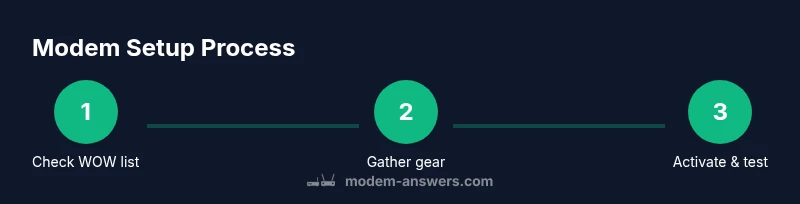
Confirm WOW compatibility
Check WOW’s official device list for your address and verify the modem model number against their approved list. This prevents activation issues and ensures full feature support.
Tip: If in doubt, call WOW support to confirm compatibility before purchasing. - 2
Gather required hardware
Collect the modem, coaxial cable, Ethernet cable, power adapter, and router (if used). Ensure you have all required items ready before beginning.
Tip: Keep the modem’s model number and MAC address handy for activation. - 3
Connect the coaxial cable
Screw the coaxial cable securely to the modem’s coax port. Avoid overtightening to prevent damage.
Tip: Use a solid wall outlet connection; avoid loose or split connections. - 4
Power up and boot
Plug the modem into power and wait 2–5 minutes for the device to boot completely. Observe indicators for a steady Online status.
Tip: If lights are abnormal, perform a soft reset by unplugging and replugging after 30 seconds. - 5
Establish a wired connection
Connect the modem to a computer or router via Ethernet. Open the setup page to verify Online status and view signal information.
Tip: Use a direct wired connection for initial activation to avoid interference from Wi‑Fi. - 6
Activate with WOW
Follow WOW’s activation prompts in your browser or app. Provide the modem’s MAC address if requested and confirm activation completes.
Tip: If activation stalls, reboot the modem and clear browser cookies before retrying. - 7
ConfigureWi‑Fi (if using a router)
Connect the router’s WAN port to the modem and run the router’s setup wizard. Create a strong SSID and password, and enable WPA3 if available.
Tip: Avoid reusing default passwords; enable guest network for visitors. - 8
Test and optimize
Run a speed test from multiple devices and adjust router placement if speeds vary by room. Ensure QoS settings help prioritize critical devices.
Tip: Document test results to compare after future upgrades.
FAQ
What’s the difference between a modem and a gateway for WOW Internet?
A modem converts the cable signal to digital data, while a gateway combines a modem and router in one device. For WOW, decide if you need a separate router for better Wi‑Fi control or if a gateway’s built‑in routing meets your home needs.
A modem translates the signal; a gateway also does Wi‑Fi routing. Pick based on your home’s Wi‑Fi coverage needs.
Can I use any DOCSIS modem with WOW Internet?
Not all DOCSIS modems are approved for WOW. Check WOW’s compatible devices list for your address to avoid activation barriers and limited functionality.
Only approved modems will activate cleanly with WOW.
Do I need a router if my WOW plan is fast enough on a modem?
If you want reliable Wi‑Fi coverage, a dedicated router or mesh system is recommended. A stand‑alone modem won’t provide wireless access.
Yes, for Wi‑Fi you’ll want a router or mesh system.
How do I activate a new modem with WOW?
Connect the modem to coax, power it up, connect to a device, and follow WOW’s activation prompts. You may need the MAC address and model number during activation.
Plug in, connect, and follow WOW prompts to activate.
What speeds should I expect after setup?
Speeds depend on your WOW plan. A well‑configured modem and router setup will deliver consistent performance across devices and rooms.
Speeds depend on your plan, but a good setup gives consistent performance.
What should I do if there’s no internet after activation?
Double‑check activation status, restart devices, and verify cables. If issues persist, contact WOW support with the modem’s MAC and model numbers.
Restart devices and verify activation; contact WOW if needed.
Watch Video
Key Takeaways
- Verify WOW compatibility before buying any modem
- Choose DOCSIS 3.x, preferably 3.1, to future‑proof your setup
- Decide between a gateway or separate router based on Wi‑Fi needs
- Activate via WOW and test speeds to confirm performance