Modem for High Speed Internet: A Practical Guide
Learn how to pick and set up a modem that supports high-speed internet, verify ISP compatibility, and optimize your home network for reliable, fast performance.


This guide helps you pick the right modem for high speed internet, verify ISP compatibility, and optimize your home network. You’ll learn which features matter most, how to activate the device, and how to test performance without guessing. By choosing a modern DOCSIS-based modem and arranging your setup correctly, you can unlock faster, more reliable speeds.
Why a capable modem matters for high speed internet
According to Modem Answers, the modem you choose is the cornerstone of a fast home network. The right modem for high speed internet acts as the bridge between your ISP’s service and your devices, ensuring that the plan you pay for actually reaches your home. A modern modem, especially one that supports newer standards and wider channel bonding, reduces bottlenecks and improves stability across multiple devices. In practical terms, you’ll notice fewer buffering events on streaming, smoother video calls, and more responsive online gaming, even when several devices are active at once. This is why investing in a capable modem is often the most impactful upgrade homeowners can make to their home networks.
Beyond raw speed, a good modem also improves reliability. It handles signal modulation more efficiently, maintains better error correction, and is less prone to drops during peak usage. The Modem Answers team recommends prioritizing devices that clearly advertise support for the latest DOCSIS standard and that include a robust warranty. When paired with a quality router, a solid modem lays the foundation for a fast, stable home network.
Understanding speed tiers and DOCSIS standards
To grasp why a modem matters, you need a basic sense of how speed and signaling work. DOCSIS (Data Over Cable Service Interface Specification) is the technology that carries internet traffic over cable networks. Modern networks rely on DOCSIS 3.1 or newer, which supports higher throughput and better efficiency than older standards. A modem labeled for DOCSIS 3.1 or newer is typically future-proofed for current plans and many providers’ upgrades. However, the exact performance still depends on your plan, the quality of the coaxial line into your home, and how you arrange your internal network. The key takeaway is that newer DOCSIS versions give you a stronger ceiling for potential speeds and more reliable performance under load.
If your plan specifies multi-gigabit throughput, ensure the modem advertises sufficient downstream and upstream channel bonding capabilities and is explicitly compatible with your ISP on the provider’s approved device list. This isn’t a “one-size-fits-all” choice; it’s about aligning the modem’s capabilities with your service tier and home layout.
How to verify ISP compatibility before buying
Compatibility checks prevent buyer’s remorse. Start by visiting your ISP’s website and listing approved modems; use their searchable database to confirm model compatibility with your service tier and location. If you’re unsure, contact customer support and request a device compatibility confirmation for your address. You should also confirm the required connection type (coaxial, fiber, or hybrid) and whether the ISP supports bridge mode if you plan to use a separate router.
Next, compare the modem’s features against your needs. Look for clear mentions of DOCSIS version, Ethernet port count and speeds, surge protection, and warranty terms. While it’s tempting to chase the latest gadget, the practical goal is a reliable connection that matches your plan and supports future upgrades. The Modem Answers team emphasizes a conservative approach: confirm compatibility first, then evaluate price and features.
Choosing features that matter for high speed
Not all modems are created equal. Prioritize devices that clearly advertise DOCSIS 3.1 or newer, multiple Ethernet ports (for future-proofing), and thermal design that keeps the unit cool under load. A good modem should also offer robust upstream channel bonding for upload performance and accommodate a stable connection across devices. If you intend to connect a lot of smart home gear, consider devices with built-in security features or the ability to update firmware easily. In addition, verify the modem’s power efficiency and warranty coverage, since a longer warranty reduces total cost of ownership over time.
If you already own a router, check whether the modem supports bridge mode—this lets your router handle Wi-Fi and routing features instead of the built-in modem firmware. If you don’t have a separate router, you’ll want a modem-router combo with strong wireless performance and good security features. The goal is to minimize bottlenecks and maintain consistent speeds as devices come online.
Modem vs. gateway: when to use which
A dedicated modem with a separate router often yields better performance and simpler troubleshooting than a combo gateway. The separation allows each device to specialize—your modem focuses on signal demodulation, while the router handles network traffic, Wi-Fi, and security. If you live in a small apartment or don’t want extra devices, a well-reviewed gateway can work, but make sure its wireless components aren’t a bottleneck. If you anticipate growth or require advanced features like guest networks or robust parental controls, a standalone modem plus a high-performance router will give you more control and better long-term scaling.
Keep in mind that some ISPs provide firmware updates that affect performance. Separate devices give you more visibility into these changes and simplify troubleshooting when speeds dip.
How to maximize speed with optimal modem setup
Placement and cabling play as big a role as the device itself. Mount the modem high, away from thick walls and metal furniture, and ensure the coaxial cable is high quality and securely connected. Use a shielded Ethernet cable (Cat6 or better) to connect your modem to the router, especially for high-traffic devices. Regularly rebooting the modem and router can resolve minor slowdowns, but avoid excessive resets that interrupt connected devices.
Security matters too. Disable unused features, update firmware when available, and use a strong password for your Wi-Fi network. A clean, well-configured setup reduces interference and keeps your speeds stable.
Step-by-step setup and activation flow
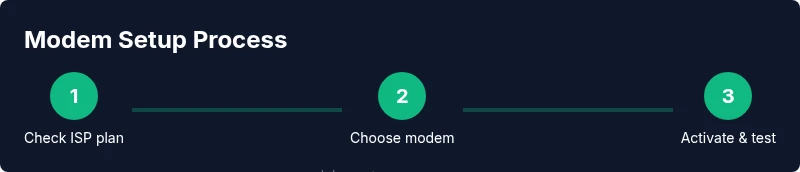
Before you start, gather coaxial cable, Ethernet cable, power supply, and a computer or mobile device to configure settings. Sign in to your ISP account or phone app after connecting the modem to the coaxial line. Activation typically requires a few minutes and may involve confirming the device’s MAC address or scanning a barcode on the modem. Once activated, run a speed test and verify that results align with your plan. If not, reboot the modem or contact your ISP for assistance.
Throughout the process, note any error messages and keep documentation of the device’s model number and serial number. This makes it easier to ask for help if activation stalls.
Maintenance and future-proofing the modem
As services evolve, your modem should keep pace. Check for firmware updates periodically and stay informed about changes in DOCSIS standards or provider requirements. For future-proofing, invest in a modem with room to grow—an upstream and downstream channel plan that supports broader bandwidth and faster upgrade paths. If you notice persistent slowdowns, test different network configurations or consider upgrading your router to keep pace with increasing demand from smart devices, streaming, and gaming.
Verdict: choosing wisely for long-term speed
The Modem Answers team recommends selecting a modern, DOCSIS-based modem that aligns with your ISP’s approved list and your home network goals. When possible, pair it with a robust router to maximize throughput and coverage. By focusing on compatibility, features, and placement, you can unlock the full potential of your plan and enjoy a reliable, high-speed home network. The long-term payoff is fewer interruptions, easier upgrades, and a smoother online experience.
Tools & Materials
- Coaxial cable (quality, shielded)(Use a high-quality cable; avoid damaged connectors)
- Ethernet cable (Cat6 or better)(For modem-to-router connection; higher bandwidth support)
- Power supply for modem(Ensure safe, surge-protected power source)
- Router (optional if using gateway)(Choose a router that matches your speed needs)
- Coaxial wall outlet tester (optional)(To verify signal quality at the outlet)
Steps
Estimated time: 45-90 minutes
- 1
Prepare and verify plan
Review your ISP plan, confirm DOCSIS compatibility, and list devices that will connect to the network. This ensures your chosen modem matches the service and supports future growth.
Tip: Double-check the ISP’s approved device list for your address before buying. - 2
Select modem and confirm features
Choose a modern modem with DOCSIS 3.1 or newer, multiple Ethernet ports, and good thermal design. If you plan to use a separate router, ensure bridge mode is supported.
Tip: Prioritize compatibility and future-proofing over marginal feature gains. - 3
Prepare installation space
Find a central, ventilated area with minimal interference. Avoid placing the modem behind thick furniture or inside cabinets.
Tip: Keep at least a few inches of clearance on all sides. - 4
Connect the hardware
Connect coaxial cable to the modem, attach the Ethernet cable to the router (or directly to a computer for testing), and plug in power.
Tip: Use high-quality cables to prevent signal loss. - 5
Activate with your ISP
Power up the modem and follow the ISP’s activation steps in their app or website. You may need to provide device MAC/serial details.
Tip: Have your account details handy in case the agent needs to verify your device. - 6
Test and validate speeds
Run a speed test from multiple devices and compare results to your plan. If speeds are low, reboot devices or place the router differently.
Tip: Test during peak hours to understand real-world performance. - 7
Optimize network topology
Decide if you’ll use bridge mode or a router with strong Wi-Fi. Update firmware and configure security settings, such as WPA3.
Tip: Consider a separate router for better control and coverage. - 8
Maintenance plan
Set a routine to check for firmware updates, monitor performance, and perform periodic reboots.
Tip: Keep documentation of model numbers and firmware versions.
FAQ
Do I need a separate modem and router, or is a gateway enough?
A separate modem and router often yields better performance and easier upgrades, but a gateway can be sufficient for smaller spaces. If you need more control, separation is preferable.
A separate modem and router usually gives you more control and better performance, especially as speeds and devices grow.
How can I confirm my modem works with my ISP plan?
Check the ISP’s approved device list for your address and confirm DOCSIS compatibility. If in doubt, contact support to verify.
Check the ISP’s list and confirm the DOCSIS version before buying.
What does DOCSIS 3.1 mean for me?
DOCSIS 3.1 is a newer standard that enables higher potential throughput and improved efficiency. It’s a good baseline for future-proofing your setup.
DOCSIS 3.1 is a newer standard that helps you get closer to higher speeds and better reliability.
Can I use a modem from a different provider?
Some providers require its own approved devices or activation through their system. Check compatibility before purchasing to avoid activation issues.
You should verify compatibility with your provider before buying a non-brand modem.
How can I maximize internet speed at home?
Place devices properly, use Category 6 cables, keep firmware updated, and ensure your router is adequate for your space and devices.
Make sure the setup is clean, cables are good, and firmware is current to keep speeds up.
Watch Video
Key Takeaways
- Choose a modern DOCSIS-based modem for best compatibility
- Verify ISP compatibility before buying to avoid dead-ends
- Place the modem in a ventilated, central location for stability
- Pair with a capable router for maximum throughput
- Test speeds post-setup and adjust topology to optimize performance