Cox Supported Modems: Compatibility, Verification, and Guidance
Meta: Learn how to identify Cox-supported modems, verify compatibility, and choose a device that works with your Cox internet plan—without renting. Understand DOCSIS standards, regional updates, and activation steps for a smooth setup in 2026.


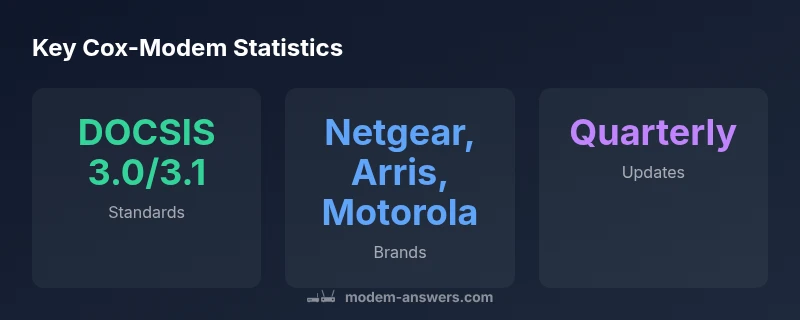
Cox-supported modems are devices Cox explicitly approves on its official compatibility list or confirmed as compatible with Cox activation. To avoid rental fees and activation delays, verify a modem against Cox’s current list before purchase. Most Cox-supported modems use DOCSIS 3.0 or 3.1 standards from major brands, but availability varies by region and plan. Always confirm latest compatibility details on Cox’s site or by contacting support.
Overview of Cox Compatibility and the Modem Approval Landscape
In the realm of home internet, the phrase cox supported modems refers to devices Cox explicitly approves on its official compatibility list or confirms as compatible with Cox activation. This approach protects you from activation delays and rental costs while ensuring the device can negotiate with Cox's network. For homeowners and renters managing their own networks, understanding which modems are on the approved list is foundational. According to Modem Answers, the official Cox compatibility catalog is updated periodically to reflect new devices and firmware changes. In 2026, Cox prioritizes devices that support modern DOCSIS standards, strong security features, and straightforward activation processes. This article explains how to verify compatibility, what standards matter, and practical tips to avoid common buying pitfalls when shopping for a Cox-approved modem.
How Cox Determines Compatibility
Cox determines compatibility by maintaining an official modem list that catalogues models certified for activation on its network. The list is populated through vendor documentation, field testing, and periodic firmware checks. When a device appears on the list, Cox confirms it can activate on compatible speed tiers and service profiles. The process also considers regional network variations, which means a modem that is approved in one market may require a re-check in another. By design, the catalog helps customers avoid activation hiccups and ensures a consistent experience across devices. For 2026, the trend is toward broader support for DOCSIS 3.0/3.1 devices and streamlined activation workflows.
How to Verify Compatibility for Your Home Network
Before buying a modem, perform a quick verification workflow:
- Visit Cox’s official modem compatibility page and search for your model.
- Confirm your plan’s speed tier aligns with what the modem supports.
- Check for firmware updates and ensure the device can obtain activation through Cox’s portal.
- If unavailable online, contact Cox support to verify regional eligibility.
- If you own a router, determine whether you need bridging mode or a gateway device. Following these steps minimizes activation delays and post-purchase issues, particularly in areas with evolving network profiles.
DOCSIS Standards and Their Relevance to Cox Service
DOCSIS 3.0 and 3.1 are the two primary standards seen among Cox-approved devices. DOCSIS 3.0 delivers solid performance for many residential plans, while DOCSIS 3.1 offers improved efficiency, higher peak speeds, and better energy use. Understanding which standard your plan requires helps prevent overpaying for features you won’t use or facing compatibility gaps. When evaluating modems, prioritize devices that clearly list DOCSIS 3.0 or 3.1 support, as this aligns with Cox’s current upgrade trajectory and supports future firmware improvements.
Regional Variations and Activation Considerations
Service-area differences matter for Cox compatibility. Some regions may lag in updating the official list or may have unique activation validation steps tied to infrastructure like fiber rings or older coax networks. Always verify the exact model’s status in your local Cox portal and, if possible, check with a local agent about any region-specific notes. Activation stories often hinge on a clean coaxial connection, proper cable quality, and a supported firmware channel. Planning ahead with regional knowledge reduces activation delays and unexpected equipment changes.
Buying Tips: How to Choose a Cox-Supported Modem
When shopping, start with the official Cox compatibility page and filter by DOCSIS 3.0/3.1 devices. Favor reputable brands with long-term firmware support, clear activation guidance, and positive deployment history in your area. Consider whether you want a modem-only device or a router-gateway combo, and confirm whether you need bridge mode for your existing router. Always compare model specifics against your plan’s maximum advertised speed and latency expectations. Avoid models on the cusp of being deprecated and verify return policies in case the device isn’t compatible after all.
Troubleshooting Activation and Common Issues
If activation stalls, check physical connections first: coaxial cable seated, cable quality, and splitter configurations. Next, confirm the MAC address of the modem is correctly registered with Cox and that you are using the correct activation method (online vs. phone). Firmware updates can impact activation status, so ensure the modem can reach Cox’s activation servers. If issues persist, consider a temporary rental while Cox supports your chosen model and review whether bridge mode settings or DHCP configurations are correct on your network.
Alternatives When Your Modem Isn’t on the List
If your preferred model isn’t Cox-approved, you have options. Use a Cox-approved device or rent a modem from Cox to guarantee activation. Alternatively, you can use a separate modem and a compatible router by configuring bridge mode on the modem and connecting your own router. This setup preserves flexibility and can optimize home network performance, but you may lose certain Cox features like voice services if those are tied to the gateway device.
Quick Reference Checklist for Cox-Compatible Modems
- Confirm device is on Cox’s official compatibility list.
- Verify DOCSIS 3.0/3.1 support and current firmware status.
- Check regional availability and speed tier compatibility.
- Decide between modem-only or gateway devices and test bridge mode if needed.
- Review activation steps in Cox’s portal and keep support contacts handy.
- Consider brand familiarity and firmware update policy when choosing a model.
Cox-compatible modem options and activation steps
| Modem Type | DOCSIS Standard | Activation Method |
|---|---|---|
| Cable Modem | DOCSIS 3.0/3.1 | Online activation via Cox portal |
| Gateway Modem/Router Combo | DOCSIS 3.1 | Auto-activation with Cox account |
| Standalone Modem (bridge mode) | DOCSIS 3.0/3.1 | Bridge mode with existing router |
FAQ
What does it mean when a modem is 'Cox-supported'?
A Cox-supported modem is listed on Cox’s official compatibility page or confirmed as compatible with Cox activation. This status ensures activation proceeds smoothly and your plan’s speeds are achievable. Always verify the model in the Cox portal before purchase.
A Cox-supported modem is on Cox’s official list and should activate smoothly. Check the Cox site to confirm.
Can I use any DOCSIS modem with Cox?
Not all DOCSIS modems are approved by Cox. Use the official compatibility list to confirm models, as older or regional variants may be unsupported and could cause activation or performance issues.
Only models on Cox’s approved list should work reliably.
Will Cox support a bridged modem with my own router?
Yes, you can use a bridged modem with your own router, but some Cox features may not be available. Ensure you configure bridges correctly and test your network performance after activation.
Bridging can work, but you might lose some Cox features.
What should I do if my model isn’t on the list?
Reach out to Cox support to confirm regional eligibility or consider a Cox-approved alternative. Renting from Cox is also a safe option to guarantee activation and support.
If it isn’t listed, contact Cox or rent a device to ensure activation.
How often does Cox update its compatibility list?
Cox updates its compatibility catalog periodically, typically aligned with firmware releases and regional network changes. Check the Cox site regularly for the latest approved models.
The list updates from time to time; recheck periodically.
Do I need a separate modem and router for Cox, or a gateway?
You can use a separate modem and router, or a gateway device, depending on your plan and preference. If you own both devices, consider bridge mode for best control over your network.
You can have separate devices or a gateway, depending on your plan.
“Verifying against Cox's official compatibility list is the fastest way to avoid activation delays and ensure you get the speeds you pay for.”
Key Takeaways
- Check Cox's official compatibility list before buying.
- Prefer DOCSIS 3.0/3.1 modems for broad support.
- Buy from Netgear, Arris, or Motorola models commonly approved.
- Consider regional variations and plan speed when selecting.
- Activate via Cox portal to avoid rental charges.