Difference Between Modem, Router, and Switch: A Practical Guide
Explore the difference between a modem, router, and switch with practical guidance for home networks. Learn when to combine devices or deploy separate hardware for speed, security, and scalability.


Modem, router, and switch perform different jobs in a home network. The modem connects you to the internet service provider, the router creates a local network, manages traffic, and typically provides Wi‑Fi, and the switch adds more wired ports for devices. For many homes, a separate modem + router + switch offers the best balance of control, security, and scalability, while an all‑in‑one gateway prioritizes simplicity. Understanding the difference between the devices helps prevent bottlenecks and misconfigurations. This guide explains the distinction and when to deploy each setup.
What these devices do in a home network
In a typical home network, you will encounter three common devices: a modem, a router, and a switch. The modem is the bridge to your internet service provider; the router creates the local network, handles traffic between devices, and often provides Wi‑Fi; the switch expands the number of wired ports for devices like computers, printers, and smart hubs. Understanding the role of each component helps you design a network that meets your current needs and scales for the future. According to Modem Answers, homeowners who grasp these roles are less likely to overpay for unnecessary gadgets or underperforming setups. When you know the difference between the devices and how they connect, you can plan a layout that minimizes bottlenecks and maximizes reliability. This article will unpack the terminology, illustrate common configurations, and give practical guidance for choosing the right mix for a home of any size.
Key definitions: Modem, Router, and Switch
To avoid confusion, start with clear definitions:
-
Modem: A device that connects your home to the internet service provider. It modulates and demodulates signals so your equipment can communicate with the outside world. In most homes, the modem provides the single uplink to the internet and assigns you a public IP address from the ISP.
-
Router: A device that creates and manages your local network. It forwards data between devices, applies security rules, and typically provides Wi‑Fi. The router uses NAT (network address translation) and DHCP (dynamic host configuration protocol) to assign private addresses to devices on the LAN.
-
Switch: A simple traffic forwarder for wired devices. It increases the number of available Ethernet ports without adding routing or wireless features. A switch sits behind the router in most setups and operates at Layer 2 of the OSI model.
How a Modem actually connects to the internet
Your internet connection begins with the modem, which attaches to the ISP's network via coax, fiber, or copper lines depending on service. The modem's job is to translate signals from the provider into a format your home network can use. Most cable and fiber services assign a single IP address to your home, which the router then shares with devices. The modem itself does not manage devices or traffic; it simply acts as the gateway to the internet. In many setups, the modem may be provided by the ISP, rented, or purchased outright. If you set up your own equipment, ensure the modem is compatible with your service and supports the speeds you expect. Note that some providers require specific modem models or configurations for full performance.
How a Router manages your local network
Once you have internet accessible via the modem, the router sits at the center of your home network. It creates the local network (LAN), assigns IP addresses to devices, and routes data between devices and to the internet. A modern router also handles wireless access, guest networks, parental controls, and firewall protection. Good routers support modern standards (like dual‑band Wi‑Fi 5/6), QoS features to prioritize traffic for video calls or gaming, and settings you can tailor for your home layout. If you rely on multiple wired devices, you’ll likely need a router with sufficient ports and the ability to perform firmware updates over time. In this role, the router is the primary manager of your home’s digital traffic.
What a Switch does for wired devices
A switch is a cost‑effective way to add more Ethernet ports when you run out of the router's built‑in jacks. Switches operate transparently, simply forwarding frames to the correct devices based on MAC addresses. They do not create or manage IP addresses, nor do they run routing protocols. In practice, a switch sits after the router to connect desktops, printers, smart hubs, game consoles, and other devices that require stable, wired connections. For larger homes or offices with many wired devices, a managed switch can offer traffic visibility and VLANs, while an unmanaged switch keeps things simple.
The critical differences: NAT, IP addressing, and routing vs switching
Understanding how NAT and IP addressing differentiate these devices helps explain why you might want separate units. The modem provides the connection to the internet; the router handles network address translation, creates a private IP space for devices, and routes traffic to and from the internet. The switch only forwards data on a local network, without differences in IP addressing or routing. In practice, many people confuse a router with a gateway that includes switching features; the distinction matters for security and performance. If you rely on a single device, you may limit your ability to segment networks for guests or IoT devices. A modular setup—modem + router + switch—offers greater flexibility to upgrade individual parts without replacing the entire system.
All-in-one gateway vs modular setup: Pros and typical use cases
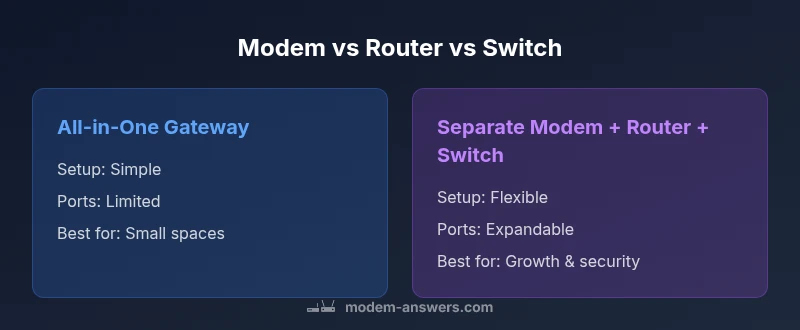
Two broad paths exist for home networks. An all-in-one gateway combines modem, router, and sometimes switch or wireless access point in a single box. It offers minimal setup steps, straightforward management, and compact size—ideal for small apartments or users who want a ‘plug-and-play’ experience. A modular setup uses separate devices for each role. This approach provides better performance through dedicated hardware, easier troubleshooting by isolating issues, and greater future-proofing as speeds or device counts grow. For households with many wired devices, smart-home hubs, or demanding online activities, a modular configuration often outperforms an all-in-one unit. The choice depends on your space, budget, and anticipated growth.
Planning for expansion: ports, cabling, and future-proofing
Plan around ports and cable types. A router with many Ethernet ports or a switch stack gives you room to expand without reconfiguring the network. Use gigabit Ethernet or higher for reliable wired connections, and consider copper versus fiber backhaul depending on your ISP. Also plan for wireless coverage: choose a router that supports the latest Wi‑Fi standard and a mesh extension if your home has dead zones. Consider security features that can be managed centrally, such as updated firmware, guest networking, and device isolation. Finally, keep a clean labeling system for cables and a simple topology diagram so you can troubleshoot quickly as you add devices.
Security and privacy implications of device choices
Device placement and configuration directly impact your home's security. A dedicated router with a strong firewall and regular firmware updates helps reduce exposure to threats. A switch, being relatively transparent, does not add security on its own; it relies on the router's policies for protection. When you separate the roles, you can implement network segmentation (for example, a separate IoT network) and apply different password policies. Modem Answers analysis shows that many homes neglect updates or forget to change default credentials, which increases risk. Prioritize enabling automatic updates where possible, using strong, unique passwords, and disabling WPS on wireless networks to minimize risk.
Practical setup steps: from unboxing to first boot
Before you power on, verify compatibility with your ISP and gather the necessary cables. Start with the modem connected to the internet line, then connect the router to the modem's LAN port to create a local network. If you need more ports, connect a switch to one of the router's LAN ports. Configure the router's SSID and security settings (WPA2/WPA3), set a unique admin password, and enable features like guest networks or QoS if desired. Update firmware to the latest version, and run a quick speed test to confirm that you are achieving expected throughput. Document your network layout so you can reference it during future upgrades.
Common pitfalls and misconfigurations
Poor planning often shows up as wireless dead zones, IP address conflicts, or devices ending up on the wrong network segment. Avoid relying on the ISP-provided equipment for long-term needs; invest in a reliable router and a scalable switch. Keep firmware updated and disable unnecessary services on the router. Misunderstanding NAT can lead to port forwarding failing or gaming lag. Finally, failing to separate guest networks can expose your devices to unnecessary risk. With careful planning, you can avoid these common mistakes.
Step-by-step decision guide for households
Step 1: Assess your space and devices. Step 2: Decide whether you need Wi‑Fi coverage and wired expansion. Step 3: Choose a topology (all-in-one vs modular). Step 4: Acquire components and cable management supplies. Step 5: Set up and secure the network, then monitor performance and adjust as needed. This approach aligns with the core goal of understanding the difference between modem, router, and switch and choosing the right combination for your home environment.
Comparison
| Feature | All-in-One Gateway | Separate Modem + Router + Switch |
|---|---|---|
| Setup complexity | Low | Medium-High |
| Wired expansion | Limited by single device ports | Flexible with a dedicated switch |
| Network control & security | Integrated controls | Advanced controls with separate devices |
| Performance & upgradability | Fixed capabilities | Modular with upgrades |
| Best for | Small spaces/plug‑and‑play | Growth, customization, and better segmentation |
| Cost considerations | Typically lower upfront | Higher upfront (multiple devices) |
Positives
- Greater control and customization
- Easier future upgrades and expansion
- Potentially better security with separate devices
- Scalability for multiple wired devices
What's Bad
- Higher upfront cost and more hardware
- More cables and space required
- More setup complexity
Separate modem, router, and switch generally offers better control and future-proofing.
For most homes, modular setups deliver superior performance and security. All-in-one gateways are convenient but limited when your network grows or requires advanced features.
FAQ
What is the difference between a modem and a router?
A modem connects your home to the internet service provider and handles the external link. A router creates and manages your local network, assigns IP addresses, and typically provides Wi‑Fi. The two roles are distinct but complementary.
A modem brings the internet in; a router builds your home network and Wi‑Fi.
Do I need a switch in a home network?
If you have multiple wired devices, a switch adds ports without burdening the router. It’s especially useful in rooms with many desktops, printers, or smart hubs.
Yes—if you have several wired devices, a switch helps you add ports.
Can I use a single gateway device for everything?
You can, but you trade off expandability and advanced controls. A gateway may be enough for small spaces, but larger homes often benefit from separate modem, router, and switch.
Sure, but you may miss future-proofing advantages.
What is bridge mode and when should I use it?
Bridge mode disables the router function on a gateway so another router can manage the network. It’s useful when you want a separate, more capable router behind a single modem.
Bridge mode lets another router take charge of your network.
How do NAT and DHCP work with multiple devices?
NAT translates private IPs to a public address on the router, while DHCP assigns private IPs to devices. With multiple devices, you typically run NAT on the router and DHCP through the same device.
Router handles IPs and addresses for your home network.
What factors influence the cost of home networking gear?
Costs vary with device count, features, and build quality. A single gateway is usually cheaper upfront, while modular setups incur higher initial expense but offer better long-term value.
More devices and features mean higher upfront cost, but more control.
Key Takeaways
- Identify each device's role early in planning
- Choose modular setups for scalability and control
- Ensure compatibility with your ISP and speeds
- Plan for future wireless and wired expansion
- Prioritize firmware updates and security defaults