Can You Go from Modem to Switch: A Practical Guide
Learn how to expand a home network by adding an unmanaged Ethernet switch after your modem. This guide covers setup, DHCP considerations, and troubleshooting for homeowners and renters.


Yes. You can go from a single modem to a larger, wired network by adding an unmanaged Ethernet switch after the modem. The switch simply extends the number of available Ethernet ports and does not perform routing. Connect the modem’s LAN port to the switch’s uplink port, then plug your devices into the switch. If you also use a separate router, keep its DHCP active and let the router handle IPs.
Understanding the question: can you go from modem to switch
According to Modem Answers, many homes can benefit from adding an unmanaged Ethernet switch after the existing modem. The core idea is simple: expand wired ports without changing the router duties you already have in place. For most households, this means more reliable, stable connections for desktops, smart TVs, gaming consoles, and work-from-home devices. If you were wondering can you go from modem to switch, the short answer is yes—so long as you don’t unintentionally create a second router on the same network. Modem Answers analysis shows that the simplest path is to treat the modem as the internet gateway and place the switch downstream to serve devices. This keeps things predictable for most users and minimizes configuration overhead.
Why a switch helps in a home network
A basic unmanaged Ethernet switch is a plug-and-play device that adds ports. It does not perform routing or firewall duties; instead, it serves as an extension hub for wired devices. This is particularly valuable if your modem has only a couple of Ethernet ports or if you want to avoid wireless congestion on a busy Wi‑Fi network. By inserting a switch after the modem, you can connect more devices with reliable, low-latency wired connections. This is especially beneficial for gaming rigs, home offices, and media centers that require stable throughput. Modem Answers observed that many households see noticeable improvements in latency and consistency when a switch is deployed in a shared network topology.
Key terms you should know before you start
- Modem: The device that connects your home to the internet service provider. It commonly handles basic NAT and DHCP unless you introduce a separate router.
- Switch (unmanaged): A simple device that expands the number of Ethernet ports. It does not route traffic or filter packets.
- Router: If you add a separate router, it will provide DHCP, NAT, and Wi‑Fi (if built-in). Decide whether you want to keep the modem as a bridge or leave it to the ISP’s device.
- Bridge mode: A setting on some modems that disables their routing function so a separate router can manage IPs and firewall rules.
- DHCP: The service that assigns IP addresses to devices on your network. Keeping DHCP on the right device avoids IP conflicts.
These terms help you assess whether you need a router in addition to the switch and how IPs will be managed across your devices.
Basic, switch-only setup: when you don’t use a separate router
In a basic switch-only setup, the modem remains the gateway to the internet, and the switch extends your wired port count. To set up:
- Power off devices briefly if you’re reconfiguring connections.
- Connect the modem’s LAN port to the switch’s uplink port with an Ethernet cable.
- Connect your wired devices to the switch ports.
- Leave DHCP to the modem, or disable it if you’re going to introduce a router later.
The benefit here is simplicity: no configuration required, just plug and play. This setup is ideal for households where a separate router isn’t planned or where the existing router already handles all wireless needs efficiently. If you later add a router, you may want to place the modem in bridge mode or switch DHCP duties to the router to avoid double NAT.
Integrating a router with a switch: when you need advanced features
If you’re aiming for better Wi‑Fi management or more advanced features (guest networks, parental controls, QoS), you might introduce a dedicated router upstream of the switch. In this configuration:
- Keep the modem in bridge mode if available to hand IP management to the router.
- Connect the router’s LAN port to the switch (or use a dedicated uplink from the router to the switch).
- Connect all wired devices to the switch or router depending on your topology.
- Ensure the router handles DHCP and firewall rules, while the switch simply forwards traffic.
A common mistake is leaving the modem in router mode while a separate router exists, which can create double NAT and confusing IP assignments. If you enable bridge mode, verify the router’s inbound connections and port forwarding rules after setup.
DHCP, IP addressing, and avoiding double NAT
Double NAT happens when two devices on the network act as routers and assign IPs, which can disrupt online services, gaming, and VPNs. To avoid this:
- Use bridge mode on the modem if you have a separate router.
- Let the router handle DHCP and NAT; disable DHCP on the modem if bridge mode isn’t available.
- If you’re strictly using a switch with no router, still ensure only one device assigns IPs (usually the modem).
- Verify devices obtain IP addresses in the same range and test connectivity by pinging local devices and external sites.
With a careful setup, you can minimize conflicts and ensure reliable IP management across all devices connected to the switch.
Cable selection, placement, and cable management
Wiring quality matters as much as device choice. Use at least Cat5e or Cat6 Ethernet cables to ensure stable performance, especially for high-bandwidth devices. Place the switch in a central, ventilated location to avoid overheating and keep cables organized with labels or Velcro ties. Running cables along baseboards or behind furniture reduces accidental unplugging and keeps your space tidy. Avoid routing cables near heat sources or power strips to minimize interference.
Troubleshooting common issues you might encounter
- No link light on a port: reseat the cable and try a different port. Test with a known-good device and a new Ethernet cable.
- Slow speeds on wired devices: verify cable categories and ensure the modem’s capacity isn’t the bottleneck; reboot the modem, switch, and router if present.
- IP address conflicts: ensure only one DHCP server is active and check the scope of IP addresses assigned.
- Double NAT symptoms: check bridge mode on the modem or reconfigure DHCP on the upstream router.
If problems persist, consult your ISP and verify that the modem’s firmware is up to date and compatible with your equipment.
Authority sources and further reading
For authoritative guidance on home networking and device configurations, refer to these sources:
- https://www.fcc.gov
- https://www.nist.gov
- https://spectrum.ieee.org
These references provide framework guidance on typical home-network layouts, IP addressing standards, and best practices for consumer networking equipment.
Tools & Materials
- Unmanaged Ethernet switch(8-16 ports recommended for future growth; support for Gigabit Ethernet when possible)
- Ethernet cables (Cat5e/Cat6)(As many as devices you plan to connect; use shorter runs to reduce clutter)
- Modem(Ensure it’s functioning and accessible; consider bridge mode if using a separate router)
- Optional router(Useful for advanced features like QoS, guest networks, and enhanced Wi‑Fi)
Steps
Estimated time: 30-45 minutes
- 1
Identify devices and plan topology
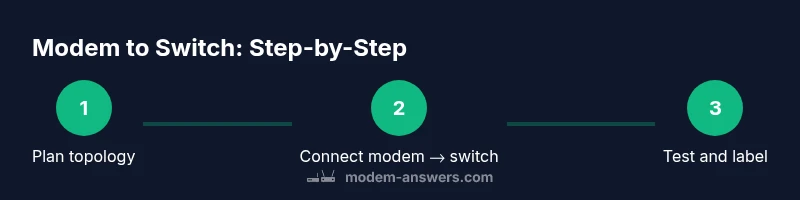
List all wired devices that will connect to the switch (PC, gaming console, smart TVs) and decide whether you’ll add a separate router. This upfront planning helps you choose switch port count and placement. A simple topology is modem → switch → devices.
Tip: Sketch a quick map of your home network to avoid rearranging cables later. - 2
Choose an appropriate unmanaged switch
Select a switch with enough ports for current devices plus future growth. For most homes, an 8- to 16-portGigabit switch balances cost and capacity. Avoid switches with complex software you won’t use.
Tip: Prefer a switch with a solid warranty and good heat dissipation. - 3
Power down and prepare equipment
Power off the modem, switch, and any connected devices before reconnecting cables. This prevents short-lived IP conflicts and ensures a clean start.
Tip: Keep power cables accessible to reconnect quickly. - 4
Connect the modem to the switch
Use an Ethernet cable to connect the modem’s LAN port to the switch’s uplink port. This sets the switch as a downstream hub for wired devices.
Tip: Use a high-quality cable to avoid intermittent drops. - 5
Connect devices to the switch
Plug each device into an available switch port. If you’re using a router, plan where the router will sit in the chain (usually after the modem or upstream of the switch).
Tip: Label ports to simplify future expansions. - 6
Configure DHCP and routing
If you have a router, enable DHCP on the router and disable it on the modem if you’ve set the modem to bridge mode. If not using a router, let the modem handle DHCP and NAT.
Tip: Avoid having two devices serving DHCP to prevent IP conflicts. - 7
Test connectivity and IPs
Power on devices and verify they obtain IP addresses in the expected range. Test internet connectivity from each wired device and ensure stable local network access.
Tip: Run a quick ping test to a local device and to a public site like example.com. - 8
Tidy up and label cables
Organize cables with ties or clips and ensure airflow around the switch. Labeling ports helps future upgrades or troubleshooting.
Tip: Create a small reference diagram for future maintenance.
FAQ
Do I need to disable DHCP on the modem when I add a switch?
Only if you also have a separate router. If the modem is the only router, keep DHCP on the modem. If you introduce a separate router, disable DHCP on the modem or enable bridge mode to prevent IP conflicts.
If you add a separate router, turn off DHCP on the modem or enable bridge mode to avoid IP conflicts.
Will a switch replace my router?
No. An unmanaged switch only adds ports. It does not route traffic or provide firewall features. You still need a router (if you require Wi‑Fi or advanced features).
A switch won’t replace a router; it just adds ports for wired devices.
Can I create a guest network with a switch?
A guest network requires a router or access point with that capability. A switch alone cannot create separate IP ranges or isolate traffic. You’ll need a router or a smart access point for a guest network.
A switch can’t create a guest network by itself; use a router or access point for that feature.
What if I have double NAT after setup?
Double NAT occurs when two devices act as routers. If you see online gaming or VPN issues, check bridge mode on the modem or adjust DHCP/NAT settings so only one device handles routing.
Double NAT can cause problems; switch off one router’s NAT by using bridge mode or disabling one DHCP server.
Is a wired connection always better than Wi-Fi?
Wired connections are typically more stable and lower latency, especially for gaming and streaming. A switch improves wired capacity, while Wi‑Fi remains useful for mobile devices and areas without Ethernet runs.
Wired is usually more reliable, but Wi‑Fi adds flexibility for mobile devices.
Watch Video
Key Takeaways
- Extend wired ports with a switch, not a router.
- Place the switch downstream of the modem for simple setups.
- Use bridge mode or DHCP settings to avoid double NAT.
- Label cables for easy future maintenance.