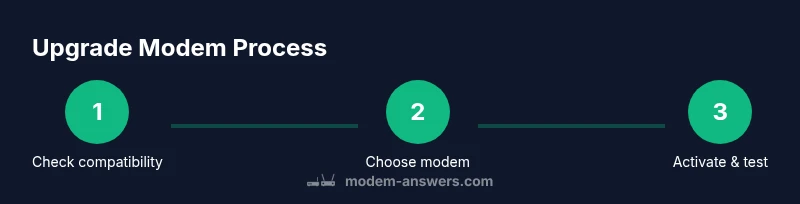
Upgrading Modem: A Practical Home Guide for 2026
Learn how to upgrade your modem with confidence. Check compatibility, compare DOCSIS standards, and optimize installation for faster, more reliable home internet.


Upgrading your modem can boost speeds, reduce buffering, and improve reliability for all your online activities. This guide walks you through evaluating your current setup, choosing a compatible DOCSIS modem, and installing it with minimal downtime. By the end, you’ll know how to buy wisely, activate swiftly, and future‑proof your home network.
Why upgrading your modem matters
Upgrading your modem matters because it directly affects the speed and stability of every device on your home network. A newer modem can handle higher throughput, better support multiple devices, and reduce latency during gaming, video calls, and streaming. According to Modem Answers, most households see noticeable gains when moving from older DOCSIS versions to modern, energy‑efficient models. A well-chosen modem also helps future‑proof your setup against growing service speeds, avoiding repeated upgrades in a short span. If you’re paying for a high‑speed plan, an upgraded modem ensures you’re not bottlenecked at the hardware edge. This decision should balance your current plan, future needs, and budget, with a focus on reliability over flashy features. In practice, upgrading is less about brands and more about compatibility and performance alongside thoughtful placement and configuration.
Why upgrading your modem matters
Upgrading your modem matters because it directly affects the speed and stability of every device on your home network. A newer modem can handle higher throughput, better support multiple devices, and reduce latency during gaming, video calls, and streaming. According to Modem Answers, most households see noticeable gains when moving from older DOCSIS versions to modern, energy‑efficient models. A well‑chosen modem also helps future‑proof your setup against growing service speeds, avoiding repeated upgrades in a short span. If you’re paying for a high‑speed plan, an upgraded modem ensures you’re not bottlenecked at the hardware edge. This decision should balance your current plan, future needs, and budget, with a focus on reliability over flashy features. In practice, upgrading is less about brands and more about compatibility and performance alongside thoughtful placement and configuration.
Tools & Materials
- New modem (ISP-compatible)(Verify DOCSIS version and provider compatibility before buying.)
- Coaxial cable(Ensure it’s in good condition; replace if worn.)
- Power adapter(Included with most modems; ensure it matches your device.)
- Ethernet cable (Cat5e+)(Use for reliable gateway or direct device connections.)
- ISP account login details(Needed for activation and provisioning.)
- Router (optional, if not using a gateway)(Skip if you are using a separate router or a gateway device with built‑in Wi‑Fi.)
Steps
Estimated time: 45-90 minutes
- 1
Check compatibility and plan
Confirm your ISP supports the modem you plan to buy and note the DOCSIS version required for your speed tier. This ensures you won’t buy a device that won’t activate on your network. Also verify if bridge mode is needed for your setup if you plan to use a separate router.
Tip: Pro tip: Use your ISP’s official compatibility list and double‑check MAC address registration before purchase. - 2
Unbox and inspect your new modem
Carefully remove the modem from its packaging and check that the power cable and accessories are present. Inspect for any cosmetic damage. Having everything ready avoids mid‑task delays.
Tip: Pro tip: Keep the box and receipts for warranty and returns if needed. - 3
Disconnect old equipment and prepare connections
Power down and unplug your current modem and router. Disconnect the coax from the old modem and route it to the new device. Prepare an Ethernet cable if you plan to connect a separate router.
Tip: Warning: Do not force connectors or bend cables sharply to prevent damage. - 4
Power up and perform a factory reset
Connect the coax, power the new modem, and let it boot fully. If the device is not new, perform a factory reset to clear previous settings. This ensures a clean provisioning with your ISP.
Tip: Pro tip: Wait 5–10 minutes after first power‑up for initial channel bonding to complete. - 5
Activate with your ISP
Open a browser and navigate to the activation page or call your ISP’s activation line. Provide the modem’s MAC address and model number when prompted. Activation typically finishes within minutes.
Tip: Pro tip: If activation stalls, reboot the modem and try again; ensure you’re connected directly to the modem during activation. - 6
Test speeds and optimize
Run a speed test from a wired connection to verify throughput matches or exceeds your plan. If you’re using a separate router, enable DHCP and adjust Wi‑Fi settings for optimal coverage. Update firmware if prompted.
Tip: Pro tip: Place the router in a central location and avoid metal or concrete barriers for better signal.
FAQ
Do I really need to upgrade my modem?
If your current modem is older than 5–7 years, or if your speeds are capped well below your plan, upgrading can unlock better performance. Modern DOCSIS modems handle higher speeds, offer improved security features, and support faster networks. Consider upgrading when you’re consistently seeing slower speeds or increased buffering.
If your speeds are slower than your plan or you’re buffering a lot, upgrading can help. Modern modems support faster networks and better security.
How do I know which modem is compatible with my ISP?
Check your ISP’s official list of approved modems and confirm DOCSIS version compatibility with your service tier. Contact support if you’re unsure, and ensure the MAC address can be registered to your account.
Look up the approved modem list on your ISP’s site and verify the DOCSIS version.
Renting vs buying a modem: which is better?
Buying a modem often saves money over time and gives you ownership, while renting reduces upfront cost and handles maintenance. If you plan to stay long‑term and want control over updates, buying is usually preferable.
Buying typically saves money long term, but renting is simpler if you don’t want to manage upgrades.
How long does activation take after a modem swap?
Activation is usually completed within minutes, but it can take up to an hour in some cases. If you encounter delays, reboot the modem and re‑start the activation process.
Most activations finish in minutes, but give it up to an hour and reboot if needed.
Should I replace my router at the same time?
If you have a separate router, upgrading can improve range and performance. If you have a gateway device, you may still want to consider a newer router for Wi‑Fi upgrades and better security features.
If you use a separate router, upgrading it can boost Wi‑Fi. If you have a gateway, upgrading the router inside it may be enough.
What maintenance after upgrade is recommended?
Run speed tests to verify performance, update firmware when prompted, and monitor connected devices for any anomalies. Keep an eye on channel changes suggested by your ISP for optimal throughput.
Do a speed check, update firmware, and monitor devices after upgrading.
Watch Video
Key Takeaways
- Upgrade when your plan speeds warrant it.
- Always verify provider compatibility before buying.
- Plan for activation downtime and keep login details handy.
- Optimize placement and router setup for best coverage.