Buy a Modem: A Step-by-Step Guide for 2026
Learn how to buy a modem with confidence. This guide covers compatibility checks, DOCSIS options, price ranges, and practical setup steps to optimize your home network in 2026.


This guide will help you buy a modem that fits your ISP, budget, and home network needs. You’ll learn how to check compatibility, compare DOCSIS options, and complete a smooth setup, activation, and optimization process—without paying for unnecessary features. Follow the steps to confidently buy a modem that stays relevant as your internet plan evolves.
Why buying a modem matters for your home network
According to Modem Answers, choosing the right modem is a foundational step to a reliable home network. The right modem can improve streaming stability, reduce buffering, and help you get the most from your internet plan. In practice, your modem is the bridge between the provider's network and your home devices, and a good match saves money on rental fees while offering room to grow as your household adds devices. A thoughtful modem purchase also helps you avoid compatibility headaches and configure your network in a way that aligns with your usage patterns, whether you stream, game, or work from home. This groundwork pays dividends over time by reducing outages and creating a stable baseline for future upgrades, so you can buy a modem with confidence today.
Key factors to consider before you buy a modem
When you set out to buy a modem, you’re weighing several interconnected factors. First, consider the DOCSIS version: DOCSIS 3.1 generally offers better future-proofing and higher practical speeds than 3.0, but your plan may not require the latest tech right away. Second, decide if you want a modem with built‑in Wi‑Fi or a separate router. A modem-router combo is convenient, but a dedicated router often delivers stronger performance and broader feature support. Third, assess Wi‑Fi standards (Wi‑Fi 5 vs Wi‑Fi 6/6E) and the number of antennas, which influence coverage in multi‑room homes. Fourth, count Ethernet ports and potential speed (1 Gbps vs 2.5 Gbps or higher) for wired devices. Fifth, verify provider compatibility and activation methods. Finally, review firmware update history and the vendor’s support policy to ensure ongoing security and performance.
ISP compatibility and DOCSIS basics
Understanding compatibility is essential before you buy. Some ISPs maintain an approved-modem list and require activation through their network, while others allow self-activation for many models. DOCSIS defines data delivery over cable; DOCSIS 3.1 modems can deliver higher theoretical speeds and better handling of multiple devices. To avoid surprises, use your ISP’s official compatibility page and search for the exact model you’re considering. If plans change or you upgrade your service later, you’ll have a device that remains viable longer. It’s also worth weighing whether you need a standalone modem or a router in the same unit, especially if you want to simplify future upgrades or changes to your home network.
Modem vs gateway vs modem-router combo
Choosing among modem-only, gateway (modem plus router in one), or a separate modem-router setup affects flexibility and performance. A modem-only approach pairs with a separate router you control, enabling advanced features and easier upgrades. A gateway simplifies setup and reduces clutter but can limit advanced customization and peak throughput. A modem-router combo offers a middle ground—space-saving and straightforward, yet potentially locking you into a single ecosystem. In homes with many smart devices, a robust separate router often delivers the most reliable coverage and strongest security updates over time.
How to compare specs and features
Start with a short list of must-haves (e.g., DOCSIS 3.1, at least 4 Gigabit Ethernet ports, optional 2.5 Gbps port) and nice-to-haves (e.g., tri-band Wi‑Fi, MU‑MIMO, USB ports). Then compare the key specs side by side:
- DOCSIS version: Prioritize 3.1 for future readiness.
- Wi‑Fi standard: Look for at least 802.11ac (Wi‑Fi 5); 802.11ax (Wi‑Fi 6) is preferable.
- Antenna configuration: More antennas can improve coverage in larger homes.
- Ethernet ports and speeds: A mix of Gigabit and 2.5 Gbps ports is ideal for fast local networks.
- Security and updates: Ensure ongoing firmware support and security features.
Be mindful that advertised speeds reflect best-case conditions; actual speeds depend on your plan and network conditions. Review real-user feedback to gauge reliability and performance under typical loads.
Where to buy and price expectations
Modem prices vary by features, performance, and brand. Budget models typically sit on the lower end, mid-range units balance price with performance, and premium options emphasize strong Wi‑Fi coverage and advanced security. When planning, compute total cost of ownership: consider rental savings, warranty length, and potential shipping or restocking fees. Compare multiple retailers and look for seasonal deals to maximize value. If you already own a router, you can save by purchasing a modem only and reusing your existing router to keep costs contained. Always confirm return windows and restocking policies before purchasing.
Activation, setup, and testing after purchase
After you receive the modem, the activation process usually goes smoothly if you follow the ISP’s prompts. Connect the coaxial cable, power up the device, and use a computer or mobile device to access the modem’s admin page or the ISP activation flow. Update firmware if prompted and enable Wi‑Fi if your device includes a built‑in router. Run a speed test to verify you’re getting close to your plan’s advertised speeds, and then position the router or gateway to maximize coverage (central location, elevated, away from thick walls). If speeds are off, reboot the device and check connections; persistent issues may require a quick call to your ISP.
Authority sources
For further reading, consult official guidelines from credible sources:
- https://www.fcc.gov
- https://www.consumer.ftc.gov/articles/0053-internet-service-providers
Tools & Materials
- Laptop or smartphone(To browse options, compare specs, and complete the purchase online)
- ISP account details(Needed to verify compatibility and complete activation)
- Credit or debit card(For making the purchase and potential activation fees)
- Speed testing app or website(Optional for post-purchase verification)
- Notepad or bookmarking tool(Keep track of model options and pros/cons)
Steps
Estimated time: 60-90 minutes
- 1
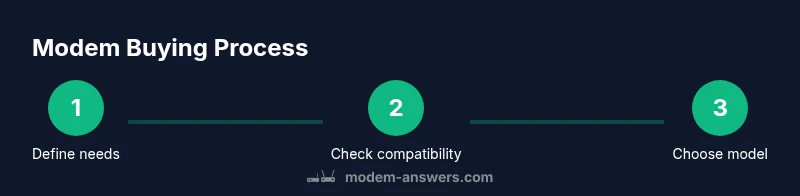
Define needs and budget
List must‑have features (e.g., DOCSIS 3.1, number of wired ports) and set a realistic budget for the modem, router, and any potential accessories. This clarity helps prevent feature creep and saves time during shopping.
Tip: Write down 3 must-haves and your absolute max spend before you start browsing. - 2
Check ISP compatibility and plan
Visit your ISP’s compatibility page and confirm the exact modem models that are approved for your plan. Ensure activation options align with self-activation or technician-assisted activation.
Tip: Use the ISP’s model search tool to avoid incompatibility surprises. - 3
Decide on modem vs gateway vs combo
Choose between a standalone modem, a gateway (modem+router), or a modem-router combo based on your home size, device count, and desire for simplicity.
Tip: If you’re upgrading a large home with many smart devices, a strong separate router usually pays off. - 4
Compare specifications
Create a quick comparison chart and focus on DOCSIS version, Wi‑Fi standard, Ethernet port count, and security features. Check real user reviews for performance in similar homes.
Tip: Prioritize 3.1 DOCSIS and at least Wi‑Fi 6 if your budget allows. - 5
Assess price and return policy
Look at price ranges across retailers, calculate total ownership cost, and verify warranty and return windows. A longer warranty can offset potential early failures.
Tip: Note return windows in case the device doesn’t meet expectations. - 6
Make the purchase
Buy from a reputable retailer or your ISP’s store. Save receipts and product details for future reference and warranty claims.
Tip: Double‑check model numbers and ensure you have activation instructions handy. - 7
Activate and set up
Connect the modem to the coax, power on, and follow the ISP activation flow or access the device’s admin console. Update firmware, enable security settings, and configure Wi‑Fi with a strong passphrase.
Tip: Test speeds after setup and adjust router placement for best coverage.
FAQ
Do I need to buy a modem, or can I rent one from my ISP?
Many households save money over the long term by owning a modem rather than renting from an ISP. Owning also gives you more control over features and future-proofing. Compare the total cost of ownership over several years to determine the best option for your plan.
Owning a modem can save you money over time and gives you more control over features and updates.
What is the difference between a modem and a gateway?
A modem connects to the internet service, while a gateway combines a modem with a router. If you already own a router or want better Wi‑Fi performance, a modem with a separate router is usually preferable.
A modem connects you to the internet; a gateway also includes a router for Wi-Fi.
How do I verify a modem is compatible with my ISP?
Use your ISP’s compatibility page to search for the exact model. If in doubt, contact support with the model number before purchasing.
Check the ISP’s compatibility page and confirm activation options before buying.
Should I buy a DOCSIS 3.1 modem if my plan is slower?
DOCSIS 3.1 is more future-proof and can handle higher speeds as plans evolve, but a DOCSIS 3.0 modem may suffice for current speeds. Consider your projected needs over 2–3 years.
3.1 offers future-proofing; 3.0 may suffice now, but plan for future upgrades.
What should I look for in a modem’s Wi‑Fi features?
If you need Wi‑Fi, choose a modem with a built-in router that supports at least Wi‑Fi 6, multiple bands, and enough Ethernet ports for your devices. Otherwise, you can pair a separate high‑quality router.
Look for Wi‑Fi 6 support and multiple frequency bands for better coverage.
What is the typical activation process after buying a modem?
Connect the device, follow your ISP’s activation flow, and update firmware if prompted. If activation stalls, reboot and contact ISP support.
Connect, activate with your ISP, and update firmware for best results.
What if my ISP requires a specific modem model?
Some ISPs require approved models; always verify the exact model on the ISP’s site before purchasing to avoid issues.
Make sure the model is on your ISP’s approved list before buying.
Watch Video
Key Takeaways
- Define needs and budget before shopping.
- Check ISP compatibility first to avoid wasted buys.
- Prefer DOCSIS 3.1 for future-proofing.
- Compare specs and return policies carefully.
- Test speeds and optimize placement after setup.