Can You Get a Modem? A Practical Guide to Owning or Renting in 2026
Explore how to obtain a modem, whether to rent or buy, and how to choose a compatible, future-proof device. Step-by-step guidance for homeowners and renters from Modem Answers.


Yes—you can obtain a modem in several ways. Most people either rent a modem from their internet provider, buy an unlocked standalone modem that matches their service, or use a modem-router combo. Ensure the device is DOCSIS 3.0/3.1 compatible for your provider, and confirm activation requirements and any firmware support before purchase.
What does it mean to get a modem?
Getting a modem means acquiring a device that connects to your broadband network and modulates the signal for your home. You can obtain a modem in several ways: rent from your ISP, buy a standalone modem, or opt for a modem-router combo that includes Wi‑Fi. For most households, a standalone modem paired with a separate router offers flexibility, easier future upgrades, and potential long-term savings. According to Modem Answers, the right modem should support your provider's network through recognized standards like DOCSIS, and it should align with your service tier. When you purchase, verify activation steps and any firmware requirements to avoid activation delays. This knowledge helps homeowners and renters choose confidently rather than guessing at compatibility.
What does it mean to get a modem?
Getting a modem means acquiring a device that connects to your broadband network and modulates the signal for your home. You can obtain a modem in several ways: rent from your ISP, buy a standalone modem, or opt for a modem-router combo that includes Wi‑Fi. For most households, a standalone modem paired with a separate router offers flexibility, easier future upgrades, and potential long-term savings. According to Modem Answers, the right modem should support your provider's network through recognized standards like DOCSIS, and it should align with your service tier. When you purchase, verify activation steps and any firmware requirements to avoid activation delays. This knowledge helps homeowners and renters choose confidently rather than guessing at compatibility.
Tools & Materials
- Coaxial cable (for activation)(Ensure it’s in good condition and provides a solid connection)
- Ethernet cable (Cat5e or better)(For connecting modem to router or devices)
- Power outlet(Stable power supply near the installation spot)
- Modem (standalone) or modem-router combo(Choose DOCSIS 3.0/3.1 compatible with your provider)
- Proof of service address(Needed during activation with your ISP)
- Payment method(Credit/debit card or provider account for activation/purchase)
- Optional router(If you’re buying standalone modem and want Wi‑Fi in one device)
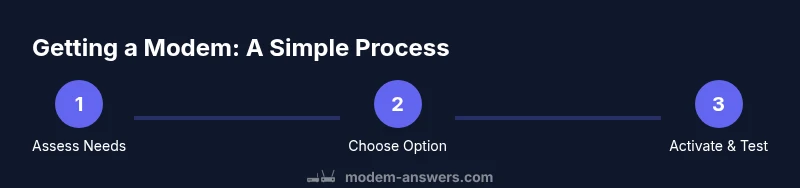
Steps
Estimated time: 1-2 hours
- 1
Assess your needs
Define whether you want to rent or own, and decide if you’ll use a separate router or a combo device. Consider your home size, device count, and future-proofing needs. This helps you avoid overpaying for features you don’t need.
Tip: Write down your current internet plan to verify compatibility with potential modems. - 2
Check provider compatibility
Consult your ISP’s approved device list or site to confirm that your chosen modem is compatible. Some providers require specific DOCSIS versions and firmware for activation.
Tip: Avoid devices not listed by your provider; otherwise activation can fail or be denied. - 3
Decide between standalone modem vs. modem-router
If you want built‑in Wi‑Fi, a modem-router combo is convenient. If you already own a high‑quality router, a standalone modem might save money and give you more flexibility.
Tip: A standalone modem with a separate router often offers easier future upgrades. - 4
Purchase or rent
Shop for a device that meets DOCSIS 3.0/3.1 standards and supports your plan’s speeds. If buying, keep the return window in mind and compare total costs over the contract period.
Tip: Keep purchase receipts and warranty information in a dedicated folder for returns or support. - 5
Prepare for activation
Have your service address and account details ready. Some providers require a phone number or account ID for provisioning.
Tip: If activation is online, log in to your provider’s portal in advance to speed up the process. - 6
Connect the hardware
Connect the coaxial cable to the modem, then connect the modem to a power outlet and to the router (if you are using a separate router). Ensure all cables are snug.
Tip: Never overtighten connectors; gentle snug is enough to avoid damage. - 7
Activate the modem
Follow your ISP’s activation steps—this may involve calling support or visiting an activation page. Give them the device’s MAC address if asked.
Tip: If activation stalls, restart the modem and try again after a few minutes. - 8
Test the connection
Run speed tests and ensure wired and wireless devices connect reliably. Check for consistent performance across multiple devices.
Tip: Test both upload and download speeds to confirm the plan is delivering as expected. - 9
Secure your network
Update admin credentials, enable WPA3 if available, and configure a strong SSID. Disable WPS to improve security.
Tip: Document your network name and password in a secure place. - 10
Maintain and plan ahead
Keep firmware up to date and monitor for any performance changes. Consider a future upgrade path if your home needs grow.
Tip: Set calendar reminders to check for updates at least twice a year.
FAQ
Can I use my old modem with a new provider?
Only if the modem is compatible with the new provider’s network and appears on their approved device list. Activation is still required, and some providers may lock devices to their service.
Yes—if your old modem is compatible with the new provider, you can activate it. Otherwise, you’ll need a supported device.
What is the difference between a standalone modem and a modem-router combo?
A standalone modem connects to a router for network distribution; a modem-router combo integrates both functions in one device. The choice affects upgrade paths and Wi‑Fi management.
Standalone modems separate the Wi‑Fi from the modem, while a combo includes built-in Wi‑Fi.
Do I need to pay upfront for a modem?
If you buy, you pay upfront. If you rent, the cost is spread over time. Compare long-term costs, including rental fees versus purchase price and potential warranty.
Upfront cost depends on buying or renting; ownership can save money over time but requires an initial outlay.
Will buying my own modem save money?
Often yes in the long run, especially if you stay with the same provider for years. However, consider recurring rental fees and potential upgrade costs.
Buying can save you money over time, but run the math against rental costs and future upgrades.
How do I activate a new modem?
Connect the modem, ensure all cables are secure, and follow your provider’s activation flow—online portal, app, or a simple phone call. Have your account and device MAC address handy.
Plug it in and follow your provider’s activation steps in the app or website.
Watch Video
Key Takeaways
- Identify whether renting or owning is best for you.
- Verify DOCSIS compatibility and provider approval before purchase.
- Choose between standalone modem + router vs modem-router combo based on needs.
- Activate promptly and test both wired and wireless performance.
- Maintain security settings to protect your home network.