How to Power Cycle Your Xfinity Modem (A Practical Guide)
Learn how to power cycle an Xfinity modem to resolve common connectivity issues. Step-by-step instructions, safety tips, and troubleshooting for gateway and modem-only setups. Keep your home network healthy in 2026 with Modem Answers.


To power cycle your Xfinity modem, unplug the device from power for 30 seconds, then plug it back in. Wait for all status lights to stabilize and for the service to re-sync with the network. If you have a separate gateway or a combined modem-router, repeat the reset on each device.
Why power cycles matter
Power cycling is a safe, repeatable way to clear temporary glitches that accumulate in home networking gear. When you run into flakey Wi‑Fi, slow speeds, or devices that won’t obtain an IP address, a reset can reinitialize the device’s software and hardware without changing settings. According to Modem Answers, a simple xfinity modem power cycle can refresh the device’s connection to the provider, reissue DHCP leases, and reset internal caches that may become clogged over time. This is not a substitute for a firmware update, but it is a first-line, low-risk remedy you can perform in minutes. For households with a discontinuous internet experience, a quick cycle often re synchronizes service after outages or maintenance windows, restoring reliable performance without needing a technician. Understanding what a power cycle does helps you decide when to use it, and how often it should be part of your routine maintenance. The goal is to reseat the path between your home network and the ISP, so you get fresh authentication with the Xfinity network and a clean slate for device DHCP requests.
When to perform a power cycle
You don’t need to power cycle every day, but there are several common situations where this quick reset is the right first step. If devices intermittently drop wifi, if pages load slowly, or if a new device fails to obtain an IP address, a power cycle can re‑establish the link to the ISP. After a service outage or a planned maintenance window, a cycle can help your network re‑establish the correct DHCP leases and route traffic again. If you recently changed the modem or gateway, or if your home's wiring was disturbed (for example, during remodeling), a power cycle ensures the new configuration is properly registered by the equipment and the provider. In 2026, many households rely on a single modem or a gateway, so this practice becomes part of regular troubleshooting for reliable performance.
Device configurations: modem-only vs gateway
Xfinity offers several hardware configurations, and the power cycle steps differ slightly depending on whether you have a pure modem, a gateway with built‑in router, or a separate router connected to a modem. For a modem-only setup, the power cycle affects only the modem and any connected coaxial cables. In a gateway setup, you should reboot both the gateway and its modem when you’re troubleshooting. If you are using a modem-router combo, apply the cycle to the entire device after unplugging the power. These variations matter because the DHCP server and the device's own firmware might reset differently depending on the architecture. Always ensure the coax connection is snug before cycling and avoid unplugging the coax while the device is powered. Following the correct sequence minimizes downtime and reduces the chance of creating new issues during the reset.
Initial checks before power cycling
Before you reach for the outlet, perform a quick check to avoid wasteful attempts. Confirm there is no ongoing outage in your area by checking Xfinity’s status page or your provider's outage map. Inspect all cables: coax, ethernet (if present), and the power cord, ensuring they are snug and undamaged. If you use a surge protector or a UPS, make sure the device isn’t turned off or in a low-power mode. Write down the current time and note any abnormal lights you see on the modem or gateway, as these indicators guide whether the device is actually stuck or simply rebooting. If your modem has a battery backup, remember that the battery may temporarily extend uptime but won’t fix connectivity issues. These checks save time and help you interpret the results after you power cycle.
Step-by-step power cycle overview (timing and sequence)
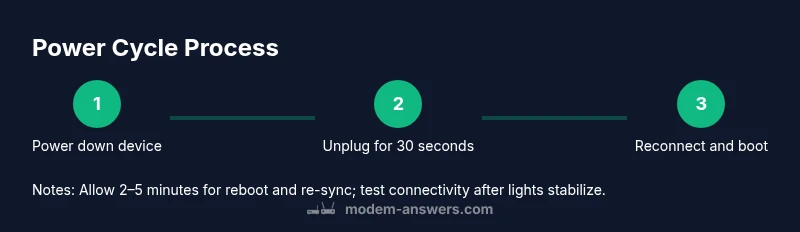
A correct power cycle consists of three phases: power down, wait, and power up. The exact timing affects how quickly your service reinitializes. The typical sequence is: unplug device(s) from the power outlet, wait at least 30 seconds to discharge internal capacitors, plug back in and listen for boot sequence, wait 2–5 minutes for the device to re‑establish a connection with the ISP, test with a device connected to your Wi‑Fi or via Ethernet. If you have multiple devices (modem and gateway), perform the cycle on one, then the other, allowing each to fully boot and stabilize before testing. This method minimizes downtime and avoids creating dual-NAT or IP conflicts. Always avoid yanking the power cord or unplugging other devices during the boot process, which can interrupt the firmware update if one is underway. After the lights settle, run a quick speed test to verify performance.
Common issues that power cycling can fix
Power cycling can resolve a surprising number of issues caused by temporary firmware hiccups or DHCP lease problems. If your devices show intermittent Wi‑Fi, random disconnects, or pages that fail to load, a cycle often resets the path between your devices and the ISP. It is also effective after you reconnect a new modem or after a service outage. In many homes, the problem is not the Wi‑Fi plan but a stale IP lease that a cycle refreshes automatically. If you still have issues after a cycle, consider testing with a wired connection to separate the issue to Wi‑Fi hardware or the ISP link. The Modem Answers team emphasizes that a cycle is a first step, not a cure for all network problems.
How to power cycle safely with a gateway
When your home uses a gateway (modem with integrated router), a power cycle should target the entire device and, if needed, the connected router. Start by unplugging the gateway from the power source, wait 30 seconds, then reconnect. If your gateway has a separately powered router, restart both, starting with the modem portion to ensure the network identity is reset before the router boots. After reconnecting, give the system 2–5 minutes to re-negotiate connections and reissue DHCP leases. The gateway’s status lights will guide you: a stable online indicator usually means the reboot completed successfully. If your network still seems slow, check your wired connections and consider a firmware check in the device’s admin interface.
Advanced tips for uptime and reliability
To reduce the need for frequent resets, consider implementing a few best practices. Place your modem and gateway in a cool, open area away from heat sources and direct sunlight, allowing unobstructed airflow and minimizing heat-related slowdown. Use a quality surge protector or UPS to protect from power fluctuations and outages, which makes a cycle unnecessary during short outages. Keep the firmware updated by enabling automatic updates if your device supports it, and check your ISP’s recommended settings for your area. Regularly log uptime and outages to identify patterns, and schedule periodic maintenance (for example, a monthly cycle) during calm hours. By combining proactive maintenance with careful monitoring, you can sustain strong speeds and reliable Wi‑Fi across rooms.
When to contact Xfinity support
If a power cycle does not resolve the issue after several attempts, or if you notice persistent outages, contact Xfinity support. They can check line quality, perform remote diagnostics, or replace a faulty modem/gateway. Be prepared to provide the device’s serial number and the MAC address, along with recent outage reports and the times you performed cycles. If you suspect a coaxial line problem, inform the agent so they can guide you through line checks or dispatch a technician. The goal is to differentiate between a local device problem and a provider‑side fault, which can save you time and frustration.
Quick-start checklist for DIY home network health
- Verify you have the latest firmware updates installed on your Xfinity device.
- Confirm you are power cycling the correct hardware components (modem, gateway, router).
- Check coaxial cable and power connections for tightness and damage.
- Record the results of tests (speed, latency) after each cycle.
- Schedule regular maintenance and monitor outages to spot recurring issues.
- Keep a simple log for reference when you reach out to support.
Tools & Materials
- Xfinity modem and gateway (if applicable)(The devices you will power cycle)
- Power outlet or surge protector(Prefer a surge protector to guard against power spikes)
- Coaxial cable tester (optional)(To verify line integrity if issues persist)
- Ethernet cable (optional)(For wired speed tests)
- Smartphone or computer for testing connectivity(To run speed tests and verify connection)
- Notebook and pen (optional)(To log times and observations)
Steps
Estimated time: 5-15 minutes
- 1
Power down devices
Unplug the modem from the power outlet. If you have a gateway, unplug the gateway as well. Do not unplug the coax cable. This initiates a clean reset without altering settings.
Tip: Use the same outlet to avoid introducing a different power source during the boot. - 2
Wait 30 seconds
Leave devices unplugged for at least 30 seconds to discharge internal capacitors and ensure a full reset.
Tip: If you’re using a UPS, disable any timer features that could automatically restart devices. - 3
Reconnect power
Plug the modem back into power and turn it on. If you have a gateway, plug the gateway back in after the modem has booted.
Tip: Listen for the startup chimes or wait for the first set of lights to illuminate. - 4
Wait for boot and sync
Allow 2–5 minutes for the device to re‑establish a connection with the ISP and reissue DHCP leases.
Tip: Avoid performing speed tests during this window to get an accurate result. - 5
Test connectivity
Connect a device to the network (Wi‑Fi or Ethernet) and run a quick speed test to verify performance.
Tip: Test both wired and wireless connections if available to identify where issues might lie. - 6
Document results and decide next steps
Record whether the cycle resolved the issue. If problems persist, consider repeating or escalating to support.
Tip: Note the exact times you cycled power and the observed lights indicators for faster diagnosis.
FAQ
What is power cycling and why does it work on an Xfinity modem?
Power cycling restarts the device by cutting power, which clears temporary memory and resets network state. It fixes many transient issues without changing settings. On Xfinity devices, this often re‑establishes DHCP leases and re-syncs with the provider.
Power cycling restarts your modem to clear glitches and re-sync with the network.
How long should I wait after powering on the modem?
Give the modem or gateway 2–5 minutes to re‑establish a connection with the ISP and settle on stable lights before testing.
Wait a few minutes for the device to boot and re-connect.
Should I power cycle my router separately?
If you have a separate router, reboot it after the modem completes its cycle to avoid routing conflicts and ensure the router receives a fresh configuration.
Yes, reboot both modem and router if you have both.
What if the lights don’t stabilize after power cycling?
Check coax connections and confirm there’s no provider outage. If the issue persists, log the lights sequence and contact support for line diagnostics.
If lights don’t stabilize, check cables or contact support.
Can power cycling fix persistent outages on Xfinity?
Power cycling fixes temporary glitches, but persistent outages may require provider diagnostics or hardware replacement.
It helps with temporary issues, for ongoing outages contact support.
Is it safe to power cycle during firmware updates?
Do not interrupt firmware updates. If you start an update, wait until it completes before rebooting.
Don’t unplug during a firmware update.
Watch Video
Key Takeaways
- Power cycling is a safe, first-line fix for common Xfinity connectivity issues.
- Different hardware (modem-only vs gateway) require slightly different reboot approaches.
- Allow 2–5 minutes for the device to re-sync after a power cycle.
- If issues persist, escalate to Xfinity support with the incident details.