Why Is My Modem Connected Without Internet? A Troubleshooting Guide
Explore why your modem shows a connection but no internet, with a step-by-step diagnostic flow, practical fixes, and prevention tips to restore service quickly. Learn DNS, DHCP, bridging, and provider considerations with Modem Answers.


Understanding the symptom: why is my modem connected without internet
When devices show a connected status on Wi‑Fi or Ethernet but you cannot load web pages, the issue isn’t simply a broken cable. You’ll often hear homeowners ask, why is my modem connected without internet, and what should I check first? According to Modem Answers, the root cause is usually a local network issue rather than a full ISP outage. A solid connection light can persist while the upstream gateway cannot assign a proper route or DNS resolution fails. This distinction matters because it tells you which layer to test first: physical cabling and login, LAN settings, and then DNS/DHCP configuration before assuming the provider is at fault. Common culprits include a misbehaving router, a stale DNS cache, or an IPv6/IPv4 mismatch that prevents proper routing. The good news is that most cases respond to a structured approach you can perform without specialized tools. The steps below guide you from quick checks to precise diagnosis, so you can restore service quickly and with confidence. The Modem Answers team emphasizes patience and method over guessing, especially in households with multiple devices and smart-home hubs.
Common underlying causes you should suspect first
- DNS resolution failure: The device can reach the local network but cannot translate domain names to IPs. A wrong DNS server setting or a cached entry can block web access even when the link is alive.
- DHCP or IP address conflicts: If the modem or router fails to assign a valid IP, devices may appear connected but have no internet path.
- Router misconfigurations: Incorrect NAT, firewall settings, or bridging mode can isolate your devices from the internet.
- ISP-side issues: A temporary outage or gateway issue can affect many customers; the modem may stay online while traffic cannot route externally.
- IPv6/IPv4 mismatch: Some networks prefer one protocol and deny the other, causing some devices to fail to reach destinations.
Based on Modem Answers analysis, these problems are often resolvable with changes to simple settings or a brief reboot, rather than a service visit. Test one potential cause at a time, documenting results as you go so you don’t chase non-existent faults.
Quick checks you can perform right now
- Check the physical layer: Ensure all cables are snug, the coaxial/ethernet cable is undamaged, and the modem’s power light is steady. If your lights blink or show an error, note the pattern before rebooting.
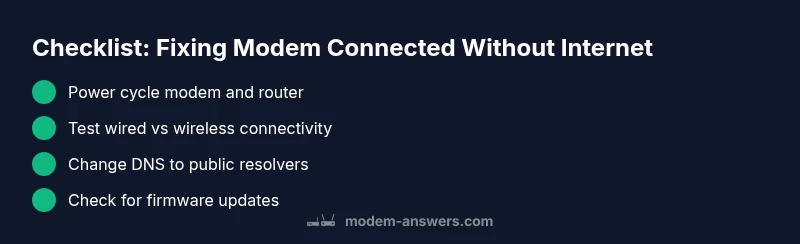
- Reboot in the right sequence: Power off the modem, wait 60 seconds, power on the modem first, then the router. Allow 2–3 minutes for full boot and re-test.
- Test with a wired connection: If you’re on Wi‑Fi, try a direct Ethernet connection to rule out wireless issues.
- Try a different device: If one computer can reach some sites but not others, the problem may be device-specific.
- Check DNS settings: For quick tests, temporarily set the DNS to a public provider like Google (8.8.8.8, 8.8.4.4) or Cloudflare (1.1.1.1).
- Look for out-of-date firmware: Access the admin page and see if there’s a pending update that could fix routing issues.
- Check for service status: Visit your ISP’s status page to see if there’s a known outage in your area.
If this doesn’t fix the issue, move to the diagnostic flow below.
Diagnostic flow: symptom → diagnosis → fixes
- Symptom: Modem shows a strong link but no internet on devices. Diagnosis: DNS or DHCP or gateway misconfig. Fixes: restart devices, flush DNS, check IP assignment.
- If issue persists: verify gateway address (typical ranges like 192.168.0.1 or 192.168.1.1) is reachable; ping the gateway to ensure the router can reach the modem.
- If gateway is unreachable: test with a direct modem connection and bypass the router to isolate the problem.
- If DNS is failing: change DNS servers or flush caches; test with a known website that’s likely cached.
- If IP address is wrong: release/renew DHCP, or set a static IP in the same subnet temporarily to verify routing.
- If all else fails: perform a factory reset and reconfigure from scratch, then re-test connectivity.
This flow helps you move from simple checks to deeper fixes without assuming provider outages. If you can’t reach your router or the admin page, this indicates a more serious hardware issue or a service interruption.
Deep dive: DNS, IP, and gateway issues
DNS is the phonebook of the internet; when it misbehaves, domain names fail to resolve even though the underlying connection is alive. IPs can be assigned incorrectly if the DHCP server isn’t issuing leases or if you have a stale static IP conflict. Your gateway—the device that routes packets to and from the internet—must be reachable and properly configured; otherwise, you’ll see a connected status with no outbound traffic. Tools you can use include ping and traceroute, and nslookup or dig. If your network struggles with IPv6, you can experiment by disabling IPv6 to see if IPv4 traffic resumes. Clearing local DNS caches (ipconfig /flushdns on Windows, sudo dscacheutil -flushcache on macOS) or setting reliable DNS servers often resolves many issues. Document any changes so you can revert if needed, and avoid rushing to replace hardware unless all other tests fail.
Router vs modem: role, bridging, and misconfigurations
A modem connects you to the internet; a router distributes that connection to devices and manages traffic. If the router is misconfigured, your devices may stay connected to the local network but cannot reach the internet. Common misconfigurations include bridge mode enabled unintentionally, incorrect NAT or firewall rules that block outbound traffic, or a miswired setup when using separate devices. In many homes, a combined modem-router unit requires careful setup; if you use a separate router, ensure bridge mode is off and the router handles DHCP and NAT. To diagnose, place the router in front of the modem temporarily and test a wired device directly to the router. If the problem persists, test with the router bypassed to determine whether the issue lies with the modem or ISP equipment. Always back up configurations before making advanced changes to prevent lockouts.
When to call your provider or a professional
If routine checks and fixes fail, or your ISP reports an outage, contact your provider. In advance, document the exact symptoms, LED patterns, and times you noticed the problem to speed up diagnostics. A technician can verify line quality, modem tuning, and gateway reachability at the service node. If you rent, ask about device diagnostics and potential replacements, since some issues are outside your home network. Do not hesitate to escalate if you’re not receiving timely updates. A pro can help you determine whether a polymer fault in the line, a faulty modem, or an external outage is the root cause.
Prevention and best practices to avoid future outages
Maintain your home network with regular firmware updates, periodic reboots, and a simple test routine to verify internet access weekly. Use stable DNS providers and document your network map, including IP ranges and device responsibilities. If you have a multi‑user home, label cables and keep a small spare set of connectors. Establish a baseline by noting your typical speeds and latency so you recognize outages quickly. These habits reduce repeat outages and speed recovery when issues do occur, helping you stay ahead of future connectivity hurdles.